

Part 2 · Clients, sales and relationships
Members
Keep the member register of an association or non-profit, collect fees, open a portal to members and hold the general meeting through to the vote.
Watch it

The Membres (Members) application keeps the register of an association, a non-profit, a federation of organizations or a co-operative. It serves whoever welcomes members, whoever collects the fees, and the secretary who prepares the general meeting. The result: you know, without opening three files, who is a member in good standing today, since when, who represents a member organization and who has not renewed.
The modules were written in French, and the English interface shows their menus, fields and buttons in French. This chapter quotes them as the screen shows them, with their meaning in parentheses the first time.
Overview#
Three notions carry the application.
- The membership category: regular, supporting, honorary, family, organization. It sets who may join, the fee, the period, the voting right and the admission rule.
- The membership: one member, one category, one period. It carries two separate states, the membership's (Demande (request), À payer (awaiting payment), En règle (in good standing), Échue (expired), Retirée (withdrawn), Refusée (refused)) and the payment's (À payer, Payé (paid), Exempté (exempt)).
- The member: a contact from the Contacts application, person or organization. It gets a stable member number and a status for today: Membre en règle (in good standing), En grâce (in grace), En attente (demande ou paiement) (pending request or payment), Ancien membre (former member) or Non membre (not a member).
The payment is recorded whatever its source: invoice, Zeffy, Stripe, cheque, cash, transfer, external platform. No invoice is needed to know who is a member.
A member organization votes through a person: its voting delegate. Its other delegates attend or stand in.
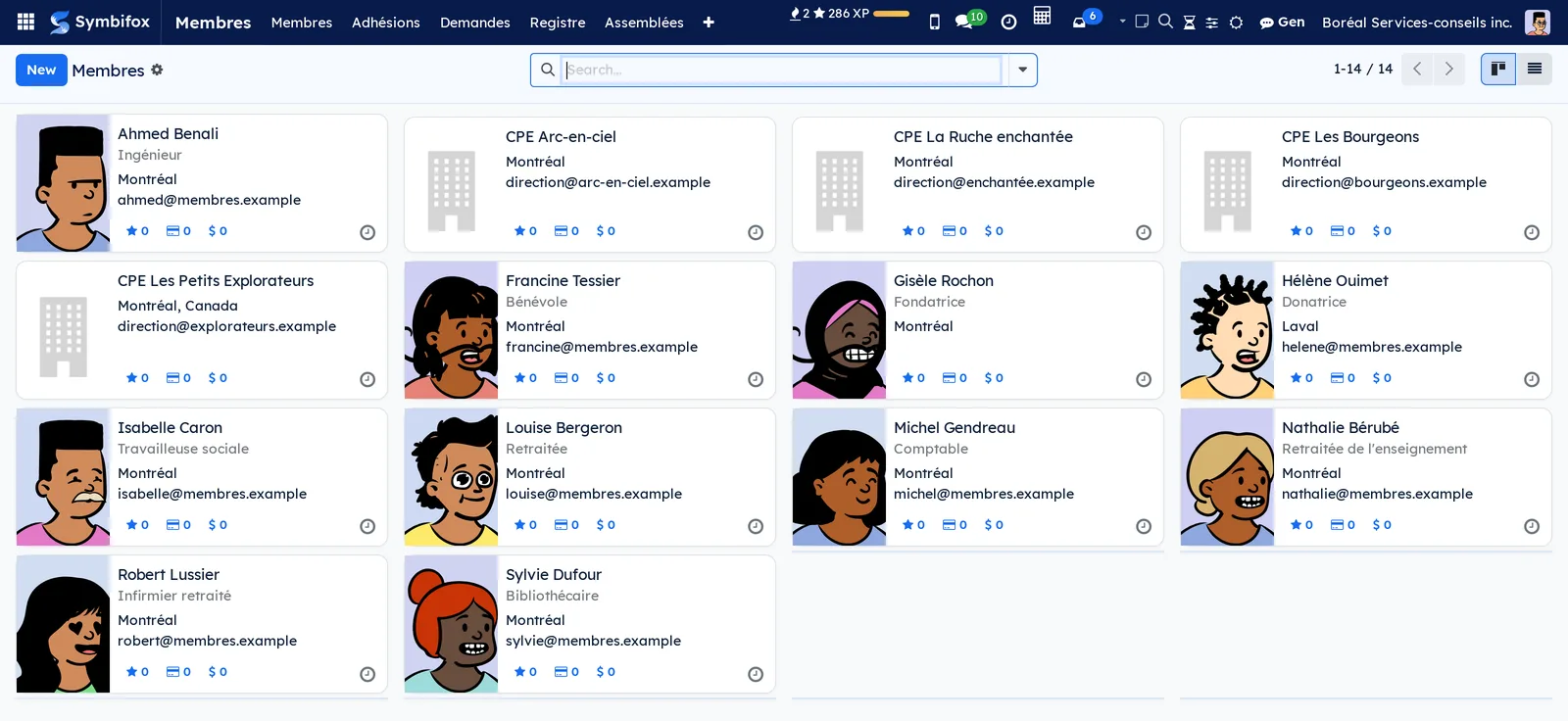
The demo holds a sample register: people on a fiscal year running from April 1 to March 31, an honorary member, a supporting member and three daycare centres (CPE). An organization's request awaits the board. Last year's annual meeting is closed, and this year's is convened.
The application ties into Contacts, Invoicing and the corporate governance of the Knowledge base, where the meeting's resolutions are recorded.
Configuration#
Access and permissions#
The application adds two roles, set in the Membres section of the user form.
| Role | What it opens |
|---|---|
| Agent | Keep the register (memberships, payments, decisions, delegates, withdrawals) and hold meetings. Invoice the category's fee and issue the receipt for a paid invoice. Deletes neither a membership nor a meeting. |
| Responsable (manager) | Everything an agent does, plus categories, list import, correcting a number, invoicing another amount, the receipt for a fee recorded by hand, and deleting what never made anyone a member. |
An employee with neither role sees no membership and no meeting, and a contact's form does not tell them whether the contact is a member. Membership can reveal a person's health, beliefs or allegiances, which Law 25 (Québec's Act respecting the protection of personal information in the private sector) protects.
Réglages (settings) are Odoo's Settings: only an administrator turns on reminders, sets up tax receipts and opens the directory. Recording a resolution in the corporate register also requires the corporate governance Gestionnaire (manager) role.
Settings#
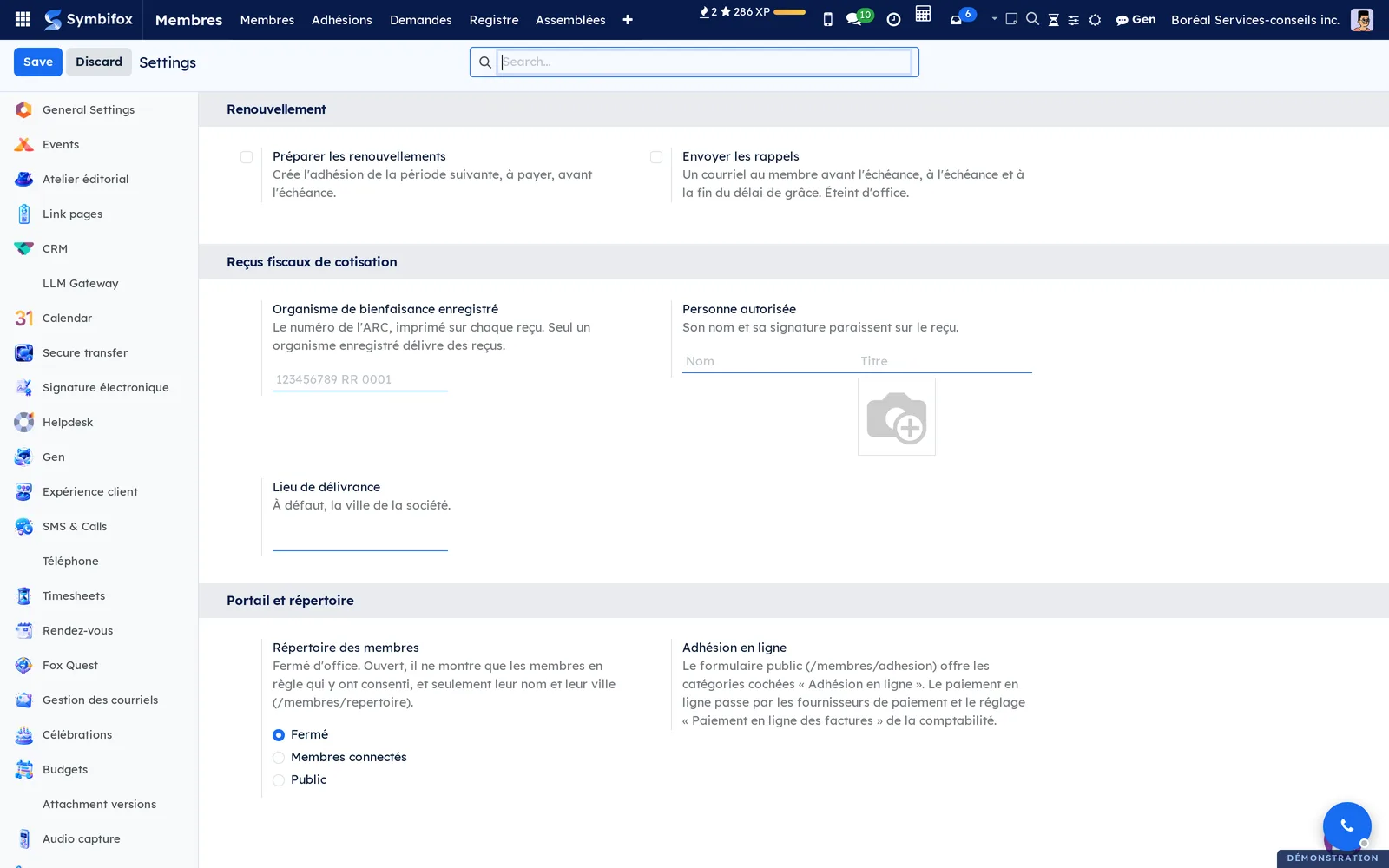
Go to Membres › Configuration › Réglages. Three blocks appear there.
- Renouvellement (renewal): Préparer les renouvellements (prepare renewals) creates next period's membership ahead of time, awaiting payment. Envoyer les rappels (send reminders) emails the member before the end date (30 and 7 days by default), on the end date and at the end of the grace period. Both are off by default.
- Reçus fiscaux de cotisation (membership-fee tax receipts): Organisme de bienfaisance enregistré (the CRA registration number), Personne autorisée (authorized signer: name, title and signature) and Lieu de délivrance (place of issue).
- Portail et répertoire (portal and directory): the Répertoire des membres (members directory), Fermé (closed) by default, Membres connectés (logged-in members) or Public, and a reminder about Adhésion en ligne (online signup), which is checked on each category.
Base data#
Create the categories first (see Create a membership category), then import your existing list (see Import an existing list). Name the delegates of member organizations, and check Accepte les avis par courriel (accepts notices by email) on members who agreed to it.
Getting started#
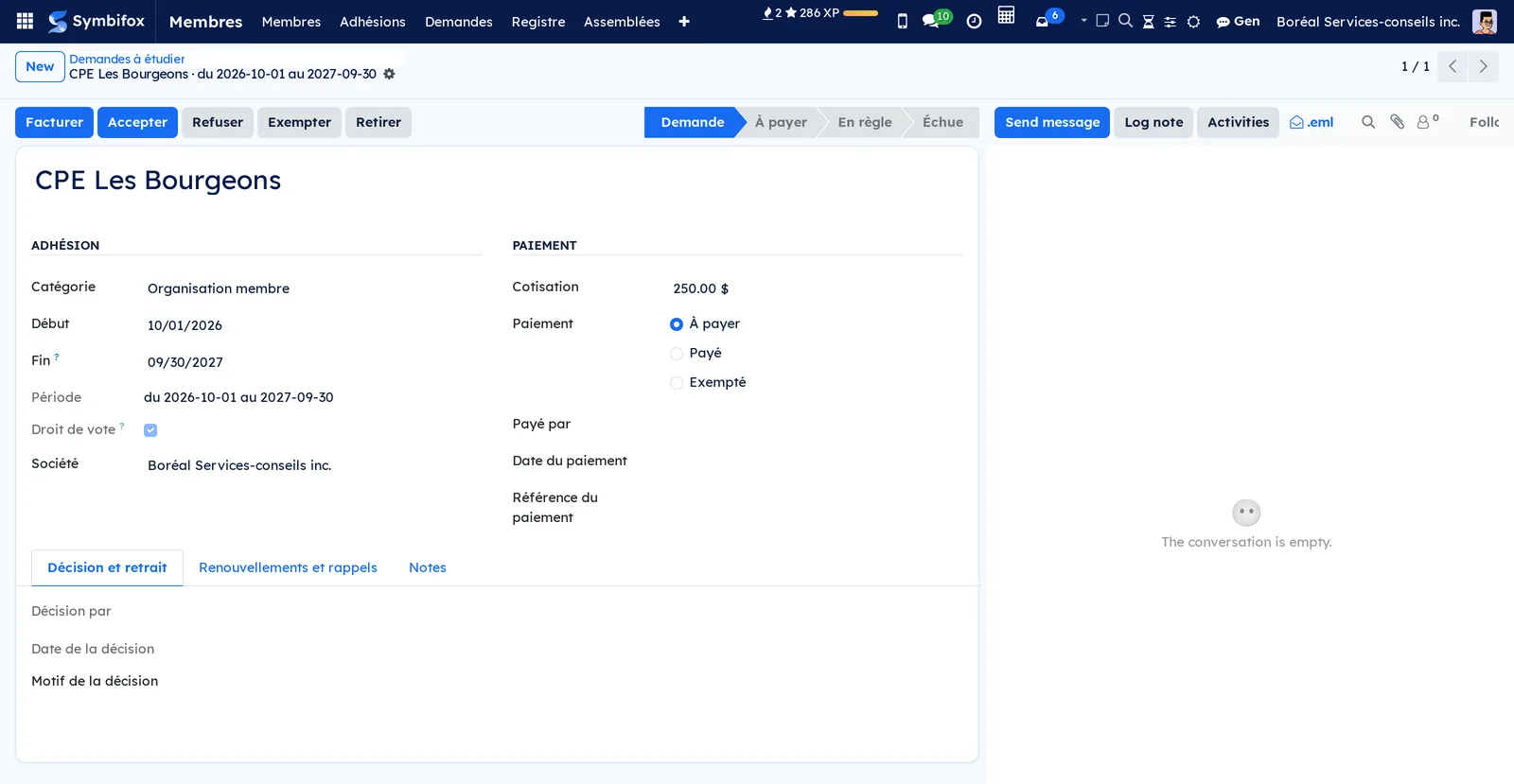
This walkthrough accepts the membership request of CPE Les Bourgeons, records its fee and makes it a member in good standing.
- Go to Membres › Demandes (requests). The list shows CPE Les Bourgeons, category Organisation membre.
- Open the request. Its state is Demande, and the payment À payer.
- Select Accepter (accept). The membership moves to À payer.
- In the Paiement (payment) block, choose Virement (transfer) in Payé par (paid by).
- Select Noter le paiement (record the payment). The membership moves to En règle, and the member number appears under the name.
- Go to Membres › Membres: CPE Les Bourgeons is listed among members in good standing.
Common tasks#
Create a membership category#
- Go to Membres › Configuration › Catégories and select New.
- Enter the name, for example “Membre régulier”, and a Code.
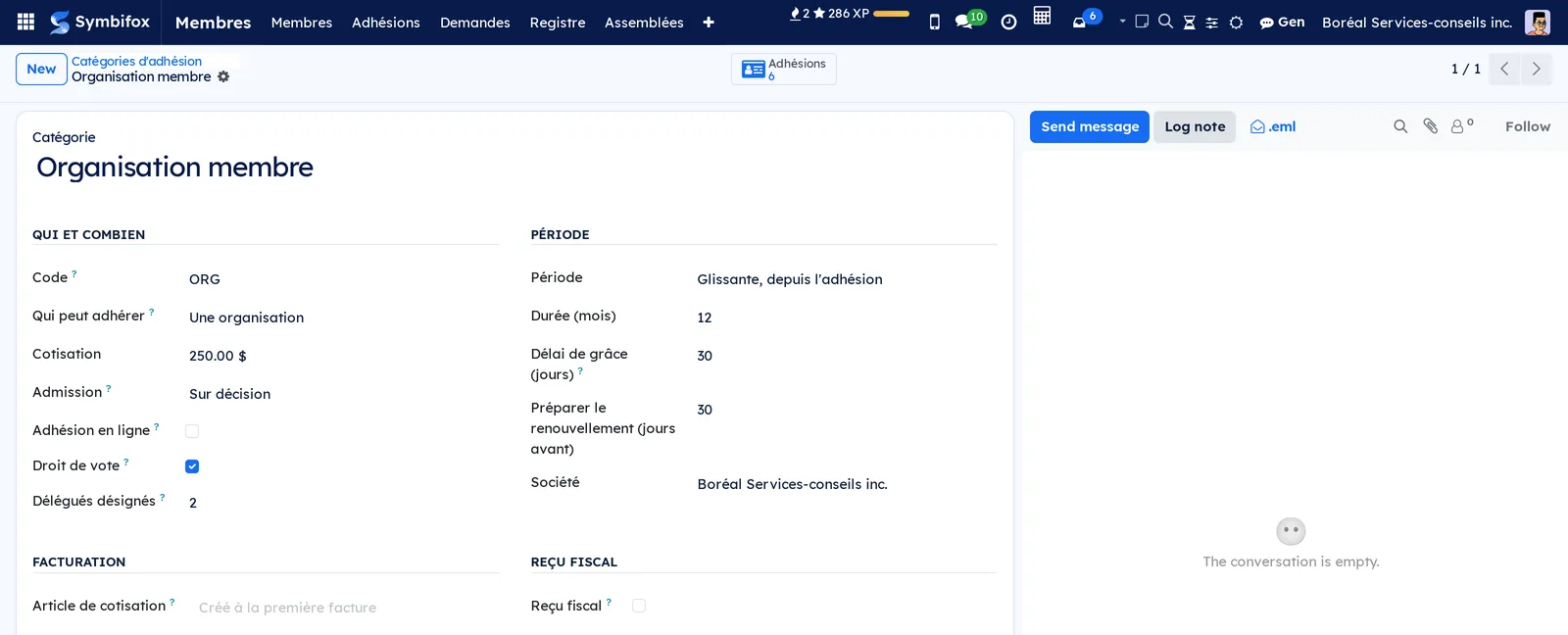
- Choose Qui peut adhérer (who may join: Une personne, Une organisation or L'un ou l'autre, a person, an organization or either), the Cotisation (fee) and the Admission (D'office, automatic, or Sur décision, by decision).
- Check or clear Droit de vote (voting right). For organizations, enter the number of Délégués désignés (designated delegates; 0 means no cap).
- Choose the Période (period): Exercice fixe (fixed fiscal year) with its start month and day, Glissante, depuis l'adhésion (rolling, from joining) with its length, or À vie (lifetime).
- Adjust Délai de grâce (jours) (grace period) and Préparer le renouvellement (jours avant) (renewal lead time), 30 days each by default.
Result: the category is offered on memberships. A membership taken mid-year ends with the fiscal year, and the fee is not prorated.
Enrol a member#
- Go to Membres › Adhésions (memberships) and select New.
- Choose the member among the contacts, then the Catégorie.
- Enter the Début (start). The Fin (end) is computed, and stays editable for an extension the board approved.
- Save.
Result: a category with automatic admission accepts the membership at once, and it awaits payment. A category admitting by decision leaves it in Demande until someone accepts or refuses it.
Review a request#
- Go to Membres › Demandes and open the request.
- Select Accepter or Refuser (refuse). If needed, enter a Motif de la décision (reason) in the Décision et retrait (decision and withdrawal) tab.
Result: the tab keeps who decided and when. Remettre à l'étude (put back under review) returns a refused request to Demande. A request that is already paid becomes En règle as soon as it is accepted.
Record a payment or exempt#
- Open the membership awaiting payment.
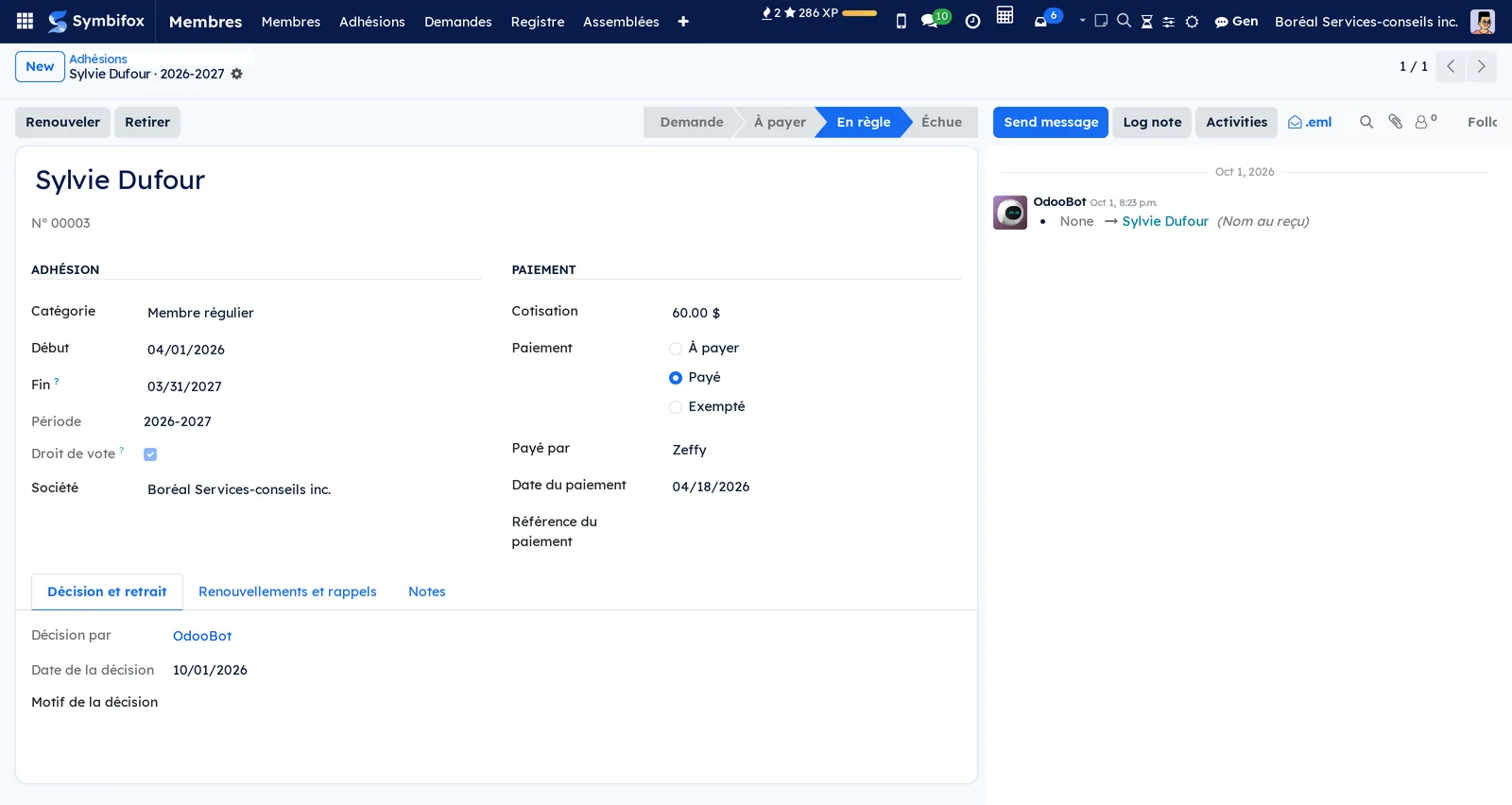
- Fill in Payé par, Date du paiement (payment date) and Référence du paiement (payment reference).
- Select Noter le paiement, or Exempter (exempt) for a member who does not pay.
Result: the membership moves to En règle. The contact receives its member number the first time it is in good standing, and keeps it for good. With no date or source, Noter le paiement uses today's date and the source Autre (other). Setting a payment back to À payer, for a bounced cheque, returns the membership to awaiting payment.
Invoice a membership fee#
When the accounting lives in Symbifox, the invoice becomes the source of the payment.
- Open the membership awaiting payment and select Facturer (invoice).
Result: a posted customer invoice in the member's name, labelled “Cotisation” followed by the category and the period. Once paid, it puts the membership En règle; reversed by a credit note or cancelled, it sets it back to awaiting payment. While it carries the fee, the payment can no longer be recorded by hand. An agent invoices only the category's fee.
Issue a membership-fee tax receipt#
A registered charity issues a receipt for the eligible part of the fee, under CRA policy CSP-M05.
- Once the Reçus fiscaux de cotisation settings are filled in, check Reçu fiscal (tax receipt) on the category and enter the Valeur de l'avantage (value of the advantage) and its Nature de l'avantage (description).
- Open a paid membership of that category.
- Select Reçu fiscal.
Result: the receipt, numbered without gaps (2026-00001), prints as a PDF. A negligible advantage is not deducted; above 80% of the fee, there is no receipt. Issuing it again produces a duplicate. To correct a receipt, open it under Membres › Reçus fiscaux and choose Annuler ou remplacer (cancel or replace); clear Délivrer un reçu de remplacement (issue a replacement) if the fee was refunded.
Renew a membership#
- Open the membership in good standing or expired, and select Renouveler (renew).
Result: next period's membership opens, awaiting payment, without going back to the board. The Renouvellements et rappels (renewals and reminders) tab of the original membership shows it. The member can also renew in the portal.
Withdraw a member#
A member who leaves is not erased: the withdrawal is dated and explained.
- Open the live membership and select Retirer (withdraw).
- Enter the Date du retrait (withdrawal date) and the Motif (reason: resignation, death, expulsion decided by the board).
- Select Retirer.
Result: the membership moves to Retirée and the contact becomes Ancien membre. It stays in the register.
Designate an organization's delegates#
- Go to Membres › Membres and open the organization.
- Open the Membre tab.
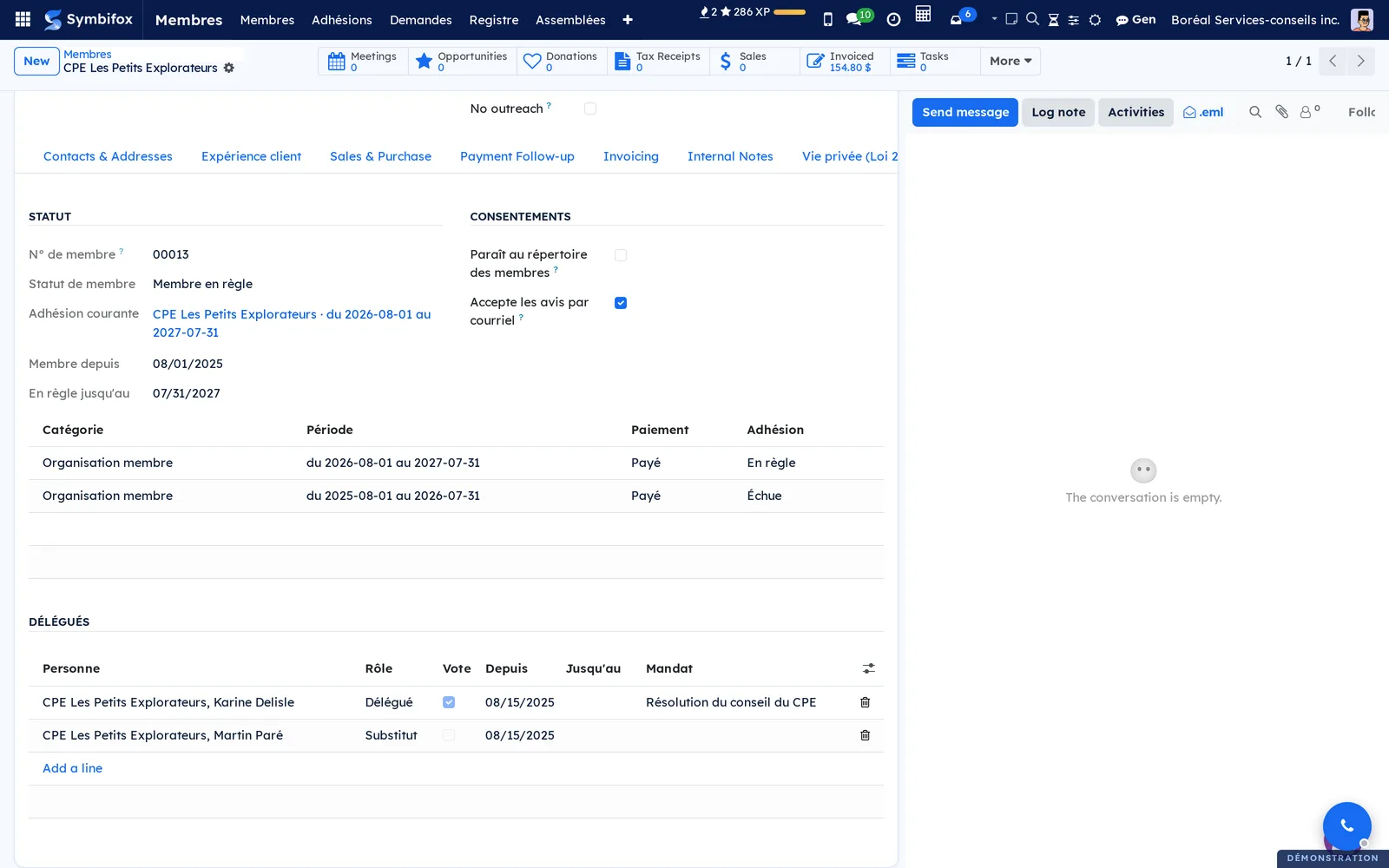
- Under Délégués, add a line: the Personne (person), their Rôle (Délégué or Substitut, delegate or substitute), Vote, Depuis (from), Jusqu'au (until) and the Mandat (the resolution or letter that names them).
Result: at any date, only one delegate carries the organization's vote. On the person's form, the Représente (represents) section shows the organizations they represent.
Import an existing list#
Reserved to the Responsable role.
- Go to Membres › Configuration › Importer une liste (import a list).
- Choose the Fichier CSV (CSV file: UTF-8 or Windows-1252, comma, semicolon or tab, headers in French or English).
- Enter the Source, for example “Zeffy 2026”, and the Catégorie par défaut (default category).
- If needed, check Les lignes sont des adhésions payées (rows are paid memberships) and choose Payé par.
- Select Aperçu (preview) and read the report.
- Select Importer (import).
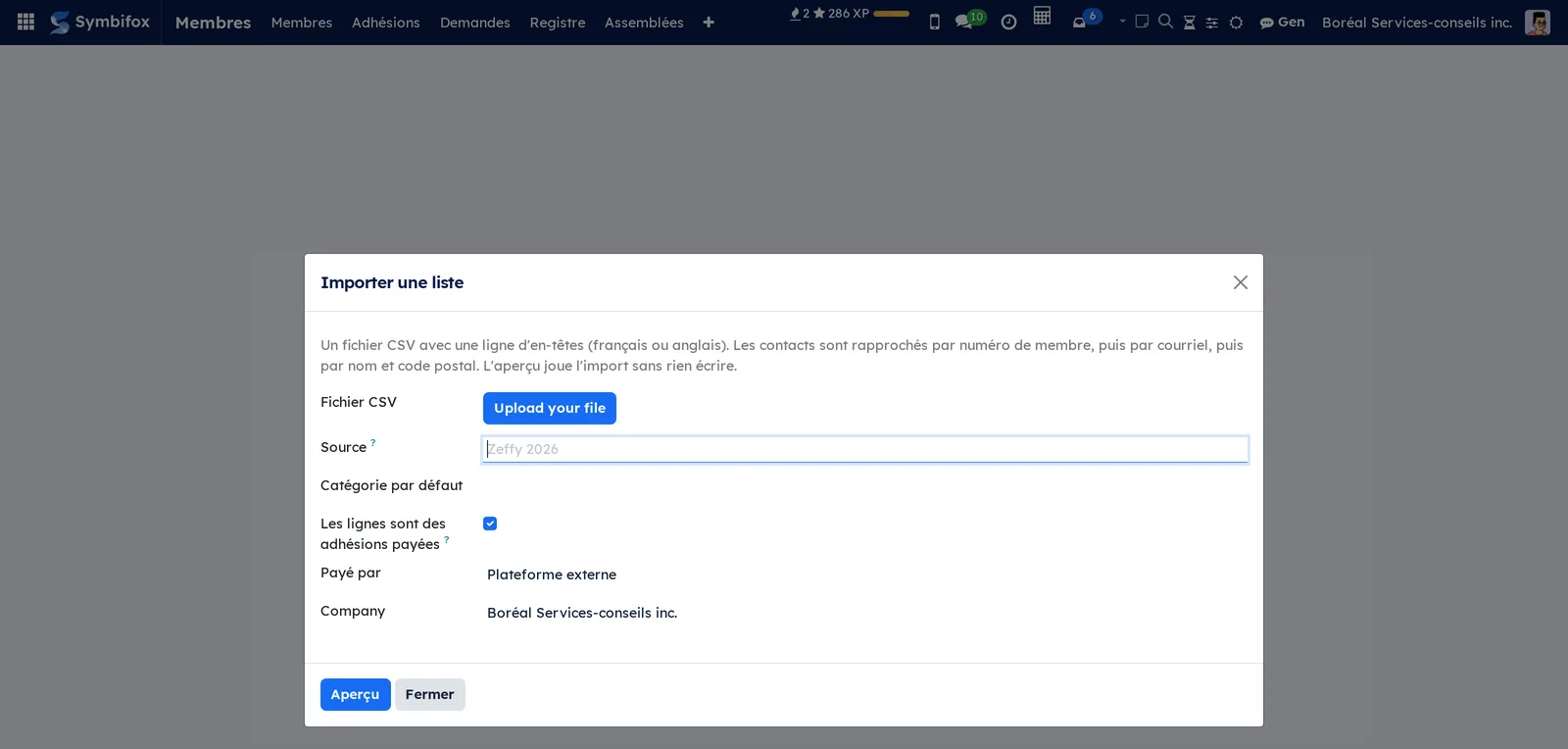
Result: contacts are matched by member number, then email, then name and postal code. An ambiguous row (two contacts with the same email) is set aside and named in the report. Importing the same source again updates instead of duplicating.
Print the member list#
- Go to Membres › Registre (register) and check the members you want.
- Open the Print menu and choose Liste des membres (member list).
Result: an alphabetical PDF with number, name, address, occupation, category and status. The same menu offers the Carte de membre (membership card), credit-card size.
Reconcile a request from the public form#
The public form always creates a new contact. When the email entered already exists, the request carries the À rapprocher (to reconcile) ribbon.
- Go to Membres › Adhésions and filter on À rapprocher.
- Open the request.
- If it belongs to someone already in the register, select Rattacher au contact existant (attach to existing contact), check the proposed contact, then Rattacher. Otherwise, select Rapprochée (reconciled).
Result: the request moves to the existing contact, and the form's contact is deleted or archived. Do not merge the two contacts: what the form received may have been typed by a stranger.
Prepare a meeting#
- Go to Membres › Assemblées (meetings) and select New.
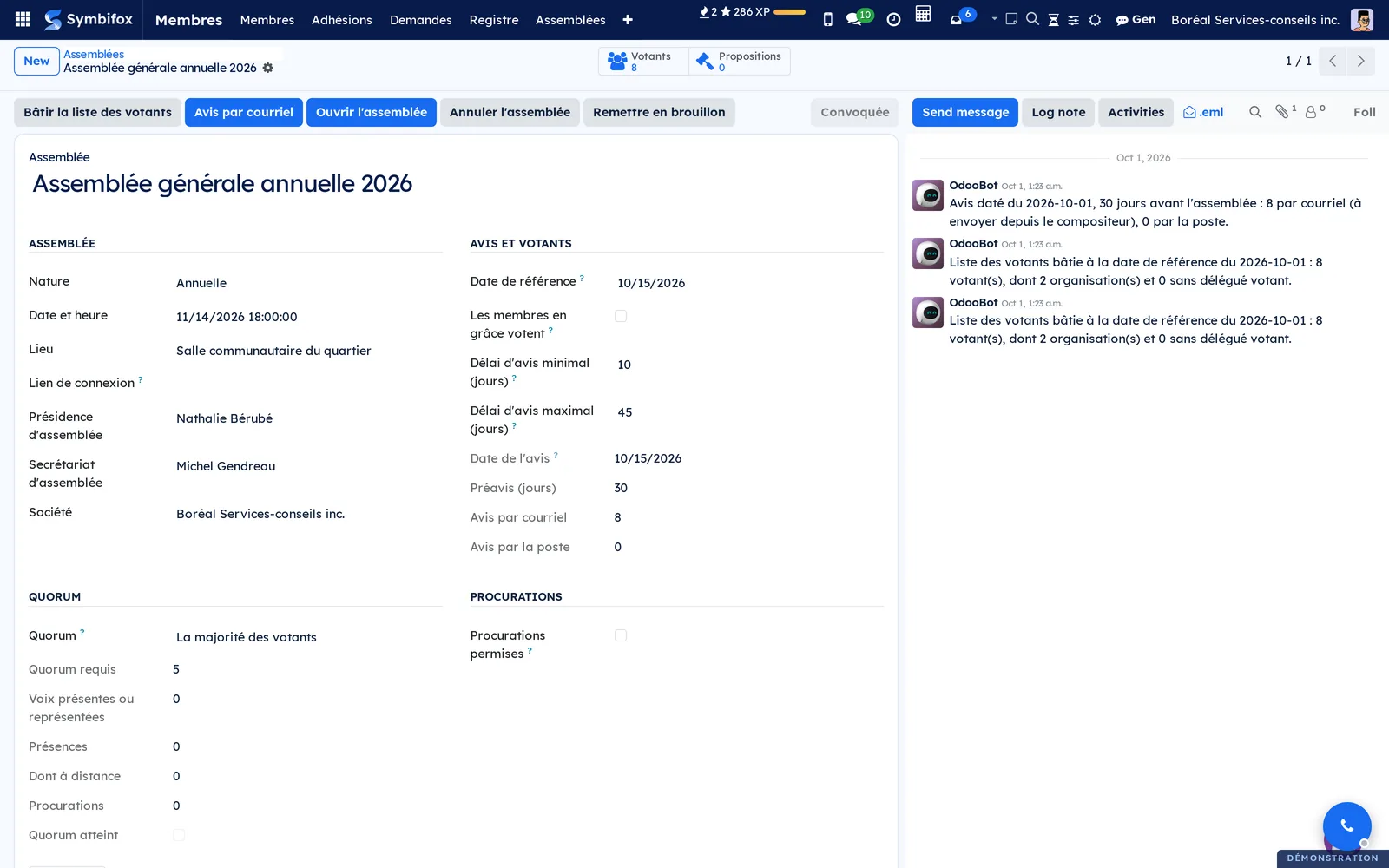
- Enter the name, the Nature (Annuelle or Extraordinaire, annual or special), the Date et heure (date and time), the Lieu (place) or the Lien de connexion (connection link).
- Enter the voters' Date de référence (record date), then the Présidence d'assemblée (chair) and the Secrétariat d'assemblée (secretary).
- Adjust the notice periods, the Quorum and Procurations permises (proxies allowed) to match your by-laws.
- Attach the documents in the Documents tab: agenda, financial statements.
- Select Bâtir la liste des votants (build the voter list).
Result: the Votants (voters) tab lists the members in good standing on the record date whose category votes. An organization holds a single line, carried by its voting delegate. A banner flags organizations without a voting delegate.
Convene the meeting#
- Open the draft meeting and select Convoquer (convene).
- Review the notice in the email composer that opens: recipients, subject, text, attached documents.
- Select Send.
Result: the Date de l'avis (notice date) takes today's date, and the notice period is checked. Each member who consented receives their own email, and their line keeps the date it was sent. The others are listed, with their address, under the Avis par la poste (notices by post) shortcut button. Avis par courriel (notice by email) reopens the composer to resend the notice.
Record attendance and proxies#
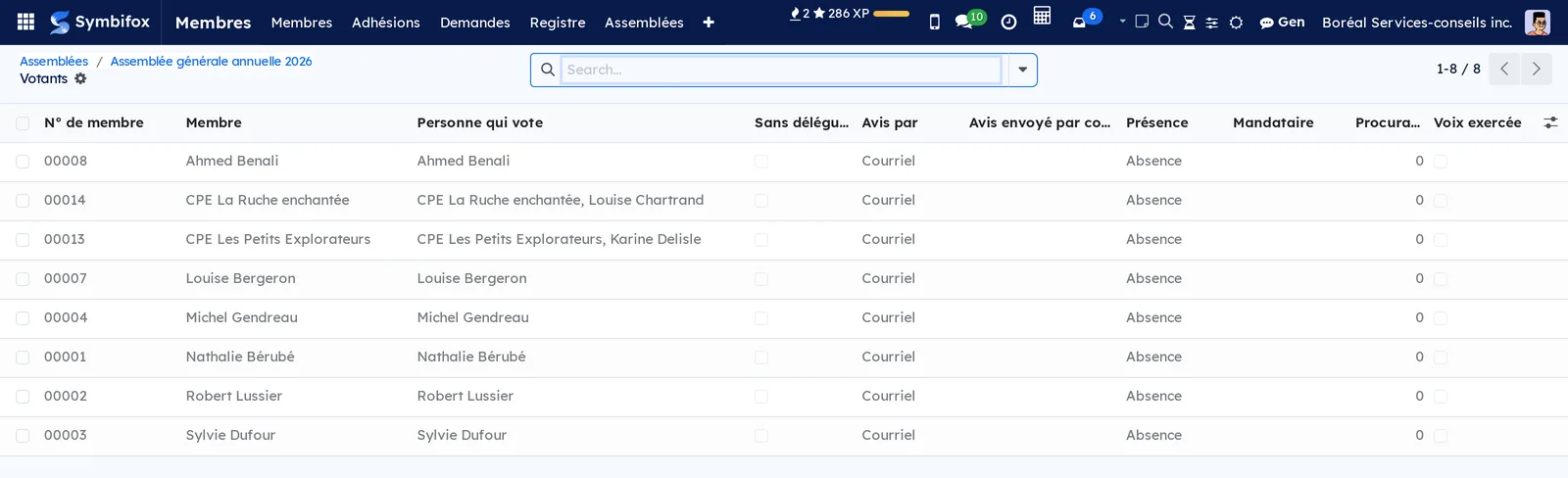
- Open the meeting and select the Votants shortcut button.
- For each voter, choose the Présence (attendance): Sur place (on site), À distance (remote), Par procuration (by proxy) or Absence.
- For a proxy, if the meeting allows them, choose the Mandataire (proxy holder) among the voters present.
- Return to the meeting and select Ouvrir l'assemblée (open the meeting).
Result: the quorum is computed, and the list freezes at opening. Each change is logged in the meeting's chatter (the message thread at the bottom of the form), under its author's name.
Put a proposal to the vote#
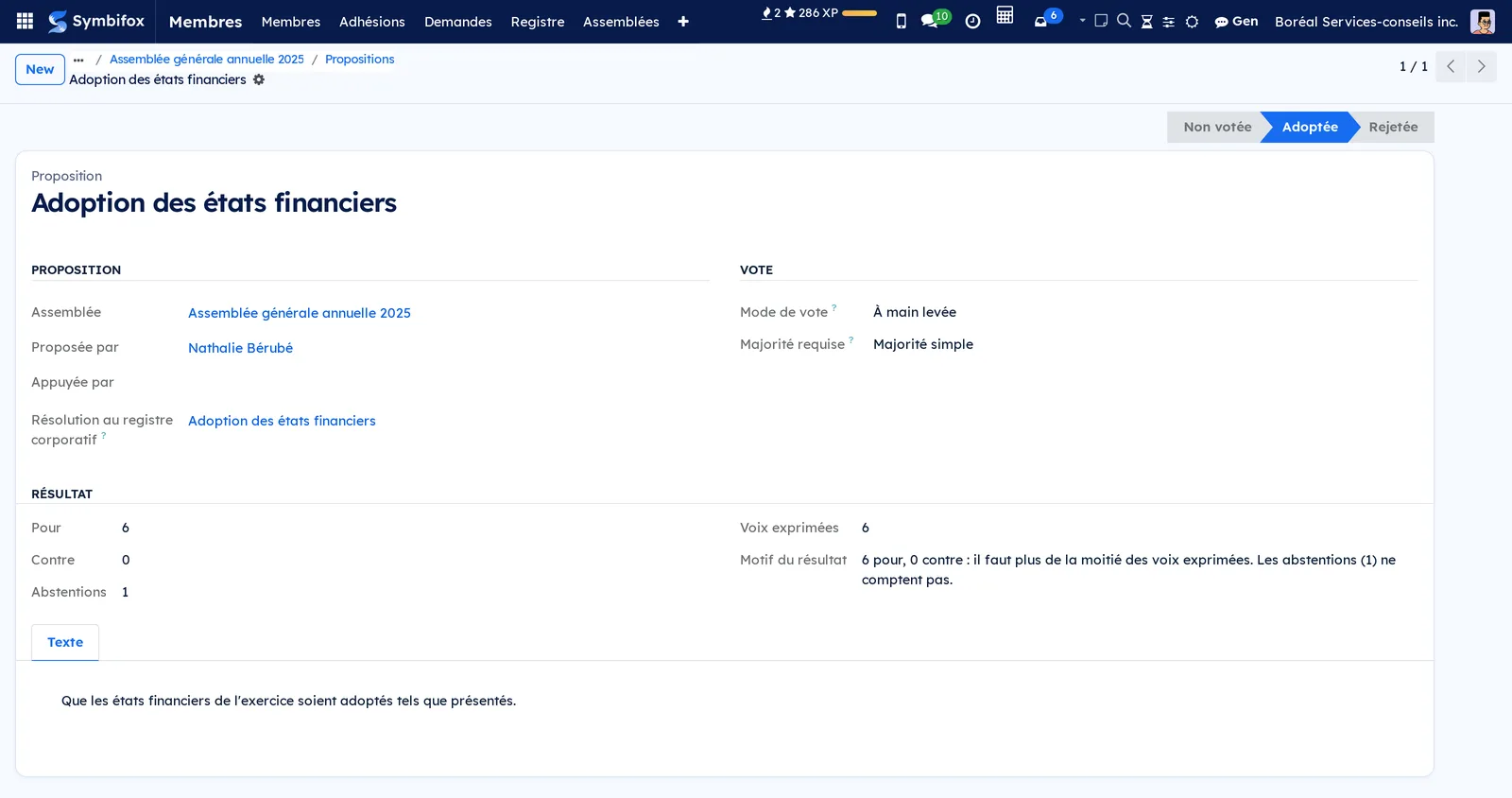
- In the Propositions (proposals) tab of the open meeting, add a proposal: title, Proposée par (moved by), Appuyée par (seconded by) and the Texte de la proposition (text).
- Choose the Mode de vote (À main levée or Scrutin secret, show of hands or secret ballot) and the Majorité requise (Majorité simple, Deux tiers or Pourcentage: simple majority, two thirds or percentage).
- For a secret ballot, select Remettre les bulletins (hand out ballots) and name the Scrutatrices et scrutateurs (scrutineers).
- Enter the Pour, Contre and Abstentions totals (for, against, abstentions), and the Bulletins nuls (spoiled ballots) for a secret ballot.
Result: the Résultat (result) moves to Adoptée or Rejetée (adopted or rejected), with its reason. Abstentions do not count, and a tie is rejected. From the first total entered, the majority, the voting method and the text are frozen.
Close the meeting and print the minutes#
- Write the text of the Procès-verbal (minutes) tab.
- Select Clore l'assemblée (close the meeting) and confirm.
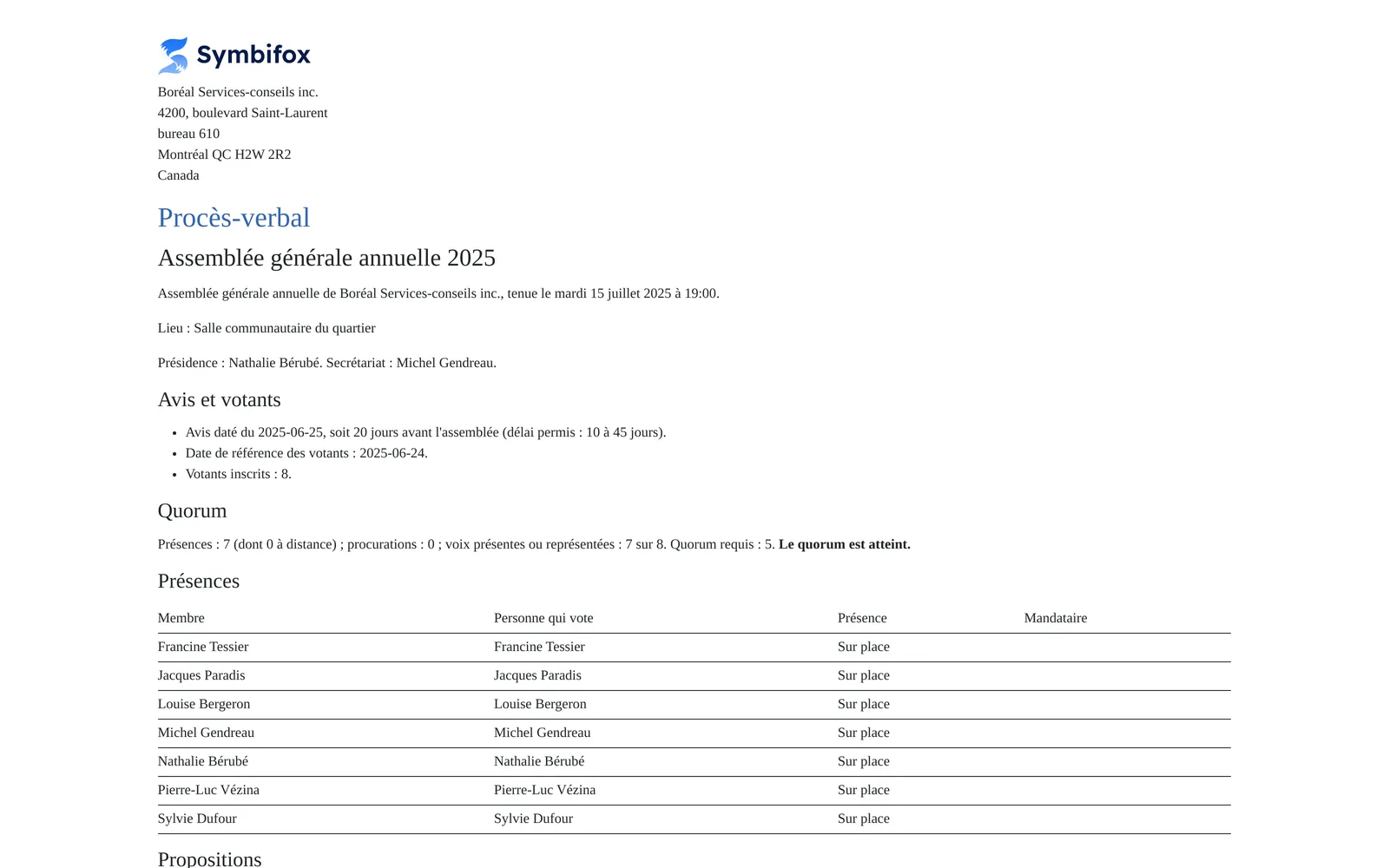
- Select Procès-verbal (PDF).
Result: attendance, proxies and proposals are frozen. The PDF shows the notice, attendance, the quorum and each proposal with its totals, then the secretary's text and the signature lines. The text stays editable, and each change is logged.
Record a resolution in the corporate register#
A proposal adopted by a closed meeting is a members' resolution, to be recorded in the corporate governance register.
- Open the closed meeting and its Propositions shortcut button, then the adopted proposal.
- Select Inscrire au registre corporatif (record in the corporate register).
Result: the resolution is created in the register, of type “Résolution des membres” (members' resolution), with the title, text, totals and the meeting's date. The meeting's chair and secretary are its signatories. Inscrire les résolutions adoptées (record adopted resolutions), on the closed meeting, records them all at once. What happens to the resolution next is covered in the Knowledge base chapter.
The menus, one by one#
Membres › Membres: contacts in good standing, in grace or pending, as cards or a list. The Membres en règle and En grâce filters tell them apart; former members are found in the Registre.
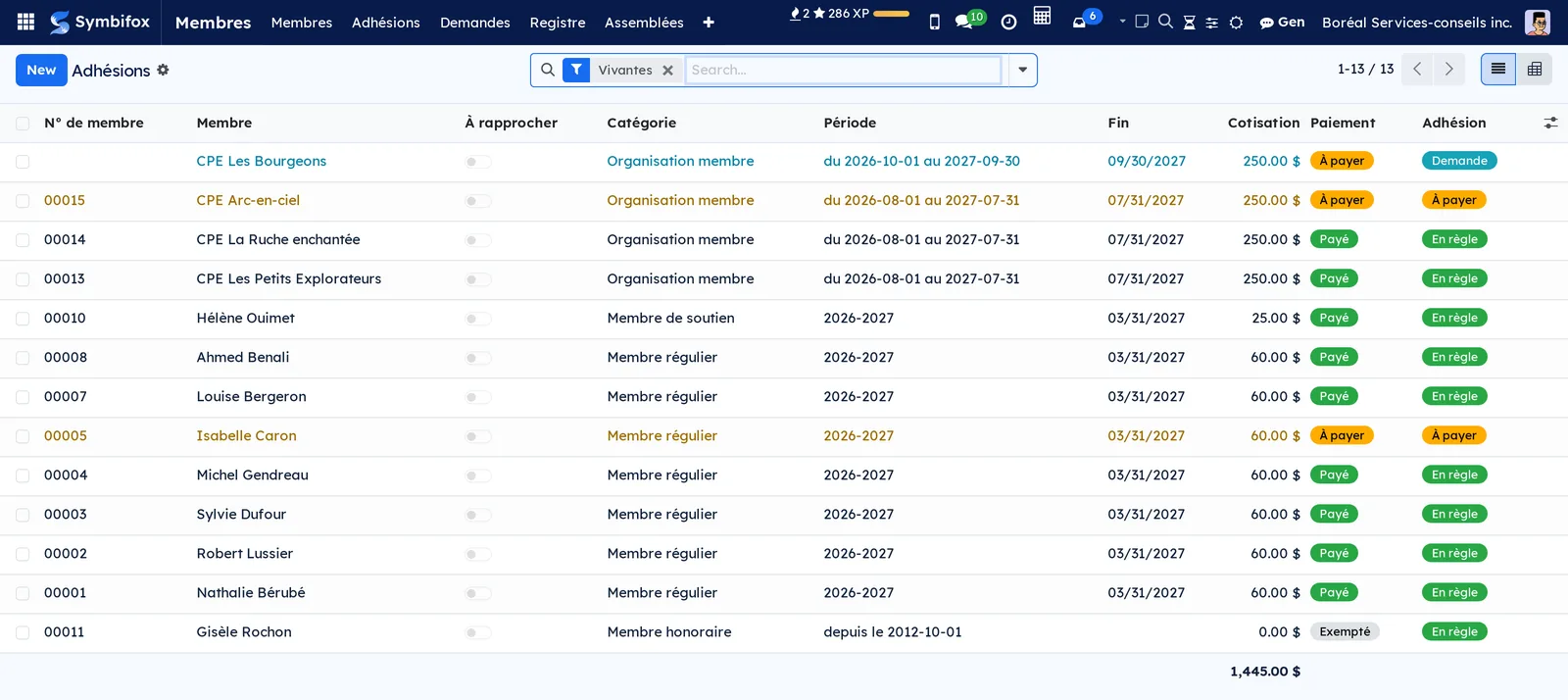
Membres › Adhésions: all live memberships, as a list, with N° de membre (member number), member, the À rapprocher box, Catégorie, Période, Fin, Cotisation and the Paiement and Adhésion badges. Filters: En règle aujourd'hui (in good standing today), Demandes, À payer, Vivantes (live, by default), Échues ou retirées (expired or withdrawn); groupings by Catégorie, Adhésion, Paiement, Payé par and Fin. A pivot view totals fees by category and state.
Membres › Demandes: memberships in the Demande state, to be reviewed. Only one in the demo, from CPE Les Bourgeons.
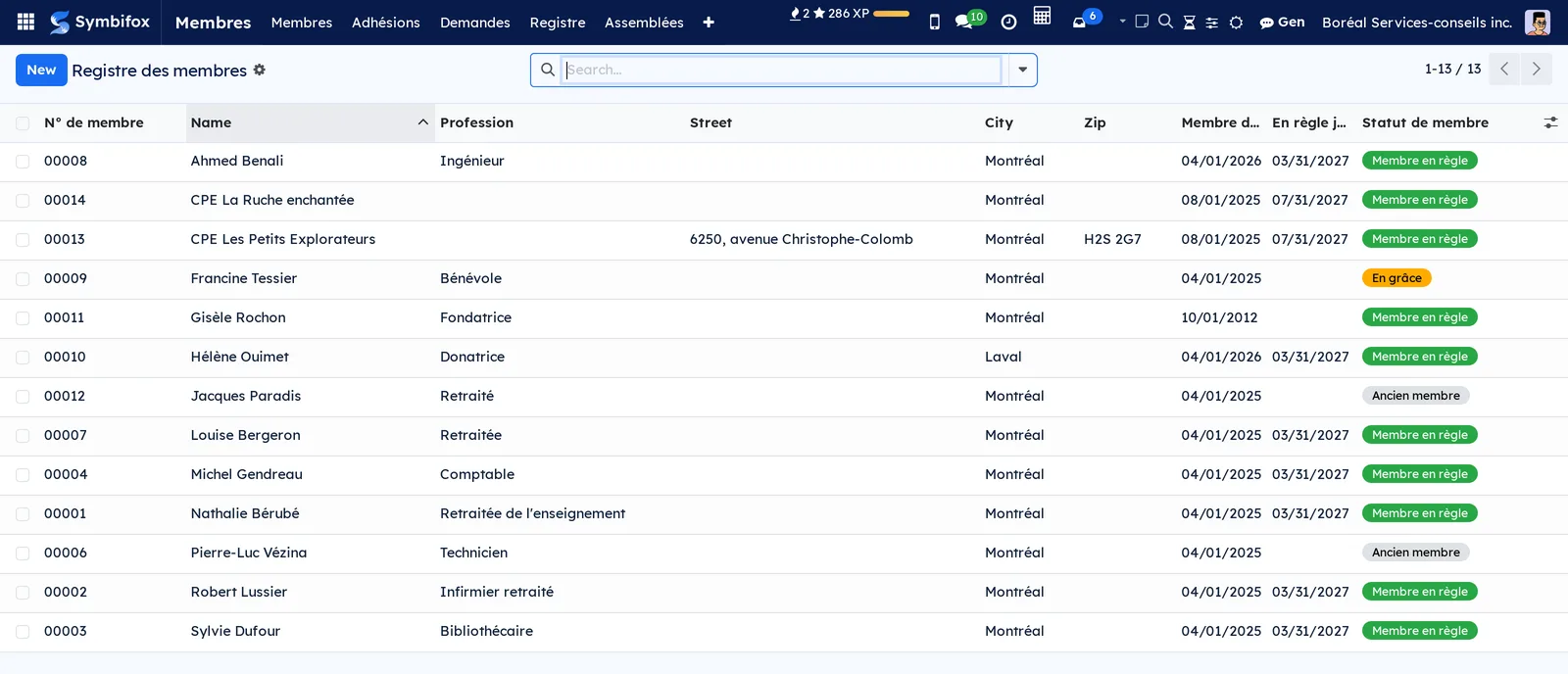
Membres › Registre: everyone who is or has been a member, archived contacts included, in alphabetical order. Columns: N° de membre, name, Profession (occupation), address, Membre depuis (member since), En règle jusqu'au (in good standing until) and Statut de membre (member status).
Membres › Assemblées: the meetings, with date, name, Nature, number of voters, votes, Quorum atteint (quorum reached) and État (state: Brouillon, Convoquée, Ouverte, Close, Annulée, draft, convened, open, closed, cancelled). Filters À venir (upcoming), Closes, Annuelles and Extraordinaires; groupings by state, nature and year.

Membres › Reçus fiscaux (tax receipts): the membership-fee receipts issued, with member, dates, amounts, number of deliveries and state. Filters Délivrés (issued) and Annulés (cancelled). Empty in the demo, which is not a charity.
Membres › Configuration: a grouping menu, reserved to the Responsable role.
Membres › Configuration › Réglages: the application's settings, reserved to the administrator (see Settings).
Membres › Configuration › Catégories: the categories, with Qui peut adhérer, Période, Cotisation, Droit de vote and Admission. Four in the demo: regular, supporting, organization and honorary.
Membres › Configuration › Importer une liste: the dialog that imports an existing list (see Import an existing list).
Reference#
Fields of the Adhésion form#
| Field | Description | Required or default |
|---|---|---|
| Membre | The contact, person or organization. It no longer changes once the membership is paid or in good standing. | Required |
| Catégorie | The category, which gives the fee, the period and the voting right. | Required |
| Début and Fin | The period. The end is computed from the category and stays editable. | Start required |
| Paiement | À payer, Payé or Exempté. Changes through the buttons. | À payer |
| Payé par | The payment's source. | Autre if empty at payment |
| Date du paiement and Référence du paiement | The date and the document: cheque or transaction number. | Today if empty at payment |
| Facture (invoice) | The fee invoice, set by Facturer only. | Empty |
| Nom au reçu and Adresse au reçu | The name and address printed on the receipt, frozen at payment. | Computed |
Fields of the Assemblée form#
| Field | Description | Required or default |
|---|---|---|
| Date de référence | The date on which voters are read. | Required to build the list |
| Les membres en grâce votent (members in grace vote) | Admits members in their grace period, when the by-laws allow it. | Cleared |
| Délai d'avis minimal (jours) and Délai d'avis maximal (jours) | The notice window, minimum and maximum days. | 10 and 45 |
| Date de l'avis | Set by Convoquer, never typed. | Empty |
| Quorum | La majorité des votants, Un nombre de votants or Un pourcentage des votants (a majority, a number or a percentage of voters). | La majorité des votants |
| Procurations permises and Procurations par mandataire (plafond) | Proxies and their cap per holder. | Cleared, cap of 1 |
| Présidence d'assemblée and Secrétariat d'assemblée | The signatories of the minutes and of the resolution. | Optional |
Reports and exports#
- Liste des membres: from the Print menu of a selection of contacts.
- Carte de membre: credit-card size, from a contact's Print menu or from the portal.
- Procès-verbal: from the open or closed meeting, or from the Print menu as early as the draft.
- Reçu fiscal: from the membership, or Imprimer (print) on the receipt.
- The Avis par la poste list, with addresses, exports like any list (see Common actions in every application).
Automations#
- Every day, a pass expires memberships whose end date has passed and recomputes every member's status. If you turned them on, it prepares renewals and sends reminders, each at most once; a reminder more than three days late is skipped.
- After each fee invoice, and every hour as a safety net, the invoice's official PDF is produced, without sending anything.
- Every day, the public-request clean-up cancels a form invoice left unpaid for 14 days and refuses its request, and erases the IP address of public requests after seven days.
- Never: no invoice, receipt, notice or minutes go out on their own.
Public pages and portal#
- Mon adhésion (my membership,
/my/membership), in the portal: status, number, period, history and invoices; Mes choix (my choices) for the two consents; Renouveler, which prepares the renewal and its invoice then leads to online payment; the membership card. A delegate sees, read-only, their organization's membership. - Devenir membre (become a member,
/membres/adhesion): the public form, for categories checked Adhésion en ligne. It answers everyone the same way, whether or not the email is known. Payer en ligne (pay online) creates the invoice on the click, not on submission. - Répertoire des membres (
/membres/repertoire): closed by default. Once open, it shows the name and city of members in good standing who agreed to appear.
These pages are not illustrated: the demo keeps them closed.
Modules that extend this application#
Four add-ons build on this base without changing it.
The portal opens the member's own part of the register, and only that part.
The meeting follows from the notice to the minutes.
The last add-on links the meeting to the minute book.
Understanding#
Why two states. An honorary member is in good standing without paying; a request can arrive paid before the board looks at it. A single state would mix these cases up. The state changes only through the buttons, which check your rights: “in good standing” without a payment cannot be typed in.
Why nobody leaves the register. Québec's Companies Act (Part III) requires the register to list everyone who is or has been a member. A membership that made someone a member can be neither refused nor deleted. An abandoned request, which made no one a member, can be refused and deleted.
Why the meeting reads a record date. Today's status changes every night: a list built on it would change between the notice and the meeting. A withdrawal dated before the meeting does cost a vote, though: rebuild the list before opening.
Why nothing goes out on its own. A notice sent by mistake to eight hundred members cannot be recalled: the convocation waits for your Send. Reminders are off at installation, and importing a list of expired members wakes no one up.
Why a secret ballot keeps only totals. The ballot register says who received a ballot, not what they put in it, and the count never exceeds the ballots handed out. No online voting is offered: a secret ballot is held on paper.
Why the corporate register does not name the mover. The register of resolutions is read without the Members role. The names of who moved and seconded say who carried the proposal: they stay with the meeting and in its minutes.
Limits to know. A contact manager without a Members role can still guess a membership: a merge refused where another goes through, a contact archived instead of deleted. Grant that right sparingly. In a database holding several associations, a contact's status is computed across all companies, and delegates are shared. Finally, the default notice periods follow the Civil Code of Québec: your by-laws almost always replace them, to be checked with your legal counsel.
Troubleshooting#
| Symptom | Likely cause | Fix |
|---|---|---|
| Refuser is not offered, or deletion is refused. | The membership has already made someone a member, or a posted invoice carries it. | Use Retirer, or first reverse the invoice with a credit note. |
| Facturer refuses for a person. | The person is attached to a company. | Record the payment another way, or detach the contact from the company. |
| Reçu fiscal lists what is missing. | Registration number, the organization's address, authorized signer or the member's address incomplete. | Complete the settings or the form, then Mettre à jour le nom et l'adresse au reçu. |
| Convoquer refuses. | The notice period is not met, or no document is attached to an annual meeting. | Adjust the date or the periods to your by-laws, and attach the financial statements. |
| An organization cannot be marked present. | It has no voting delegate in office. | Name a voting delegate on its form, then rebuild the list while the meeting is not yet open. |
| Inscrire au registre corporatif does not appear. | The meeting is not closed, the proposal is not adopted, the quorum was not reached, or you are not a corporate governance Gestionnaire. | Close the meeting with Clore l'assemblée, or ask for the role. |
| The public form answers “page not found”. | No category is checked Adhésion en ligne. | Check the box on the categories open to the public. |