

Part 10 · Symbifox Personal
Job Search
Track your job applications from the advert to the offer, with follow-ups, interview preparation, the next-day thank-you note, your referees and a dated log.
The Job Search application keeps your job applications, from the role you spotted to the offer you accepted. It is meant for each member of a Symbifox Personal household instance who is looking for work, for their own use. It reminds you of the steps people forget: follow up after ten days without news, prepare the interview the day before, say thank you the next day, warn your referees. It also counts what gets answered, and keeps a dated log of your job search.
Overview#
The application opens on Applications, in columns by stage. Each card shows the position, the employer, the fit in stars, the date sent and the next activity.
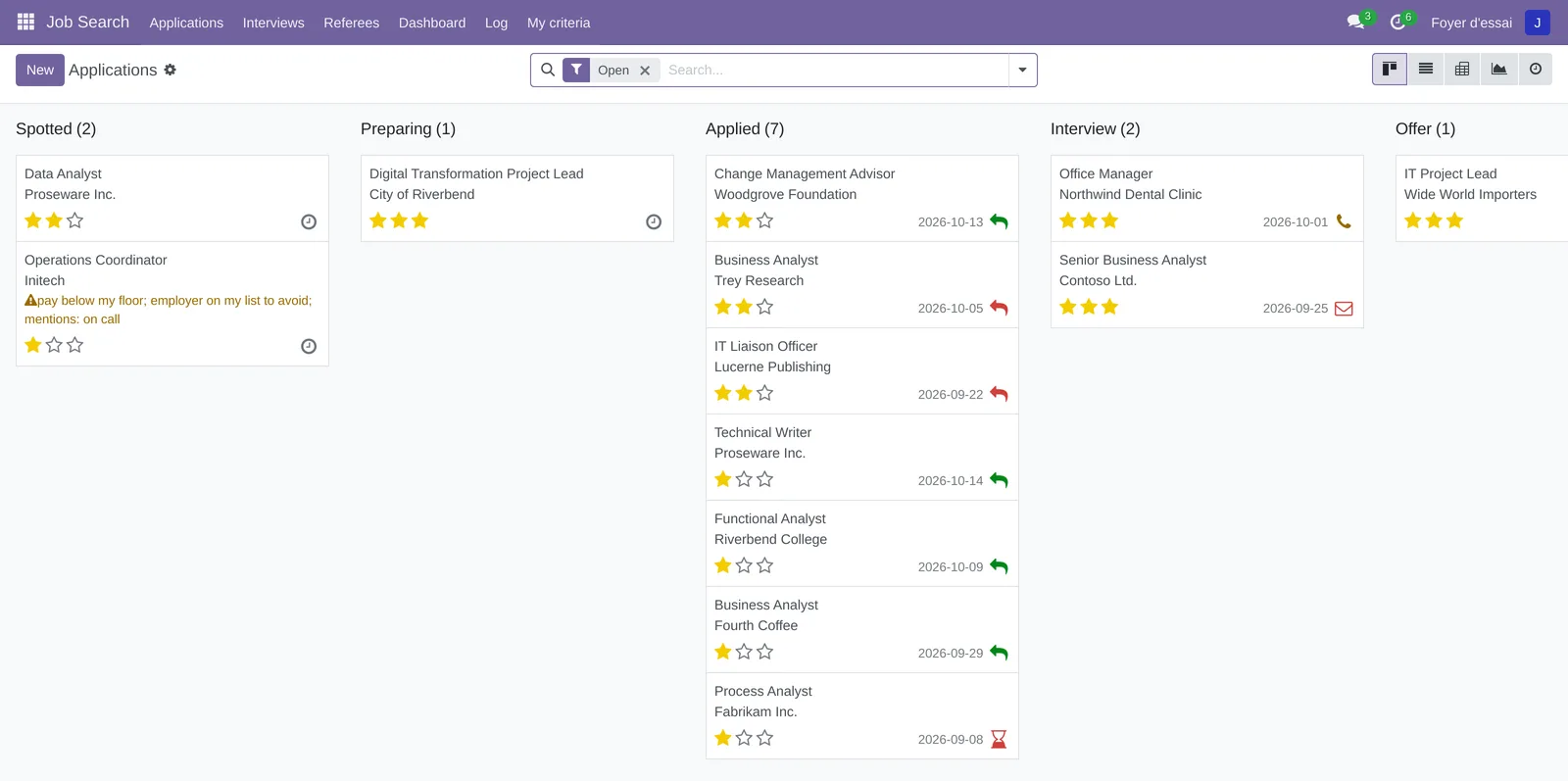
A few notions are enough.
- Application: a position with an employer, with the full advert, the channel, the pay and what you sent.
- Stage: Spotted, Preparing, Applied, Interview, Offer, Accepted.
- Close: end an application by saying who closed it: the employer (refusal, position cancelled), you (not pursued, withdrawn, offer declined) or nobody (no response).
- Follow-up: a short message to ask where the process stands. The application schedules two at most, then asks whether to close.
- Interview: a meeting with the employer, with its preparation checklist and one thank-you draft per interviewer.
- Referee: a person who agreed to speak about you, named for one or more applications.
- My criteria: what a job must offer, and the pace of your follow-ups.
- Log: the dated list of your applications, to export.
Reminders are activities, assigned to you, on the application. They appear in the application's chatter, in the Activities column and in the activities menu of the top bar. An application is not a sale: the application does not go through the CRM and does not borrow its vocabulary.
Configuration#
Access and permissions#
Every person on the instance opens the application: no group to check. What each person sees depends on a single rule: a job search record is visible only to the person who keeps it.
| Who | What the person sees and does |
|---|---|
| Every person on the instance | Create, edit, close, archive and delete their own applications, interviews and referees. Set their criteria. Read their dashboard and export their log. |
| The other people, administrators included | Nothing of anyone else's records: no application, interview, referee, criteria or dashboard figure. Where Odoo still shows a record's name, they read "Private record". |
| A system administrator | The same as the others. They can, however, change the security rules themselves. |
Settings#
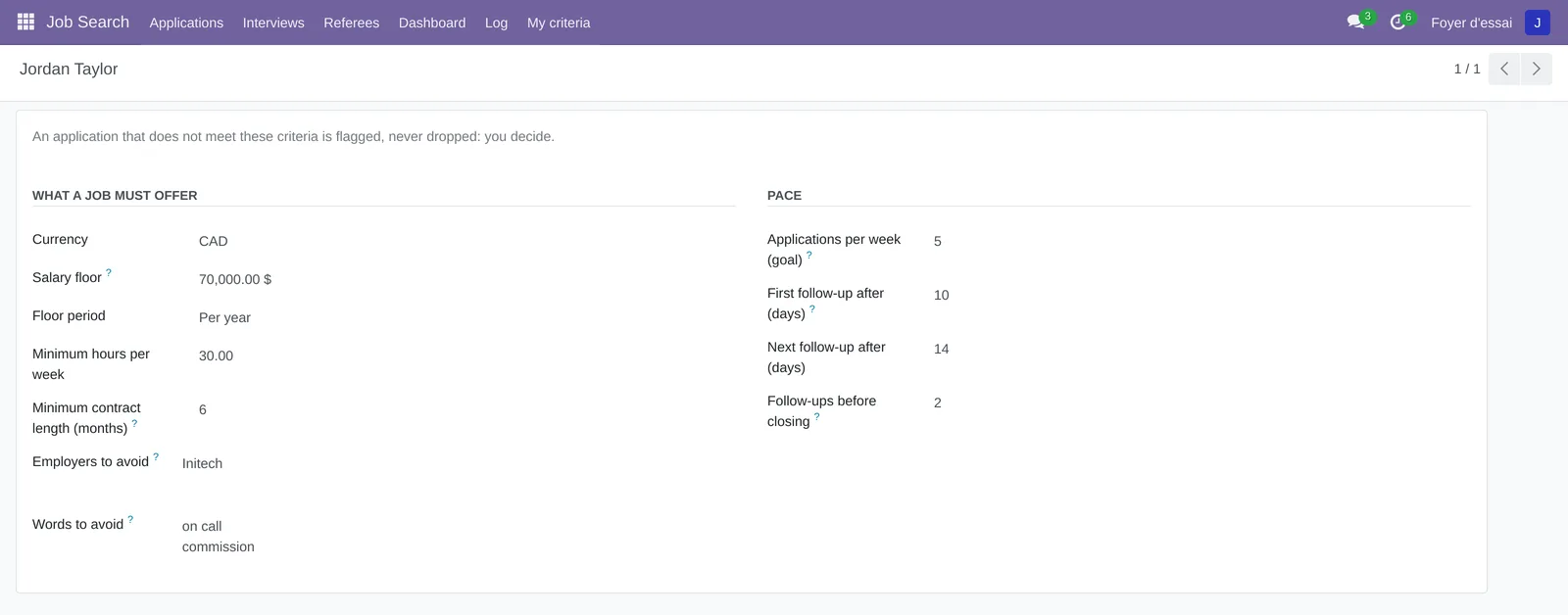
The application adds no setting under Settings. Its delays are set per person, in Job Search › My criteria, section Pace.
| Delay | Default |
|---|---|
| First follow-up | 10 days after Applied on, or the day after Reply promised by. Never before the day after Advert closes. |
| Next follow-up | 14 days after the previous follow-up. |
| Follow-ups before closing | 2. After the last one, the No news: close? activity comes 14 days later. |
| Prepare the interview | The day before the interview, or the same day if it is already close. |
| Thank the interviewers | The day after the interview. |
| Answer the offer | Three days after moving to the Offer stage. The activity does not follow an answer date entered afterwards. |
| Ask for feedback | The day after a refusal, if you asked for it when closing. |
| Weekly goal | 5 applications a week, shown on the dashboard. |
Base data#
Nothing needs to be created before you start. The application's seven activity types are provided: Follow up, No news: close?, Prepare the interview, Thank the interviewers, Warn your referees, Answer the offer and Ask for feedback. Your criteria are created the first time you open My criteria, with the default delays.
Set your criteria first if you need to.
Getting started#
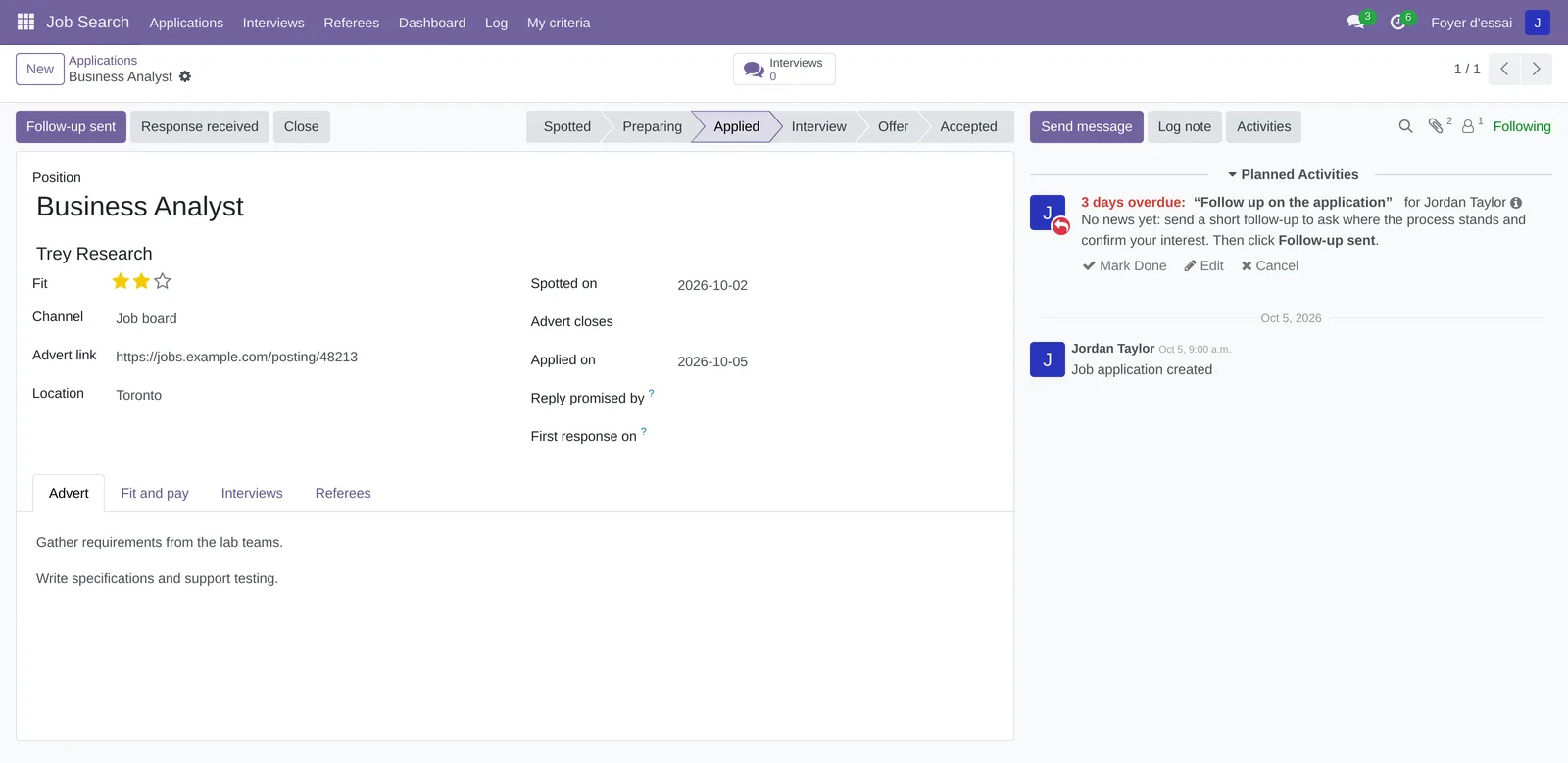
This walkthrough records an application you just sent, and shows you the follow-up it prepares.
- Open Job Search › Applications, then select New.
- Enter the Position, for example "Business Analyst", then the Employer.
- Choose the Channel, for example Job board, and paste the link in Advert link.
- In the Advert tab, paste the full text of the advert.
- In Applied on, enter the day you sent it, for example "2026-10-05".
- In the stage bar, select Applied.
- Save.
The application moves to Applied, and the Follow up on the application activity appears in the chatter, due ten days after sending. The Follow-up sent, Response received and Close buttons are added at the top of the record.
Common tasks#
Record a role you spotted#
An advert interests you, but you have not applied yet. Keep it right away: job boards often remove the advert within weeks.
- Open Job Search › Applications, then select New.
- Enter the Position and the Employer.
- Give the Fit in stars: none for Stretch, three for Strong fit.
- Fill in Advert closes if the advert gives a date.
- Paste the advert in the Advert tab.
- In the Fit and pay tab, note the range, the Pay period, the hours and the contract length.
- Save.
The application stays at Spotted, with no reminder. Move it to Preparing while you write your letter, then to Applied when you send it. A Contract length (months) left at 0 means a permanent role.
See what does not meet your criteria#
An application that does not meet My criteria carries a yellow Does not meet my criteria banner, with the reasons. Its card in the column repeats them. Nothing is dropped: you decide.
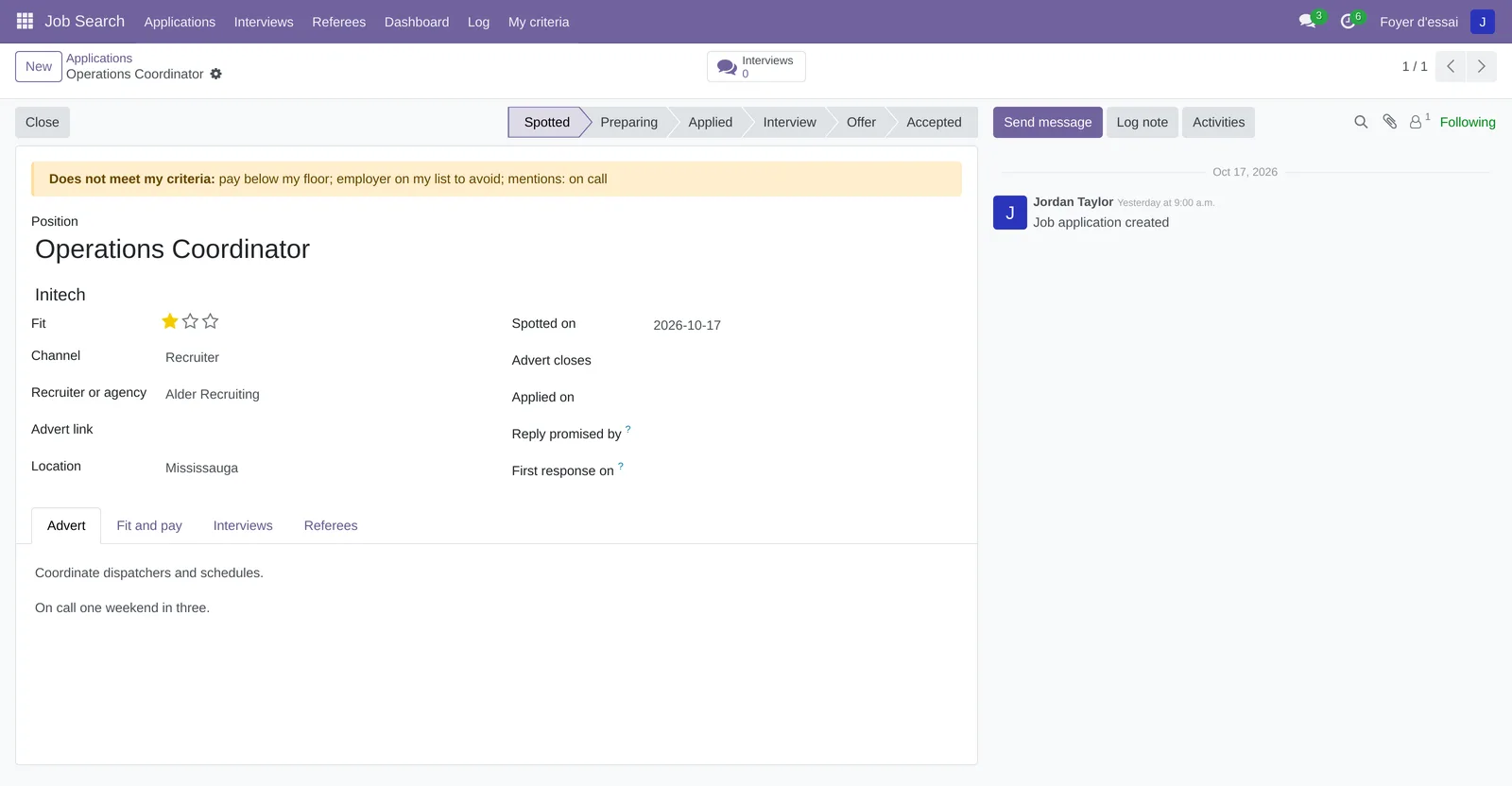
The possible reasons: pay below my floor, fewer hours than my minimum, contract shorter than my minimum, employer on my list to avoid, and mentions: followed by the words found in the position or the advert. Pay is compared only in the same currency and the same period; otherwise the banner says pay not compared (other currency or period). A permanent role always passes the length criterion.
Follow up on an application#
The Follow up on the application activity comes due. You write the follow-up yourself, from your own mailbox.
- Open the application, from the activity or from Applications.
- Send your follow-up from your mailbox.
- Come back to the record and select Follow-up sent.
The Follow-ups sent counter goes up, a dated note is added to the chatter, and the next follow-up is scheduled 14 days later. After the second one, the activity becomes No news: close?. Marking the Follow up activity done, from the chatter or the activities menu, does the same as the button.
Record a reply from the employer#
The employer writes to you, with a question or to ask for your availability. You stop following up.
- Open the application.
- Select Response received.
First response on takes today's date, if it was empty, and the follow-up activities disappear. Moving the application to Interview or Offer does the same.
Close an application#
A refusal, a cancelled position, a role you drop, or silence: closing says who ended the application.
- Open the application, then select Close.
- In Closed as, choose Rejected by the employer, Position cancelled, Not pursued, Withdrawn, Offer declined or No response.
- For a refusal, keep Remind me to ask for feedback checked if you want to ask.
- If needed, write a Note.
- Select Close.
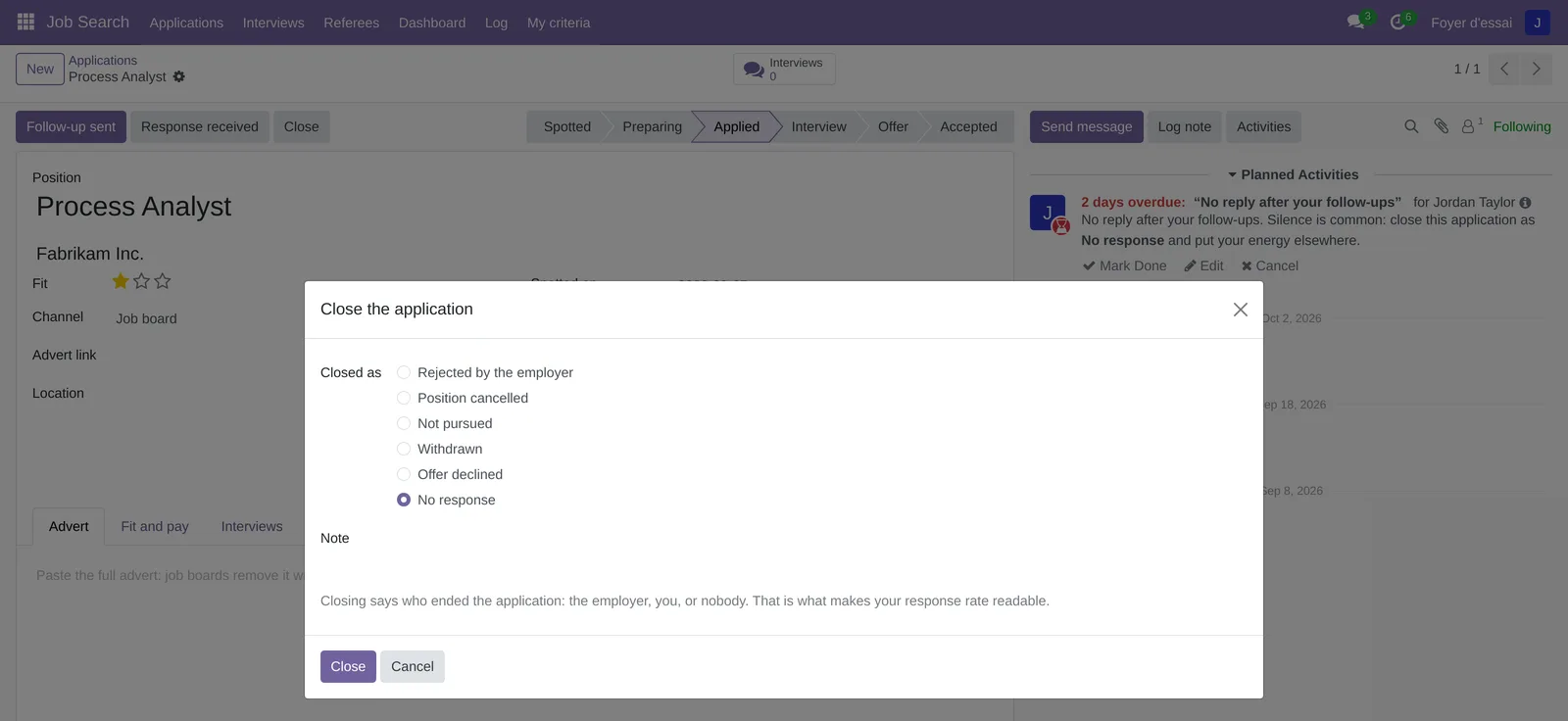
A corner ribbon marks the closed record, and Closed by says The employer, Me or Nobody (no response). All the application's activities disappear. After a refusal, the Ask for feedback activity comes the next day, if you kept it. A closed record no longer changes stage: select Reopen to pick it up again, and its follow-ups resume where they left off.
Schedule an interview#
You are invited to an interview. The interview belongs to its application.
- Open the application, then the Interviews shortcut button at the top of the form.
- Select New.
- Choose the Kind, for example Video call, then enter When and the Duration (hours).
- Fill in Place or link.
- In Interviewers, write one person per line, with their address when you have it: "Sophie Grant sophie.grant@example.com".
- Save.
- Select Add to my calendar.
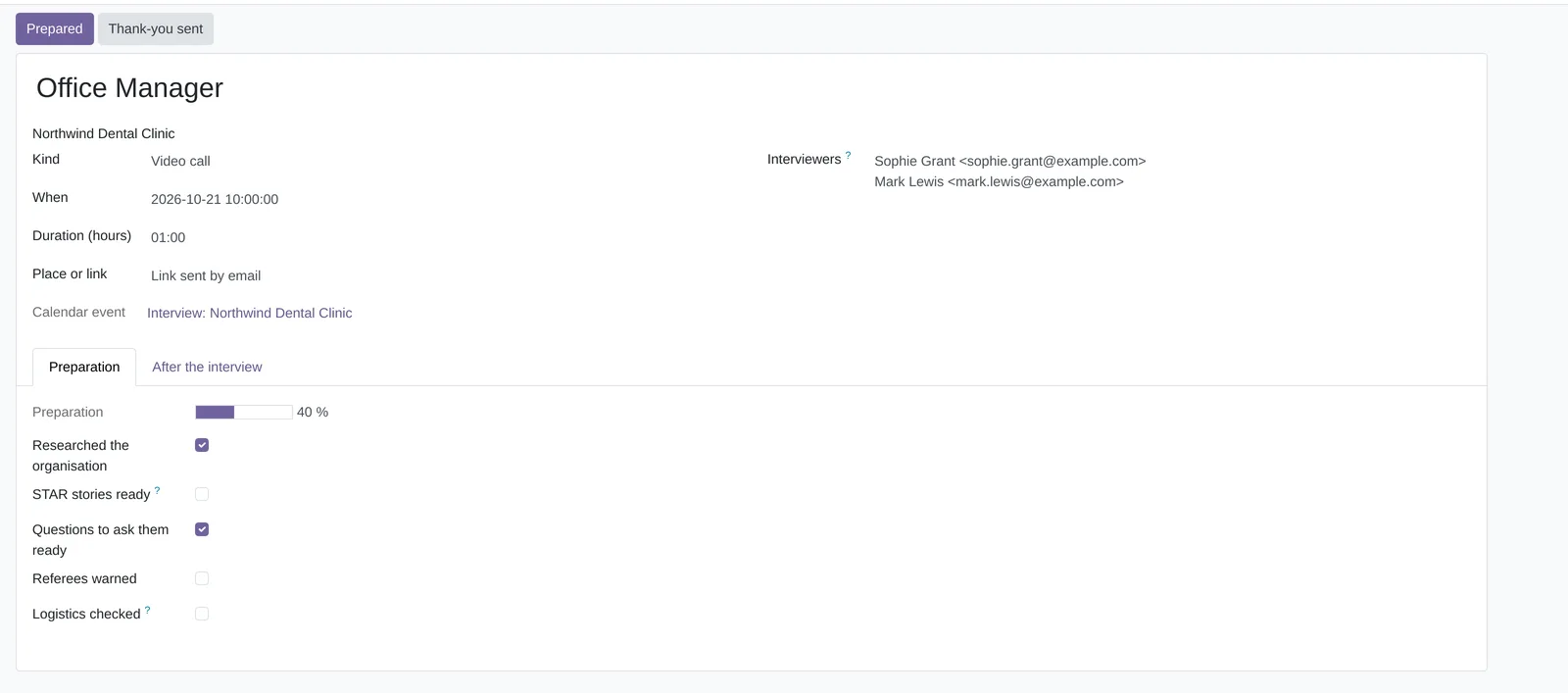
The application moves to Interview if it was not there yet, and its follow-ups stop. Two activities are added to the application: Prepare the interview, the day before, and Send a thank-you note, the day after. The calendar event is private, in your name only: no invitation is sent. Changing the date moves both activities and the event.
Prepare an interview#
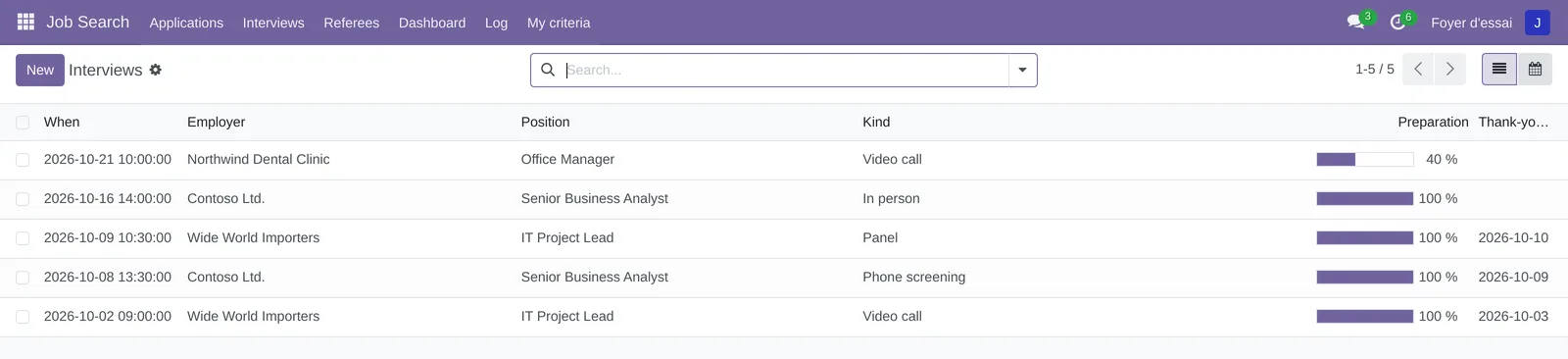
The interview's Preparation tab holds five boxes: Researched the organisation, STAR stories ready (situation, task, action, result), Questions to ask them ready, Referees warned and Logistics checked. The Preparation bar goes up 20% per box.
- Open Job Search › Interviews, then the interview.
- Check each box as you go.
- Select Prepared when everything is ready.
Prepared checks all five boxes and removes the Prepare the interview activity, whose note repeats the same list.
Say thank you after an interview#
The next day, the Send a thank-you note activity is waiting. The interview holds one draft for each person who interviewed you.
- Open the interview, then the After the interview tab.
- Note one or two points from the conversation in What was discussed.
- Copy that person's draft into your mailbox.
- Replace the brackets with a specific point from the interview, then send it.
- Come back to the interview and select Thank-you sent.
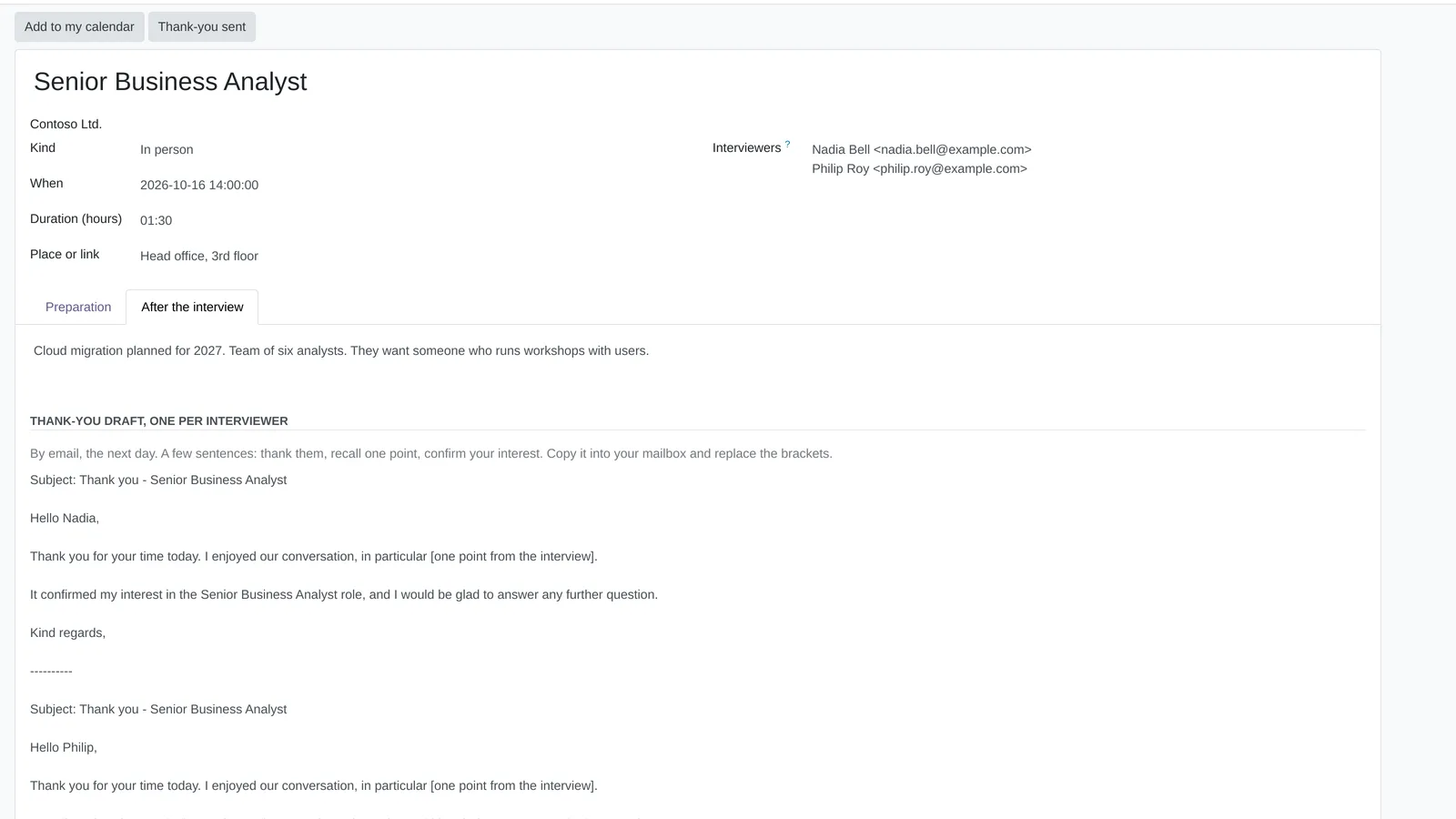
Thank-you sent on takes today's date, the activity closes and a note is added to the application's chatter. Marking the activity done from the chatter does the same. The draft is a few sentences long: thank them, recall one point, confirm your interest. Read it before sending: it says "Thank you for your time today", to adjust since it goes out the next day.
Name your referees for an application#
An employer asks for your referees. They must first exist under Referees.
- Open Job Search › Referees, then select New.
- Enter the Name, Relationship, Organisation, Email and Phone.
- In Agreed on, note when the person agreed. Always ask before naming anyone.
- Save, then open the application.
- In the Referees tab, select Add a line and choose the referee.
- Save.
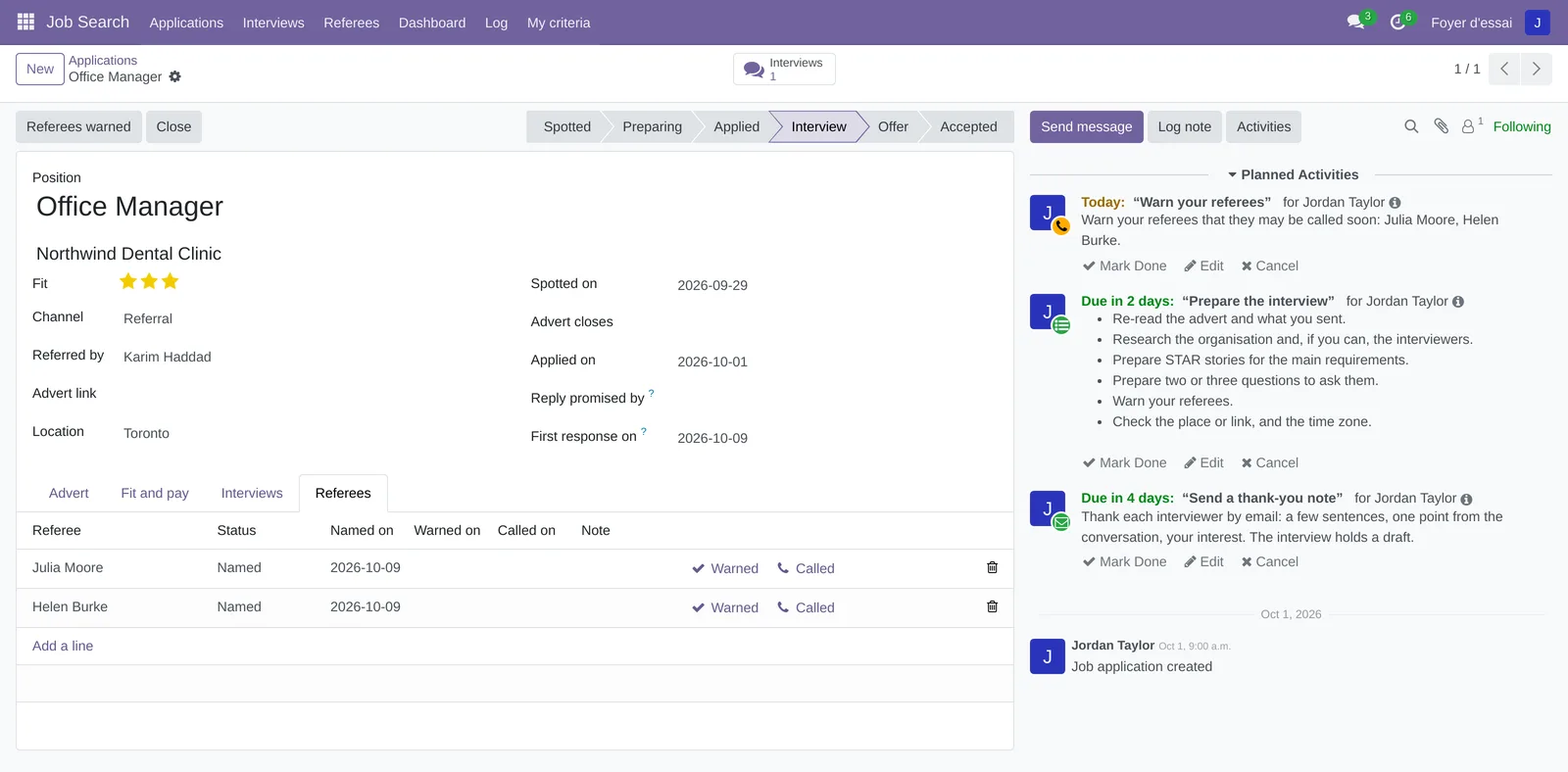
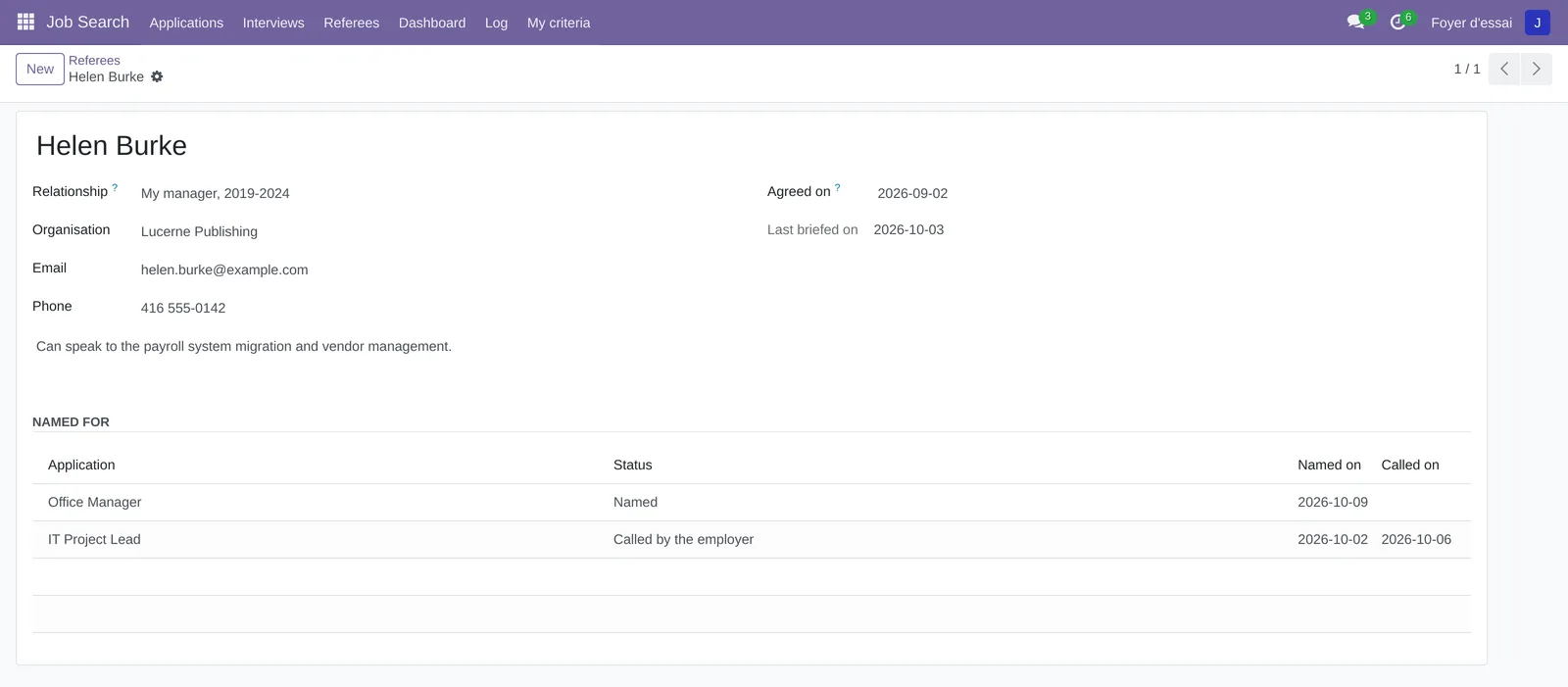
Each line has a Status: Named, Warned or Called by the employer. An application at Interview or Offer receives the Warn your referees activity, which names them. Select Warned on a line, or Referees warned at the top of the record for all of them, once you have called: the activity closes and Last briefed on is updated on the referee's record. Called records the employer's call.
Track an offer#
An offer comes in. Move the application to Offer in the stage bar.
- Open the application, then select Offer in the stage bar.
- In the Offer tab, enter Answer the offer by and the Salary offered.
- Check Written offer received once you have it in writing.
- Note the Offer conditions: probation, start date, checks, benefits.
- Save.
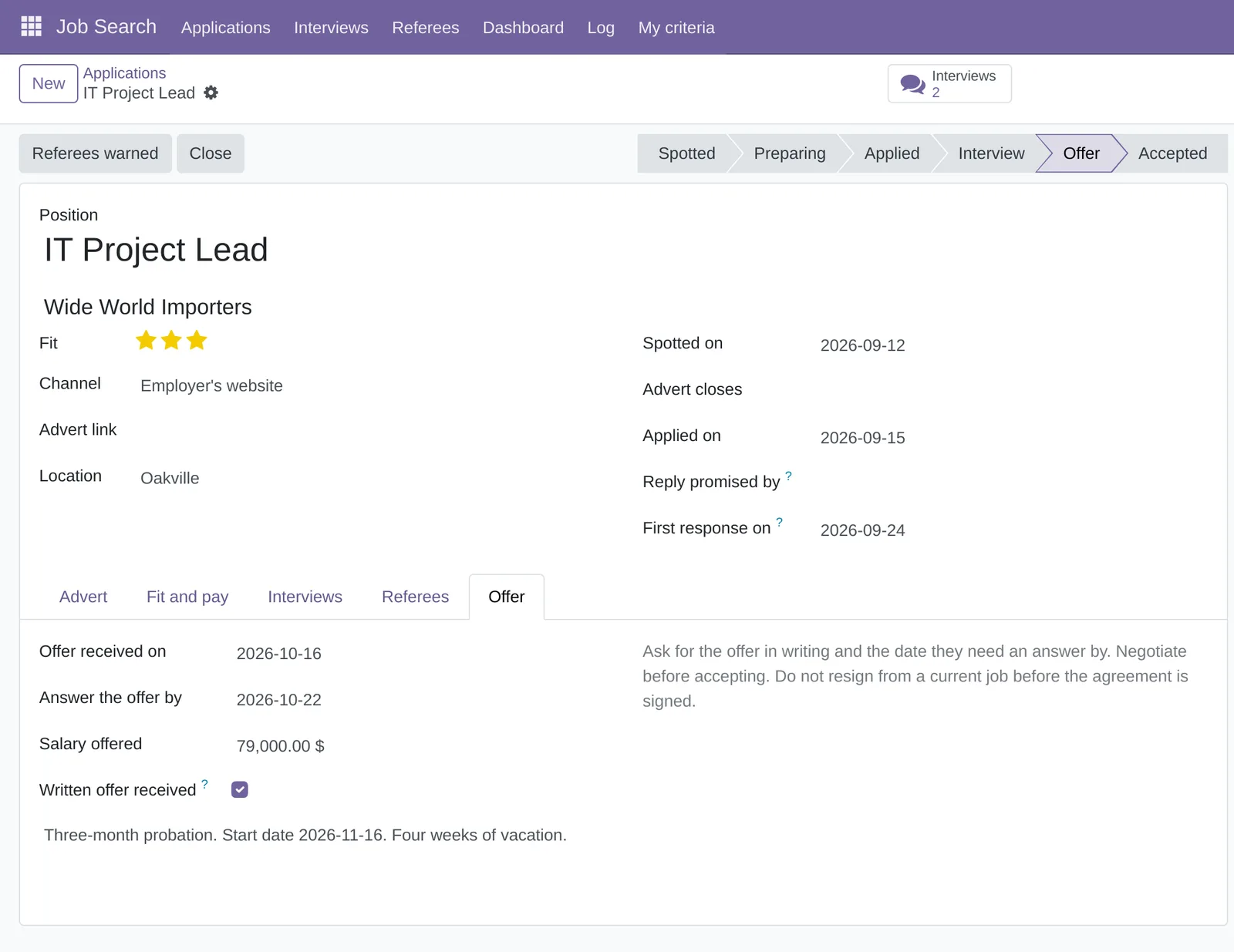
Moving to Offer places the Answer the offer activity, due three days later, with its reminders: ask for the offer in writing, negotiate before accepting, read the conditions, do not resign before the agreement is signed. It does not follow the date entered in Answer the offer by: if needed, move it with Edit in the chatter. Once you accept the offer, select Accepted: the application gets the Hired ribbon and its closing date. A refused offer is closed as Offer declined.
Attach the CV and letter you sent#
Keep the exact version of what you sent.
- Open the application and attach the files with the paperclip icon of the chatter.
- Open the Fit and pay tab.
- In CV sent and Cover letter sent, choose the attached files.
- Save.
Only files attached to this application can be chosen.
Read your dashboard#
Open Job Search › Dashboard. The figures are computed when it opens, on your own applications only.
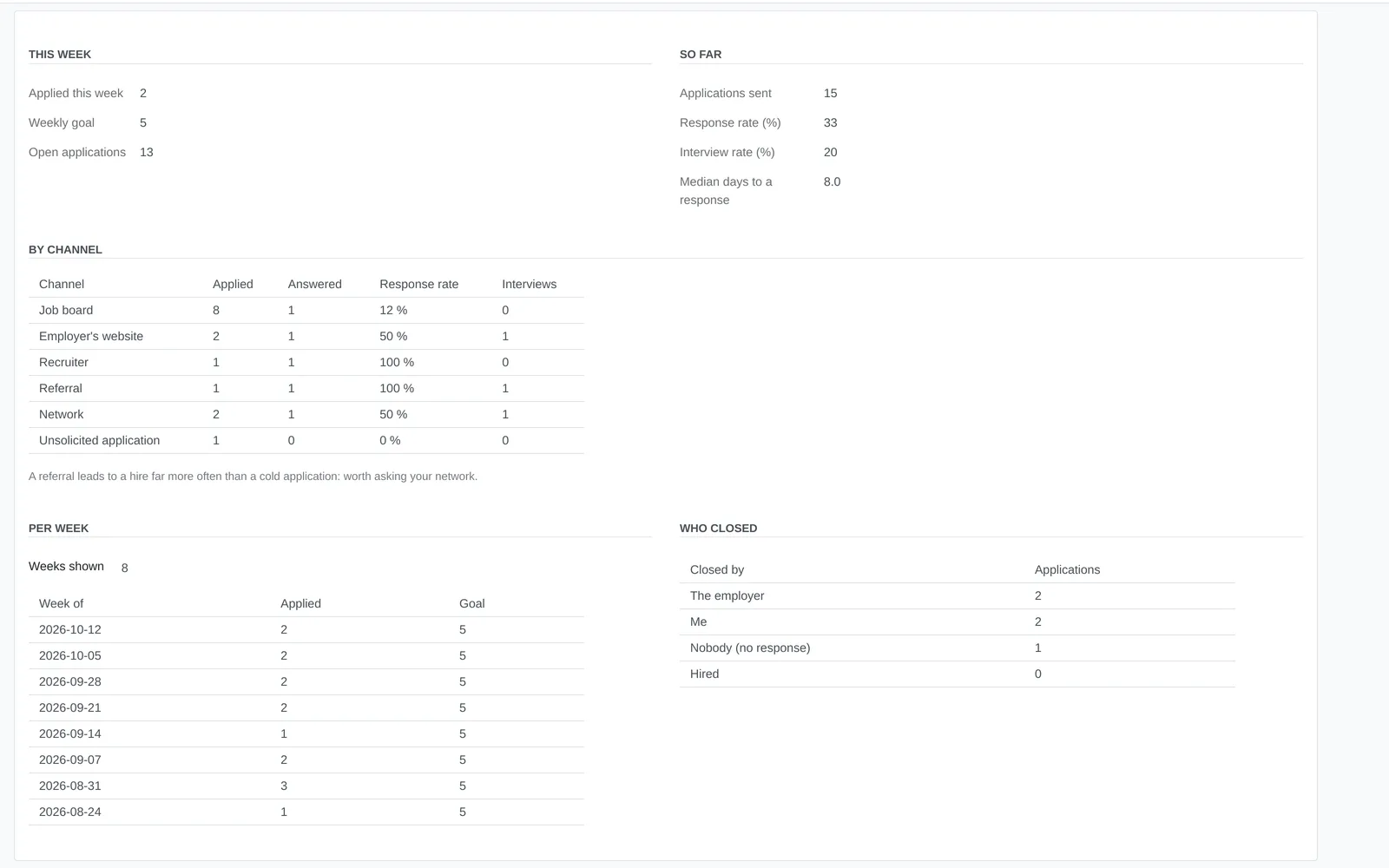
This week counts what you sent since Monday against your Weekly goal. So far gives the response and interview rates, and the median days to a response; By channel repeats them for each channel. Per week covers eight weeks, adjustable with Weeks shown. Who closed splits the closed applications. An application counts as answered if it has a First response on date, if the employer closed it, or if it reached Interview.
Export your job search log#
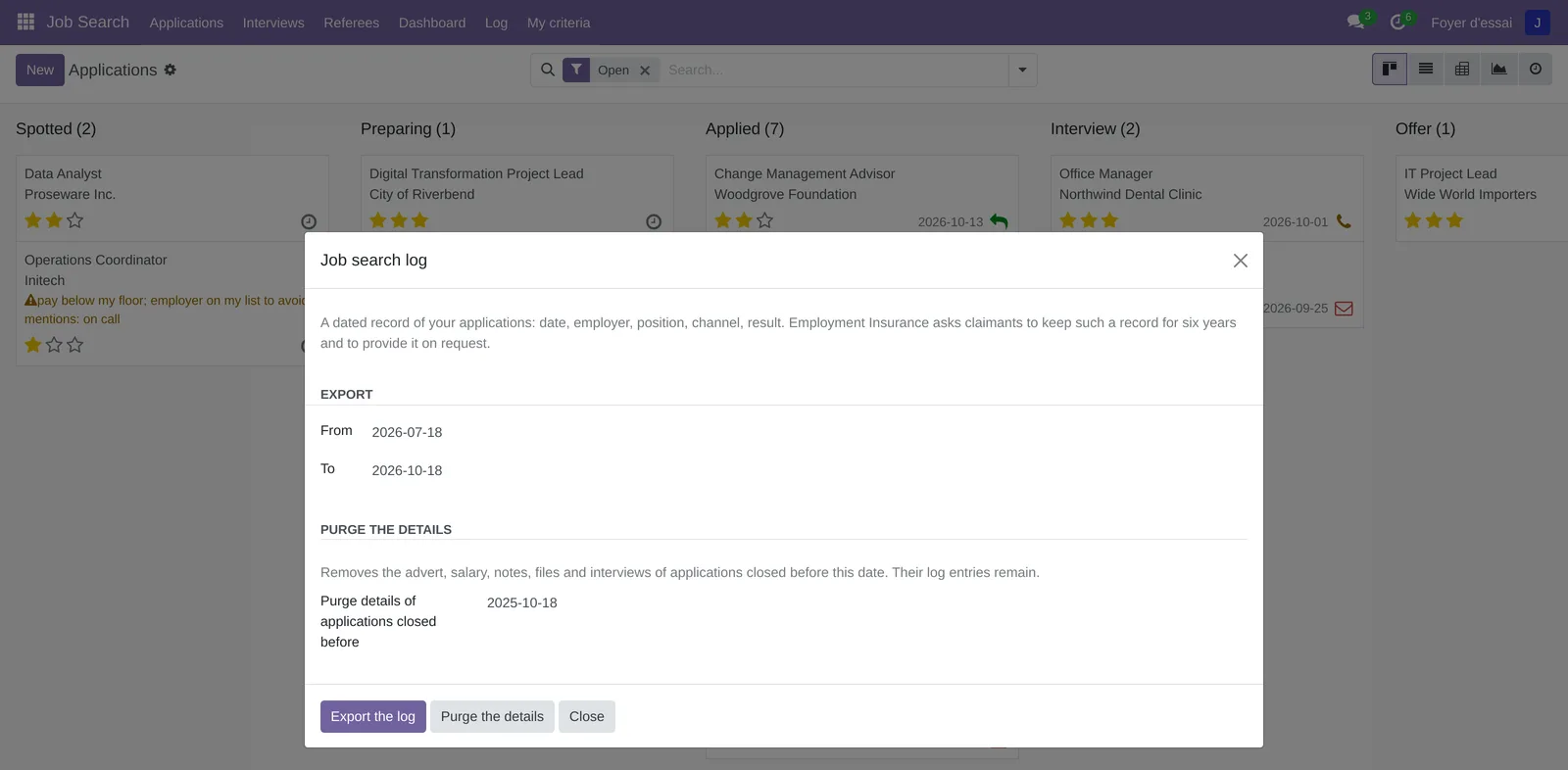
Employment Insurance asks claimants to keep a record of their job search for six years and to provide it on request. The log produces it.
- Open Job Search › Log.
- In From and To, choose the period: the last three months by default.
- Select Export the log.
- Select the file that appears under File to save it.
The file, in CSV format, has one line per application sent in the period: date applied, employer, position, channel, location, result and result date. A line count is shown next to the file. Archived applications are included. The file opens in a spreadsheet with its accents intact.
Purge the details of old applications#
An application closed long ago no longer needs its pay or its notes. The purge removes them and keeps the log entry.
- Open Job Search › Log.
- In Purge details of applications closed before, keep the suggested date, one year back, or choose another.
- Select Purge the details.
- Confirm.
The purge removes the advert, pay, notes, offer, files, interviews and chatter text of the applications closed before that date. The position, employer, channel, dates and result remain. It cannot be undone, and the date must fall more than 30 days before today.
Find an application#
The search in Applications covers the Position, the Employer and the Recruiter. The Open filter is on when the screen opens. The Closed, Waiting for a reply, Interviewing, Applied on and Archived filters sort the rest. Group By offers Stage, Channel, Closed by and Week applied.
Change the pace of follow-ups#
- Open Job Search › My criteria.
- Under Pace, change First follow-up after (days), Next follow-up after (days) or Follow-ups before closing.
- Save.
The new delays apply to upcoming follow-ups. A first follow-up already scheduled is recalculated if you change Applied on or Reply promised by on the application.
The menus, one by one#
Job Search: the application's root. It opens on Applications.
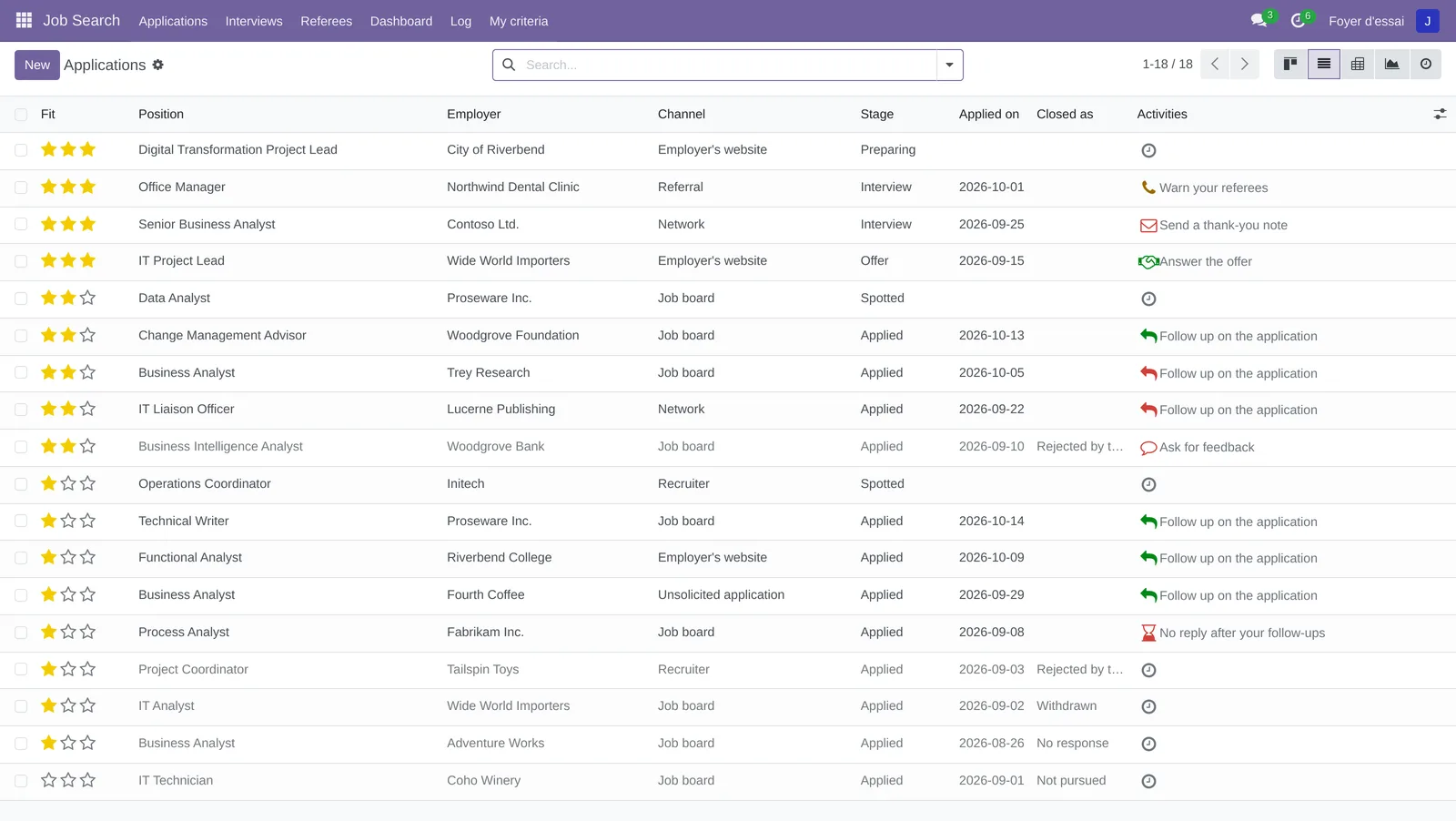
Job Search › Applications: your open applications, in columns by stage (screenshot above). The buttons at the top add the list (a closed application shows in grey), the pivot of channels by Closed by, the graph of applications per week and the activity view. With no application at all, the screen shows "Track your first job application".
Job Search › Interviews: your interviews, most recent first, with the date, employer, position, kind, preparation bar and thank-you date. A calendar view is added. With no interview, the screen shows "No interview yet".
Job Search › Referees: your referees, with the relationship, the date they agreed, the last briefing and the number of times named. A referee's record lists, under Named for, each application, its status and dates.
Job Search › Dashboard: your dashboard, computed when it opens (see Read your dashboard).
Job Search › Log: the log export and the purge of details, in a dialog (see Export your job search log).
Job Search › My criteria: your criteria and the pace of follow-ups, on a single record (screenshot above).
Reference#
Fields of the Application form#
| Field | Description | Required or default |
|---|---|---|
| Position | The title of the role. | Yes |
| Employer | The organization hiring. | Yes |
| Fit | Zero to three stars: Stretch, Moderate fit, Good fit, Strong fit. | One star |
| Channel | Job board, Employer's website, Recruiter, Referral, Network, Unsolicited application or Other. | Job board |
| Recruiter or agency, Referred by | Shown depending on the channel. | Optional |
| Advert link, Location | The advert's address and the role's location. | Optional |
| Spotted on | The day you recorded the role. | Today |
| Advert closes | The advert's closing date. No follow-up before the day after. | Optional |
| Applied on | The day you sent it. | Today, on moving to Applied |
| Reply promised by | A date the employer gave. The first follow-up waits until the day after. | Optional |
| First response on | The first reply of any kind: refusal, interview, question. | Filled in by your actions |
| Closed as, Closed by, Closed on | How it was closed, who closed it and when. | Filled in when closing |
| Advert tab | The full text of the advert. | Optional |
| Fit and pay tab | Salary from, Salary up to, Pay period, Hours per week, Contract length (months), CV sent, Cover letter sent and the fit note. | Per year; length 0 for a permanent role |
| Offer tab | Offer received on, Answer the offer by, Salary offered, Written offer received, Offer conditions. | Shown at the Offer stage |
| Closing tab | The closing note, and a notice after a purge. | Shown once closed |
Fields of the Interview form#
| Field | Description | Required or default |
|---|---|---|
| Application | The interview's application, as the title. Only yours can be chosen. | Yes |
| Kind | Phone screening, Video call, In person, Panel, Technical or case, Assessment or test or Other. | Video call |
| When | The date and time. Without it, no thank-you note and no calendar. | Optional |
| Duration (hours) | The planned length. | 1:00 |
| Place or link | The address or link of the meeting. | Optional |
| Interviewers | One per line, with their email address if needed. One thank-you draft per line. | Optional |
| Calendar event | The private event created by Add to my calendar. | Filled in by the button |
| Preparation tab | The five boxes and the Preparation bar. | Unchecked |
| After the interview tab | What was discussed and the thank-you draft. | Optional |
| Thank-you sent on | The day of the thank-you note. | Filled in by Thank-you sent |
Fields of the My criteria form#
| Field | Description | Required or default |
|---|---|---|
| Salary floor, Floor period | The lowest pay you would accept, compared with the top of an application's range in the same currency and period. | Per year |
| Minimum hours per week | Fewer hours are flagged. | Optional |
| Minimum contract length (months) | A shorter contract is flagged; a permanent role always passes. | Optional |
| Employers to avoid, Words to avoid | One per line, matched ignoring case, in the employer, or in the position and the advert. | Optional |
| Applications per week (goal) | The dashboard's goal. | 5 |
| First follow-up after (days), Next follow-up after (days), Follow-ups before closing | The pace of follow-ups. | 10, 14 and 2 |
Reports and exports#
The Dashboard and the pivot and graph views of Applications serve as reports. The Log exports a dated CSV file of your applications. Nothing else prints.
Automations#
No process runs on a schedule: each reminder comes from an action. Moving to Applied schedules the first follow-up. Follow-up sent schedules the next one, or No news: close? after the last. A reply, an interview or an offer removes the follow-ups. Creating an interview adds Prepare the interview and Send a thank-you note, and naming referees for an application at interview adds Warn your referees. The Offer stage adds Answer the offer; closing removes all activities. An application holds only one activity of each kind: a new calculation moves the date instead of adding another. None of these activities sends an email.
Public pages and portal#
The application has no public page.
Modules that extend this application#
The calendar receives the interviews you add to it, as private events. See Calendar.
Understanding#
Why everything is private, administrators included. Pay, a refusal or the names of your referees say a lot. The rule that closes a record therefore applies to every account, administration included. An application's chatter holds internal notes only and notifies nobody; only its owner can follow it or receive an activity on it. An application cannot be sent by email.
The limit of this rule. A system administrator can change the security rules. Privacy holds between the people on the instance, not against whoever administers the database.
Why say who closed it. A role you drop is not a refusal. Without that distinction, the response rate mixes your choices with the employers', and can no longer be read. Each way of closing therefore files the application with the employer, with you or with nobody.
Why ten days, then fourteen, then the question. Québec.ca suggests following up after two weeks when no date was given, and career advisers speak of two follow-ups at most. The default delays follow that advice; they can be changed in My criteria. After your follow-ups, silence is common: the application suggests closing as No response rather than following up forever.
Why no follow-up while the advert is open. Many employers sort applications after the closing date. The first follow-up therefore waits until the day after Advert closes, or the day after the date the employer promised.
Why say thank you the next day. New Zealand's public careers service and Québec.ca recommend a thank-you email after the interview, short and personal, to each person you met. Surveys of hiring managers say many take it into account; no controlled study measures its effect. The application reminds you, without promising anything.
Why warn your referees. A referee who has been warned knows which role the call is about and what they can speak to. Ask for their agreement before naming them, and record it in Agreed on.
Why a log, and a purge that keeps it. Employment Insurance asks you to keep a detailed record of your job search for six years. The log carries only what that record asks for. The purge removes the rest from old closed applications, without touching the record.
What the application does not do. It publishes nothing, applies nowhere, does not read your mailbox and sends no follow-up or thank-you note on your behalf. It reads no job board: you paste the advert.
Troubleshooting#
| Symptom | Likely cause | Fix |
|---|---|---|
| "This application is closed. Reopen it first." | A closed card dragged to another stage, or an action on a closed application. | Select Reopen, then change the stage. |
| Follow-up sent cannot write its note: the message asks for the sender's email address. | Your profile has no email address. | Add an email address to your profile, then try again. |
| CV sent or Cover letter sent offers no file. | These fields offer only the files attached to this application. | Attach the file first with the chatter's paperclip, then choose it. |
| The banner says "pay not compared (other currency or period)". | The application and your criteria do not use the same currency or pay period. | Align the application's Pay period, or ignore the flag. |
| "This referee is already named for this application." | The same referee added twice. | Keep a single line. |
| "Only applications closed more than 30 days ago can be purged." | The purge date is too recent. | Choose a date at least 30 days earlier. |
| "No closed application to purge before this date." | No closed application, not yet purged, falls before the date. | Choose a later date, or there is nothing to purge. |
| "Follow-up delays are at least one day; counts cannot be negative." | A delay of 0 or a negative number in My criteria. | Enter a delay of at least 1 day. |
See also#
- Calendar: the calendar where your interviews appear.
- Personal Budget: another private application of a household instance.
- Common actions in every application: activities, filters, grouping, archiving.