

Part 1 · Communicating and meeting
Calendar and contacts in your apps
Connect Thunderbird, Apple Calendar and Contacts or an Android phone directly to the Symbifox calendar and contacts, reminders included.
Watch it
Your Symbifox calendar and contacts can also live in the apps you open every day: Thunderbird, Apple Calendar and Contacts on a Mac, iPhone or iPad, and an Android phone through the DAVx5 app. These apps read and write Symbifox directly, without Nextcloud or any other relay. This chapter is for anyone who wants their meetings and contacts on their computer or phone. The result: a meeting created in Thunderbird shows up in Symbifox, and a reminder dismissed on the Mac no longer rings in Thunderbird.
Overview#
Calendar apps speak two standard languages: CalDAV for the calendar and CardDAV for contacts. Symbifox speaks them too. Each device connects with the site address, your login and an app password, which you create in your profile, one per device.
Odoo keeps a single calendar per person, while apps expect several, each with its own name and colour. Symbifox provides them as calendars for apps. Each person has at least their own, named "Agenda", which is their default calendar. They can add others, for example for their client mandates or their personal life. Each meeting lives in one of these calendars, and the app shows a separate calendar for each.
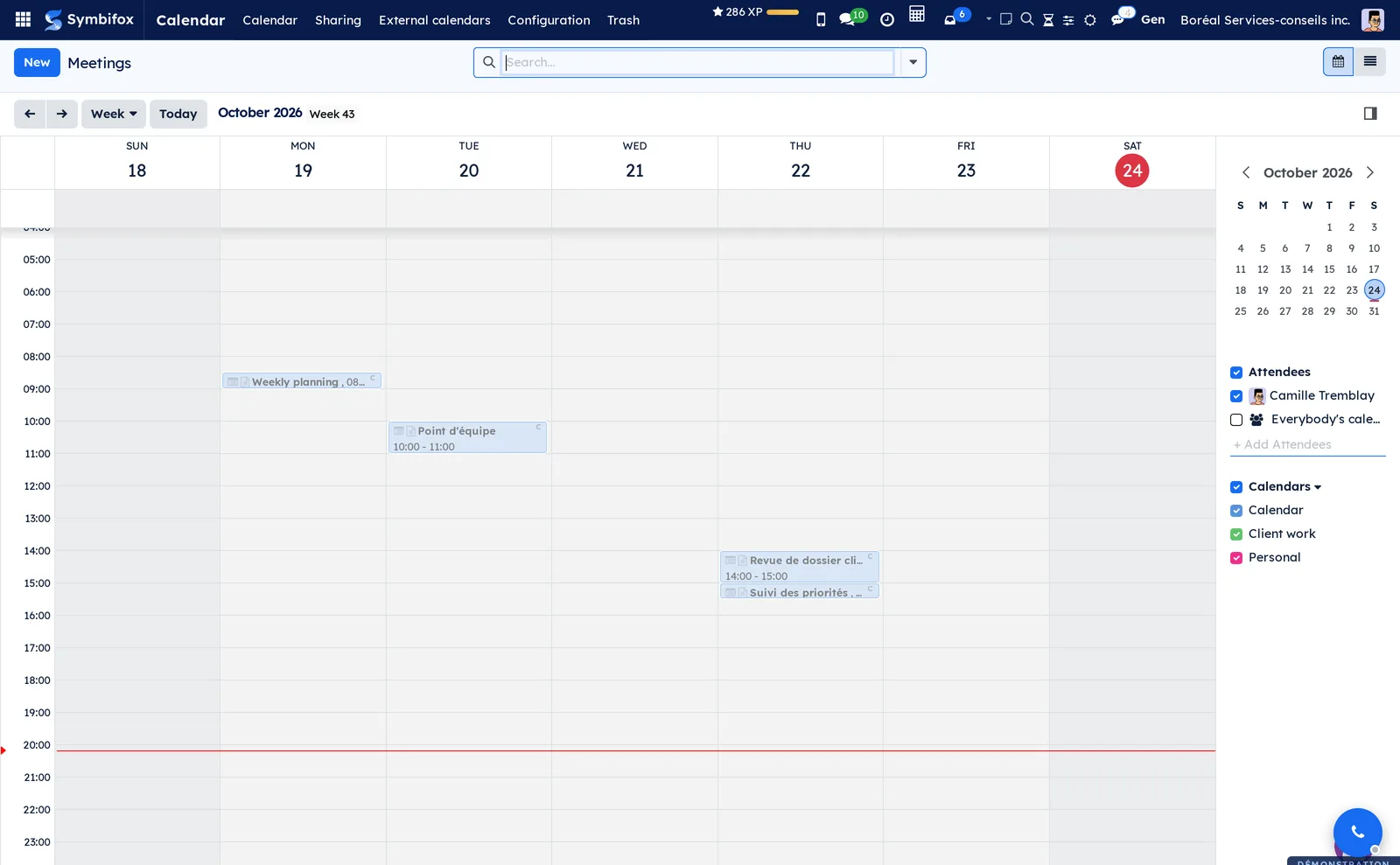
On the demo, Camille Tremblay has three calendars: Agenda, Mandats clients (client mandates) and Personnel (personal). In the Calendar grid, the right-hand panel holds a Calendars section below the attendees: one checkbox per calendar, in the calendar's colour. Meetings take the colour of their calendar.
On the contacts side, each person sees two address books in their apps:
- the company address book, which serves the Symbifox contacts, persons and companies, shared between colleagues;
- a personal address book, named "Personal contacts", which stays outside Symbifox and that only you see.
This chapter complements the Calendar chapter, which describes the meetings themselves, and the Contacts chapter.
Configuration#
Access and permissions#
The module adds no group. Anyone with an internal account can create their app passwords; a portal account cannot. Each person sees and edits their own calendars for apps. Administrators see everyone's, with the Owner column, and they alone see the Address books for apps menu.
An app password opens the calendar and contacts only. It does not open a Symbifox session, nor a program's access to Symbifox. Conversely, an ordinary API key does not open the calendar. In the app, you keep your Symbifox rights: you only see what you see on screen, and you only create a contact if you are allowed to create one.
Settings#
The module has no page in Settings. Two system parameters, in developer mode, under Settings › Technical › Parameters › System Parameters, control its behaviour:
| Parameter | Default | Effect |
|---|---|---|
bf_dav_server.public_url |
empty | The address given to apps. Empty, the dialog gives the public address of your company's website. Set it when Symbifox does not answer directly at that address: calendar apps do not follow a redirect while they look for your calendars. |
bf_dav_server.send_invitations |
1 |
0: no invitation goes out for a meeting created or changed in an app, and no activity reminds you to tell the guests. On the demo, it is 0. |
Base data#
Nothing to create to get started. At installation, each person gets their default calendar, named "Agenda". A person added later gets theirs with their first meeting or their first device connection. When your company already synchronized Nextcloud calendars, installation creates one calendar for apps per Nextcloud calendar, with its name and colour, and files its meetings there. The company address book is created at installation, named after the company; it takes over the tags the Nextcloud contacts sync already left out. Each person's personal address book is created at their first device connection. Meetings and contacts also get their identifier for apps, the same as in Nextcloud when there was one: a device that moves from Nextcloud to Symbifox finds the same meetings, not copies.
Getting started#
This walkthrough creates Thunderbird's app password and connects the calendar.
- Select your avatar, then My Profile.
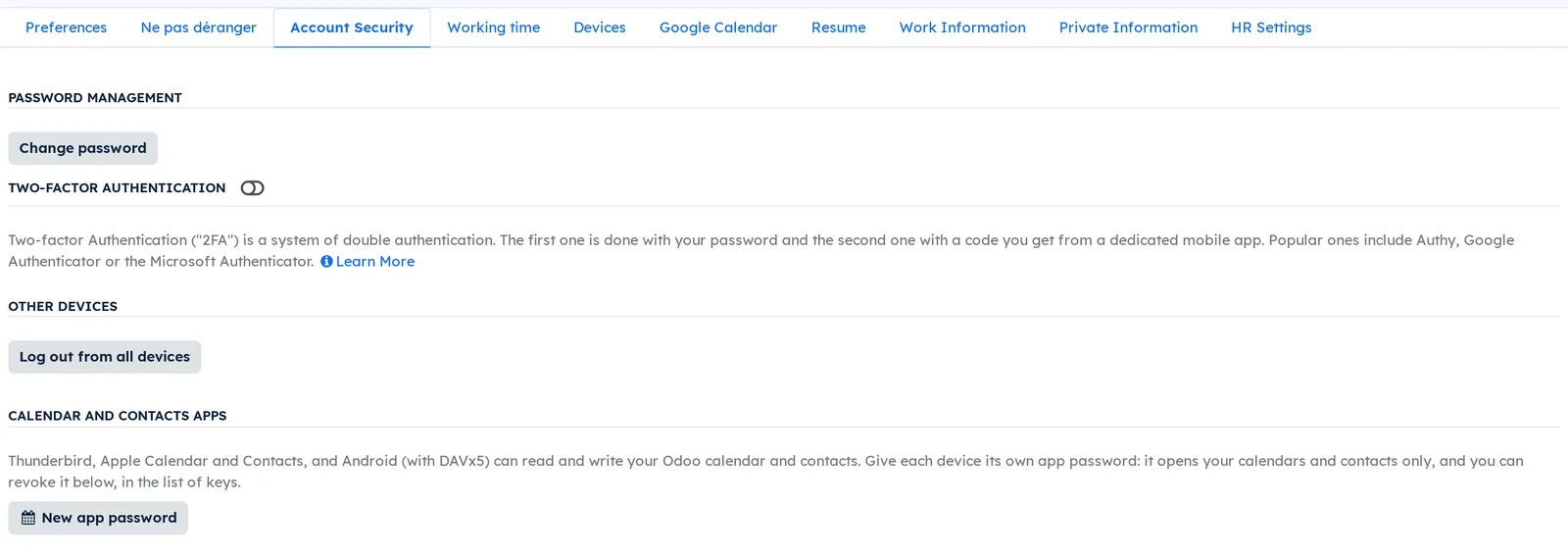
- Open the Account Security tab and select New app password.
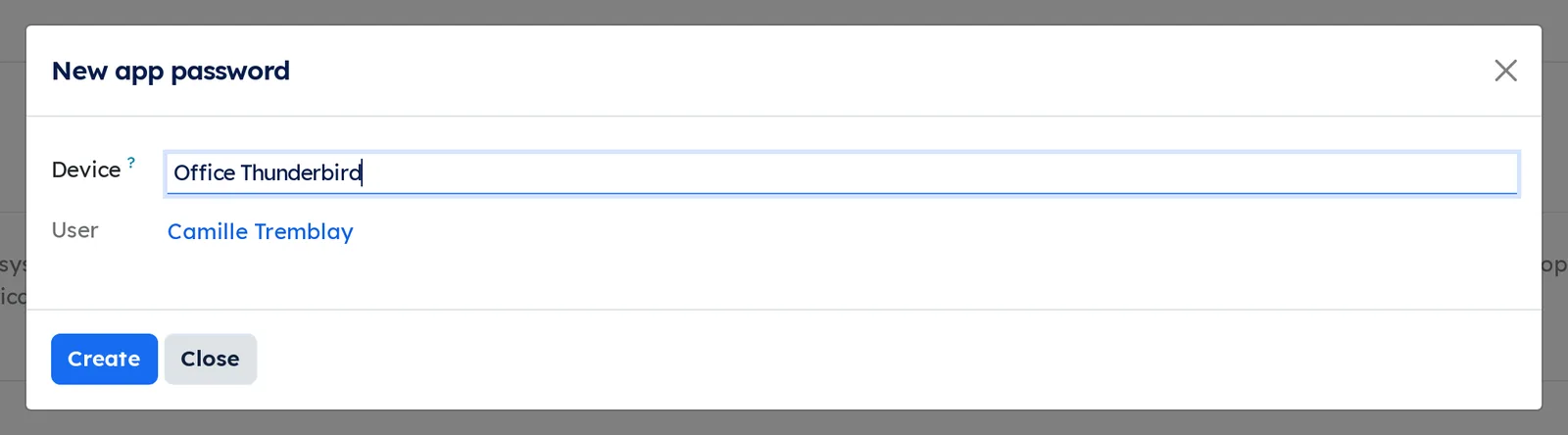
- Enter the device name, for example "Office Thunderbird", then select Create.
- Enter your Symbifox password again when asked.
- Copy the password shown under Key, then the address under Server (Thunderbird, Apple).
- In Thunderbird, add a network calendar with this address, your Login and the copied password.
- Choose the calendars to show, then confirm.
Result: your calendars appear in Thunderbird, each in its colour. A meeting you create there appears in Symbifox, in the chosen calendar.
Common tasks#
Create a device's password#
Each device gets its own password: you can cut off a lost phone without touching the office computer.
- Select your avatar, then My Profile, then the Account Security tab.
- Under Calendar and contacts apps, select New app password.
- In Device, enter a name that sets it apart, such as "Android phone".
- Select Create, then confirm your Symbifox password.
- Write down the password shown under Key before selecting Close.
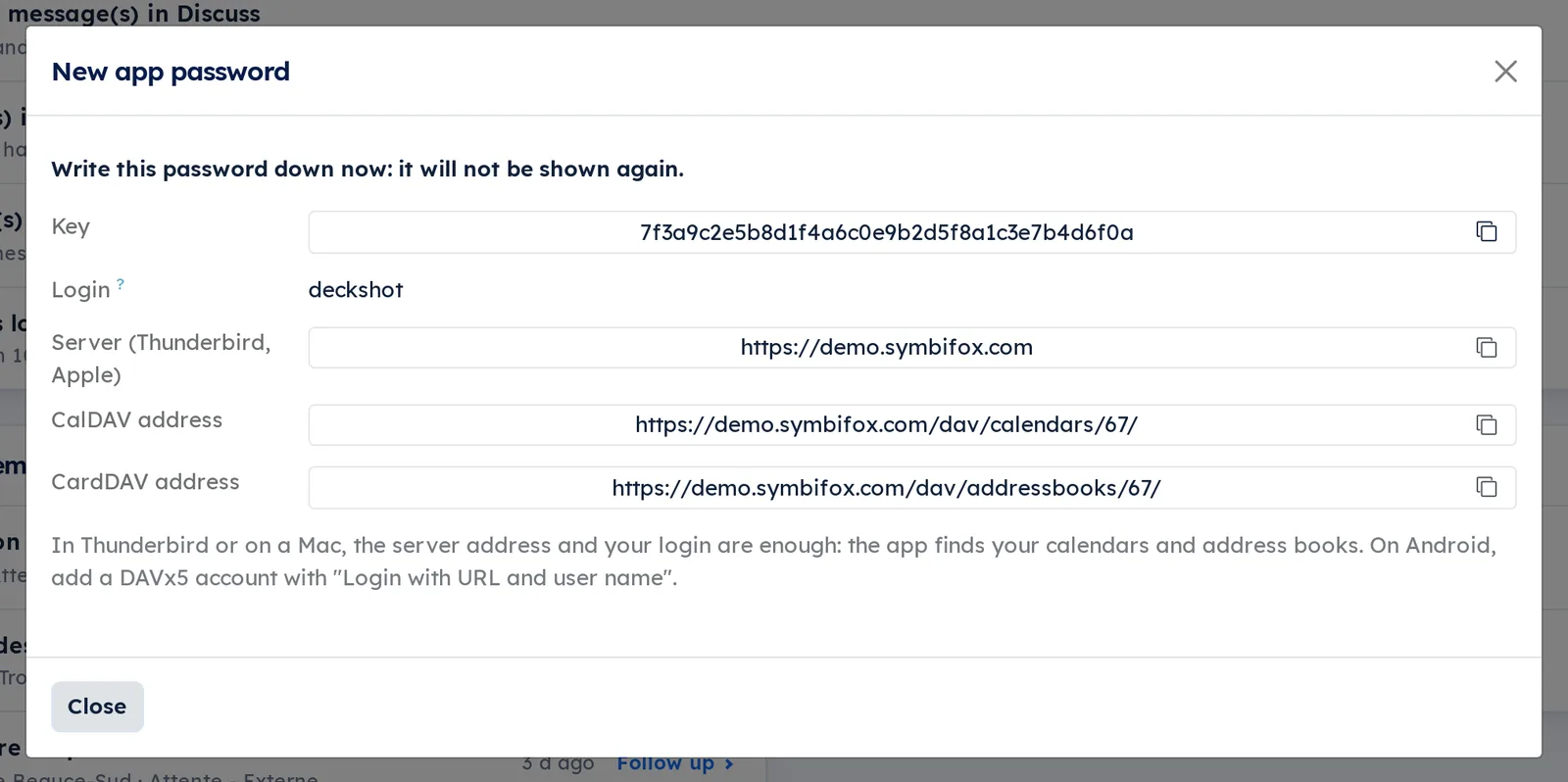
Result: the dialog shows the password once, your Login, the server address, then the CalDAV address and the CardDAV address. Each value has its copy button. The password does not expire: it is valid until you revoke it.
Connect Thunderbird or a Mac#
Thunderbird and Apple Calendar find your calendars and address books on their own from the server address.
- Create the device's password, as above.
- In the app, add a network CalDAV account or calendar.
- Enter the address under Server (Thunderbird, Apple), your Login and the password.
- Choose the calendars to show.
- For contacts, add a CardDAV address book the same way, with the same address.
Result: your calendars, those your colleagues share with you and your two address books appear in the app. The wording of these screens varies with the app and its version; if the app asks for a full address, give the CalDAV address or the CardDAV address.
Connect an Android phone#
Android does not speak CalDAV on its own. The DAVx5 app, installed on the phone, links the phone's calendar and contacts to Symbifox. On Android, the simplest is to split the work: DAVx5 for contacts, and Symbifox Mobile for the calendar and its reminders. Android keeps a reminder's state on the phone without passing it on; Symbifox Mobile sends it back, so a reminder dismissed on the phone is dismissed everywhere.
- Create the phone's password.
- In DAVx5, add an account with "Login with URL and user name".
- Enter the server address, your Login and the password.
- Check your address books. If Symbifox Mobile is installed, leave your calendars unchecked.
Result: the phone's contacts show those of Symbifox, and the calendar is read in Symbifox Mobile. If you also check the calendars in DAVx5 while Symbifox Mobile is installed, each reminder rings twice: once through Android's calendar, once through Symbifox Mobile. To read a colleague's calendar shared with you, check only theirs in DAVx5.
Revoke a device's password#
A device that is lost, sold or replaced is cut off by removing its password.
- Select your avatar, then My Profile, then the Account Security tab.
- Under API Keys, find the key named "Calendar and contacts:" followed by the device name.
- Delete it with the trash icon on its row.
Result: the device loses access within a minute. The other devices keep working.
Add a calendar for apps#
One more calendar separates your meetings by use, with its own colour in Symbifox and in your apps.
- Go to Calendar › Configuration › Calendars for apps.
- Select New and enter the Name, for example "Client mandates".
- Choose the Color in apps and the Color in Odoo.
- Optional: enter a Description, which apps display.
- Save.
Result: the calendar appears in the Calendar grid, with its checkbox, and in your apps at their next synchronization. Its Short address fills itself in from the name.
File a meeting in a calendar#
- Open the meeting.
- In Calendar (apps), choose one of your calendars.
- Save.
Result: the meeting takes the calendar's colour in the grid, and changes calendar in your apps. A meeting created in Symbifox goes to your default calendar; a meeting created in an app goes to the calendar you created it in.
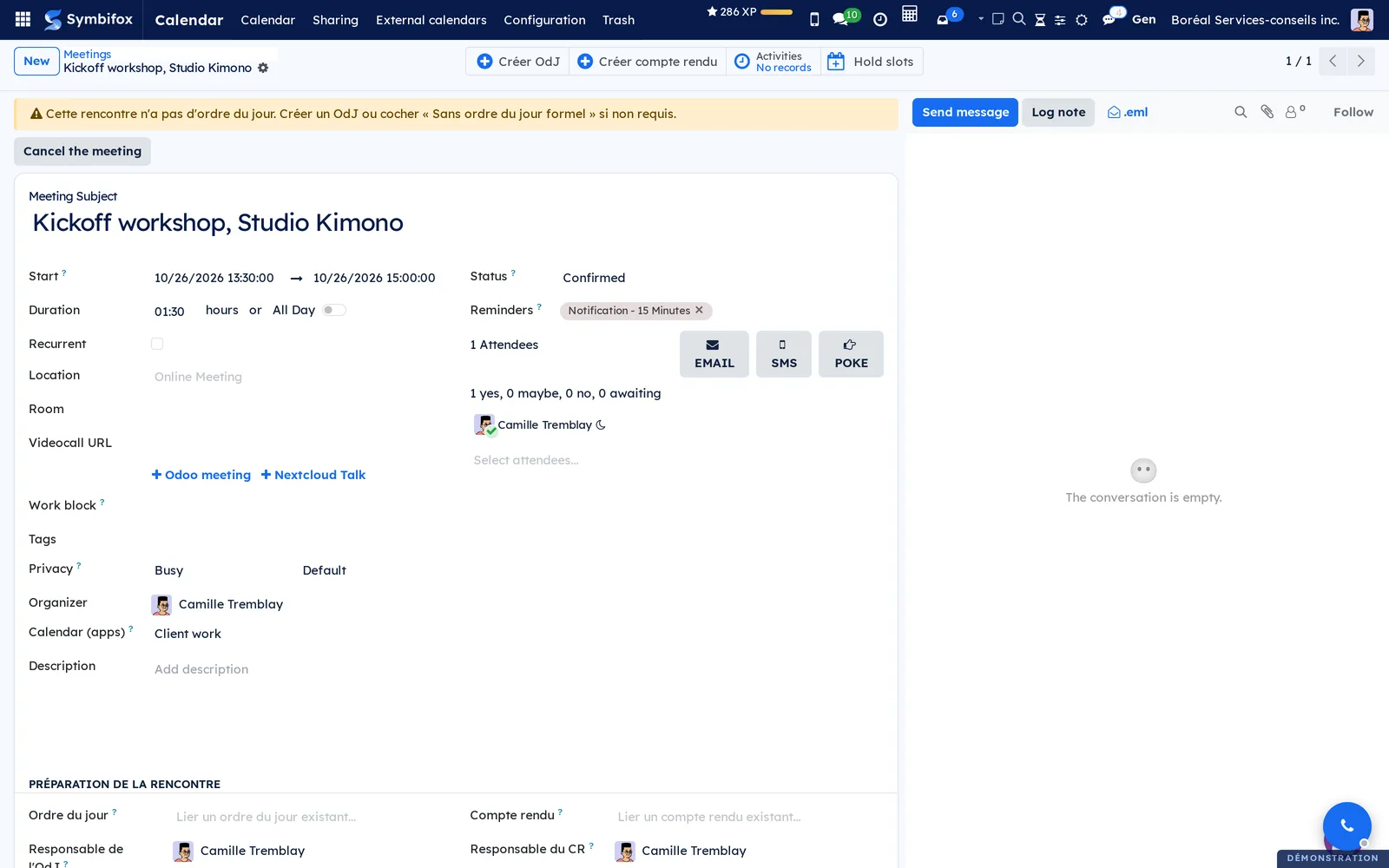
Show or hide a calendar in the grid#
- Go to Calendar › Calendar.
- In the right-hand panel, under Calendars, clear a calendar's checkbox.
Result: its meetings leave the grid. Check the box again to bring them back. The section always lists all your calendars, even those with no meeting in the period shown.
Dismiss or snooze a reminder across devices#
A reminder is handled where it rings, and the others know it.
- When the reminder rings in Thunderbird, on the Mac, in Symbifox or in Symbifox Mobile, dismiss it or snooze it.
- Let the other devices synchronize.
Result: dismissed in one place, the reminder is dismissed everywhere, and the phone's notification goes away; snoozed, it rings again everywhere at the same time. A reminder dismissed on the Mac after being snoozed on the phone no longer rings when the snooze ends. This action does not change the meeting and notifies nobody.
Tell the guests about a change made in an app#
A meeting moved in Thunderbird or on the Mac notifies nobody on its own, just as in the grid. Symbifox reminds you.
- Move the meeting, or change its title or location, in your app.
- In Symbifox, open the activity Send the update to the guests, due the same day. It sits on the meeting's document (a task, a lead), otherwise on the first guest's contact.
- Follow the Open the meeting link in its note.
- Select Tell the guests, review, then Send the notice, as in the Calendar chapter.
Result: the guests receive the notice, and the activity closes on its own within ten minutes. It also closes if the meeting goes back to its slot or starts. For a series, the next date is the one looked at.
Use contacts on a phone#
The company address book serves the Symbifox contacts. The personal address book keeps what concerns only you.
- Connect the company address book and your personal address book in the contacts app, as above.
- Create or edit a card in the company address book: it becomes a Symbifox contact.
- Keep in the personal address book the contacts that have no business in Symbifox.
Result: a contact edited on the phone is edited in Symbifox, and the other way round. A contact deleted from the company address book on the phone is archived in Symbifox, never erased. It can be found with the archived filter of Contacts.
Keep contacts out of the company address book#
Some contacts have no business on the team's phones, for example those of a sensitive file. A tag is enough to keep them out. Prerequisite: be an administrator, and have tagged these contacts in Contacts.
- Go to Calendar › Configuration › Address books for apps.
- Open the address book whose Kind is Company contacts.
- In Excluded tags, add the tag of the contacts to keep out.
- Save.
Result: the contacts carrying that tag leave the company address book on every device, at its next synchronization. They stay in Symbifox, untouched. Cards counts the contacts still served.

The menus, one by one#
Calendar › Configuration › Calendars for apps: the list of your calendars for apps. Columns: Name, Short address, Default, Color in apps, Color in Odoo and Events, plus Owner for administrators, who see everyone's calendars there. The handle on each row sets the order of the calendars in the apps and in the grid. Empty, the screen shows "No calendar yet". A calendar's form has the Events shortcut button at the top, which lists its meetings.

Calendar › Configuration › Address books for apps: administrators only. The list of address books served to apps: the company address book and the personal address book of each person who connected a device. Columns: Name, Kind, Owner, Excluded tags and Cards. Address books are created on their own: the list has no New button. The form of a personal address book gives its owner and its number of cards, never their content.

The other entries of the Calendar menu are described in the Calendar chapter.
Reference#
Fields of the Calendar for apps form#
| Field | Description | Required or default |
|---|---|---|
| Name | The name shown in apps and in the grid. | Required |
| Owner | The person the calendar belongs to. Visible to administrators only. | You |
| Short address | The last part of the calendar's address. Changing it makes apps see a new calendar, to be connected again. | Taken from the name |
| Default | The calendar that receives the meetings created in Symbifox and those you are invited to. A person has only one. | Checked on the calendar created at installation |
| Color in apps | The colour offered to Thunderbird, Apple and DAVx5. | Blue |
| Color in Odoo | The colour of the calendar and of its meetings in the Calendar grid. | None |
| Description | A text that apps display. | Empty |
Fields of the Address book for apps form#
| Field | Description | Required or default |
|---|---|---|
| Name | The address book's name in apps. | The company's name, or "Personal contacts" |
| Kind | Company contacts or Personal. Cannot be changed. | Set at creation |
| Owner | The person a personal address book belongs to. | Set at creation |
| Short address | The last part of the address book's address. Cannot be changed here. | Set at creation |
| Cards | The number of contacts served. | Computed |
| Excluded tags | Company address book only: contacts carrying one of these tags are not served. | Those of the Nextcloud sync, otherwise none |
Fields of the New app password dialog#
| Field | Description | Required or default |
|---|---|---|
| Device | The device's name. The key carries this name in the list of keys of your profile. | Required |
| User | The person the password is created for. Visible to administrators only. | You |
| Key | The app password, shown only once. | Created by the dialog |
| Login | Your sign-in login, to give to the app. | Yours |
| Server (Thunderbird, Apple) | The address to give to Thunderbird, Apple and DAVx5. | The site address |
| CalDAV address, CardDAV address | The full addresses of your calendars and address books, for an app that asks for them. | Computed |
What makes the round trip#
| Area | What goes both ways |
|---|---|
| Meetings | Create, edit, delete; title, time, location, description, tags, privacy, availability (busy or free). |
| Series | Daily, weekly, monthly on a date or on a weekday, yearly; moved dates and removed dates. |
| Attendees | Guests and their answers. |
| Reminders | The meeting's reminders, and their state (seen, snoozed, dismissed) between Symbifox, Symbifox Mobile, Thunderbird and Apple. |
| Contacts | Name, company, job title, first email, phone, mobile, first address, website, tags and photo. |
What an app writes that Symbifox does not know, such as an attachment or a property of Thunderbird or Apple, is kept and handed back unchanged. On a contact card, a second email, other numbers, a birthday, a note or a profile are kept for you only: a colleague does not see them on their phone.
Reports and exports#
The module has no report. The list of calendars can be exported through the Actions menu, as elsewhere (see Common actions in every application).
Automations#
- Every day, Symbifox forgets changes older than 90 days. An app left disconnected longer reads everything again at its next synchronization.
- On every change to a meeting or a contact in Symbifox, apps see it at their next synchronization, at their own pace.
- Never: a change made in an app goes to Nextcloud.
Public pages and portal#
The module has no public page and no portal access. Apps connect to a reserved address of the site, with their app password.
Modules that extend this application#
Understanding#
Why one password per device. Calendar apps keep the password in memory and send it at every synchronization. A password specific to the device, which opens only the calendar and contacts, limits what a lost device exposes, and is revoked without changing anything else. After ten failed attempts, the server refuses that login from the same address for five minutes.
Invitations only come from Symbifox. The server tells apps that it sends invitations itself: Thunderbird and Apple no longer send any on their side, and nobody gets two invitations. A guest added in an app receives the Symbifox invitation, as if they had been added here. A change of time or location made in an app notifies the guests only if the administration has turned on automatic change notices, as for a meeting moved in Nextcloud (see Calendar). Without them, the activity Send the update to the guests reminds you, see Tell the guests about a change made in an app. Nothing goes out for an invitation you received from someone outside the company, nor when the invitations parameter is 0.
A first synchronization writes to nobody. A new device that sends more than five meetings within two minutes, its local meetings for example, triggers no invitation. A meeting created in that case carries a note in the chatter, the message thread at the bottom of the form: send the invitation from Symbifox if the guests should receive it.
Reminder state travels. Symbifox keeps, for each person, the state of each reminder: seen, snoozed until a given time, dismissed. It translates it between its own reminder window, Symbifox Mobile, Thunderbird and Apple, which do not write it the same way. Acting on a reminder does not rewrite the meeting and notifies nobody. Android's calendar is the exception: it keeps reminder state on the phone, without passing it on, hence Symbifox Mobile for the calendar. On a meeting you are invited to, Symbifox Mobile rings the reminders you set yourself in Thunderbird or on the Mac, otherwise the meeting's own. The default reminder Apple adds on its own stays on the device that added it.
Your colleagues' meetings. Your default calendar also shows the meetings you are invited to, even when they are filed in a colleague's calendar. A colleague who shares their calendar with you at Titles and locations, All details or Edit also gives it to you as a separate calendar in your apps; only Edit lets you write to it. The Availability only level does not appear there. A colleague's private meeting shows as a busy block, as in Symbifox. Removing from your calendar a meeting you are invited to declines it and takes you off it, without deleting it for the others.
A meeting deleted from an app goes to the trash. Deleted by its organizer in Thunderbird, on the Mac or on the phone, it goes to the calendar trash, whole series included, as if you had deleted it in Symbifox; it shows Odoo under Deleted from there, and can be restored. A meeting that comes from an online appointment or a subscribed external calendar is refused: the app shows an error. Without the trash module, the deletion is final.
A conflict is never erased in silence. If two devices edit the same meeting, the second one, writing on an outdated copy, is refused: it reads the meeting again and shows it to you as it is. A refused request leaves nothing behind.
What the module does not do.
- Tasks of a calendar app are not served.
- A repeat rule Symbifox cannot hold is refused rather than approximated: for example "the last working day of the month", several days of the month, several months of the year, or every hour. The app then shows an error.
- A series "with no end" holds 720 dates in Symbifox; a device may show more.
- Deleting a meeting from an app does not notify the guests. To notify them, cancel it in Symbifox instead, see Calendar.
- Outlook speaks neither CalDAV nor CardDAV: it does not connect this way. The subscription link of the Calendar chapter shows it your calendar, read only.
And Nextcloud. A write coming from an app never goes to Nextcloud: Nextcloud emails every guest on the slightest change, and a write already sent cannot be taken back. A calendar you use through your apps is therefore fed by Symbifox only. Connect each device either to Symbifox or to Nextcloud, not both for the same calendar.
Troubleshooting#
| Symptom | Likely cause | Fix |
|---|---|---|
| The app says it finds no calendar. | The address given redirects to another address, which apps do not follow while they look for calendars. | Give the exact address from the dialog. If it still redirects, the administrator sets the public address in the dedicated parameter. |
| The app refuses the password. | The password was revoked, copied wrong, or it is your Symbifox password. | Create a new app password and copy it with the copy button. |
| A meeting deleted by mistake on a device is gone everywhere. | Deleting it in the app sent it to the trash. | Go to Calendar › Trash and restore it. |
| The app shows an error when saving a recurring meeting. | The repeat rule has no equivalent in Symbifox. | Choose a simpler repeat, or create the series in Symbifox. |
| The app refuses to delete a meeting. | It comes from an online appointment or a subscribed external calendar. | Cancel the appointment, or change the external calendar at its source. |
| A reminder dismissed on the Android phone still rings on the computer. | Android keeps reminder state on the phone. | Dismiss it on the computer too, or dismiss it in Thunderbird, on the Mac or in Symbifox. |
| Guests received nothing for a meeting created on a new device. | The device's first synchronization, or the invitations parameter at 0. |
Read the note in the meeting's chatter, then send the invitation from Symbifox. |
| A contact deleted on the phone is still in Symbifox. | It is archived there, not erased. | Find it with the archived filter and unarchive it if needed. |