
Part 9 · Schools
Child care
Open child care periods, register and book, keep the daily sheet, control who picks children up and bill child care each month to the adults who pay.
The Child care app lets a private school run child care for its preschool and elementary students. It is for the child care manager, who opens the periods and puts registrations in force; for the child care staff, who record arrivals and departures on a phone; and for the school office, which sets the rates and bills. Families register, book and give notice on the portal. The result: every child leaves with a person allowed that day, and every period owed lands on the right invoice.
Overview#
Everything starts from the school calendar. A period runs at the hours and on the weekdays you give it: Before school, Lunch time and After school on class days, Day without class on pedagogical days and on the breaks the school opens. A day the calendar closes has no period.
A child comes in one of three ways. A regular registration holds periods and weekdays between two dates. An occasional booking holds one period on one day. A day without class offers an activity, with its places and its booking deadline. A family can also send an absence notice: the child is expected elsewhere, but the place is still owed.
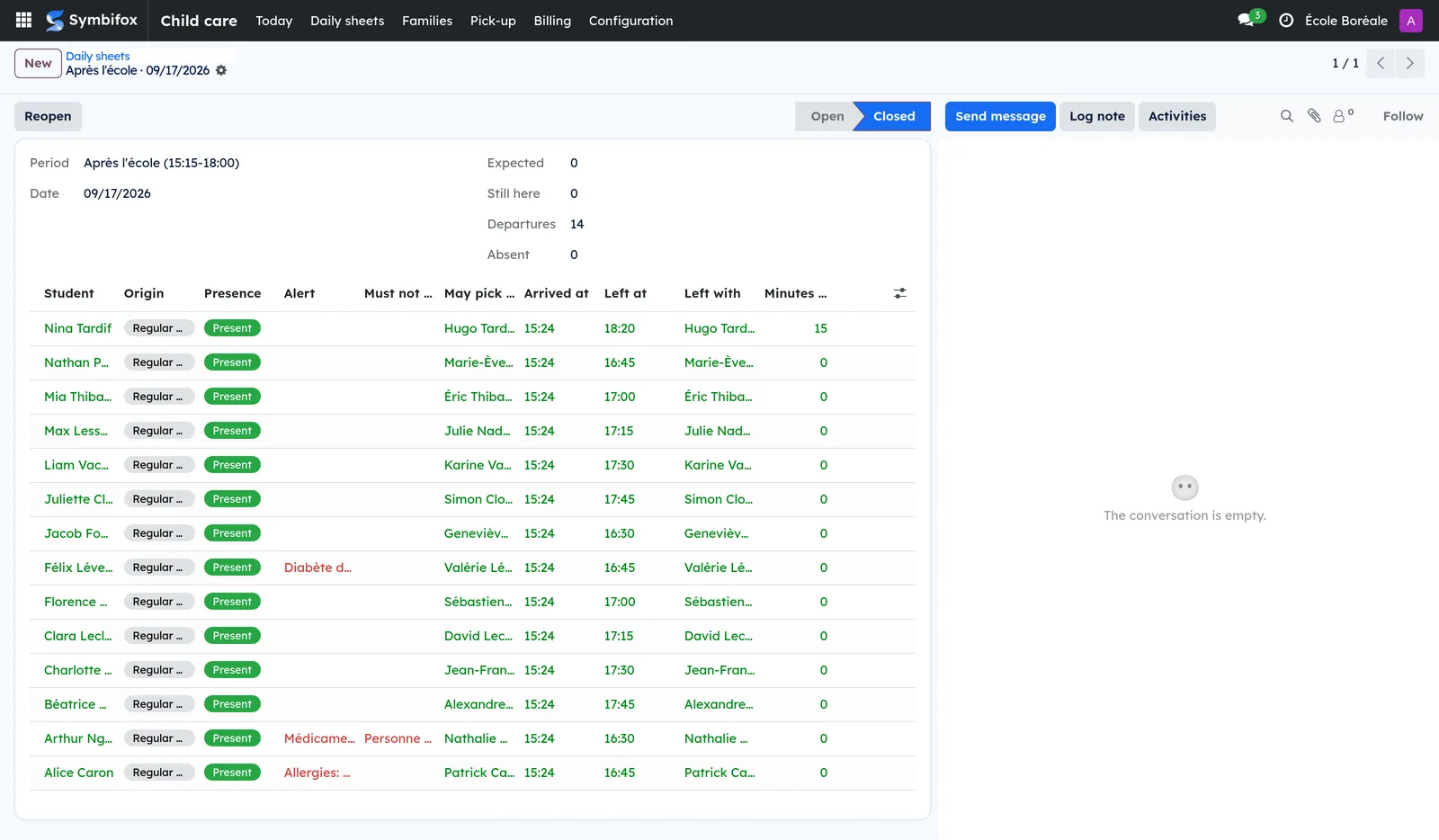
On the day, the child care staff open the daily sheet of each period: the children expected, then their arrival and departure, by buttons, on the school's clock. At departure, the screen offers only the people allowed that day: the family adults who may pick the child up, the authorized people the family named, and leaving alone when the family signed for it. A pick-up restriction is never offered.
What happened becomes charges: an occasional period, a late pick-up, an activity, a registration's monthly tier. On the first of the month, the monthly billing turns them into one invoice per paying adult. Contract invoices and the Relevé 24 live in the School app; the Relevé 24 also counts the child care paid here.
Configuration#
Access and permissions#
Two roles are set on each user's record, under the School child care category.
| Role | What it opens |
|---|---|
| School child care / Educator | Today's open daily sheets: arrivals, absences and departures. Educators read neither the family links, nor conduct, nor the registrations, bookings, authorized people or restrictions. What they need about a child on the sheet (alert, who may pick up, a restriction flag) shows on the child's line. |
| School child care / Manager | All of the above, plus registrations, bookings, days without class, absence notices, authorized people, restrictions and leaving alone. Reopens a closed sheet. Reads the rates, charges, billings and books of tickets. |
The School / Administration role includes the manager's. The rates, the tiers, activity fees, the monthly billing, waiving a charge and cancelling an unpaid book belong to the Administration, which bills without the Invoicing role. Educators and teachers read none of the billing.
Settings#
The settings live on the school's record, Child care tab: School › Configuration › Schools.
- Booking notice (hours): the least notice for a booking made by the family, 24 hours by default. Later than that, only the office books, and the booking is marked Late notice.
- Free cancellation (hours before): 24 hours by default. A later cancellation is marked Late cancellation, and the place is still owed.
- Minimum age to leave alone: 0 for no minimum age.
- Child care manager: the person who receives the registration requests.
- Regular child care billed: "Monthly invoice", by tier of periods per week, or "On the contract", when regular child care is a fee of the contract for educational services. Occasional periods, late pick-ups and activities are always billed each month.
Each period is set in the same tab or in Child care › Configuration › Periods: its Kind, its Starts and Ends times, its weekdays, its levels, its Places (0 for no limit) and its Grace (minutes) after the end. A period serves preschool and elementary only (Act respecting private education, s. 62.1).
Base data#
Before the first registration, you need the year's school calendar and the school's periods. Before the first invoice, you need the year's Rates and, for the monthly invoice, its Monthly tiers (see Set the rates and tiers). The app ships with no rate: each school sets its own.
Getting started#
This walk-through opens an after-school period and registers a child from Monday to Friday.
- Open Child care › Configuration › Periods and select New.
- Enter "After school", choose the After school kind, then enter Starts, Ends and Places.
- Open Child care › Families › Registrations and select New.
- Choose the Student, the School year, then the From and Until dates.
- Add a line, choose the Period and tick Mon., Tue., Wed., Thu. and Fri..
- Select Put in force.
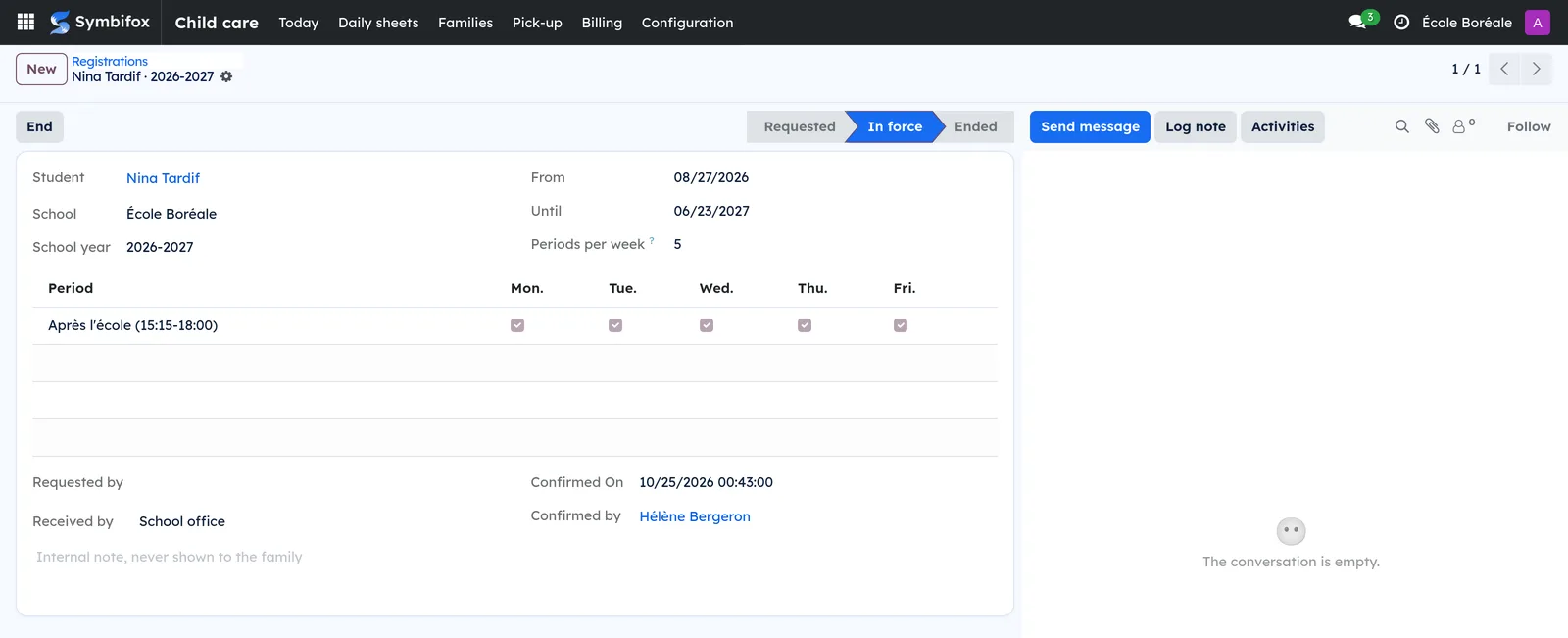
Result: the registration turns In force once the places are checked on every date from today. Every holder of parental authority receives an email, and the child shows on the period's daily sheet.
Common tasks#
Put a registration request in force#
A family asks for a regular registration on the portal. The child care manager receives an activity.
- Open Child care › Families › Registrations and open the request, in the Requested state.
- Check the periods, the weekdays and the dates.
- Select Put in force, or Cancel the request.
Result: the places are checked on every date from today, then every holder of parental authority is told by email. The occasional bookings the registration now covers are cancelled at no charge.
Book an occasional period#
The family books on the portal; the office can also book for them.
- Open Child care › Families › Bookings and select New.
- Choose the Student, the Period and the date.
- Save.
Result: the booking is Booked. It is refused for a past date, a closed day, a period that does not run that day or does not serve the child's level, a child already registered or booked, or a full period. Made by the office after the school's notice, it is marked Late notice.
Cancel the booking frees it. After the free cancellation notice, it is marked Late cancellation and the place is still owed. When the calendar closes a day, its bookings are closed at no charge.
Organize a day without class#
A pedagogical day or an open break offers an activity, with its places.
- Open Child care › Families › Days without class and select New.
- Enter the name, choose the day-without-class Period and the date.
- Enter the Places, the Minimum and the Book by date.
- Have the Administration enter the Activity fee if there is one.
- Select Confirm once the minimum is reached.
Result: families book the activity on the portal until the deadline. Cancel the activity cancels its bookings at no charge and emails the families.
Record an absence notice#
The family gives notice on the portal; the office can also record a call.
- Open Child care › Families › Absence notices and select New.
- Choose the Student, the date and the period, or the whole day.
- Save.
Result: an open sheet marks the child absent at once and says so in its chatter. The place is still owed. A whole-day absence reported to the school, in the School app, counts too.
Keep the daily sheet#
Child care staff work on a phone, on the school's clock.
- Open Child care › Today.
- Open the period's sheet; Refresh adds the children expected since it opened, without touching the others.
- Select Arrival as each child arrives, or Absent.
- At departure, select Departure and choose the person (see Let a child leave).
- Before school or at lunch, select To class for the children going to class.
- Select Close the sheet once every child has left.
Result: each arrival and departure carries its time. A child present without registration is added with the Not registered origin; Remove takes them off if added by mistake. After school and on days without class, the sheet closes only once every child has left; before school and at lunch, the children still there go to class.
Let a child leave#
The departure window offers only the people allowed that day.
- On the sheet, select Departure on the child's line.
- Choose Parent or guardian, Authorized person or Alone, as the screen offers.
- For an authorized person coming for the first time, tick I checked the ID of the person who came.
- For someone else, select Leaves with someone else and enter who and why.
Result: the departure carries its time, the person and, past the end of the period and its grace, the Minutes late. A departure with someone else is reviewed by the manager. A departure with a restricted person is refused.
Manage authorized people and restrictions#
Holders of parental authority add or remove authorized people on the portal; the office can too.
- Open Child care › Pick-up › Authorized people and select New.
- Choose the Student, enter the Full name, the Relationship to the child and the phone number.
- Enter the From date and, if needed, the Until date.
- Save; to remove the person, select Revoke.
Result: the person is offered at departure between their dates. Each addition or removal is emailed to every holder of parental authority, in their language.

A restriction, such as a court order, is entered in Child care › Pick-up › Pick-up restrictions, by the manager or the Administration: the person, by contact or by name, and the detail. The name is matched regardless of accents, case and punctuation, including in the note of a departure with someone else.
Record permission to leave alone#
An older child may leave alone, under a signed permission.
- Open Child care › Pick-up › Leaving alone and select New.
- Choose the Student, the weekdays, the From (time) hour and the dates.
- Select Record the signed paper for a permission signed on paper.
Result: the permission is Allowed; the departure screen offers Alone on the days and at the hours it covers, if the child is at least the school's minimum age. The family can also sign it on the portal: the text accepted and its fingerprint are kept. A permission is never edited: Revoke stops it, and the family signs a new one.
Set the rates and tiers#
The Administration sets the year's prices before the first invoice.
- Open Child care › Configuration › Rates and select New.
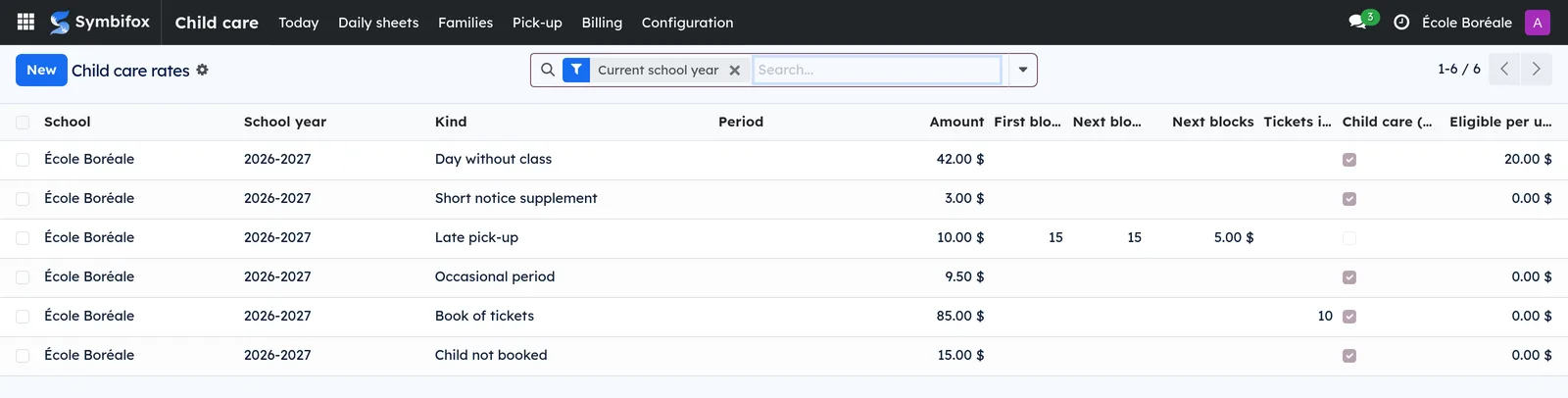
- Choose the School, the School year and the kind: "Occasional period", "Occasional day", "Day without class", "Child not booked", "Short notice supplement", "Late pick-up" or "Book of tickets".
- Enter the Amount; for a late pick-up, the First block (minutes), the Next blocks (minutes) and the Next blocks amount; for a book, the Tickets in the book.
- Tick Child care (Relevé 24) and enter the Eligible per unit if only part of it is child care.
- Open Child care › Configuration › Monthly tiers and enter each tier: From (periods per week), To (periods per week) and the Per month amount.
Result: every charge finds its price. A rate for one period wins over the general one; when the school has an occasional day rate, it wins over the periods booked that day.
Bill the month's child care#
On the first of the month, last month is billed by itself. The office can also bill a finished month by hand.
- Open Child care › Billing › Monthly billing and select New.
- Choose the School and the Month billed.
- Select Compute the charges and read what could not be priced.
- Select Bill the payers.
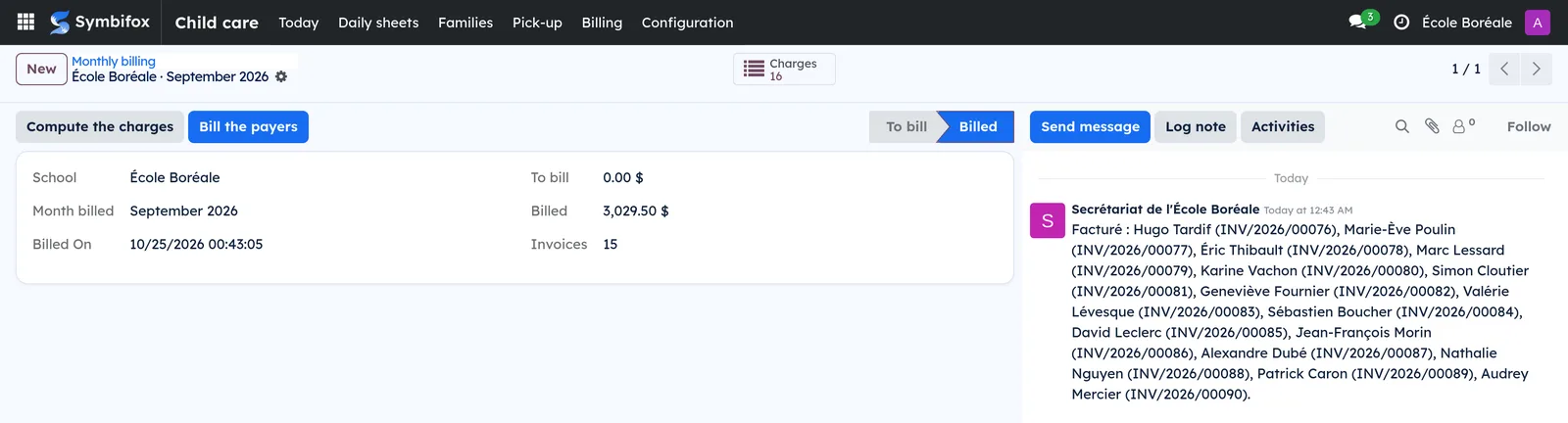
Result: one invoice per paying adult and per month served, with all the children on it, in their language, tax exempt, sent with its PDF. Who pays: the shares of the student's contract, else the adults ticked Pays in equal shares, else the first holder of parental authority who signs. Each line is split between its child-care part and the rest. Books of tickets pay the occasional periods first, oldest book first.
Charges are read in Child care › Billing › Charges. They are computed again from bookings, sheets and registrations until they are billed, then never change. Nobody enters a charge by hand. Waive clears a charge not billed yet, with its Why; a mistake already billed is corrected by a credit note.
Sell a book of tickets#
A holder of parental authority buys a book on the portal, for one child, and pays its invoice online.
- Open Child care › Billing › Books of tickets to follow the books.
- Open a book to read its Tickets used, its Tickets left and its Invoice.
- For a book that received nothing, select Cancel the book.
Result: each ticket pays one occasional period of the school year, or one occasional day when the school prices by the day. A book is valid for the year and is not refunded. A payment undone stops the book: the periods it already paid stay paid, its invoice is due again, and no ticket pays anything more until it is paid. Cancelling a book cancels its invoice too.
The menus, one by one#
Child care: the root of the app, with its submenus in this order.
Child care › Today: opens the sheets of the periods that run today, with the children expected. A day with no period opens no sheet.
Child care › Daily sheets: the sheets, with the date, the period, the children expected, still here, absent and gone, and the state. An empty screen says that Today opens the day's sheets.
Child care › Families: a grouping of five screens, for the manager and the Administration.
Child care › Families › Registrations: the regular registrations, with the student, the year, the dates, the periods per week and the state (Requested, In force, Ended, Cancelled).
Child care › Families › Bookings: the occasional bookings, with the student, the period, the date, who booked, late notice and late cancellation.
Child care › Families › Absence notices: the absences reported, with the student, the date, the period and who reported them.
Child care › Families › Days without class: the activities of days without class, with the date, the places, the minimum, the places booked and the state.
Child care › Families › Attendance and departures: every line of every sheet, with the arrival time, the departure time, who came for the child and the minutes late.
Child care › Pick-up: a grouping of three screens, for the manager and the Administration.
Child care › Pick-up › Authorized people: the authorized people, with the student, the name, the relationship, the phone, the dates, the ID check and the state.
Child care › Pick-up › Leaving alone: the permissions to leave alone, with the weekdays, the hour, the dates, the signature and the state (To sign, Allowed, Revoked).
Child care › Pick-up › Pick-up restrictions: the restrictions, with the person and the detail, readable by the manager and the Administration only.
Child care › Billing: a grouping of three screens.
Child care › Billing › Monthly billing: each school's billed months, with what is left to bill, what is billed and the number of invoices.
Child care › Billing › Charges: the charges, grouped by month, with the service date, the student, what they pay for, the amount, the child-care part, the status and the invoice numbers.
Child care › Billing › Books of tickets: the books, with the child, the adult who bought it, the tickets used and left, the invoice and the state.
Child care › Configuration: a grouping for the manager and the Administration.
Child care › Configuration › Periods: each school's periods, with the kind, the hours, the weekdays, the levels, the places and the grace.
Child care › Configuration › School calendar: the school's calendar (see Keep the school calendar).
Child care › Configuration › Rates: each year's rates (see Set the rates and tiers).
Child care › Configuration › Monthly tiers: each year's tiers, by periods per week, with their price per month.
Reference#
Fields of the Period form#
| Field | Description | Required or default |
|---|---|---|
| Kind | Before school, Lunch time, After school or Day without class. | Required |
| Starts, Ends | The period's hours, on the school's clock. | Required |
| Levels | The preschool and elementary levels it serves. | Empty: all |
| Places | The number of children at once; 0 for no limit. | 0 |
| Grace (minutes) | The minutes after the end before lateness counts. | 0 |
Fields of the Registration form#
| Field | Description | Required or default |
|---|---|---|
| Student, School, School year | The child and the registration's year. | Required |
| From, Until | The registration's dates, within the school year. | Required |
| Period, Mon. to Fri. | Each period and the weekdays the child comes. | At least one line |
| Periods per week | Computed; picks the monthly tier. | Computed |
| Requested by, Confirmed by | Who asked for the registration, and who put it in force. | Filled in |
Fields of the Rate form#
| Field | Description | Required or default |
|---|---|---|
| Kind | What the rate prices: period, day, late pick-up, book, and the rest. | "Occasional period" |
| Period | Empty: every period of the school. A rate for one period wins. | Empty |
| Amount | The price of one unit; for a late pick-up, the first block; for a book, the book. | Required |
| Child care (Relevé 24) | Counts for the Relevé 24. A late pick-up is a penalty: unticked by default. | Ticked, except late pick-up |
| Eligible per unit | The child-care part of one unit, when only part of it is child care. | Empty |
Reports and exports#
Child-care invoices print like any invoice of the Invoicing app, as an official PDF, and export like any view (see Common actions in every application). Sheets and charges group and export the same way.
Automations#
| What runs on its own | When |
|---|---|
| Bill last month at every school that has rates or tiers. | On the first of the month |
| Send the new child-care invoices to the paying adults, with their PDF, once. A failure is tried again; an adult without an email address is reported to the school. | Every hour |
| Make the official PDF of the invoice of a book bought on the portal. | Every hour, and at purchase |
| Email every holder of parental authority: registration confirmed, person added or removed, leaving alone signed or revoked, activity cancelled. | At each change |
| Close the bookings of a day the calendar closes. | When the calendar changes |
| Mark absent a child whose notice arrives while the sheet is open. | When the notice arrives |
Public pages and portal#
On the portal, the Child care page (address /my/school/childcare) opens to holders of parental authority only. For each child, it shows:
- the registration, and Ask for a regular registration;
- Tickets: the tickets left, buying a book and paying a book still to pay;
- the next two weeks: each period with Book, Cancel or the absence to report;
- absence notices, who may pick the child up, and leaving alone to sign or revoke;
- the departures of the last 30 days, with their time and any lateness.
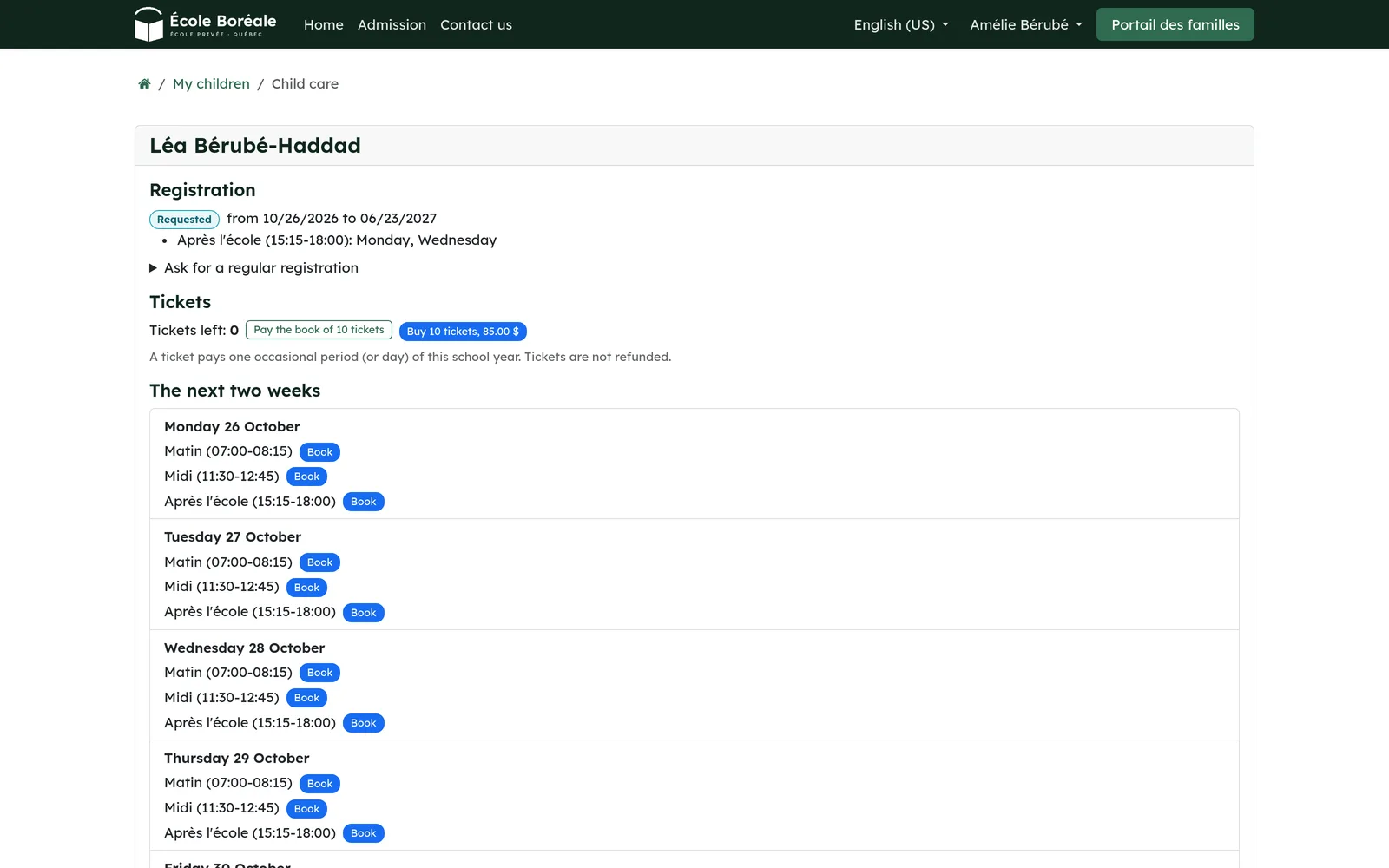
A second click on buying a book opens the book still to pay. An adult sees only the books they bought.
Modules that extend this application#
Understanding#
Why the calendar decides. A period runs only on a day the calendar opens. A storm or a closure is marked once, in the calendar, and the day's bookings close by themselves, at no charge.
Why a place booked is a place paid. The school staffs according to bookings. A booking cancelled too late, or a child absent, keeps its place; cancelled in time, or closed by the school, it costs nothing, and a ticket spent on it comes back.
Why child care staff see little. What it takes to let a child leave shows on the child's line, and nothing else: neither the family links nor a restriction's detail. A restriction is matched by name, even misspelled, because a refused person does not always give the same spelling.
Why a charge freezes at billing. Until a month is billed, its charges follow what happened. Once billed, nothing moves: what the family received stays true, and a mistake is corrected by a credit note.
Why one invoice per month served. The Relevé 24 counts child care in the year it is served. A charge left open from an earlier month is therefore billed under its own month's billing.
What the app does not do yet. No pilot school has used it yet; the units follow what eighteen private schools publish. No late fee on an unpaid invoice, no proration by week, no sibling discount on child care. Lunch-time supervision counts in the monthly tier: a school for which lunch is not child care bills it on the contract. A book is paid with the school's online payment providers; Moneris is not supported.
Troubleshooting#
| Symptom | Likely cause | Fix |
|---|---|---|
| A booking is refused. | Past date, closed day, a period that does not run that day or serve the level, a child already registered or booked, or a full period. | Read the message, then choose another period or date. |
| Put in force refuses a registration. | The period is full on a coming date, or the child already has a registration over that period. | Add places, change the dates, or end the other registration. |
| A person is not offered at departure. | Their dates do not cover today, they are revoked, or their name matches a restriction. | Check the authorized person; for a restriction, see the manager. |
| Close the sheet refuses. | A child of the after-school period or the day without class has not left. | Record their departure, or remove them if added by mistake. |
| Compute the charges reports a charge without a price. | A rate or a tier is missing for the year. | Enter the rate or tier, then compute again. |
| A child's charges are not billed. | Nobody pays for this child. | Tick Pays on a family link, or set the contract's shares, then bill again. |
| A ticket no longer pays for anything. | The book's payment was undone. | The family pays the book's invoice; its tickets resume. |