
Part 2 · Clients, sales and relationships
Preferred names and pronouns
Each person's preferred name on their records, their legal name kept for formal acts, the pronouns they gave, and name changes that leave no trace.
Watch it
A person has a preferred name, the one people use, and sometimes a different legal name that only a few formal documents require. Symbifox shows the preferred name everywhere, keeps the legal name apart for a small group, and records the pronouns the person gave. This chapter is for contact managers, Human Resources and anyone who wants to enter their own pronouns. The result: a name change that leaves no trace of the old name, and text that refers to each person the way they asked.
Overview#
The name on a contact record is the preferred name. Nothing is layered on top of it: email headers, mentions, search and exports all read the name you see on screen.
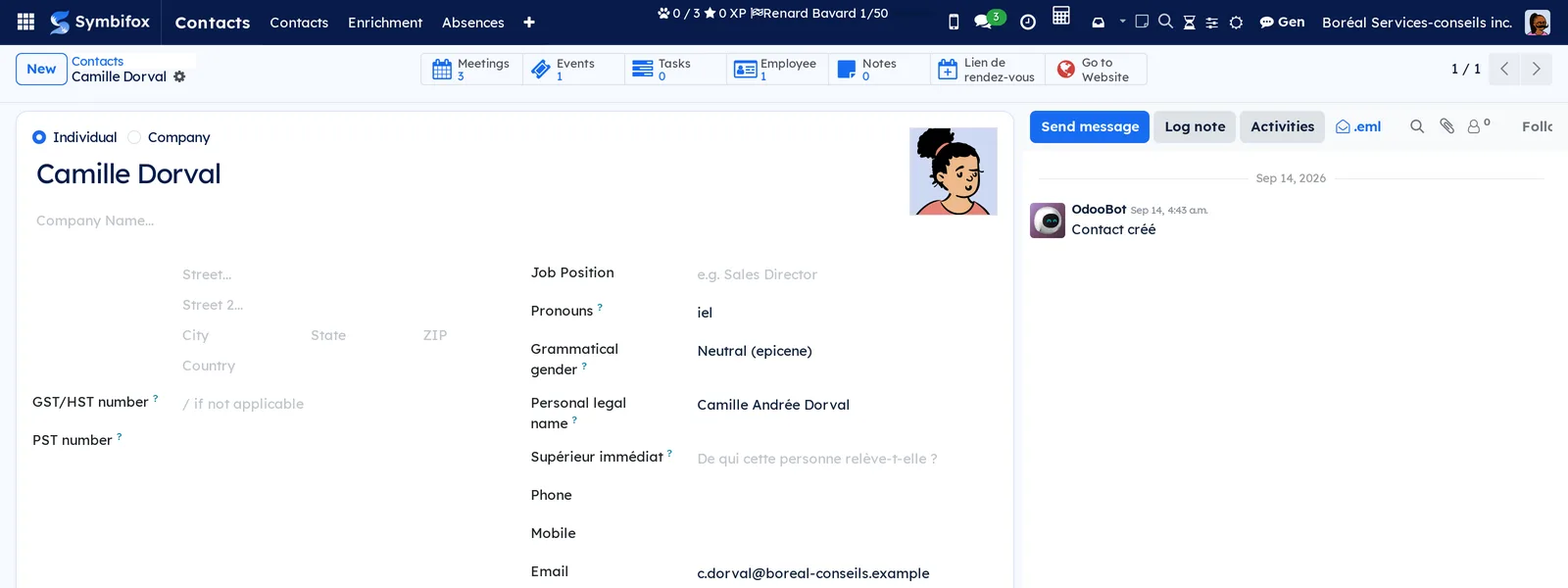
Three details are added to a person's record, under Job Position:
- Pronouns: the pronouns the person gave, in their own words, such as “she/her”, “he/him”, “they/them” or the French “elle”, “il”, “iel”;
- Grammatical gender: Feminine, Masculine or Neutral (epicene). It tells you how to make words agree when writing about the person in French. Left empty, text is written in gender-neutral language;
- Personal legal name: the legal name, when it differs from the preferred name. Only the Legal names group sees it.
On the demo, Camille Dorval's record shows all three: “iel”, Neutral (epicene) and the legal name “Camille Andrée Dorval”.
These details are then reused elsewhere, with no second entry:
| Where | What it shows |
|---|---|
| Email signature | The pronouns, next to the name. |
| Composing an email | Each recipient's pronouns and grammatical gender, in a banner. |
| Link page | The pronouns, under the name. |
| Phone and Nextcloud address books | The pronouns and grammatical gender, on the person's card. |
| Formal acts (electronic signature, signed quotation, resolutions, official donation receipt) | The legal name, or else the preferred name. |
The module has no app of its own. Its actions live in Contacts (the record and its Action menu), in your preferences, on the My Account portal page and in the apps that produce formal acts. It complements the Contacts chapter.
Configuration#
Access and permissions#
The module adds a single group, Legal names, under Preferred names in a user's access rights. Its members read, search and edit people's legal names. They are also the only ones who see the rename dialog's options that touch the legal name and the history.
The group is empty at installation, administrators included: a legal name is information few people need to read. To add someone, an administrator goes to Settings › Users & Companies › Users, opens the person's user record and checks Legal names. On the demo, Mathilde Beauchesne, the administrator, is a member.
Outside the group, the legal name is never displayed, searched or exported, not even by a program. Pronouns and grammatical gender are visible to anyone who can see the record. Anyone who can edit a record can rename it with Change preferred name.
Settings#
The module has no settings. The modules that connect it to other apps install themselves when both apps involved are present.
Base data#
Nothing to create, apart from adding the people who handle formal acts to the Legal names group.
Getting started#
This walkthrough records the pronouns a person gave you, on their record.
- Go to Contacts › Contacts.
- Open the person's record, for example Camille Dorval.
- In Pronouns, enter the pronouns exactly as they gave them, for example “iel”.
- In Grammatical gender, choose the one they told you, for example Neutral (epicene).
- Save.
Result: their pronouns appear in their email signature if they have a user account, in the composer banner when someone writes to them, and on the contact card of phones connected to Symbifox.
Common tasks#
Enter your own pronouns#
Your pronouns are the ones on your contact record. You enter them yourself, without going through an administrator.
- Select your avatar, top right, then My Profile.
- In Pronouns, under Email, enter your pronouns.
- In Grammatical gender, choose the agreement you want, or leave it empty.
- Select Save.
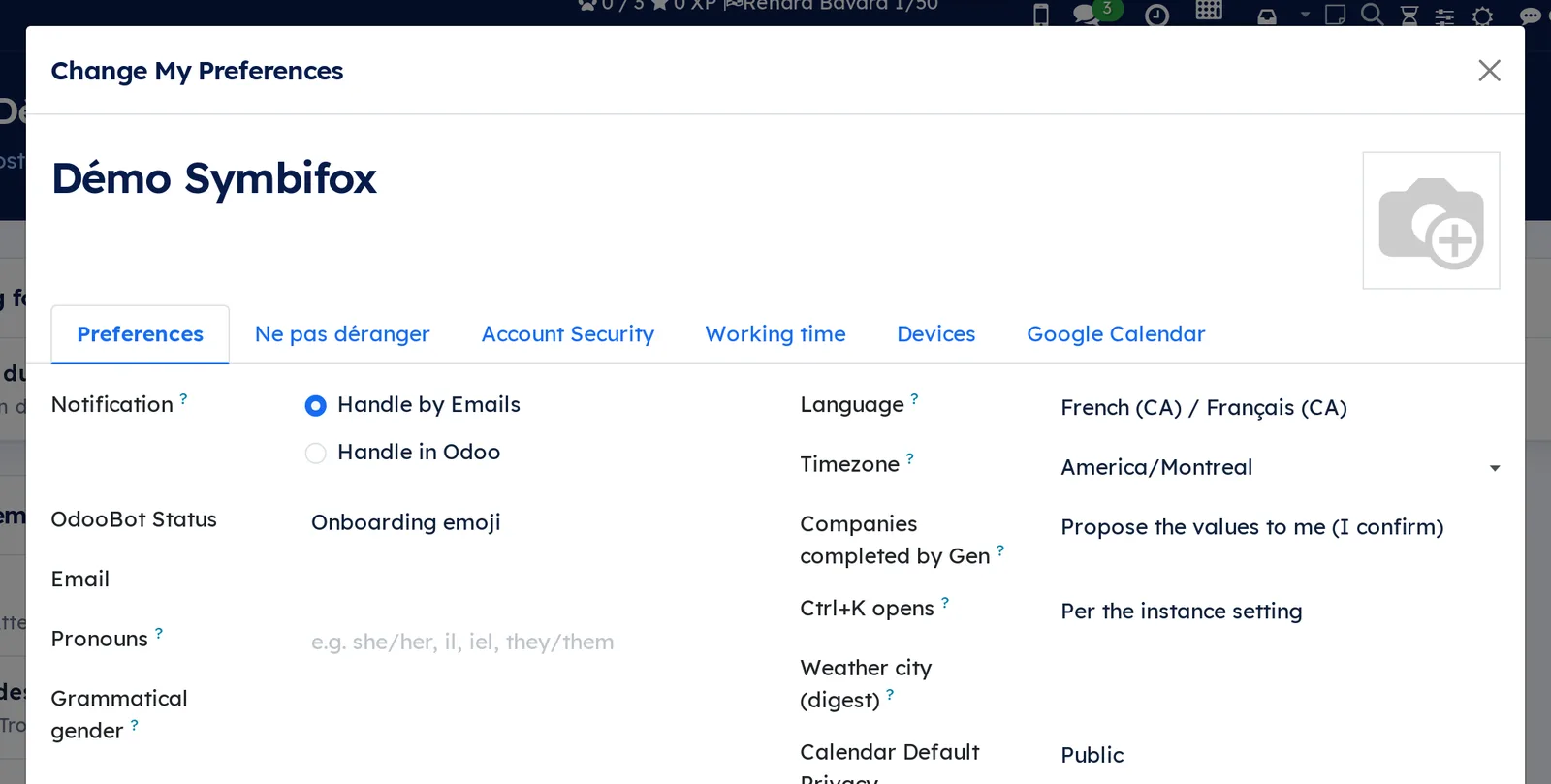
Result: your email signature is rebuilt with your pronouns. Pronouns accept letters from any script, spaces and these signs: / , · - ' ( ), up to 40 characters.
Give your pronouns on the portal#
A client, member or outside person with portal access gives their own pronouns.
- On the portal, open My Account, then your contact details page, Details.
- In Pronouns, enter your pronouns. The list suggests “elle”, “il”, “iel”, “she/her”, “he/him” and “they/them”.
- In Grammatical gender, choose the agreement you want or keep Not specified.
- Save the page.
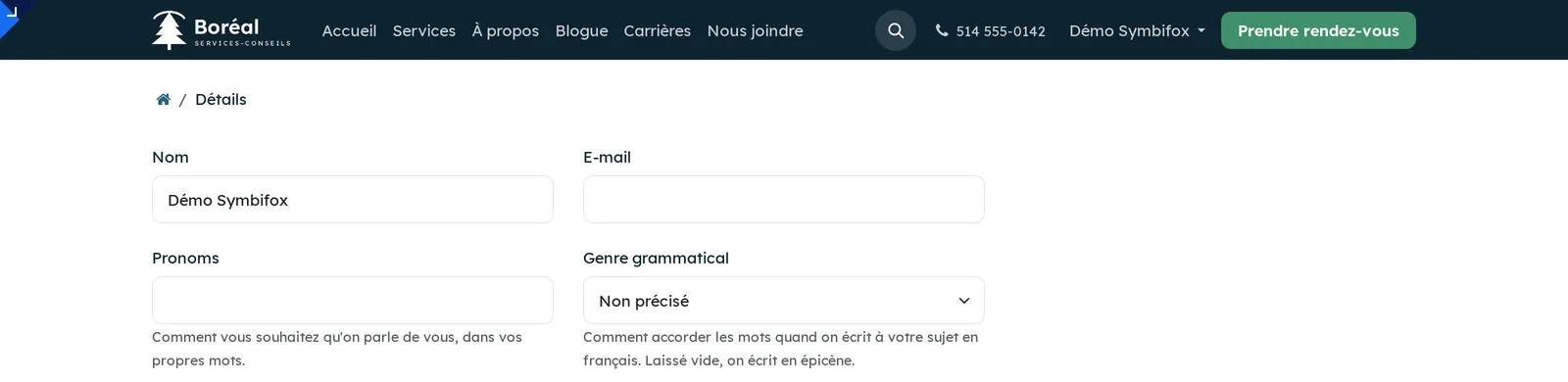
Result: the person's record carries their pronouns, as if a staff member had entered them. A rejected value shows its message on the portal. The legal name can be neither read nor changed there. On the demo, the website runs in French only, so the screenshot shows Pronoms and Genre grammatical (pronouns, grammatical gender).
On the demo, Naomi Chartrand, a client at Studio Kimono, gave “they/them, iel” with Neutral (epicene).
Record a person's legal name#
Prerequisite: being a member of the Legal names group.
- Go to Contacts › Contacts and open the person's record.
- In Personal legal name, enter their legal name.
- Save.
Result: the formal acts described below print this name. The record's chatter (the message thread at the bottom of the form) keeps no trace of it, neither when it is entered nor when it changes. Leave the field empty when the legal name is the preferred name: formal acts then use the preferred name.
Change a person's preferred name#
Renaming a record by hand leaves “old name → new name” in its chatter, visible to anyone who opens it and emailed to its followers. Change preferred name renames without leaving that trace.
- Go to Contacts › Contacts and open the person's record.
- Open the Action menu (the gear next to the name), then Change preferred name.
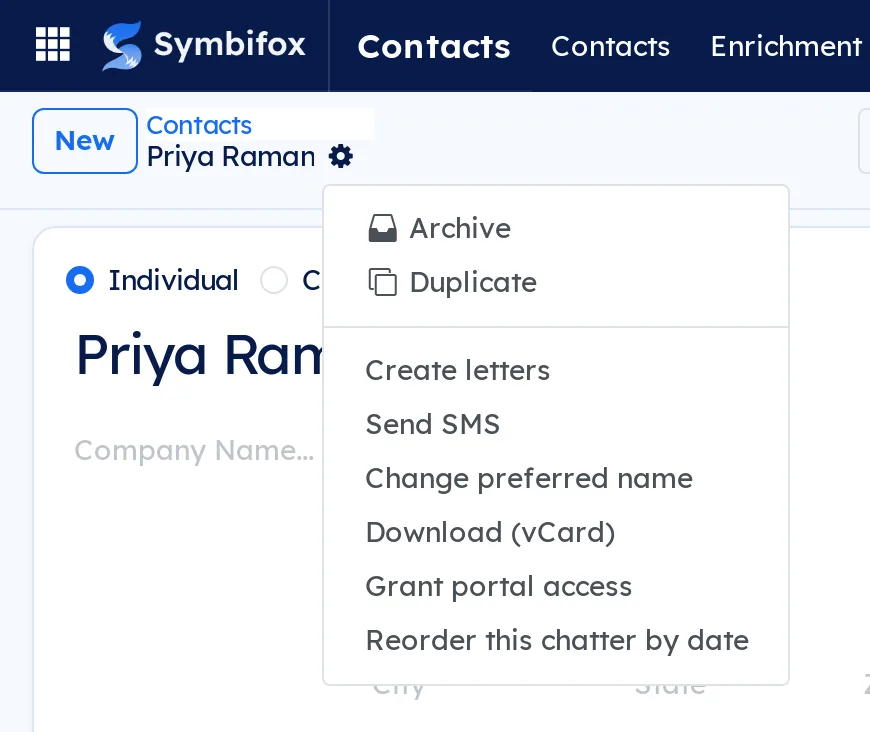
- In New preferred name, enter the name the person now uses.
- Legal names members: check Keep the current name as legal name if needed. The box only appears when the record has no legal name yet.
- Select Rename.
Result: the record and the linked employee record carry the new name, with no trace in the chatter. The title of the person's link page follows too. Messages already written and emails already sent keep the name they carried.
If you are not allowed to edit the employee record, Symbifox renames the contact only and tells you so: ask Human Resources to repeat the action.
Also change the addresses that carry the name#
Three public addresses often carry a person's name: their link page (/l/…), their secure drop page (/to/…) and their appointment types (/appointment/…). The dialog offers to change them in the same step.
- Open Change preferred name and enter the New preferred name.
- Check Also change the addresses that carry the name. It is never checked by default.
- Review the lines: one per address that contains the old name, with its Kind, Current address and the proposed New address.
- Correct the New address if needed.
- Turn Change on or off for each line.
- Select Rename.
Result: the selected addresses change, with no trace in the chatter. Short links that led to a changed address are repointed, and the links in email signatures are rebuilt. The secure drop page's title follows the new name, whether the box is checked or not.
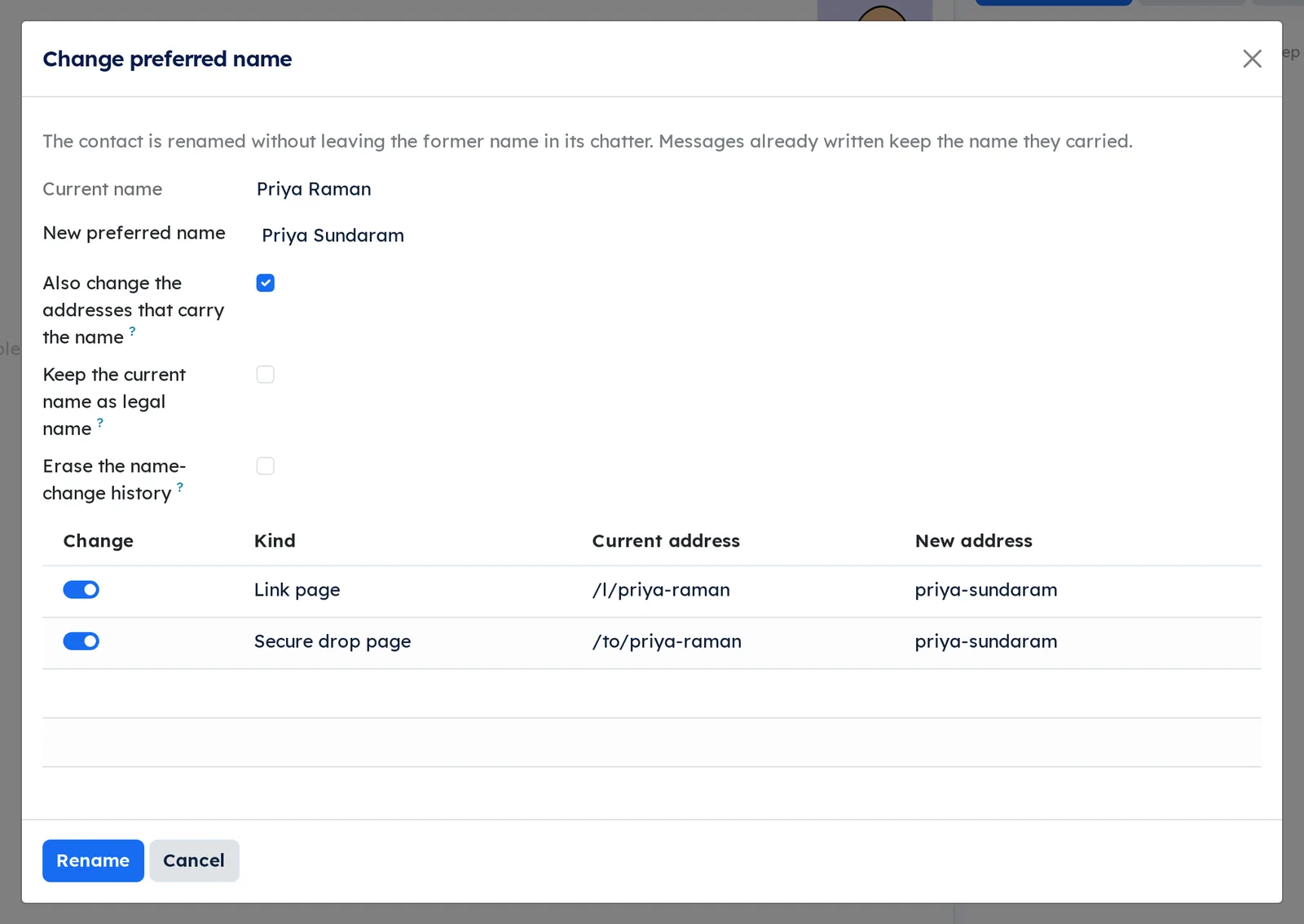
The box only appears when the person has at least one address you are allowed to edit. A line that carries only one word of the name, such as the first name alone, starts turned off: that word may also be a common word. An address that names no one is not proposed, nor is an appointment type shared with other people.
Erase the name-change history#
A record renamed by hand before the module arrived still shows its former names in the chatter. The Legal names group can erase them.
- Open Change preferred name on the record.
- Enter the New preferred name, which can be the current name.
- Check Erase the name-change history.
- Select Rename.
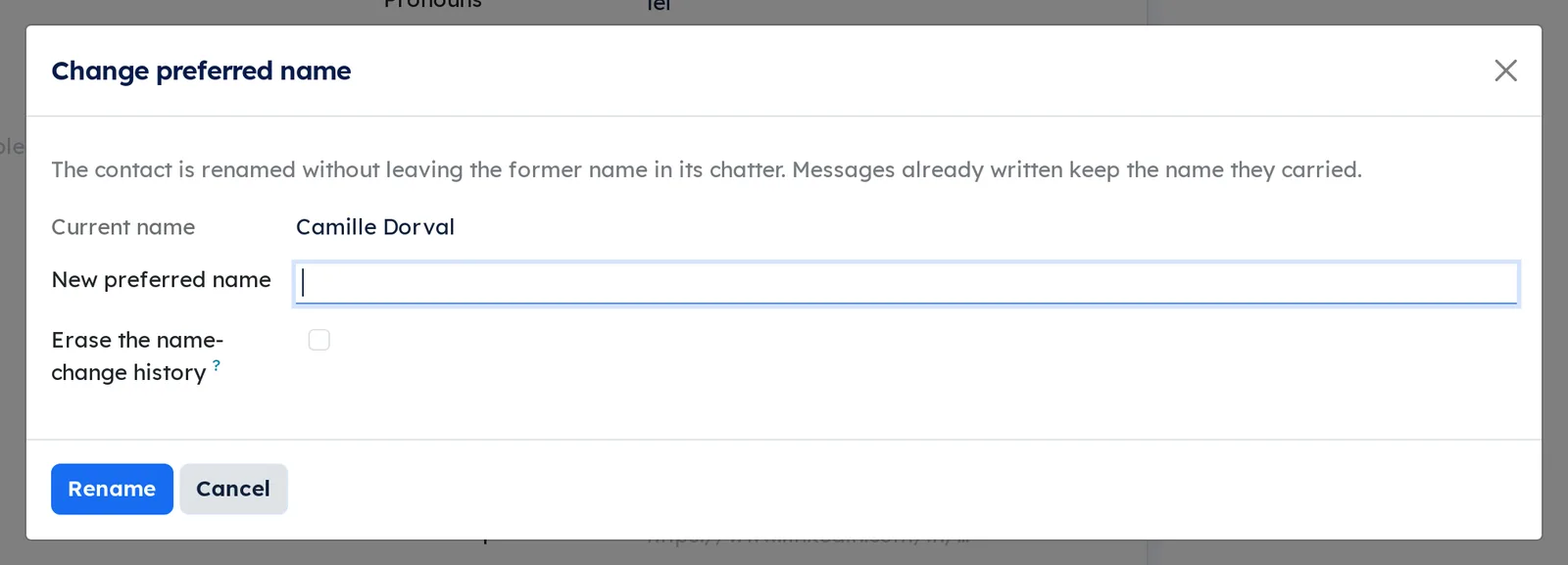
Result: every “old name → new name” trace leaves the chatter of the record, the linked employee and the person's link pages (title, address, assignment notices). Notes and other traces stay.
Show or hide your pronouns on your link page#
Your link page shows your pronouns under your name as soon as you have given them.
- Go to Link pages › Pages and open your page.
- Clear Show my pronouns to remove them from the public page, or check it to show them.
- Save.
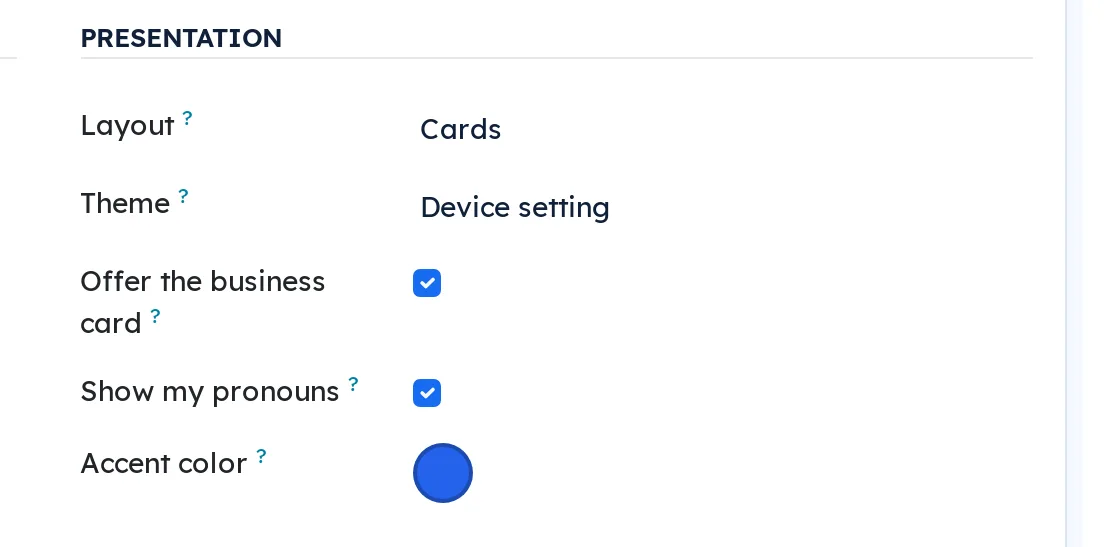
Result: the public page follows your choice. Your pronouns stay on your record and in your signature. The box, checked by default, only appears on a person's page.
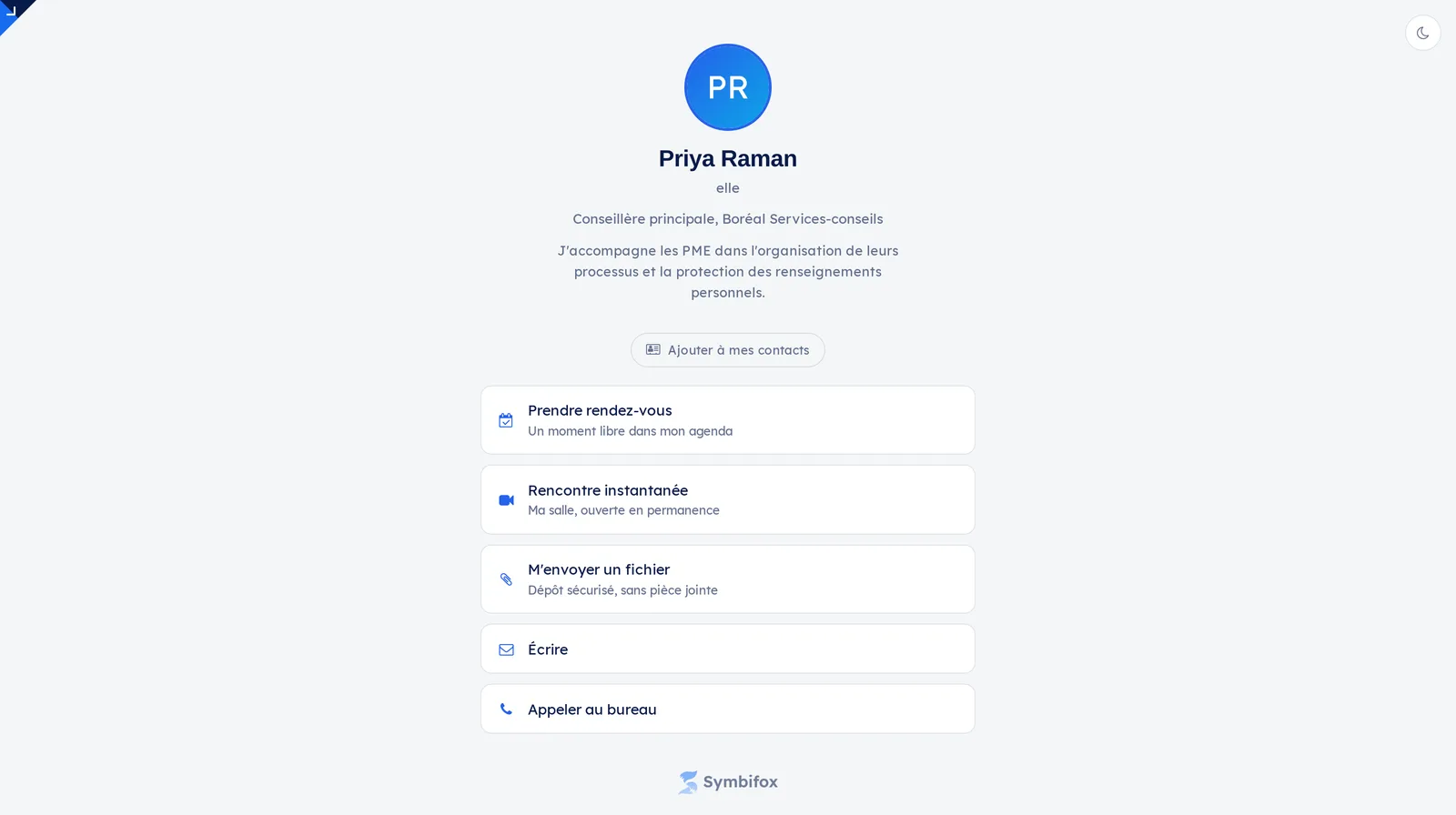
Pronouns only appear on a page whose user is the person themselves, the only one who can clear the box. They do not appear on a page a colleague made on their behalf, on the page of a contact without an account, or on an organization page. See Link pages.
Write to someone who gave their pronouns#
The composer banner reminds you, before you write, how each recipient wants to be referred to.
- Open the record or document, then write an email in the full composer.
- Add your recipients in To and Cc.
- Read the banner under Subject.
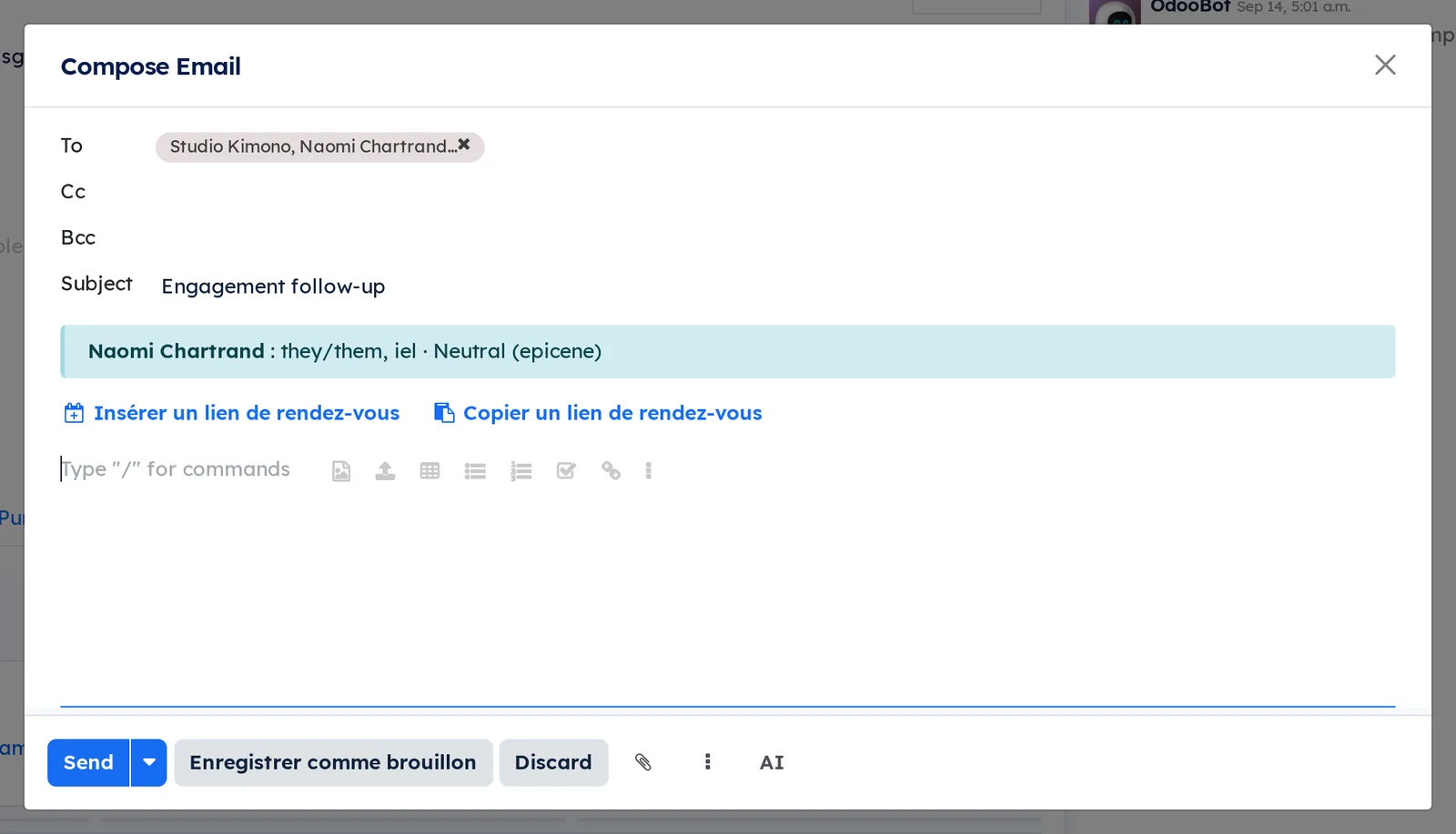
Result: for each recipient in To and Cc who gave them, the banner shows their pronouns and grammatical gender. Beyond five people, the rest are counted. Nothing is said about someone who gave nothing. The Appliquer le persona (apply the persona) button only appears when a persona applies (see Contacts).
Have a formal act signed under the legal name#
Electronic signatures, signed quotations and official donation receipts print the legal name with nothing more to do. Prerequisite: the legal name is on the signer's record before sending.
- Prepare and send the signature request as described in Electronic signatures.
- Let the person sign.
Result: the completion certificate, the name stamped on the document and the public verification page carry the legal name. On a quotation, Signed By carries the same name. Emails, the signing portal and the signature log keep the preferred name.
The name on the act is frozen at sending: a legal name changed later does not alter an act already sent. Without a legal name, the act uses the signer's name. A signer typed in by hand, with no record, only gets a legal name when exactly one person record has that email address, and never a company's.
Print a resolution or a donation receipt#
- Print the resolution from the Knowledge base, or the official receipt from Donations and fundraising, as usual.
Result: the resolution prints the legal name of the entered signatories. A board resolution without signatories prints the directors' legal names. A shareholders' resolution prints them for the mover and seconder, and the minutes on their “Administrateur(s)” (directors) line. The official receipt prints the donor's legal name, as the CRA expects. Names are read again at every printing. These acts are not illustrated: the demo has none for a person with a legal name.
Lift the reservation on a retired address#
A link page address that was left behind is reserved: no other person can take it. An administrator can lift a reservation, for example after a typo was corrected. Prerequisite: being an administrator and turning on developer mode.
- Go to Settings › Technical › Retired link page addresses.
- Find the line by Person and by Page that left it.
- Delete the line.
Result: the address is free again for everyone. The list never shows the address itself.
The menus, one by one#
The module has no root menu. Its features are added to existing screens:
Contacts › Contacts: a person's record carries Pronouns, Grammatical gender and, for the Legal names group, Personal legal name, under Job Position. The record's Action menu carries Change preferred name.
My Profile (your avatar), Preferences tab: Pronouns and Grammatical gender under Email, once. The email signature's pronouns are the same field.
Link pages › Pages: a person's page form carries the Show my pronouns box. See Link pages.
Settings › Technical › Retired link page addresses: administrators only, in developer mode. The list of reserved addresses, with Retired on, Person and Page that left it, and no New button: lines appear when a page leaves its address.
Reference#
Fields of the Contact form#
| Field | Description | Required or default |
|---|---|---|
| Pronouns | The pronouns the person gave, in their own words. Letters, spaces and / , · - ' ( ) only, 40 characters at most. | Empty |
| Grammatical gender | Feminine, Masculine or Neutral (epicene): the agreement to use in French. | Empty, meaning “write in gender-neutral language” |
| Personal legal name | The legal name, when it differs from the preferred name. Read only by formal acts. Legal names group only. | Empty, and acts use the preferred name |
Fields of the Change preferred name dialog#
| Field | Description | Required or default |
|---|---|---|
| Current name | The record's preferred name. | Read-only |
| New preferred name | The name to give the record and the linked employee. | Required |
| Also change the addresses that carry the name | Shows the public addresses that contain the old name. Appears when the person has one you can edit. | Cleared |
| Change, Kind, Current address, New address | One line per address: change it or not, its kind, today's address and the proposed one, editable. | On when the address carries the full name |
| Keep the current name as legal name | Stores the current name as the legal name. Legal names group, record without a legal name. | Cleared |
| Erase the name-change history | Removes every name-change trace from the chatter of the record and the linked employee. Legal names group. | Cleared |
Reports and exports#
The module has no report. It only changes the name printed on formal acts: the certificate, stamped name and verification page of a signature, a quotation's Signed By, resolutions and minutes, and the official donation receipt (see Have a formal act signed under the legal name). Everything else, emails, portal, lists and exports, keeps the preferred name.
Automations#
- Whenever pronouns change, wherever the change comes from (record, preferences, portal), the person's email signature is rebuilt.
- Whenever a name changes (record, dialog, portal, preferences, contact merge), the title of the person's link pages follows, archived pages included, with no trace in the chatter. A title typed by hand is never overwritten.
- Whenever pronouns or grammatical gender change, the person's card is flagged for Nextcloud when Symbifox pushes contacts there, and phones read it again at their next sync.
- When two contacts are merged, the record kept takes the merged record's legal name if it has none. Two different legal names: nothing is overwritten.
Public pages and portal#
- My Account › Details (
/my/account): Pronouns and Grammatical gender, filled in by the person. The legal name never appears there. - A person's link page (
/l/…): their pronouns under their name, according to the Show my pronouns box. - The public verification page of a signature: the legal name frozen at sending.
Modules that extend this application#
The core module sets up the fields, the group and the dialog. The others install themselves with their two apps, with nothing to turn on.
The next four serve formal acts, the last two serve address books.
Understanding#
Why the record's name stays the preferred name. A second “preferred name” field displayed over the name would let the other name slip through wherever the display is not consulted: email headers, exports, mentions, search. Keeping the preferred name in the record's name closes all those doors at once. Québec's Civil Code also recognizes the name a person uses.
Why the legal name is kept apart. Only a few formal acts require it, and it sometimes reveals what the person does not want the whole team to see. So only the Legal names group can read it, it is never tracked in the chatter, and acts read it when they print or send. No path writes the legal name into the record's name.
Nothing is guessed. No pronoun, gender or title is drawn from a first name. An empty field means “not specified”: write in gender-neutral language, as the Office québécois de la langue française recommends. Pronouns accept few signs because they are carried into the person's writing guidance: they are quoted there as data, never as an instruction.
History is not rewritten. Emails sent and messages written keep the name they carried. Follower notifications already emailed cannot be recalled. Erase the name-change history only touches the record, its employee and its link pages: a task where the person was the customer keeps the name of the time.
Addresses, with no redirection. Changing an address breaks links already sent and printed QR codes, hence the box that is never checked by default. The old address leads nowhere: a redirection would publicly tie the old name to the person. A link page address left behind is reserved, so a printed QR code never leads to someone else. Symbifox keeps only a fingerprint of it, never the address itself. The refusal only says the address is not available. Drop page and appointment addresses are not reserved.
What address books receive. A phone or program connected to the company address book (see Calendar and contacts in your apps) shows pronouns and grammatical gender on the card, if it can display them. Pronouns go out to phones and Nextcloud, but do not come back: they are given in Symbifox, by the person or by someone who heard it from them. Nothing goes out for a company or for someone who gave nothing. Cards in your personal address book are not touched. Toward Nextcloud, the card is only flagged when Symbifox pushes contacts: in the other direction, Nextcloud would read the card back and overwrite the record.
Known limits.
- Only the name the record is leaving is searched for in addresses. An address carrying an even older name is not proposed: change it by hand.
- An employee renamed in Employees does not rename their contact record. Use Change preferred name, which renames both.
- Someone who tries a name as their page address learns it is not available while the page does not respond: they can infer that someone left it.
- Certificates of attendance, consents, notices and letters print the preferred name: they are not among the acts covered.
Troubleshooting#
| Symptom | Likely cause | Fix |
|---|---|---|
| The Personal legal name field is not on the record. | You are not in the Legal names group, or the record is a company. | Ask an administrator to add you to the group. |
| Pronouns are rejected on save. | They contain a sign that is not allowed, or exceed 40 characters. | Keep to letters, spaces and / , · - ' ( ). |
| The Also change the addresses that carry the name box does not appear. | The person has no public address you are allowed to edit. | Ask the person, or a link page manager, to do it. |
| An address carrying an old name is not proposed. | It carries a name older than the one the record is leaving. | Change it by hand on its page. |
| Symbifox warns that the employee record was not renamed. | You are not allowed to edit employees. | Ask Human Resources to repeat Change preferred name. |
| A link page address is refused as not available. | Another person left it and it is reserved. | Choose another address, or have an administrator lift the reservation. |
| A signed act carries the preferred name. | No legal name was on the record at sending. | Enter the legal name, then send a new signature request. |
| Pronouns do not appear on the link page. | Show my pronouns is cleared, or the page does not belong to the person's account. | Check the box on your page, or have the person create the page themselves. |