
Part 4 · Finance
Kitchen: recipes and plate cost
The technical sheets of a restaurant, a caterer or a kitchen, the cost of each plate taken from the vendor bills, the suggested price and the allergens of the menu.
Watch it
The Kitchen application holds the technical sheets of a restaurant, a caterer or an institutional kitchen: the ingredients, the base preparations and the dishes, with the yield of each ingredient. It is for the chef who writes the recipes, the kitchen manager who sets the prices, and the accounting staff who enter the bills. What you get: the cost of each plate follows the vendor's last bill, without copying a single price.
Overview#
Three kinds of products live in Kitchen:
- an ingredient is bought and stocked (whole salmon, 35% cream, flour);
- a preparation is a sub-recipe used in other recipes (stock, sauce, dough, dressing);
- a dish is sold: it is what the customer sees on the menu.
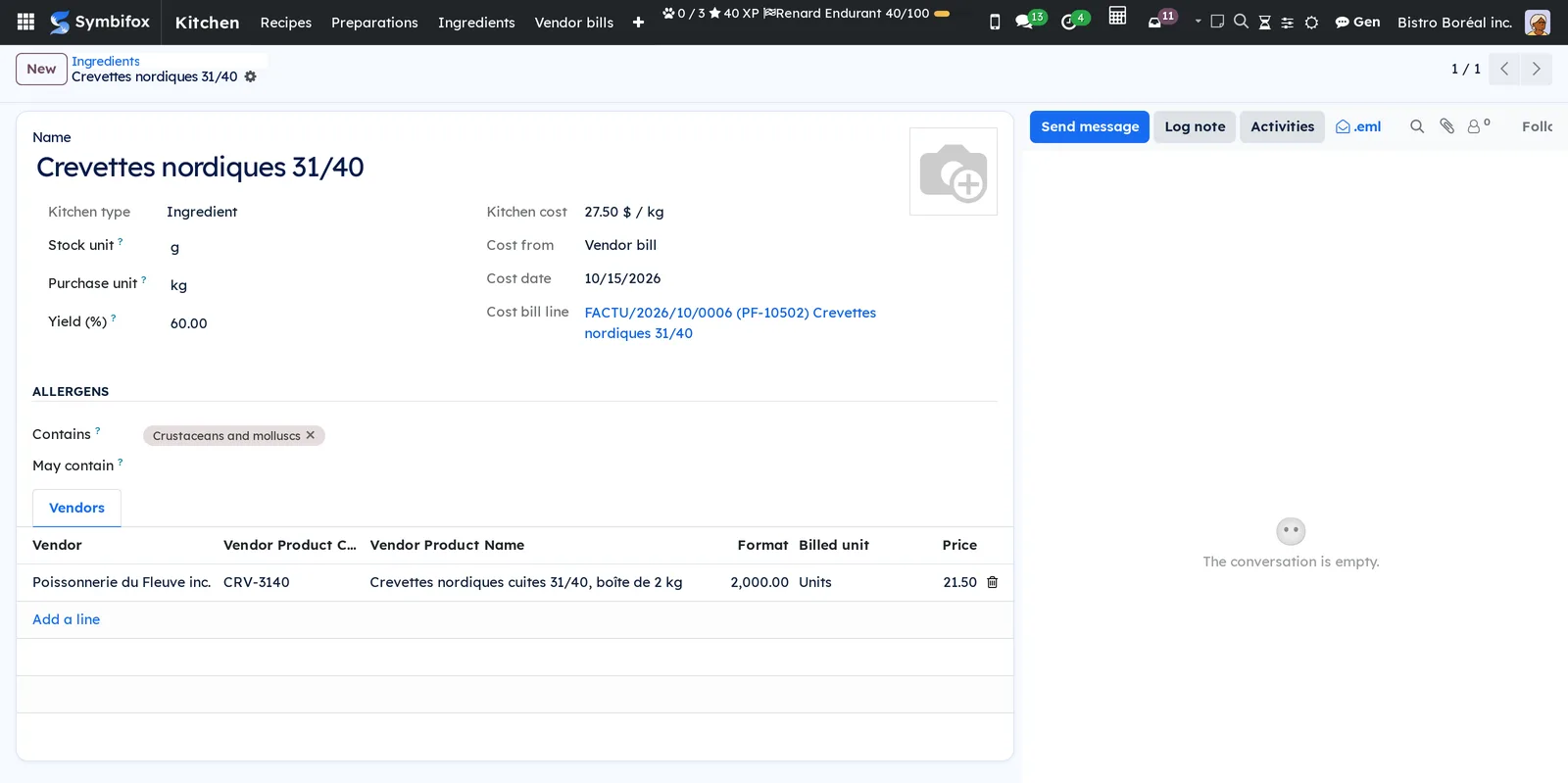
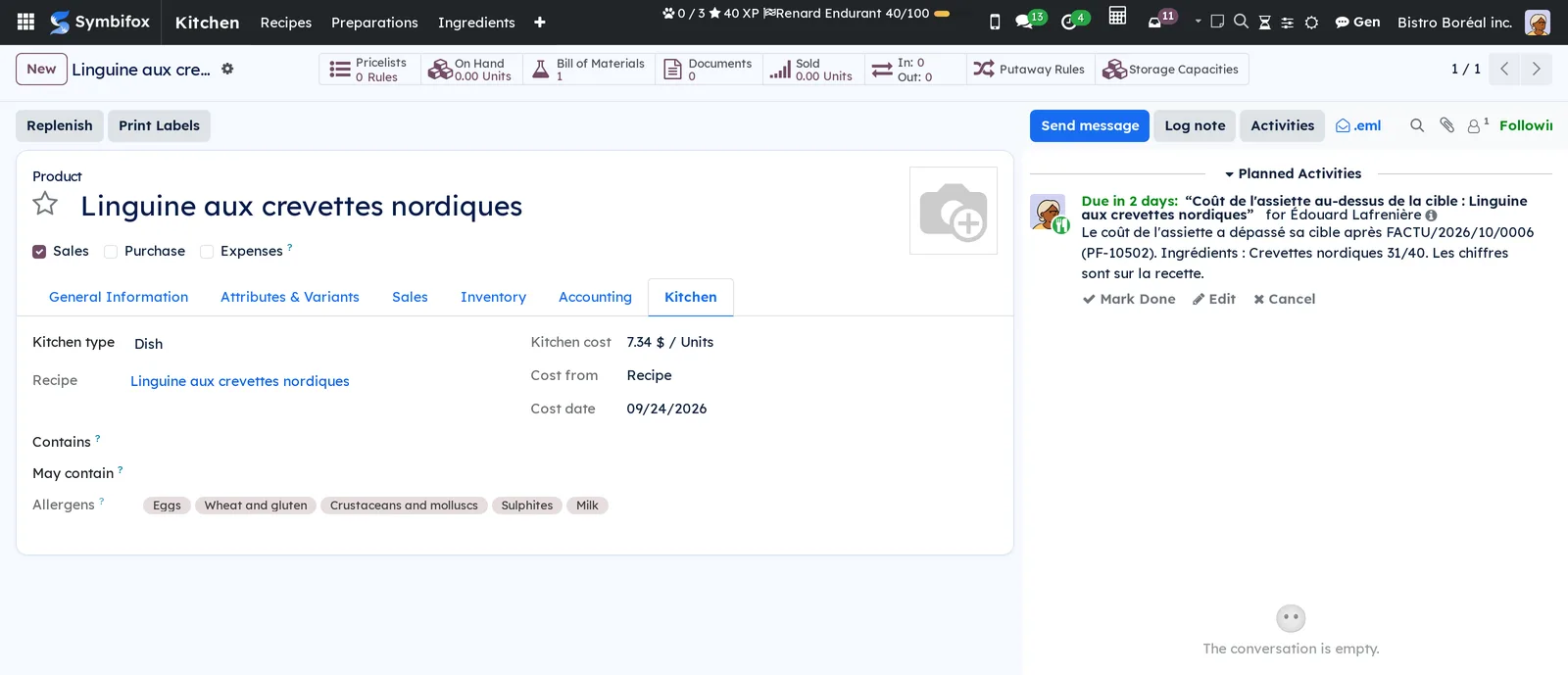
A recipe says what it takes to make a dish or a preparation. Each line holds the net quantity (what ends up on the plate), the yield (the share left after trimming or cooking) and the gross quantity, the one that leaves the stock. For 120 g of peeled shrimp with a 60% yield, the recipe takes 200 g of shrimp as bought.
The cost of an ingredient comes from the last validated vendor bill, brought back to the stock unit. The cost of a preparation follows its own ingredients, and the cost of a dish adds up its lines. The recipe of a dish then shows the plate cost, the food cost ratio (plate cost over selling price), the target, a suggested price and the margin.
Recipes are Odoo bills of materials of type kit. When a dish leaves the stock, at the register or at delivery, Odoo replaces it with its ingredients. The stock valuation stays Odoo's: the application never changes the inventory cost of a product.
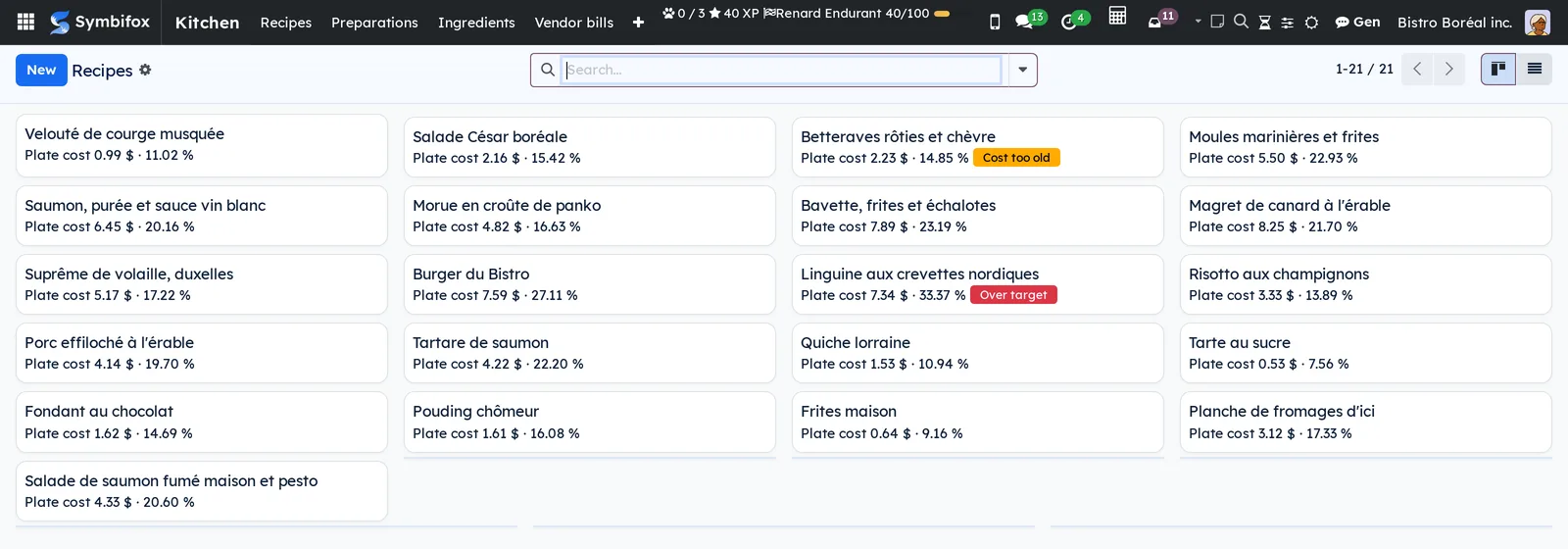
The cards of Recipes show at a glance which dishes need attention.
Configuration#
Access and rights#
The application adds two groups, set on the user form, Kitchen section:
| Group | What it opens |
|---|---|
| Cook | Read recipes, preparations and ingredients, without any cost. Also gives user access to Inventory. |
| Kitchen manager | Write recipes and kitchen products, see every cost, apply the suggested price, receive ingredients from a bill, print the technical sheet with costs. |
The kitchen manager needs no right in the Manufacturing application. That write access is limited to kitchen products and recipes. The taxes, accounts, category and inventory cost of a product stay out of reach.
Lines to attach and Costs to check also take the billing rights (Accounting, Billing).
Settings#
The settings are in Kitchen › Configuration › Settings (administrators only). They apply to the company selected at the top right.
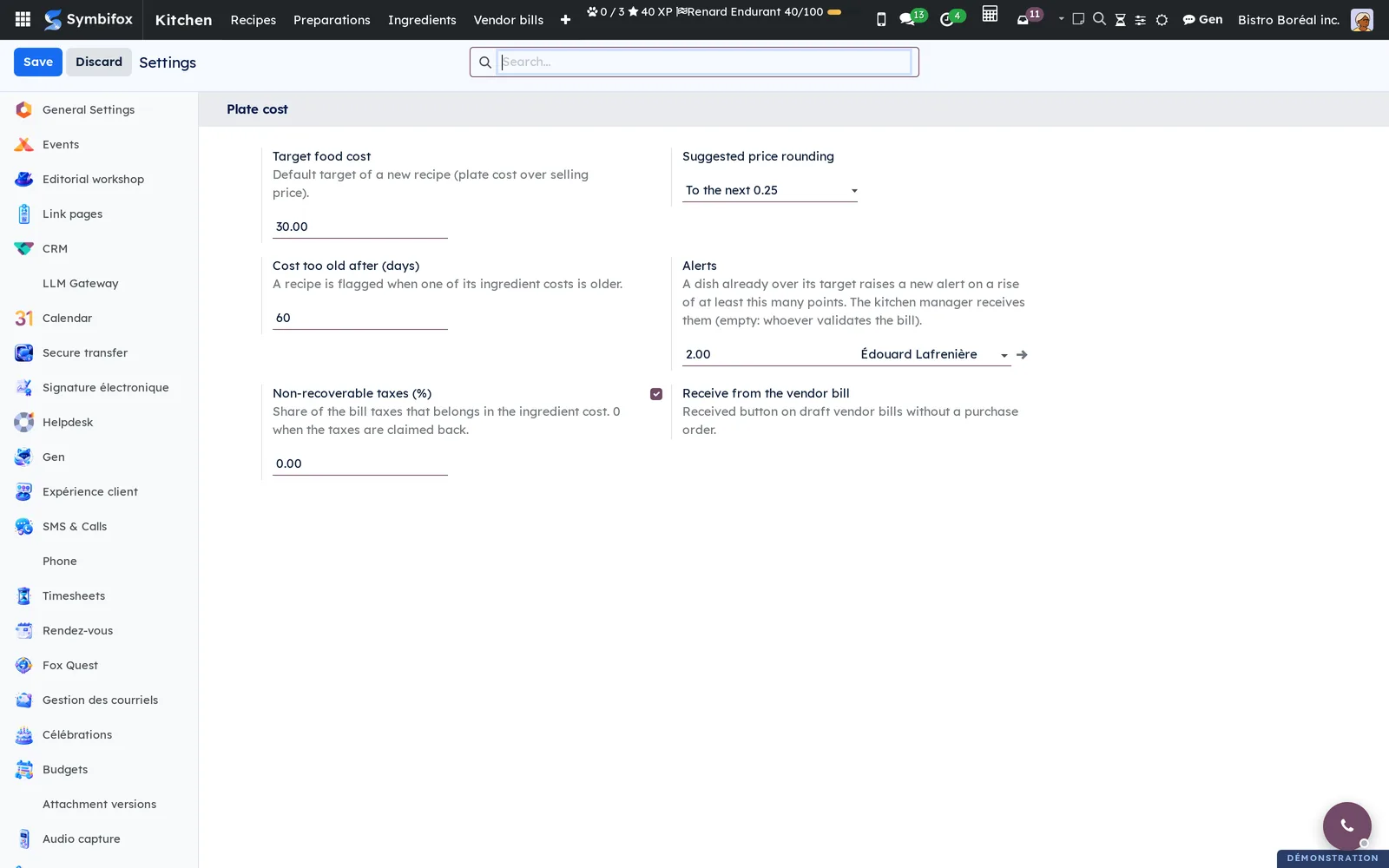
- Target food cost: the target of a new recipe, 30% by default. Each dish can then have its own.
- Suggested price rounding: no rounding, to the next 0.05, to the next 0.25, to the next dollar, or ending in .95.
- Cost too old after (days): 60 by default. A recipe with an older ingredient cost carries the Cost too old badge.
- Alerts: the rise, in points, that raises a new alert on a dish already over its target, and the person who receives the alerts. Left empty, the alert goes to whoever validates the bill.
- Non-recoverable taxes (%): the share of the bill taxes that goes into the ingredient cost. Leave 0 if the organization claims its taxes back; an organization that claims back only part of them enters the rest.
- Receive from the vendor bill: shows the Received button on draft vendor bills without a purchase order.
Base data#
Before writing the recipes:
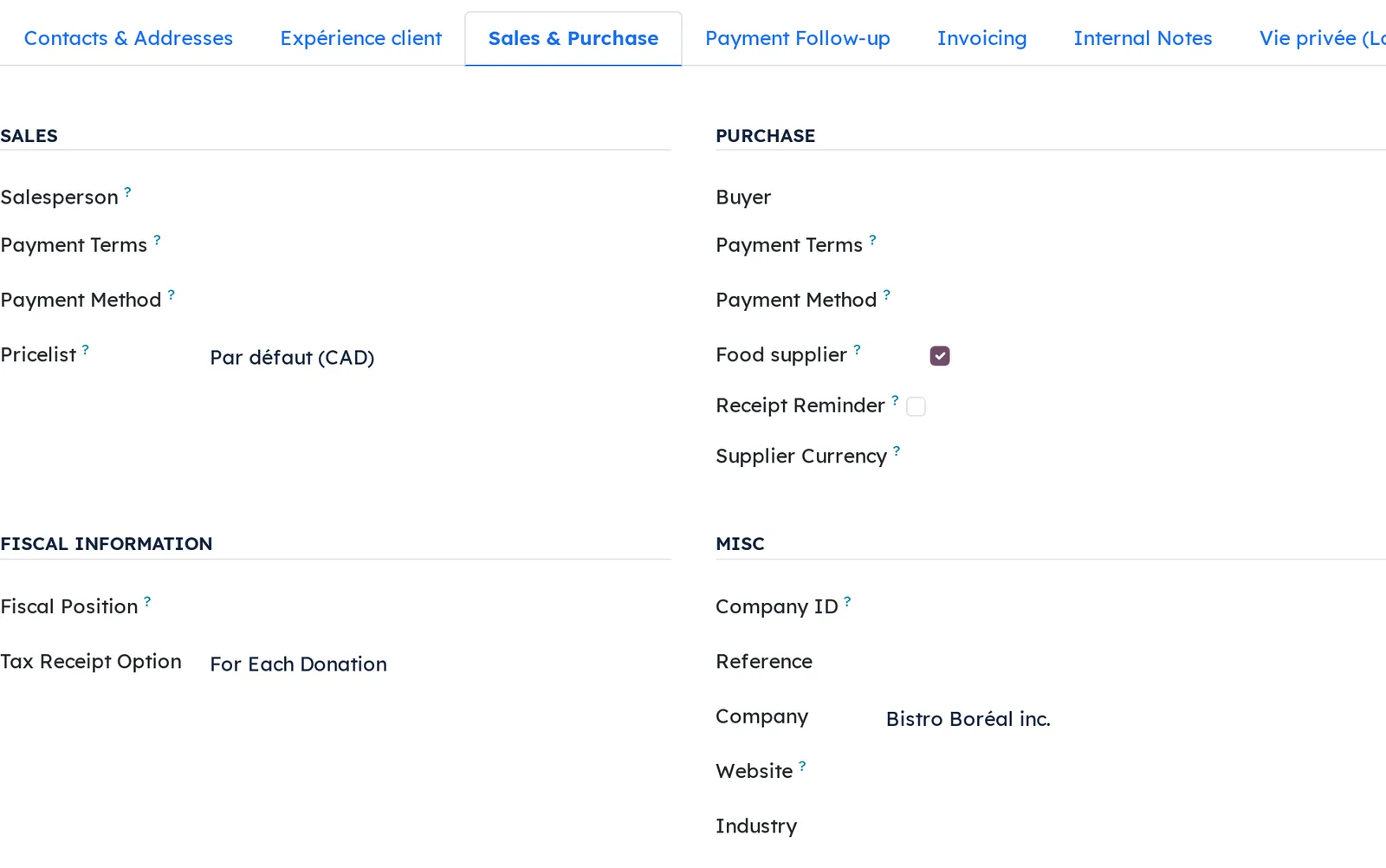
- Check Food supplier on the form of each food vendor (Sales & Purchase tab, Purchase section). Only their lines without a product reach Lines to attach.
- Create the ingredients you buy, each in its smallest kitchen unit: g, ml or unit.
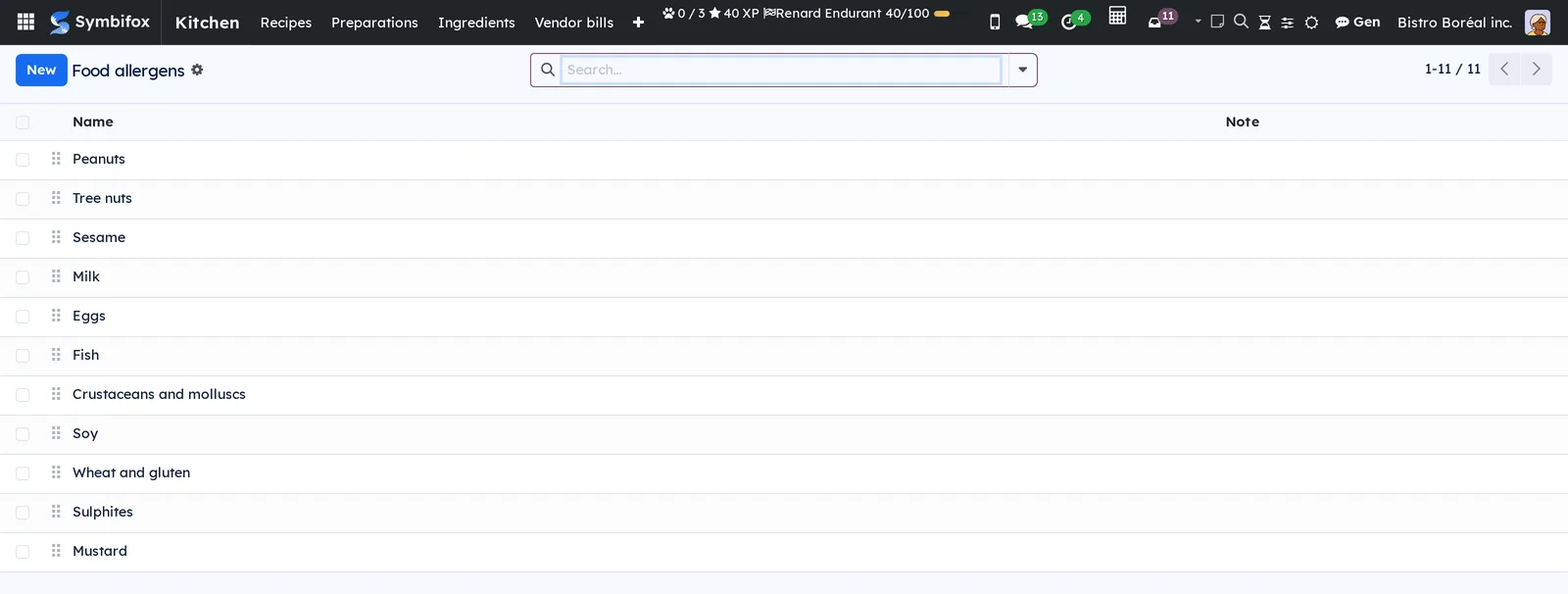
- Check the list of allergens in Kitchen › Configuration › Allergens. It holds Health Canada's eleven priority allergens.
Getting started#
This walkthrough creates an ingredient, then a dish, and reads its cost. It assumes the Kitchen manager group.
- Open Kitchen and select the restaurant's company at the top right.
- Go to Kitchen › Ingredients, then select New.
- Enter the name ("Whole salmon"), the Stock unit (g), the Yield (%) ("45") and the "Fish" allergen in Contains, then save.
- Go to Kitchen › Recipes, then select New.
- In Recipe of, type the name of the dish and create it. Enter the number of portions in Makes.
- In the Ingredients tab, add the salmon and enter the Net quantity for the recipe. The gross quantity follows from the yield.
- Save, enter the Selling price, then read the Plate cost, the Food cost (%) and the Suggested price.
Until a bill has given its price, the ingredient costs what you entered in Entered cost. The first validated bill replaces it.
Common tasks#
Create an ingredient and its allergens#
An ingredient holds its stock unit, its default yield and its allergens.
- Go to Kitchen › Ingredients, then select New.
- Enter the name, the Stock unit and the Purchase unit.
- Enter the usual Yield (%) (100 if nothing is lost).
- In Contains, add the allergens of the ingredient.
- In May contain, add the cross-contamination risks the vendor declares.
- Optional: enter an Entered cost until the first bill.
- Save.
The form then shows where the cost comes from: Cost from says "Vendor bill" or "Entered", Cost date gives its date, and Cost bill line opens the line that set it.
Write a preparation#
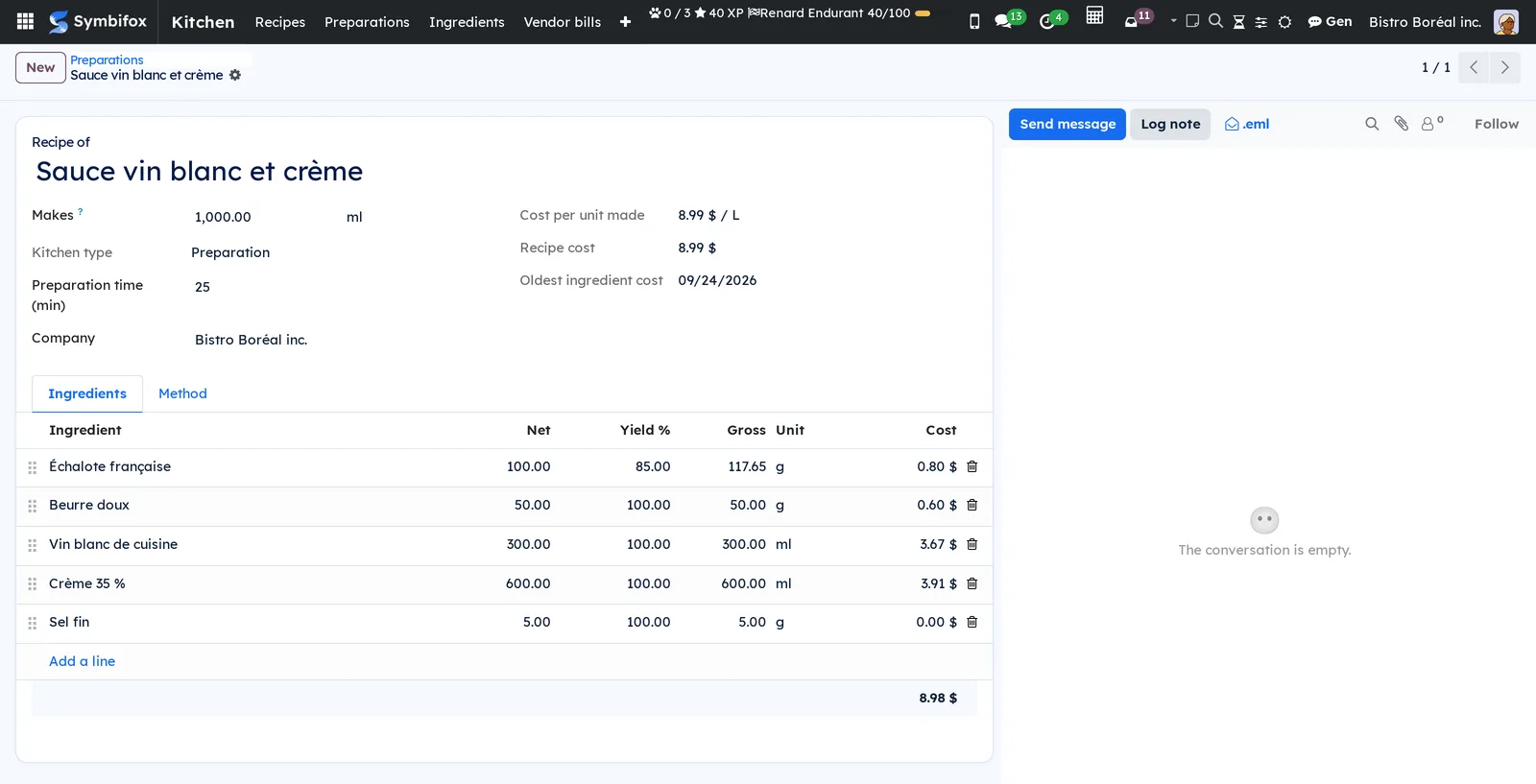
A preparation (stock, sauce, dough) is written like a dish, but it serves as an ingredient in other recipes.
- Go to Kitchen › Preparations, then select New.
- In Recipe of, type the name of the preparation and create it.
- In Makes, enter what the recipe yields, with its unit ("1000" ml, "500" g).
- Add the ingredients with their Net quantity and yield.
- Write the steps in the Method tab.
- Save.
The cost of the preparation follows its ingredients. When you save it, every dish that uses it recomputes its own cost.
Write the recipe of a dish#
- Go to Kitchen › Recipes, then select New.
- In Recipe of, type the dish and create it.
- In Makes, enter the number of portions of the recipe.
- In the Ingredients tab, add the ingredients and preparations, with their Net quantity.
- Correct the Yield of a line if needed: it is copied from the ingredient when the line is created, then kept as is.
- Enter the Preparation time (min) and the Method.
- Save.
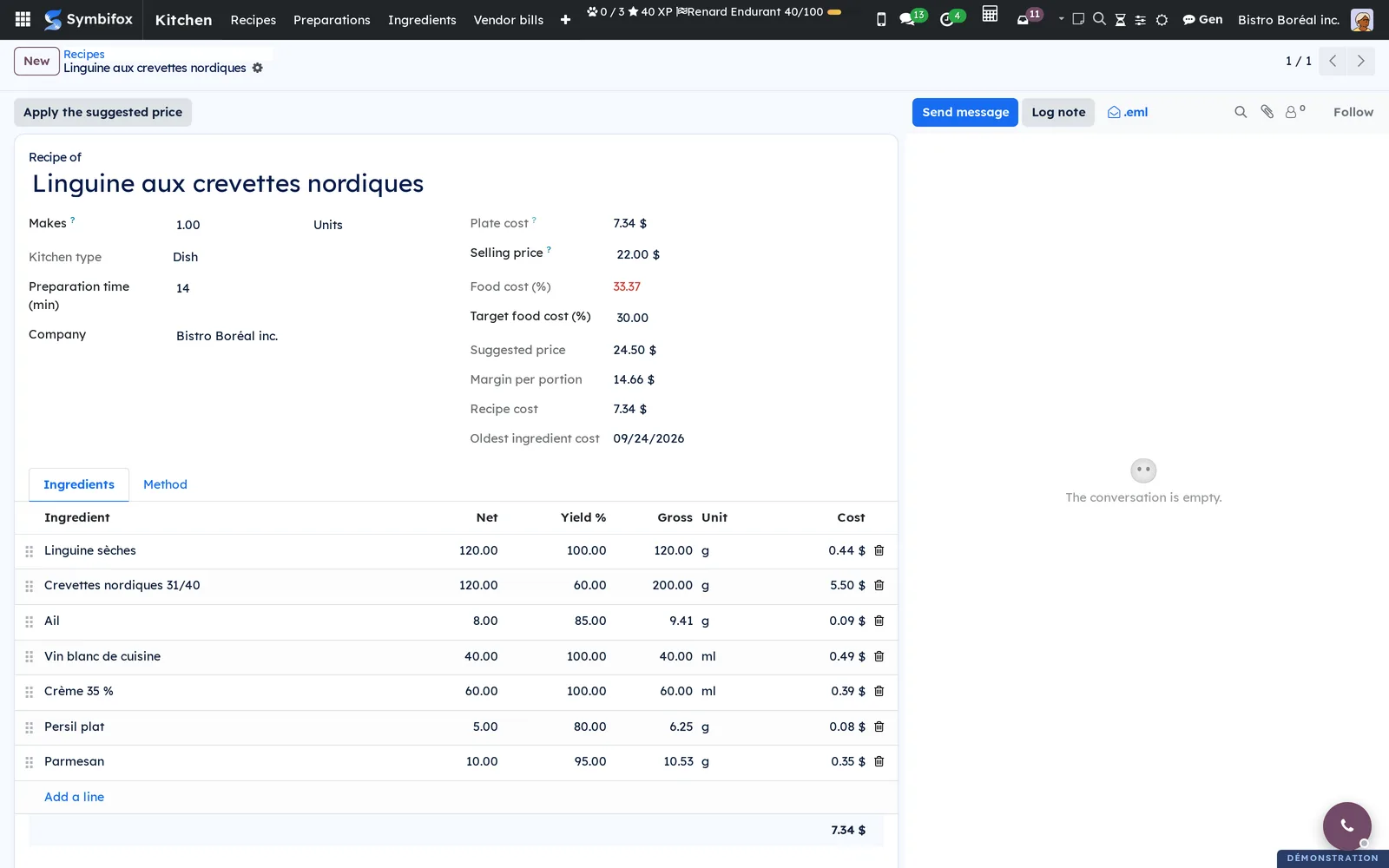
The panel on the right fills in: Plate cost, Selling price, Food cost (%), Target food cost (%), Suggested price, Margin per portion, Recipe cost and Oldest ingredient cost. A food cost above the target shows in red.
Set the selling price of a dish#
- Open the recipe of the dish in Kitchen › Recipes.
- Compare the Food cost (%) with the Target food cost (%).
- Change the dish's target if needed, then save.
- Select Apply the suggested price to take the Suggested price as the selling price.
The suggested price is the plate cost divided by the target, rounded with the company's rule. For the Bistro Boréal linguine, $7.34 at 30% gives $24.47, rounded to $24.50.
Attach a bill line to an ingredient#
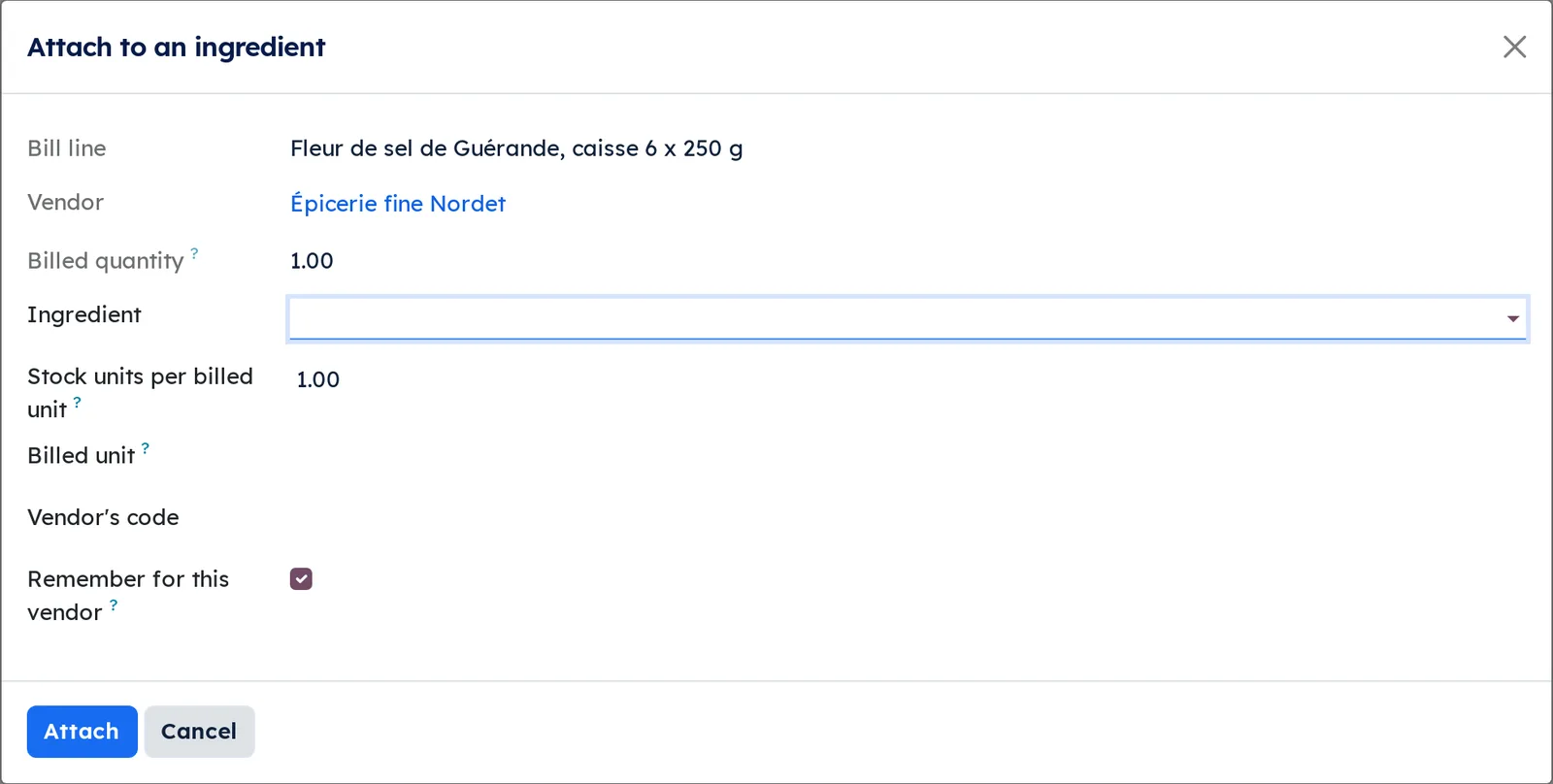
A bill entered without a product ("Fleur de sel, case of 6 x 250 g") gives no cost until it is attached.
- Go to Kitchen › Vendor bills › Lines to attach.
- On the line, select Attach.
- Choose the Ingredient, or create it.
- In Stock units per billed unit, enter the format ("1500" g for a case of 6 x 250 g).
- Enter the Vendor's code if the bill shows one.
- Leave Remember for this vendor checked, then select Attach.
The posted line is not rewritten: its price becomes the ingredient cost. The vendor line created on the ingredient makes the next bill from that vendor carry the product, whether it is typed or read by the bill scanning.
A line that is not food (delivery fee, deposit) is set aside with Not an ingredient.
Receive the ingredients from the bill#
When the goods arrive with the bill, without a purchase order, the receipt is made from the bill.
- Enter the vendor bill, or let the scanning read it.
- Leave it in draft and set the ingredient as the product of each food line.
- Select Received at the top of the bill.
- Validate the bill.
The ingredients come into stock on that day, once per line, at the line's cost. Putting the bill back to draft does not receive them again. Cancelling the bill sends back to the vendor what is still in stock; what was already used stays, and a note on the bill says so.
Respond to a cost alert#
When a bill pushes a dish over its target, or further over it, the kitchen manager receives an activity on the dish.
- Open the Plate cost over target activity from your activities.
- Read the ingredients and the bill involved.
- Open the recipe of the dish to read the figures.
- Change the recipe, the target or the price, then mark the activity as done.
Only one alert stays open per dish. The activity carries no figure, since anyone who reads the product reads it too: the figures are on the recipe.
Print a technical sheet or the allergen sheet#
- Go to Kitchen › Recipes, in list view.
- Check the recipes you want.
- Open the Print menu.
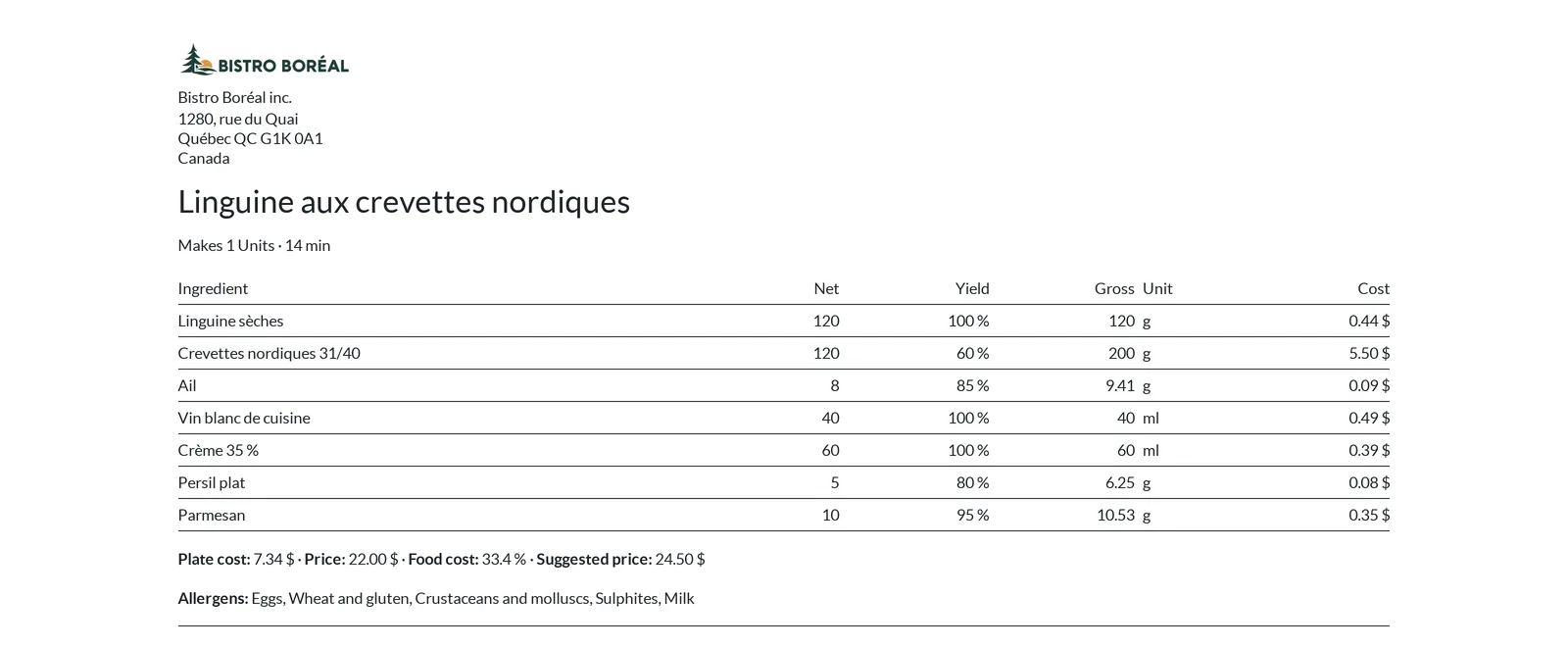
- Choose Technical sheet, Technical sheet with costs or Allergen sheet.
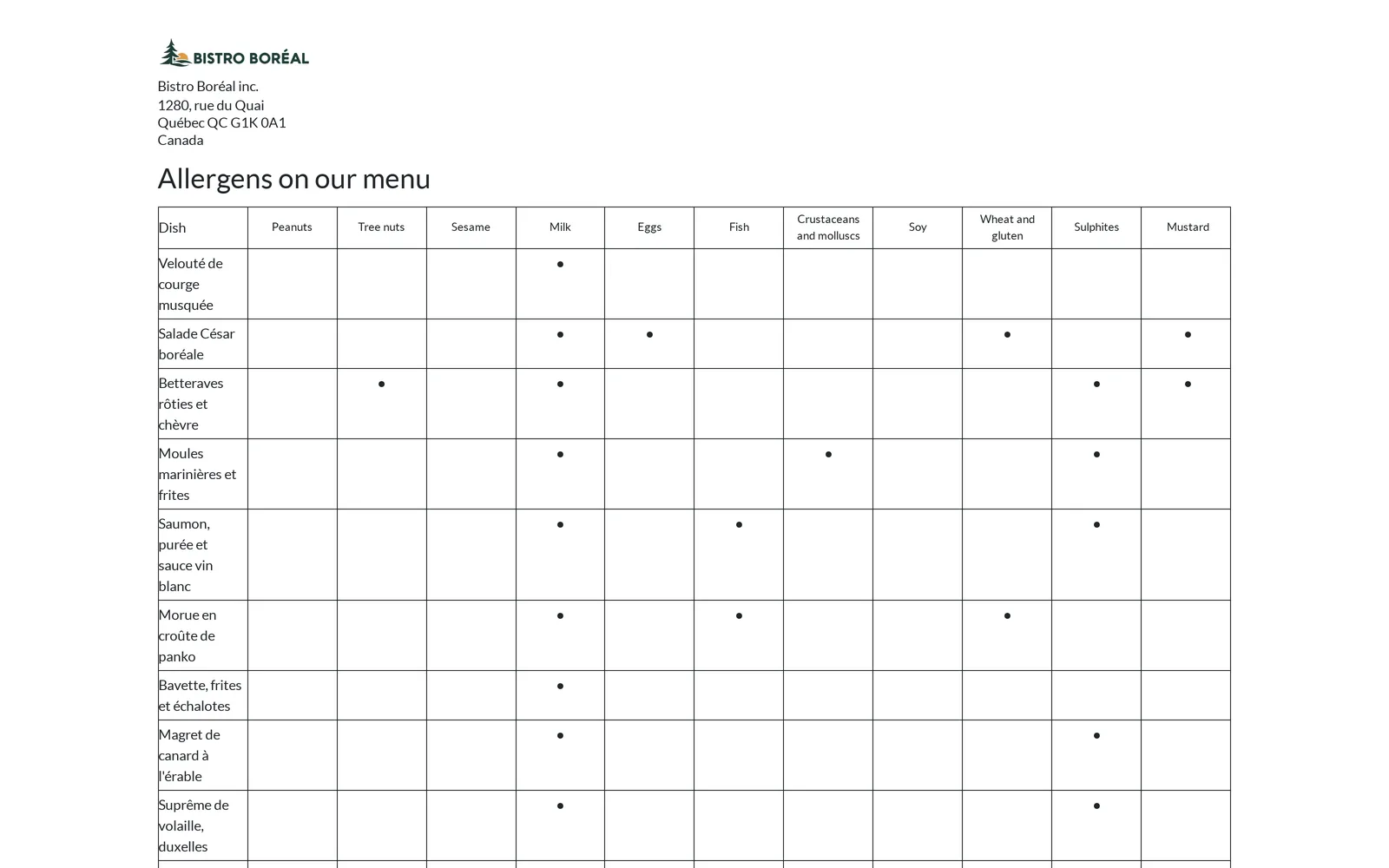
The technical sheet with costs is reserved for the kitchen manager. The allergen sheet crosses the dishes with the eleven allergens, with a filled dot for "contains" and a circle for "may contain".
The menus, one by one#
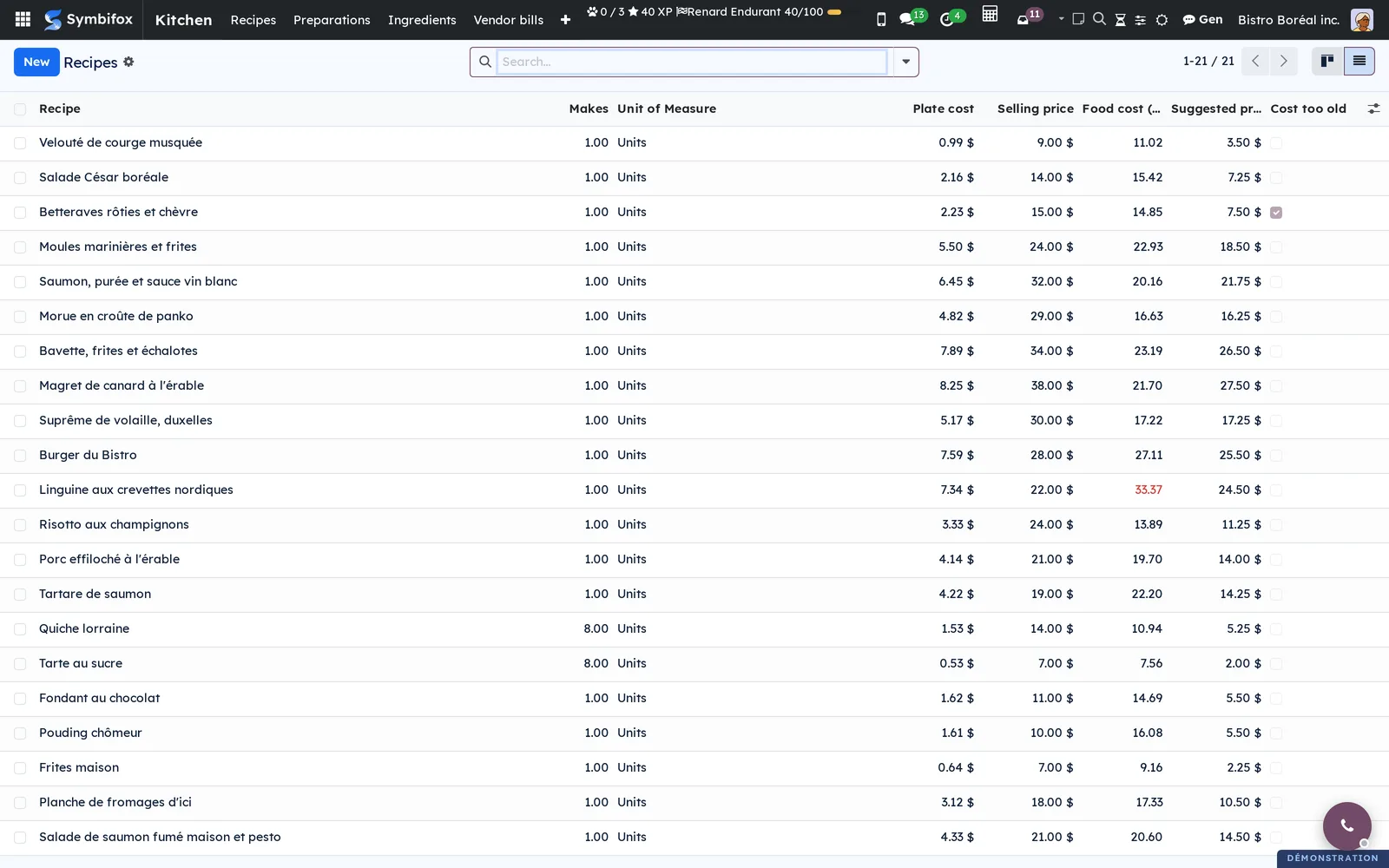
Kitchen › Recipes: the dishes, as cards. Each card gives the plate cost and the food cost ratio, with the Over target and Cost too old badges. The list view adds the selling price and the suggested price, and sorts the dishes by food cost. The search finds a recipe by its name or by one of its ingredients.
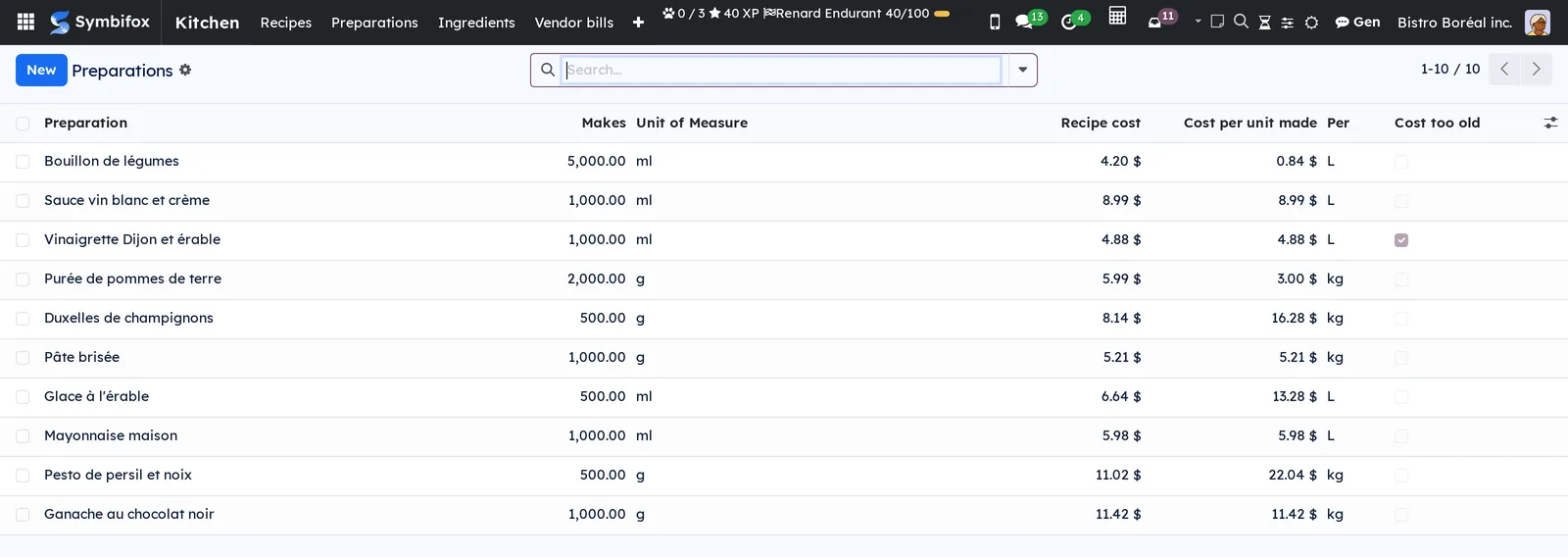
Kitchen › Preparations: the sub-recipes, as a list, with what each one makes and its cost per unit made.
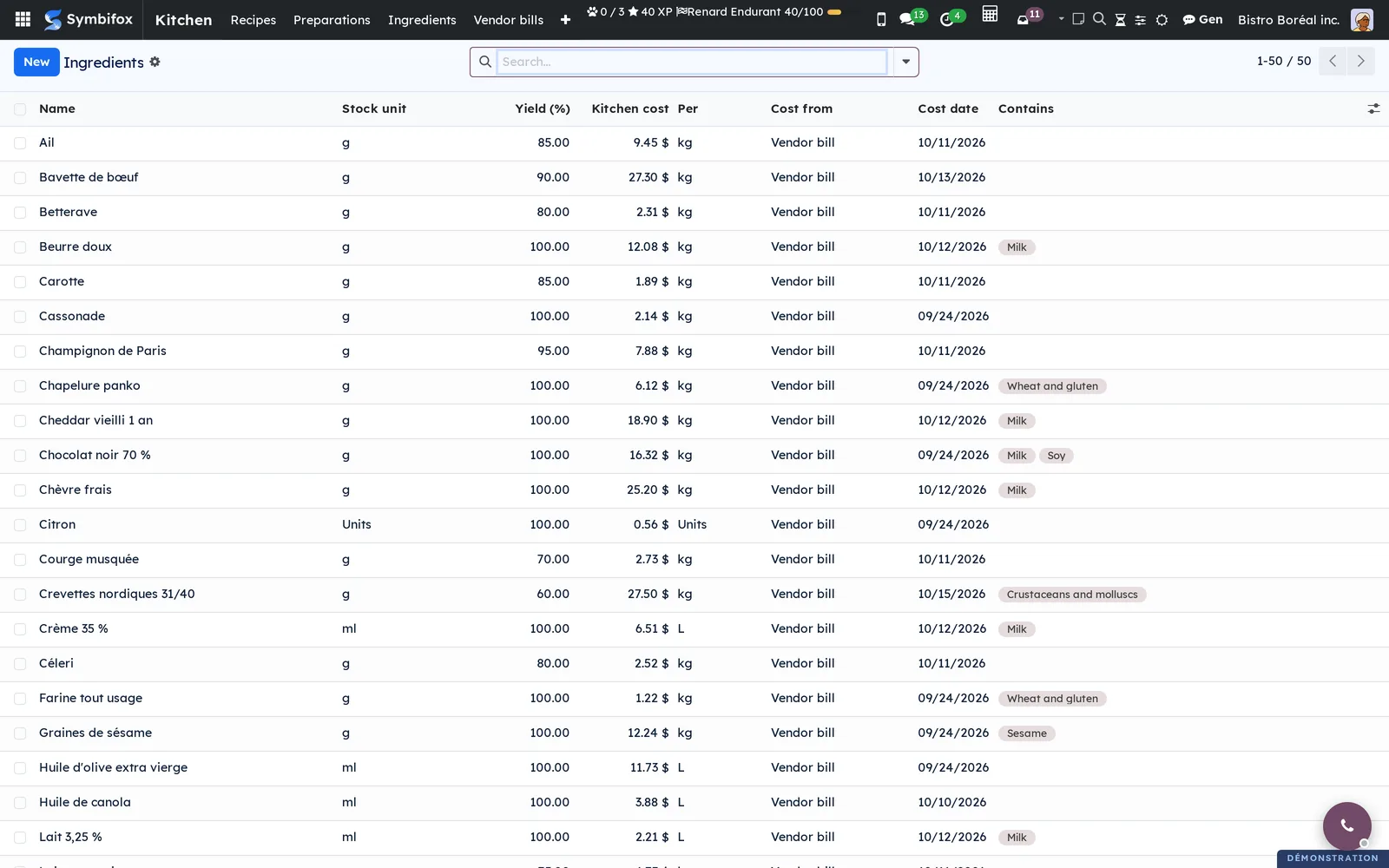
Kitchen › Ingredients: the ingredients bought, with the stock unit, the yield, the kitchen cost, its source, its date and the allergens. The search finds an ingredient by vendor or by allergen.
Kitchen › Vendor bills: groups the two screens below, visible with the billing rights.
Kitchen › Vendor bills › Lines to attach: the lines without a product on the posted bills of food suppliers, with the Attach and Not an ingredient buttons.
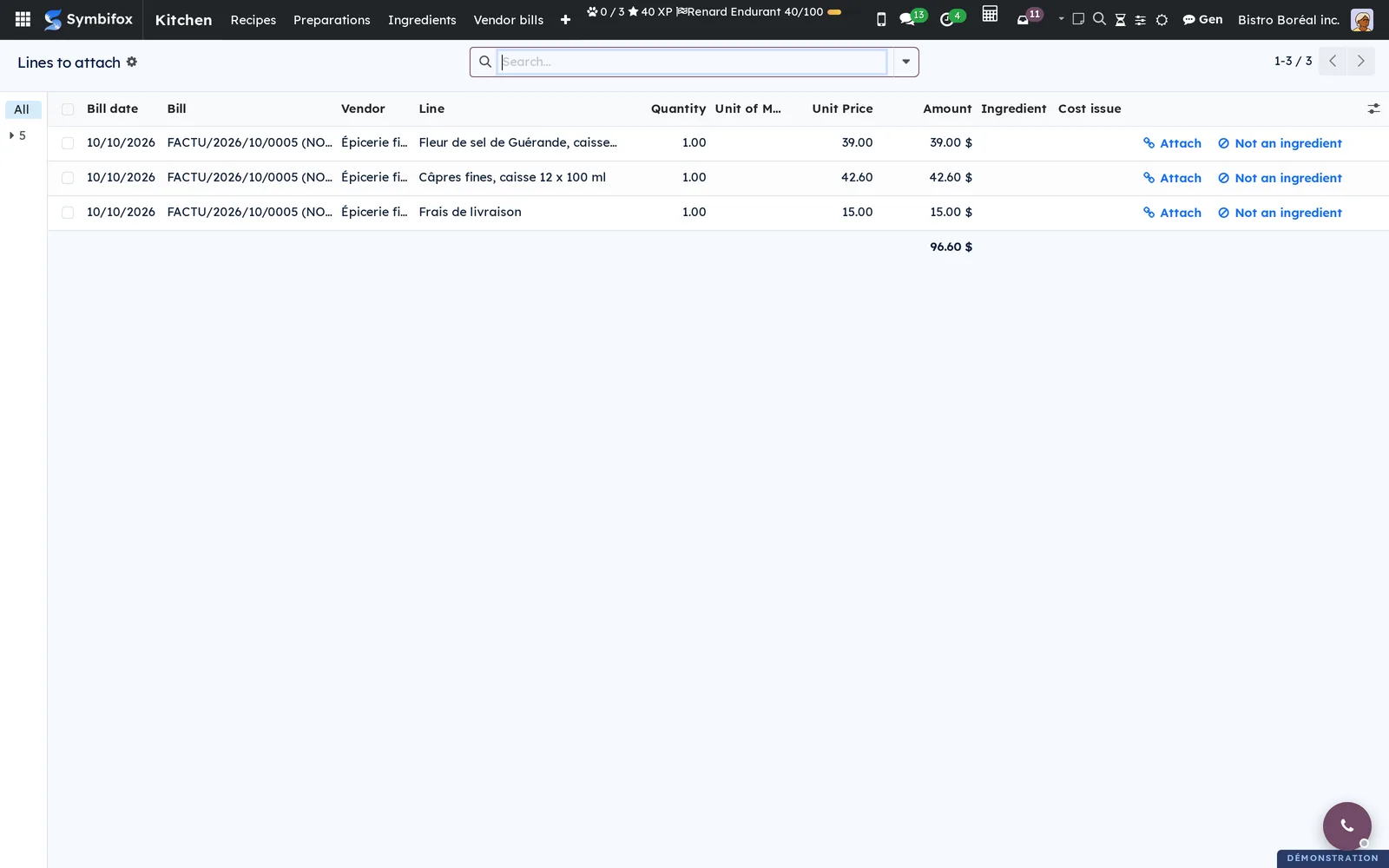
Kitchen › Vendor bills › Costs to check: the posted bill lines whose unit cannot be brought back to the ingredient's stock unit (a case billed for an ingredient stocked in grams, with no known format). Give them a format with Attach. When empty, the screen says "No bill line is waiting".
Kitchen › Configuration: groups the settings, reserved for the kitchen manager.
Kitchen › Configuration › Settings: the company settings (see Settings above), for administrators.
Kitchen › Configuration › Allergens: the shared list of allergens, used by the other applications that need it.
Reference#
Fields of the Recipe form#
| Field | Description | Required or default |
|---|---|---|
| Recipe of | The dish or the preparation | Required |
| Makes | Portions of a dish, or quantity made by a preparation, with the unit | 1 |
| Kitchen type | Dish or preparation, taken from the product | Read only |
| Preparation time (min) | Duration of the recipe | Optional |
| Company | Company of the recipe | Current company |
| Plate cost | Cost of one portion | Computed |
| Selling price | Price of one portion, before taxes | Product price |
| Food cost (%) | Plate cost over selling price | Computed |
| Target food cost (%) | Target of the dish | Company setting |
| Suggested price | Price that meets the target, rounded | Computed |
| Margin per portion | Selling price minus plate cost | Computed |
| Recipe cost | Cost of the whole recipe | Computed |
| Oldest ingredient cost | Date of the oldest cost | Computed |
| Ingredients | Component, net quantity, yield, gross quantity, unit, line cost | At least one line |
| Method | The steps, as the brigade reads them | Optional |
Fields of the Ingredient form#
| Field | Description | Required or default |
|---|---|---|
| Name | Name of the ingredient | Required |
| Stock unit | Unit in which the ingredient is counted and leaves the stock | Unit |
| Purchase unit | Usual unit of the orders | Stock unit |
| Yield (%) | Usable share after trimming, copied to each new recipe line | 100 |
| Kitchen cost | Cost of one stock unit | Computed, or entered without a bill |
| Cost from | Vendor bill, entered, or recipe | Computed |
| Cost date | Date of the bill that set the cost | Computed |
| Cost bill line | Link to the bill line | Computed |
| Entered cost | Cost used until the first bill | Optional |
| Contains | Allergens of the ingredient | Optional |
| May contain | Cross-contamination | Optional |
| Vendors | Vendor, codes, format, billed unit, price | Optional |
Reports and exports#
- Technical sheet: ingredients, quantities, yield, method, allergens, without costs.
- Technical sheet with costs: the same, with the cost of each line, the plate cost, the price, the food cost and the suggested price. Reserved for the kitchen manager.
- Allergen sheet: "Allergens on our menu", a table of the selected dishes.
Lists are exported as everywhere in Symbifox (see Common actions in every application).
Automations#
- Whenever a vendor bill is validated, put back to draft, cancelled or reversed, the costs of the ingredients it touches, then those of the preparations and dishes that use them, are recomputed.
- When a recipe is saved, its cost and the cost of the recipes that use it are recomputed.
- Every night, a scheduled job recomputes every ingredient from its bills, then every recipe.
- A bill that pushes a dish over its target creates an activity for the kitchen manager.
Public pages and portal#
The application has no public page and no portal.
Modules that extend this application#
The vendor bill scanning (see Invoicing) reads paper or PDF bills. Once a line is attached, the next bills from the same vendor come in with the right ingredient.
Understanding#
Why the last bill. The plate cost must follow the market: a rise in shrimp must show on the linguine from the next bill. The application therefore takes the price of the last validated bill, by bill date, not an average cost. An older bill entered late does not replace a more recent price. A partial credit note keeps the price; a bill put back to draft, cancelled or fully reversed falls back to the previous one.
What the cost contains. The price of a line is its amount net of discount and taxes, in the company currency, divided by the quantity brought back to the stock unit. Only the share of taxes declared non-recoverable in the settings is added to it.
A validation is never blocked. A line whose unit does not convert to the stock unit does not block the accounting: it goes to Costs to check, and the ingredient cost keeps its previous value.
Fine units. Odoo rounds each kit line up in its own unit, then converts it to the stock unit. Three grams of salt stocked in kilograms become 0.00 kg. That is why each ingredient is stocked in g, ml or units. The recipe refuses a preparation line that would drop to zero in the stock unit, and a dish ingredient that would drop to zero for one portion.
The old cost. An ingredient bought rarely keeps the price of its last bill, which can be old. The Cost too old badge flags the recipe so that someone checks that price, without changing it.
Changing a recipe already sold. Odoo warns that a bill of materials in use is changing. Open orders that contain the dish are recomputed on the new recipe. No recipe version is kept.
Several companies. Costs are kept per company and per variant. A group that runs two restaurants sees each one with its own bills, on the same recipes or on separate ones.
What the application does not do. It does no inventory count, no loss tracking, no comparison between theoretical and actual use, and no vendor ordering. The stock is counted in Odoo Inventory and orders go through Purchase.
Troubleshooting#
| Symptom | Likely cause | Fix |
|---|---|---|
| The recipe refuses a line: the quantity drops to zero | The ingredient is stocked in a unit that is too large (kg for a few grams) | Stock the ingredient in g or ml before its first stock moves |
| A dish costs $0 | A preparation it uses has no active recipe, or its ingredients have neither a bill nor an entered cost | Open the preparation and its ingredients, then give an entered cost until a bill arrives |
| A bill line does not appear in Lines to attach | The vendor is not checked Food supplier, the line already has a product, or the bill is not validated | Check the box on the vendor form, or open the line that has a product |
| The Received button does not appear | The bill is validated, linked to a purchase order, has no ingredient line, or the setting is unchecked | Keep the bill in draft, set the ingredient as the line's product, or receive through the purchase order |
| An ingredient cost did not change after a bill | The bill entered is dated before the bill that set the cost | Check the bill date: only the most recent one counts |
| A line lands in Costs to check | The billed unit (case, bag) does not convert to the stock unit | Select Attach and enter the format in stock units |
| The technical sheet with costs is refused | The user is not a kitchen manager | Print the technical sheet without costs, or ask for the group |
| A recipe carries Cost too old | One of its ingredients has not been billed for more than 60 days | Check the price with the vendor or enter the next bill |