
Part 8 · Buildings
Resident access
Keep the list of who may use which door of a building, from residents to visitors and contractors, and remove access only after a person confirms the departure.
A building's intercom, garage door and parcel locker each keep their own list of who may come in. Resident access makes your property file the source of that list: every arrival becomes an order to "add this person to this access point", and every confirmed departure an order to "remove them". A contractor, a visitor or an entry into a dwelling gets temporary access that is removed when its window ends, and a tablet in the lobby can stand in for the intercom directory. The result: a new tenant who no longer waits for their name on the intercom, a plumber who no longer has the code the next day, and no access cut off for someone who still lives there.
Overview#
The module replaces neither the intercom, nor the parcel locker, nor the lock. It tells them whom to add and whom to remove. It rests on six notions.
- The access point: a common entrance, a garage, a parcel locker, a lift, a common room or a unit door. It serves the whole building, or a single fraction (a private unit). It has a Person responsible, often the caretaker, who receives the orders to carry out by hand.
- The resident: a person entitled to enter a building and, where relevant, a fraction. Residents are drawn from the file (a co-owner living in their fraction, a recorded occupant, a lease signatory) or declared by hand (a spouse, an adult child, a sublessee).
- The access right: one resident, or one temporary access, at one access point, with its Credential (directory entry, PIN code, card or key fob, mobile credential, physical key) and its Reference, a card number for instance.
- The order: "add" or "remove", for the point's person responsible to carry out. It is marked Done on the order or on the activity that comes with it.
- The temporary access: a visitor, a contractor, staff or an entry into a dwelling, for a window of dates and times. It is removed when the window ends, with nothing to do.
- The lobby tablet: a tablet at the entrance that lists the residents who agree to it, calls one of them or announces a delivery. It opens no door.
A resident goes through four states: Upcoming, Active, Departure to confirm and Moved out. The module never concludes on its own that someone has left. When the file stops naming someone as an occupant, the person moves to Departure to confirm and their access stays in place. It is removed only once a person enters the date the keys were handed back. A temporary access goes through Draft, Confirmed, then Ended or Cancelled.
On the portal, each resident sees their access on the My access page, chooses whether to appear in the lobby tablet's directory, and can give temporary access to a visitor they announce. The Law 25 bridge declares the purpose in the register of processing activities and prepares the privacy impact assessment.
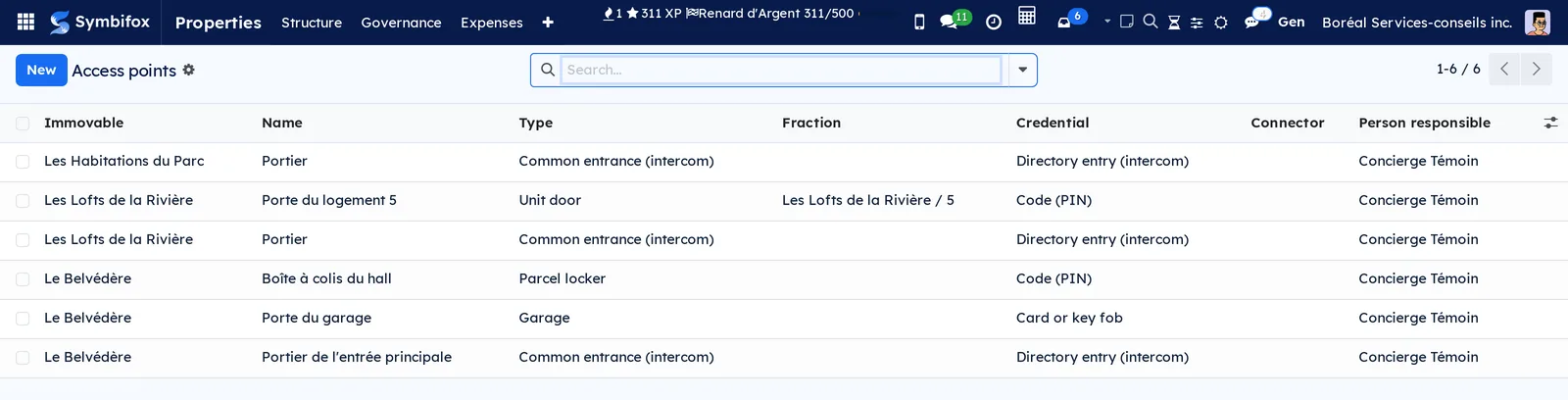
On the demo, three of Boréal's buildings have six access points: at Le Belvédère, the main entrance intercom, the garage door and the parcel locker in the lobby; at Les Lofts de la Rivière, the intercom and the door of unit 5; at Les Habitations du Parc, the intercom. Concierge Témoin is responsible for every point, and Édouard Lafrenière is the person responsible for access in all three buildings. Le Belvédère also has a tablet at its main entrance, with three residents in its directory, and four temporary accesses are planned.
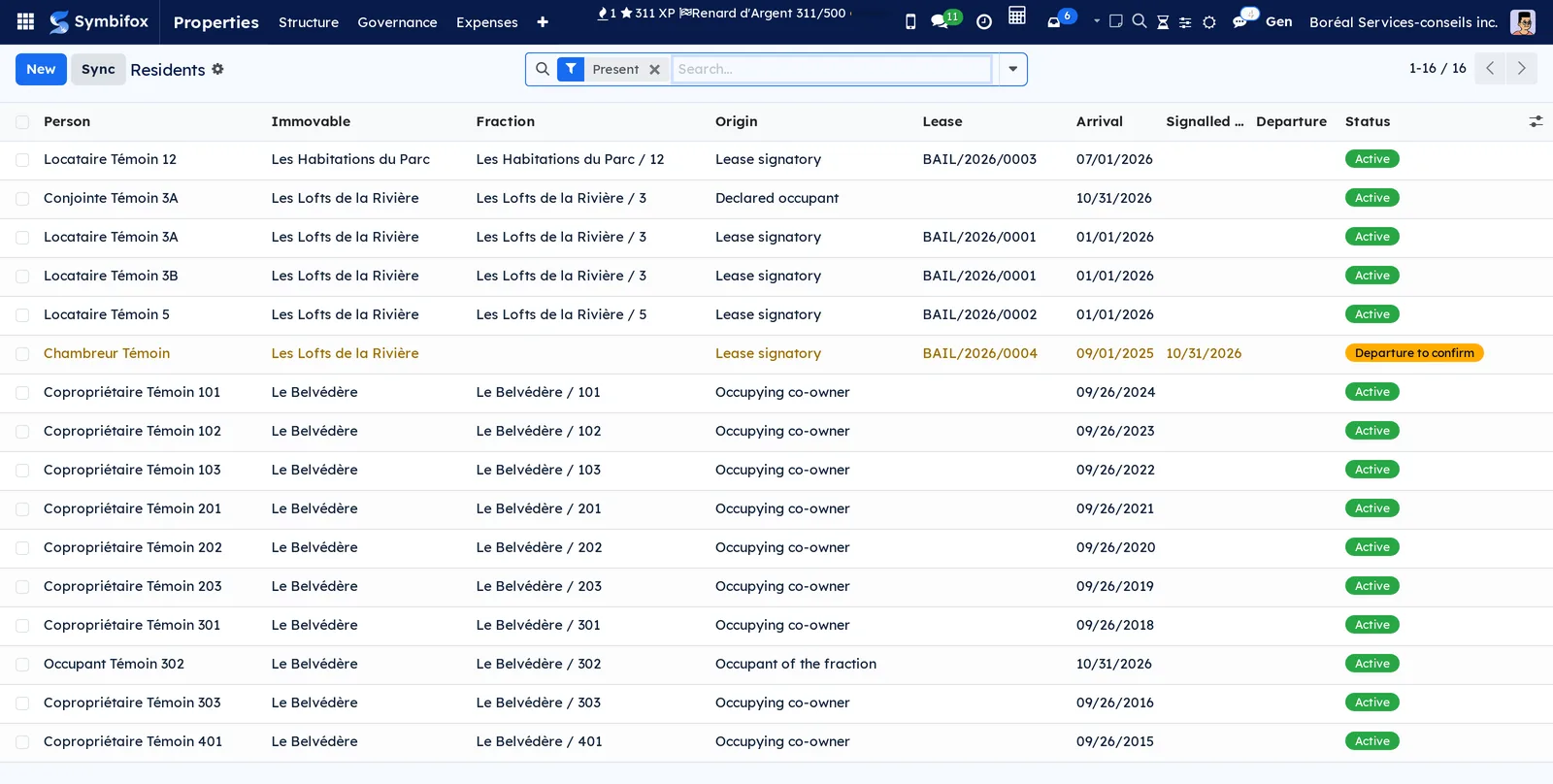
The menus live under Properties › Access. Residents come from the records described in Divided co-ownership (owners and occupants of fractions) and Residential leasing (lease signatories). Announced visitors and parcels are covered in Occupant portal and operations.
Configuration#
Access and permissions#
The module has no group of its own: it uses the two roles of the Properties application, and the portal.
| Role | What it opens |
|---|---|
| Properties / Consultation | Read access to access points, residents, access rights, orders, connectors, temporary accesses and lobby tablets. The person responsible for a point marks Done the orders of their own points, and only those. The PIA template prints from this role up. |
| Properties / Manager | Everything else: creating access points and connectors, declaring an occupant, confirming or dismissing a departure, recording consents, reporting a lost credential, resending an order, confirming, ending or cancelling a temporary access, pairing or unpairing a tablet, removing a resident from the directory at their request. The Connectors menu is reserved to managers. |
| Portal (resident) | The My access page: their own access rights in force or pending, never anyone else's. Their consent to the lobby directory. The temporary access box when announcing a visitor. |
Three roles are set on the records, and the module checks that they hold the right group:
- the Person responsible for an access point needs at least Properties / Consultation, otherwise they would receive activities they cannot open;
- the Person responsible for a tablet also needs Properties / Consultation: they receive deliveries and the calls that could not ring through;
- the Person responsible for access of a building must be a Properties / Manager, since they confirm departures.
Settings#
The module has no settings screen. Its settings are on the organisation form, under Properties › Structure › Organisations, Access tab:
- Access log retention (days): after that period, closed orders, residents who moved out with their access rights, lapsed temporary accesses and the tablet's call log are deleted. The default is 90 days. Zero means never, a choice to justify in the privacy impact assessment.
- Residents give their visitors temporary access: checked by default. Unchecked, the access box disappears from the portal's visitor form: visitors are announced without access.
- Maximum length of a visitor's access (hours): 12 by default. Access requested on the portal never exceeds it.
- The Door access retention: access rights, orders, temporary access (Québec Act 25) block shows the Period declared in the register (access) and, when it differs from the period applied, a warning. The PIA template (access control) button prints the assessment template.
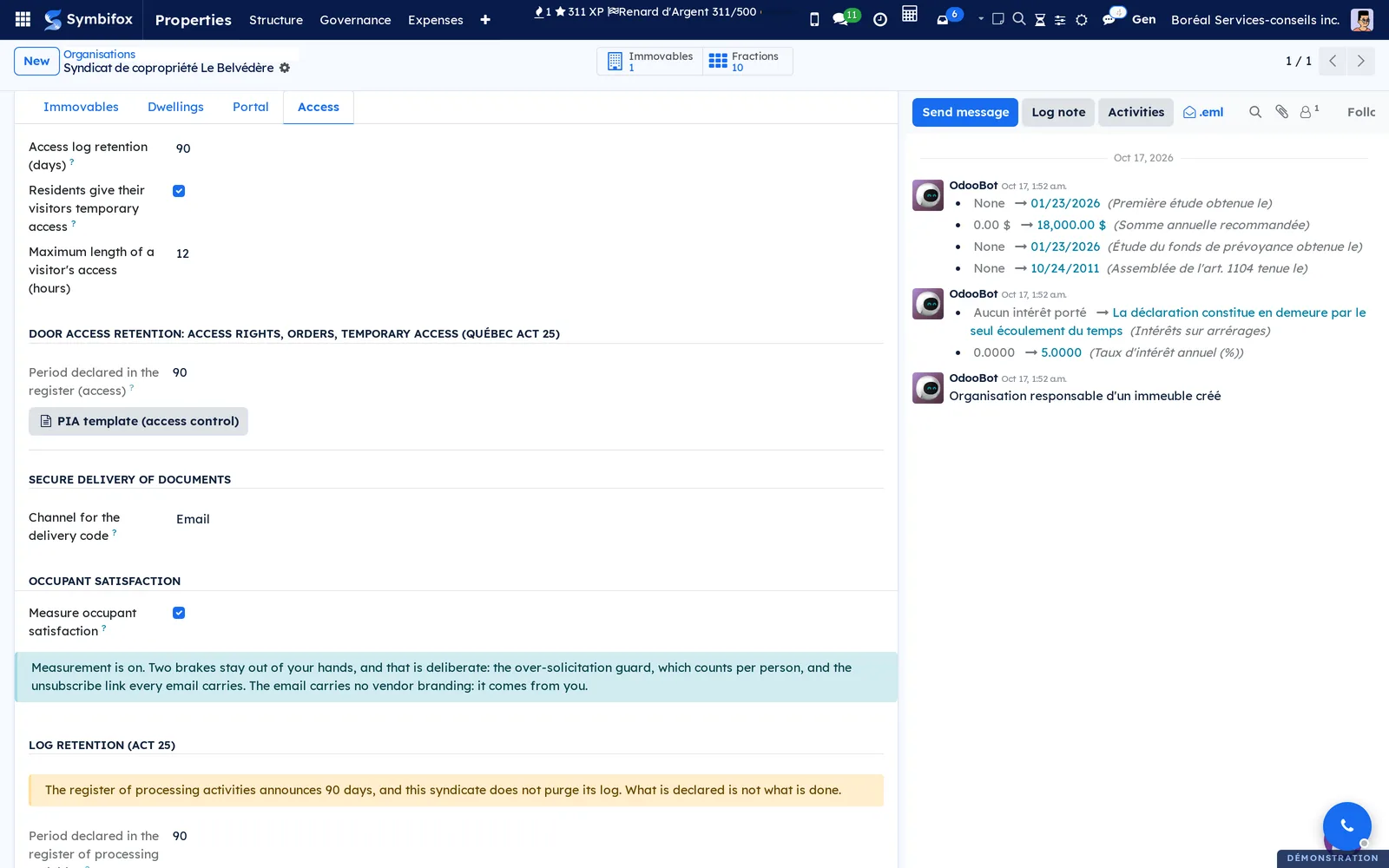
The same tab carries other blocks, added by the portal and operations modules: the retention of the parcel and visitor log is set in Occupant portal and operations.
Base data#
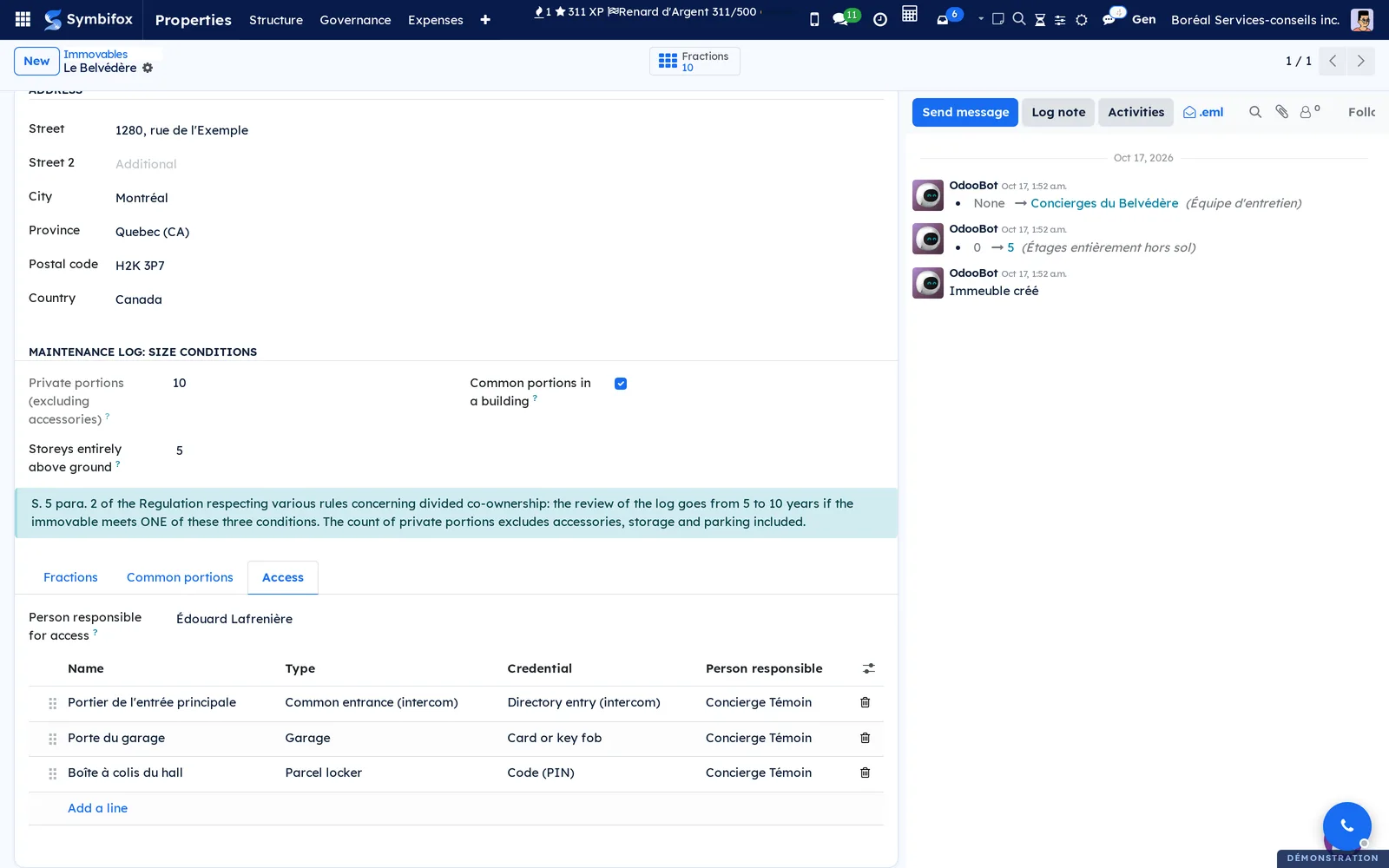
- On each building, under Properties › Structure › Immovables, Access tab, choose the Person responsible for access. They receive the "confirm departure" activities.
- In the same tab, or under Properties › Access › Access points, add each point with its type, its credential and its person responsible.
- Check that the file names the occupants correctly: co-owners, occupants of rented fractions, leases and their signatories.
- Open Properties › Access › Residents and select Sync, without waiting for the night.
- Declare by hand the people who live there without having signed anything.
- Optional: declare the lobby tablet under Properties › Access › Lobby tablets, then pair it.
Getting started#
This walkthrough confirms the departure of the roomer at Les Lofts de la Rivière and creates the removal order for the intercom. It requires the Properties / Manager role.
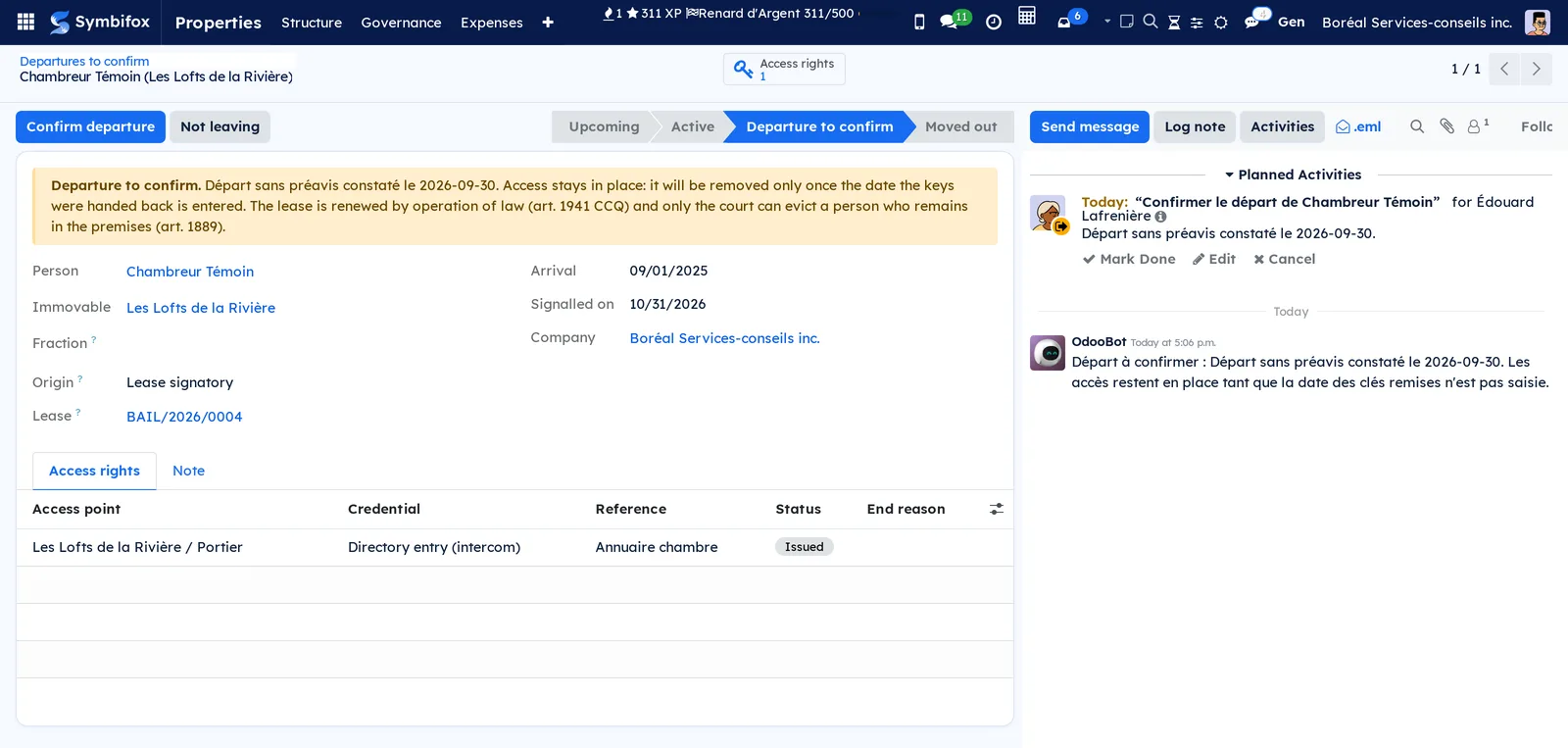
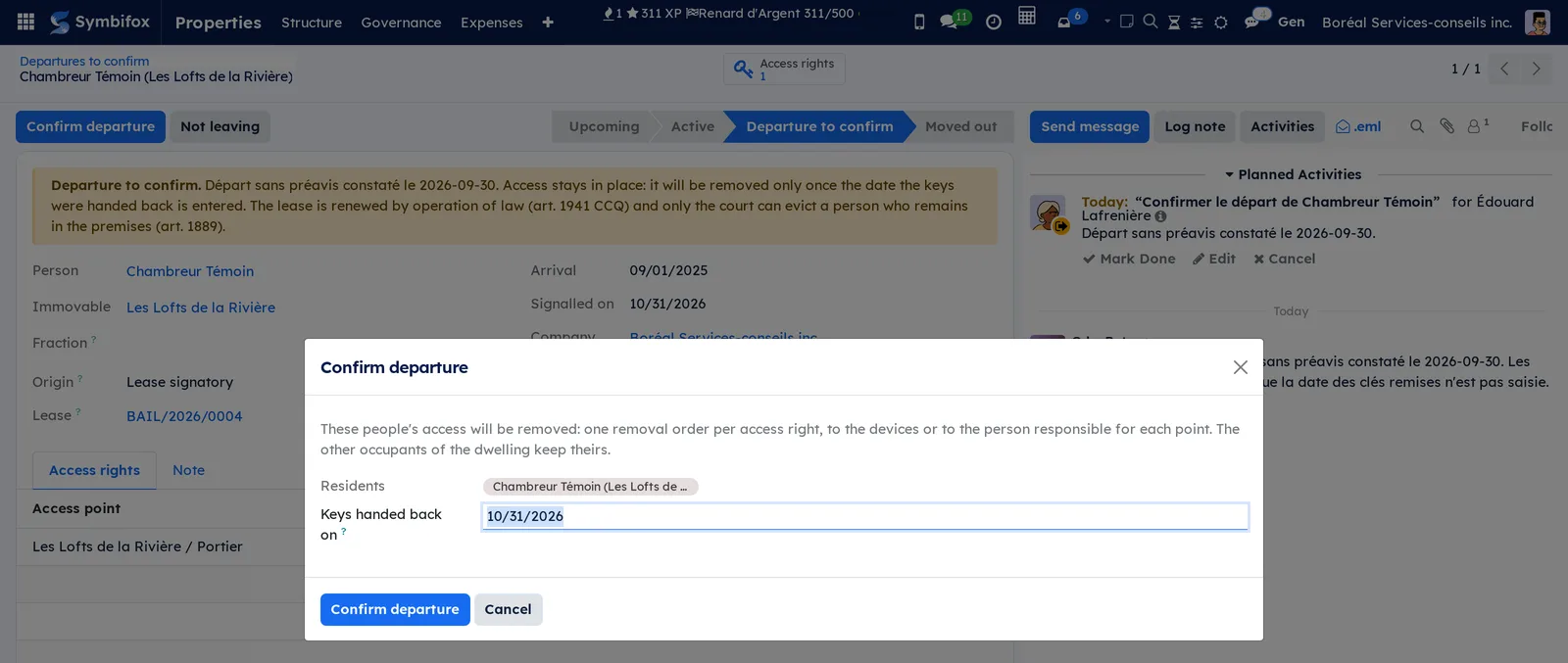
- Open Properties › Access › Departures to confirm. Chambreur Témoin is listed, signalled on 10/31/2026.
- Open the record. The banner states what the file recorded: an abandonment of the dwelling on 2026-09-30. The Access rights tab shows the roomer's directory entry on the intercom, Issued.
- Make sure the departure is real: keys returned, dwelling vacated.
- Select Confirm departure. The Confirm departure dialog opens.
- In Keys handed back on, enter the day the keys were returned.
- Select Confirm departure. The resident moves to Moved out.
- Open Properties › Access › Orders to do: the order "Remove Chambreur Témoin from Les Lofts de la Rivière / Portier" waits for Concierge Témoin, who also received it as an activity.
Common tasks#
Add an access point#
An access point is declared once, with the person who will do the additions and removals.
- Go to Properties › Access › Access points and select New.
- Enter the Name, for example "North entrance intercom", and choose the Immovable (the building).
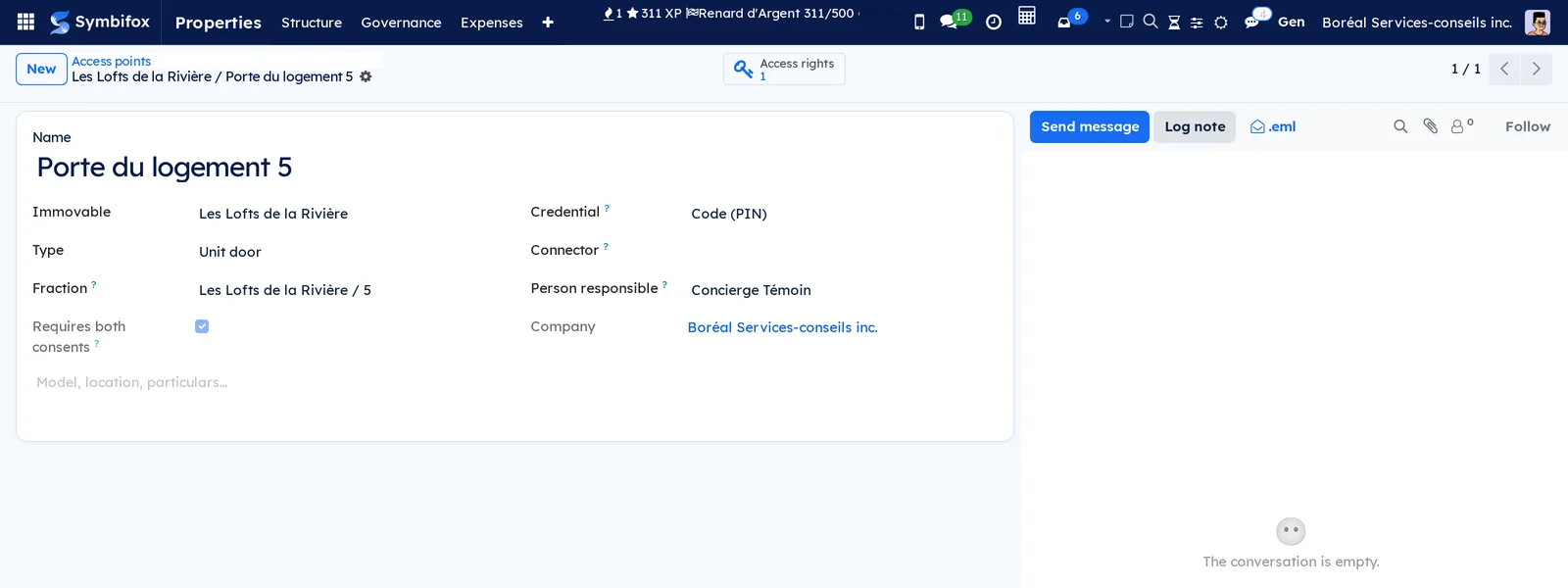
- Choose the Type. For a Unit door, also choose the Fraction.
- Leave Fraction empty for a point that serves the whole building.
- Choose the Credential the resident receives.
- Leave Connector empty and choose the Person responsible.
- Save.
The residents already present receive their access right at once, and one add order per person goes to the person responsible. Requires both consents checks itself on a unit door.
Sync residents with the file#
The module rereads the file every night, and whenever a lease or an abandonment is saved. To avoid waiting:
- Go to Properties › Access › Residents.
- Select Sync.
The message "Residents updated from the file." appears. New people are added, arrivals that have come due become Active, and those the file no longer names become Departure to confirm. Nothing is removed.
Bring an arrival forward or cancel it#
A signatory whose lease starts later is Upcoming and receives nothing yet. When the keys are handed over early:
- Open the Upcoming resident.
- Select Mark as arrived.
The resident becomes Active and the add orders go out. Cancel arrival applies only to an occupant declared in advance who will not come: an arrival drawn from the file is corrected in the file.
Declare an occupant who signed nothing#
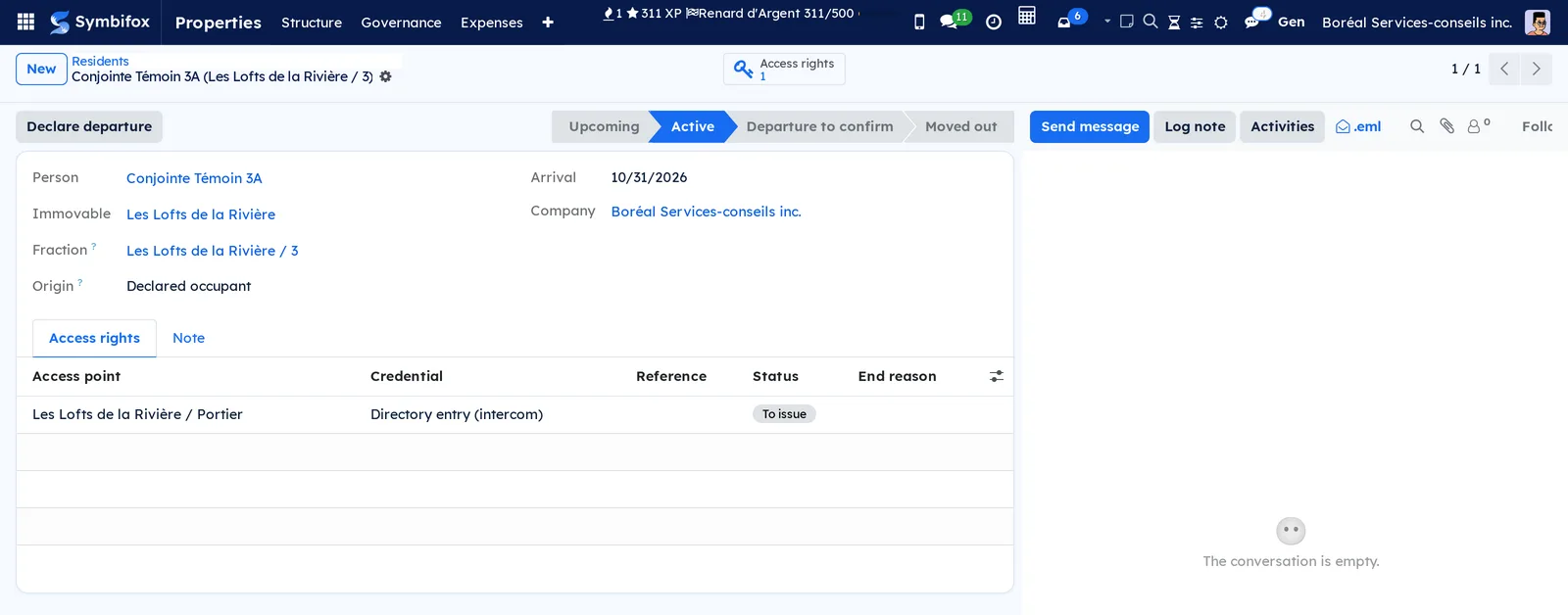
A spouse, an adult child or a relative living in the dwelling has rights, even without having signed the lease.
- Go to Properties › Access › Residents and select New.
- Choose the Person, the Immovable and the Fraction.
- Leave Origin on Declared occupant, or choose Sublessee or Other.
- Check the Arrival date.
- Save.
An arrival dated today or earlier makes the resident Active at once, with their access rights. The origin cannot be changed afterwards. The signatory's departure does not affect a declared occupant's access: their own departure is declared by hand.
Carry out an order by hand#
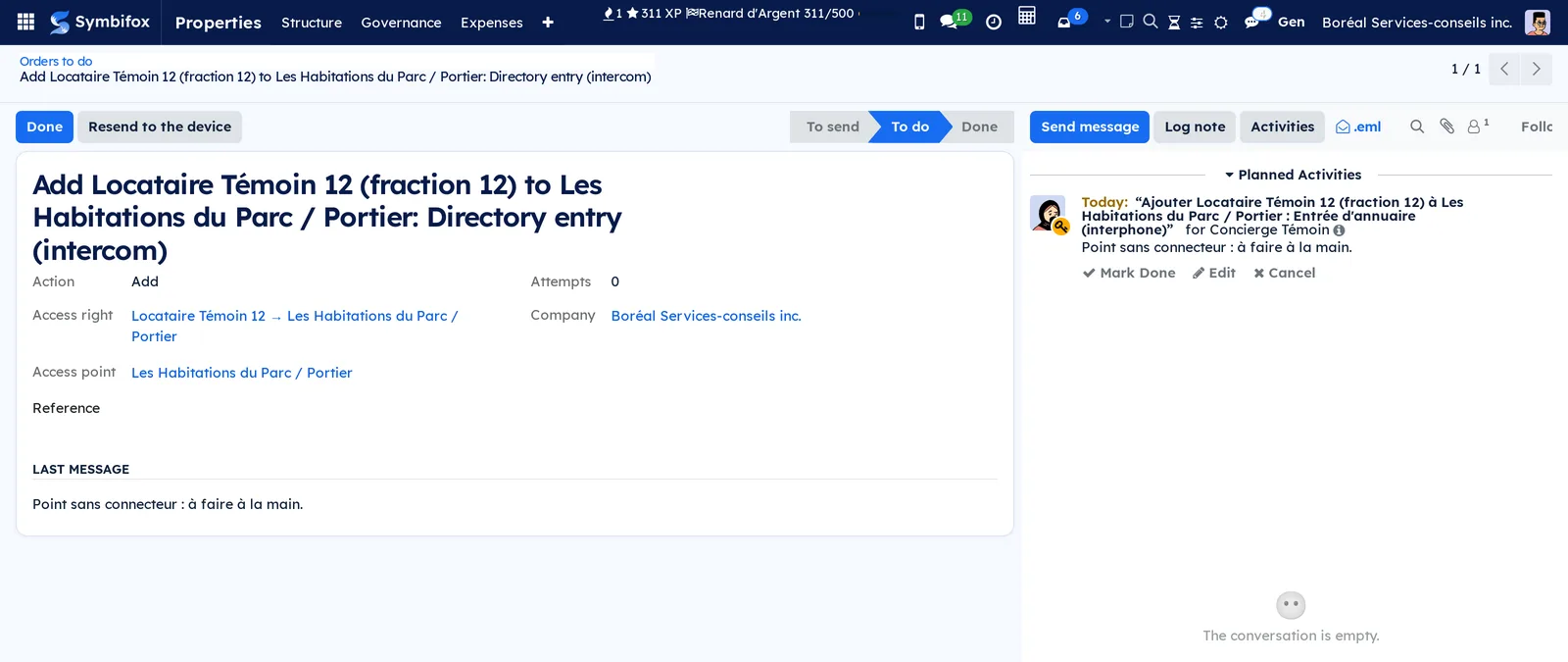
Without a connector, each order reaches the point's person responsible as an activity, with the text of the order: "Add Locataire Témoin 12 (fraction 12) to Les Habitations du Parc / Portier: Directory entry (intercom)".
- Do the job on the device: add the name to the intercom, program the card, hand over the key.
- Open the activity, or the order under Properties › Access › Orders to do.
- Optional: enter the Reference, for example the card number.
- Select Mark Done on the activity, or Done on the order.
The order becomes Done, with Done by and Done on, and the access right becomes Issued or Removed. The activity and the order close together.
Review a departure to confirm#
The building's person responsible for access receives the activity "Confirmer le départ de …" (confirm the departure of …), with the reason.
- Go to Properties › Access › Departures to confirm and open the record.
- Read the Departure to confirm banner: it repeats what the file recorded, with its date.
- Check on site or with the person.
The possible reasons: the person no longer appears in the file as an occupant, is no longer a signatory of the lease, the lease is archived, a more recent lease began on the dwelling, an abandonment of the dwelling was noted, rent is due only until a date that has passed, or a resiliation by the lessee took effect. The text is written in the language of the building's company, which is why it reads in French on the demo.
Confirm a departure#
- Open the resident in Departure to confirm.
- Select Confirm departure.
- Enter Keys handed back on: the day the person returned the keys or left the premises, as observed. Not a planned date.
- Select Confirm departure.
The resident becomes Moved out. Each access right receives a removal order, sent to the person responsible for each point. An addition that was never sent is simply cancelled; an addition already handed to the caretaker is cancelled and followed by a removal, since it may have been done without being marked. The other occupants of the dwelling keep their access. Temporary accesses the person gave their visitors in the building are cancelled, unless they remain a resident elsewhere in it.
Dismiss a false departure#
The file can be wrong: a co-owner who sold and stays on as the new owner's tenant, for instance.
- Open the resident in Departure to confirm.
- Select Not leaving.
- Confirm when asked "Does the person still live on the premises?".
The resident is Active again and becomes a Declared occupant: a person vouches for them, and the next night does not flag them again. Their departure will be declared by hand.
Declare a departure#
A declared occupant, or any active person, leaves without the file saying so.
- Open the Active resident.
- Select Declare departure.
- Enter Keys handed back on and select Confirm departure.
The removal orders go out as for a flagged departure.
Record the consents for a unit door#
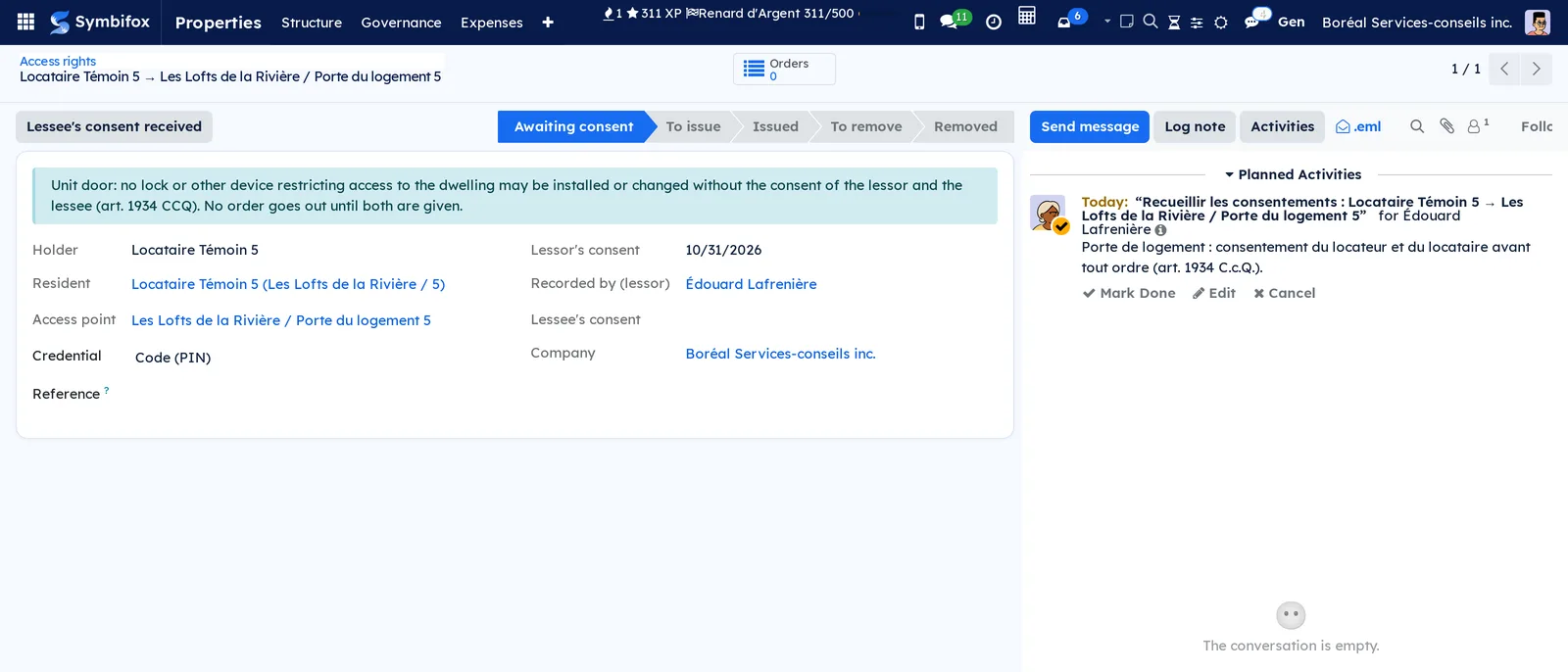
An access right on a unit door waits in Awaiting consent. The person responsible for access receives the activity "Recueillir les consentements : …" (collect the consents).
- Obtain the lessor's consent and the lessee's.
- Go to Properties › Access › Access rights and open the access right.
- Select Lessor's consent received.
- Select Lessee's consent received.
Each consent is dated, with the person who recorded it. The access right moves to To issue only with the second one, and the add order goes out then.
Replace a lost or stolen credential#
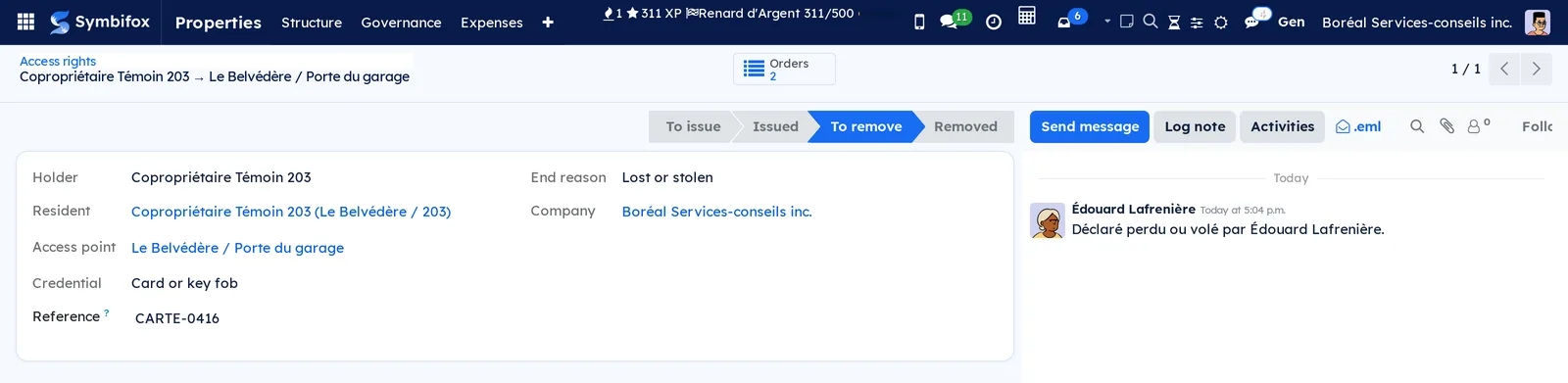
- Go to Properties › Access › Access rights and open the access right concerned.
- Select Lost or stolen.
- Confirm "Remove this credential right away and issue a new one?".
The access right moves to To remove, with the end reason Lost or stolen, and a removal order goes out. A new access right on the same point is created at once, with its add order. The person's other access rights do not move. On the demo, the garage card CARTE-0416 of the co-owner of unit 203 is waiting for its removal and its replacement.
Resend an order#
Resend to the device is for points connected to a device, when sending failed. Without a connector, it hands the order back to the point's person responsible, with a new activity.
- Open the order in To do or Failed.
- Select Resend to the device.
Change a point's person responsible#
- Open the access point.
- Choose the new Person responsible and save.
The activities of the orders still to do follow them.
Retire an access point#
- Open the access point.
- Archive it from the Actions menu.
A removal goes out for each access right still in force, since the device may still hold those people. A point that has access rights in force or to remove cannot be deleted. Changing a point's building or fraction likewise orders the removals that the change implies.
Give a contractor temporary access#
A plumber for the afternoon, the yearly lift maintenance: the access holds for the window you choose, and the removal goes out on its own at the end.
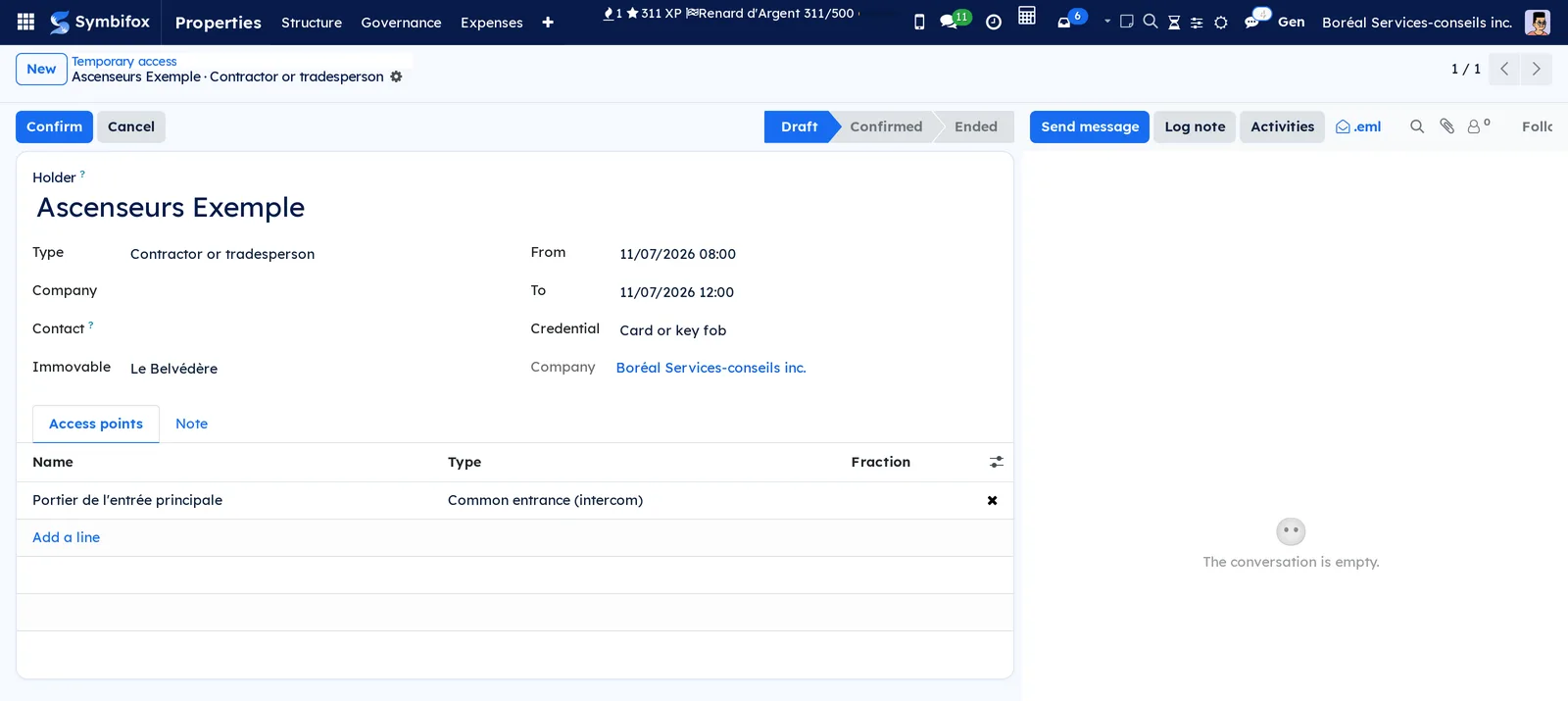
- Go to Properties › Access › Temporary access and select New.
- Enter the Holder, for example "Plomberie Exemple", and, if relevant, the Company or a Contact already in your address book.
- Leave Type on Contractor or tradesperson, or choose Staff or Visitor.
- Choose the Immovable. The Access points tab fills with its common entrances and lifts: add or remove points as needed.
- Enter From and To, in the building's time, then choose the Credential.
- Optional: write in the Note tab what the person is coming to do. The note travels with the add order handed to the caretaker.
- Save: the access stays a Draft until someone confirms it.
A unit door cannot be added here: only an entry into that dwelling opens it. On the demo, Ascenseurs Exemple's yearly maintenance, next week, waits as a draft.
Confirm a temporary access#
- Open the Draft access under Properties › Access › Temporary access.
- Check the access points and the window.
- Select Confirm.
The access becomes Confirmed. An access right is created for each point, and an add order goes to each point's person responsible, with the window: "Give Plomberie Exemple (Plomberie Exemple inc.) access to Le Belvédère / Porte du garage: Code (PIN), from … to …". The activity is due on the start day, in the building's time. The Access rights tab follows each right's status, and the chatter keeps the confirmed window. A confirmed access can no longer be changed: to change the window or the points, cancel it and create another.
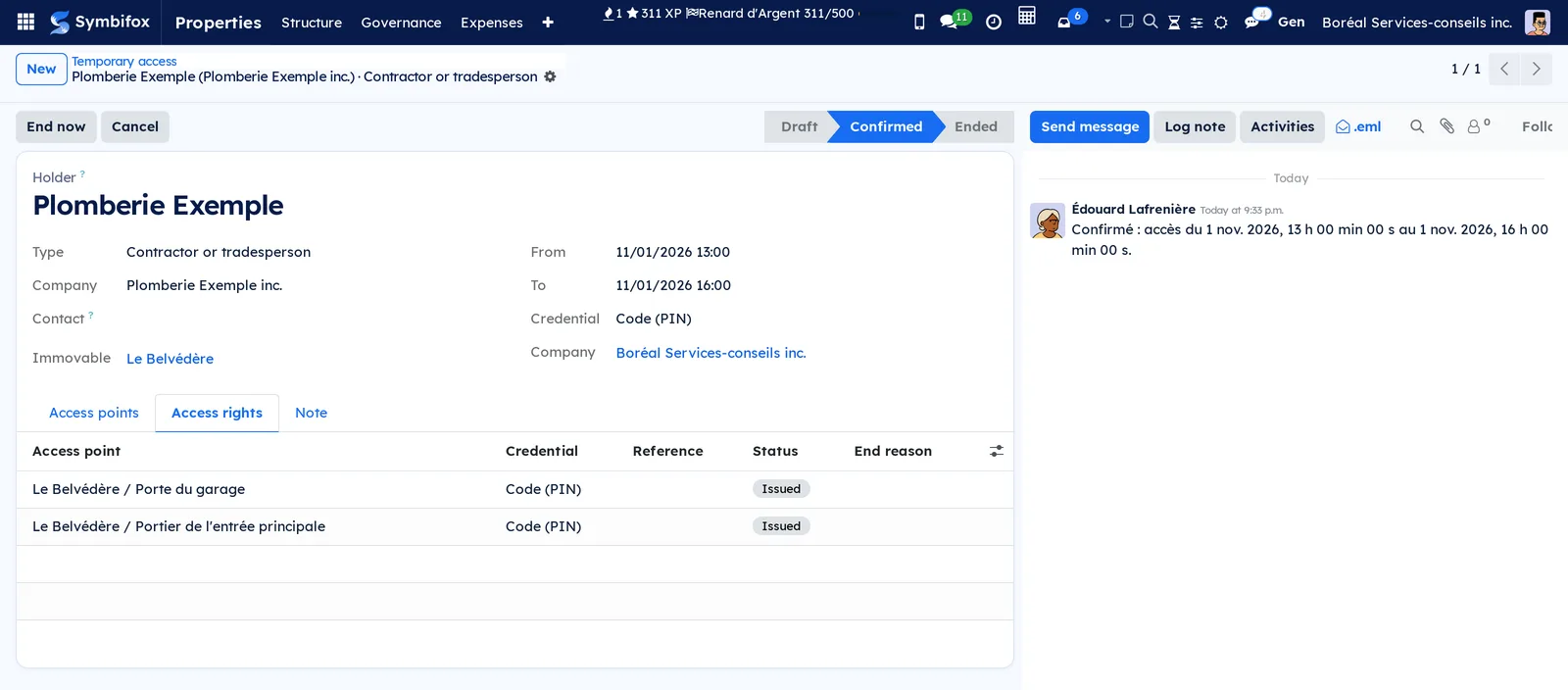
Prepare an entry into a dwelling#
A lessor may enter a leased dwelling to inspect it, carry out work or show it, on conditions set by the Civil Code of Québec (arts. 1930 to 1933 CCQ). The module refuses to confirm an entry that does not meet them.
- Create a temporary access and choose the Type Entry into the dwelling.
- Choose the Immovable and the Fraction. The dwelling's own door, if it has one, is added to the points.
- Choose the Reason for entry: Inspect the condition of the dwelling, Work, Showing to a prospective buyer, Showing to a prospective lessee, Vacant dwelling or Emergency.
- Except for an emergency or a vacant dwelling, enter Notice given on and the Notice method, once the notice has been given.
- Enter the window, then Accompanied by: the name of the person who will be there.
- Outside the permitted hours, check Lessee's agreement outside the hours and fill in Recorded agreement (who, when, how).
- Save, then select Confirm.
The form's blue banner sums up the rules. The module checks them in the building's time, never in the time zone of the person signed in:
- notice given at least 24 hours before the start, for an inspection, work or a showing to a prospective buyer (art. 1931);
- for a showing to a prospective lessee, no notice only after the lessee has given notice of non-renewal or resiliation: enter Lessee's notice received on, otherwise the 24-hour notice applies;
- a window between 9 a.m. and 9 p.m. for an inspection or a showing (art. 1932), between 7 a.m. and 7 p.m. for work (art. 1933), on a single day: work over several days needs one access per day;
- for Major work, written notice 10 days ahead, or 3 months when Evacuation longer than one week is checked (art. 1922);
- for an Emergency, no notice, but a written Reason for the emergency that stays in the journal;
- for a Vacant dwelling, no notice, and a refusal if someone still lives there.
On the demo, an entry into unit 3 at the Lofts to fix a tap is confirmed for the day after tomorrow, from 9 a.m. to noon, with written notice given yesterday and Concierge Témoin accompanying.
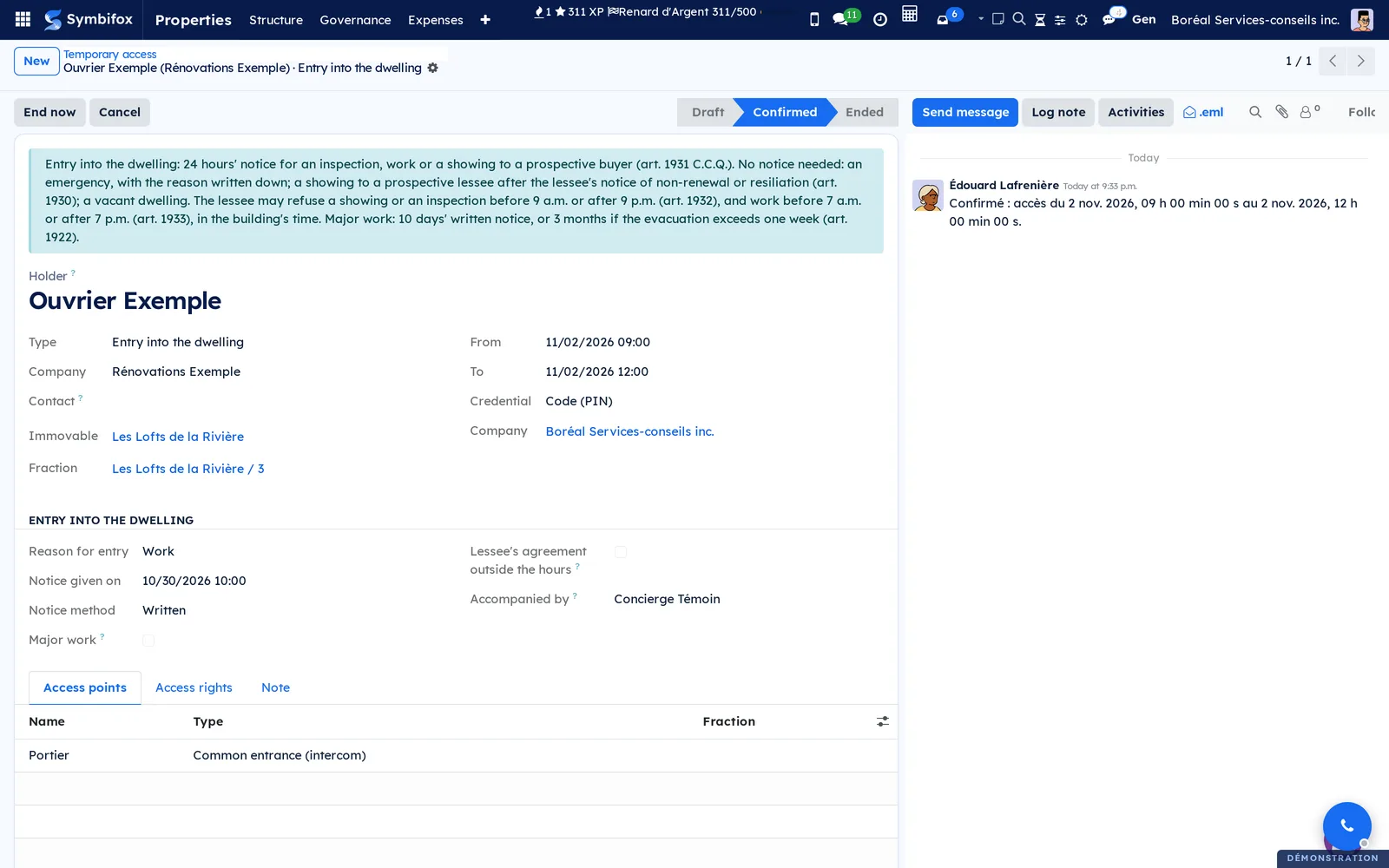
End or cancel a temporary access#
- Open the Confirmed access.
- Select End now once the visitor has left or the work is done, or Cancel if the visit is not happening.
Either way, each access right receives a removal order, and the chatter records who did it. An addition that was never sent is simply cancelled. If you do nothing, the end of the window ends the access within fifteen minutes. A draft is cancelled with Cancel too; an access cannot be deleted, it goes away with the journal.
Announce a visitor with temporary access#
A resident announcing a visitor on the portal can give them access to the common doors, if the organisation allows it. This happens on the portal's Parcels and visitors page, described in Occupant portal and operations.
- On the portal, the resident opens Parcels and visitors and fills in the visitor form.
- They check Give them temporary access to the common doors.
- Optional: they enter Access until. Left empty, access lasts two hours after the expected arrival.
- They submit the form.
Access starts 15 minutes before the expected arrival and never exceeds the organisation's maximum length. It covers only the building's common entrances and lifts: never a unit door, the garage or a parcel locker. It can be requested at most 30 days ahead, and only by a resident currently living in the building. The resident sees the status of the access in the Access column of their visitors, and the access appears under Temporary access, with the type Visitor. The demo's website is in French only, so the portal pages are not shown in this English guide.
Cancelling the visit cancels the access; changing its time, its end or the visitor's name cancels it too, and the visitor has to be announced again. Marking the visitor as gone ends the access. On the demo, the co-owner of unit 101 expects Invitée Exemple tomorrow from 6 to 9 p.m.: her access to the main entrance intercom starts at 5:45 p.m.
View your access on the portal#
A resident with a portal account sees their access without asking the caretaker.
- On the portal, the resident opens the My access card, or the
/my/property/accessaddress. - They read, by building and fraction, each access point, its credential, its reference and its status.
The statuses shown: Issued, To issue, Awaiting consent and To remove. A removed or cancelled access right no longer appears. The page reminds the resident that no code is kept there, and points them to a request to the manager for a lost card or missing access. When the Law 25 bridge is installed, the Your information card explains the "Building access control" purpose in plain language.
Choose to appear in the lobby directory#
Nobody appears in the lobby tablet's directory without choosing to. The choice belongs to the resident, on the portal.
- On the portal, the resident opens My access. A Lobby directory card appears for each building that has a tablet.
- They check Appear in the directory.
- They enter the Displayed label, for example "A. Example", or leave it empty: the tablet then shows "Resident".
- If they wish, they check The tablet may ring my phone.
- They select Save.
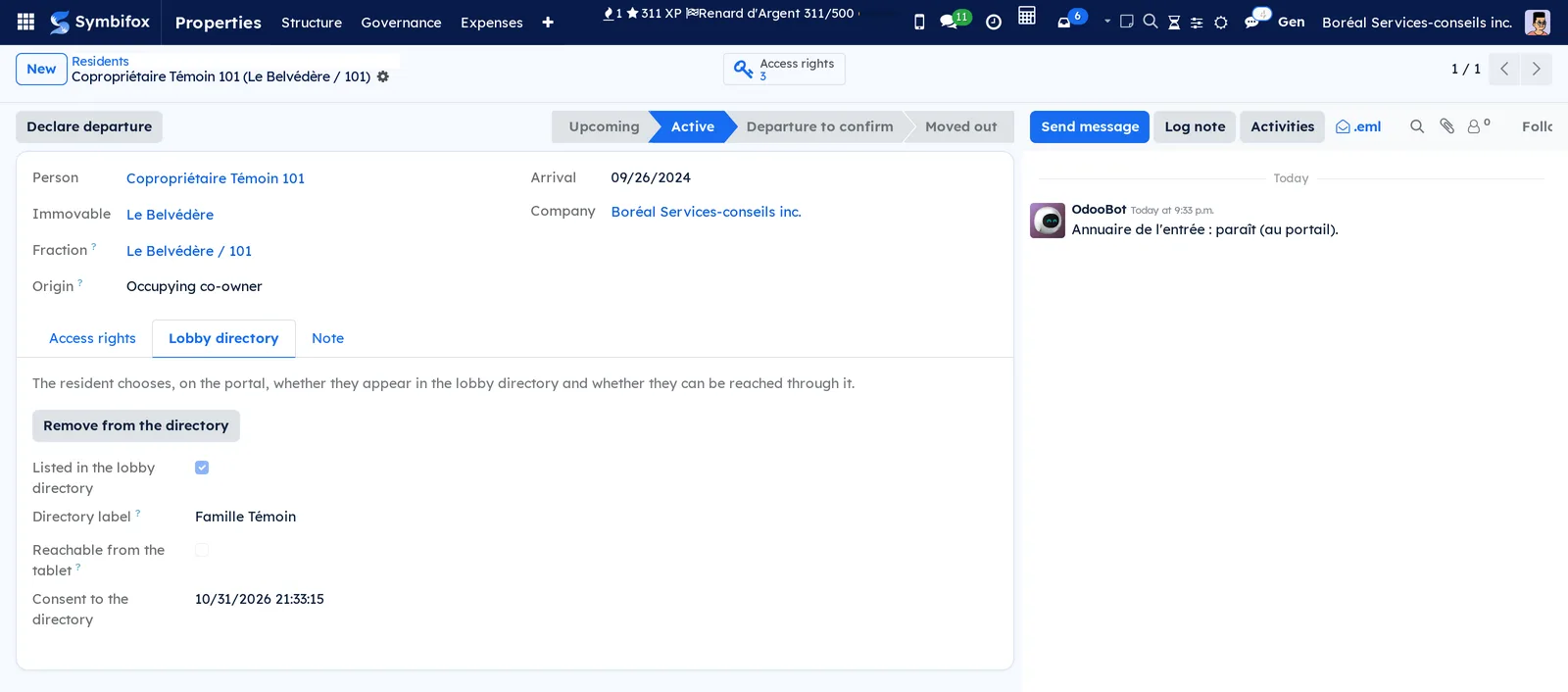
The consent is dated. Unchecking Appear in the directory removes the resident and also stops the phone from ringing. The card states how many days the call log is kept. On the resident's record, the Lobby directory tab shows their choice, read-only.
Remove a resident from the directory at their request#
A resident without a portal account can ask the manager to take them off the directory.
- Open the resident under Properties › Access › Residents.
- Open the Lobby directory tab.
- Select Remove from the directory and confirm.
The resident leaves the directory, and the chatter records who removed them, at the resident's request. The reverse does not exist in the back office: nobody, managers included, signs a resident up on their behalf.
Set up a lobby tablet#
A tablet or touch screen at the entrance stands in for an intercom directory. The visitor searches for a name or a unit and taps Call next to the unit.
- Go to Properties › Access › Lobby tablets and select New.
- Enter the Name, for example "North entrance", and choose the Immovable.
- Choose the Person responsible: they receive deliveries and the calls that could not ring through.
- Choose the Call mode: Notify the person responsible, or Ring the resident's phone with the Tablet channel and the Dial context of Symbifox telephony.
- Save, then select Pair the tablet and confirm.
- Copy the address shown and open it in the tablet's browser, full screen.
The address is shown only once. Pairing again gives a new one and makes the old one unusable; Unpair cuts the tablet off without giving a new one. Device paired tells you whether an address is in service.
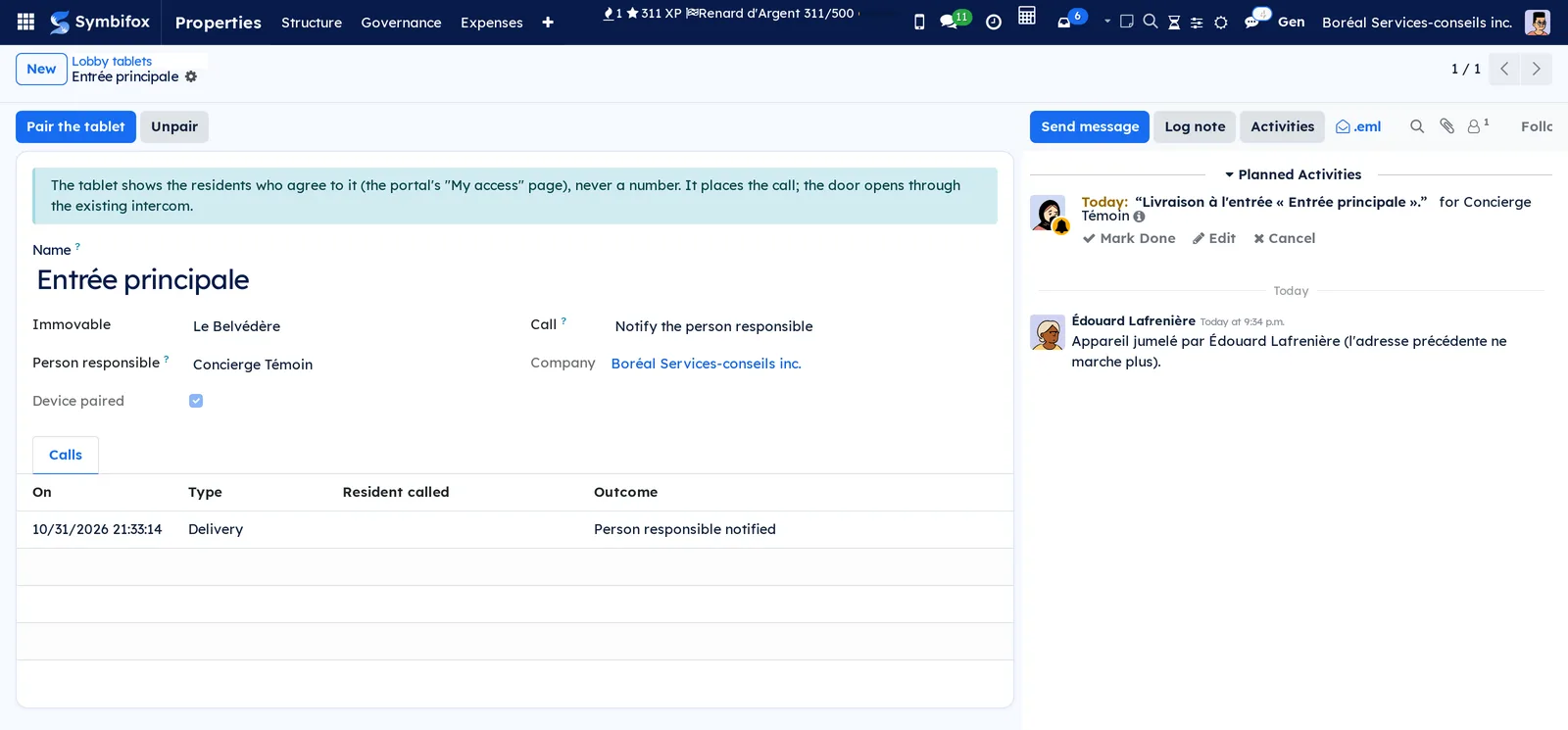
Handle a call or a delivery from the tablet#
In Notify the person responsible mode, each call becomes an activity for the person responsible that names the unit and the entrance, and each delivery an activity that names the entrance. The same activity, still open, is not repeated on every tap for 10 minutes. On the demo, these texts read in French, the language of the building's company.
- Open the activity, or the tablet under Properties › Access › Lobby tablets.
- Go to the entrance, or let the resident know through the usual means.
- Select Mark Done on the activity.
The activity names the unit, never the resident. The tablet's Calls tab keeps the date, the type (Call or Delivery), the resident called and the outcome (Rang or Person responsible notified). In Ring the resident's phone mode, the resident's phone rings if they agreed to be reached and their number is an ordinary Canadian or US number. Otherwise, the person responsible is notified.
Print the PIA template#
Law 25 requires a privacy impact assessment for an information system that involves personal information (s. 3.3 of the private-sector Act). The template gathers its facts.
- Go to Properties › Structure › Organisations and open the organisation.
- Open the Access tab.
- Select PIA template (access control).
The document prints prefilled: buildings covered, present residents by origin, a table of access points with their credential and connector, the personal information involved, the purpose, what is excluded, the retention applied and declared, disclosure to third parties, security measures and individuals' rights. If the organisation has a lobby tablet, a "Lobby tablet" subsection follows the personal information involved: directory by consent, no number shown, call log purged, page protected by a secret address. "To complete" boxes are left for the person in charge of protecting personal information. The template names no one. It prints in the language of the person printing it, French on the demo, which is why it is not shown here.
Align declared and applied retention#
The register of processing activities announces a retention period for access control, and each organisation applies its own. The organisation's Access tab compares the two.
- Open the organisation, Access tab.
- Read the Period declared in the register (access) and any warning.
- Correct whichever period is wrong: the organisation's here, or the retention policy in Privacy (Law 25 and other frameworks).
The module states the gap and never corrects either side: which one is right is the organisation's decision.
The menus, one by one#
Properties › Access groups the module's eight screens.
Properties › Access › Departures to confirm lists the residents waiting for a confirmation: person, immovable, fraction, origin, lease, arrival, Signalled on and status. A line in orange is waiting for a decision.

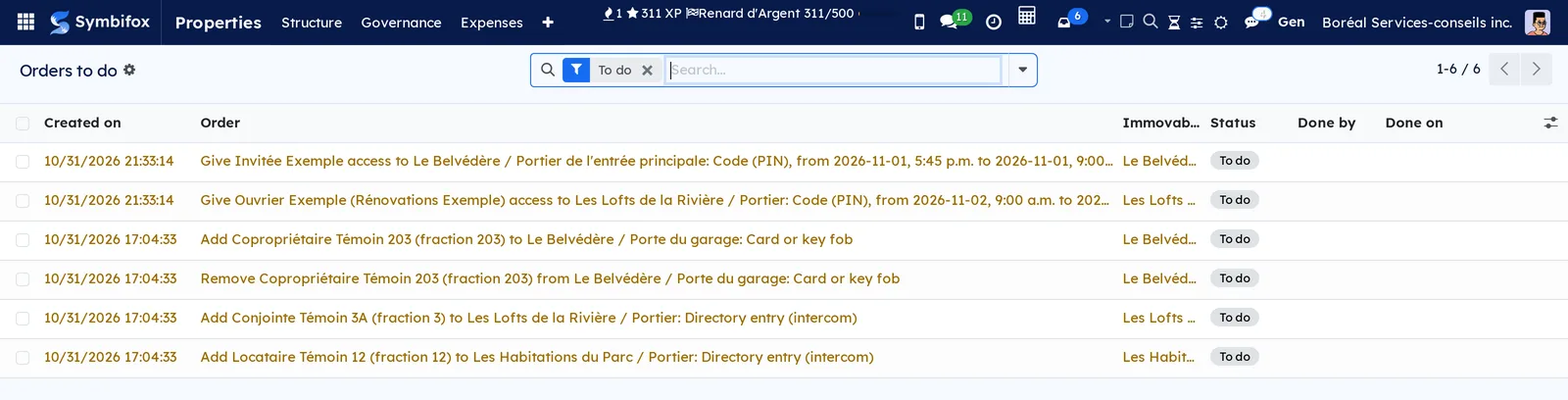
Properties › Access › Orders to do lists the orders, with the To do filter on: creation date, text of the order, immovable, status, Done by and Done on. The My access points filter keeps only the points you are responsible for. A temporary access's order carries its window.
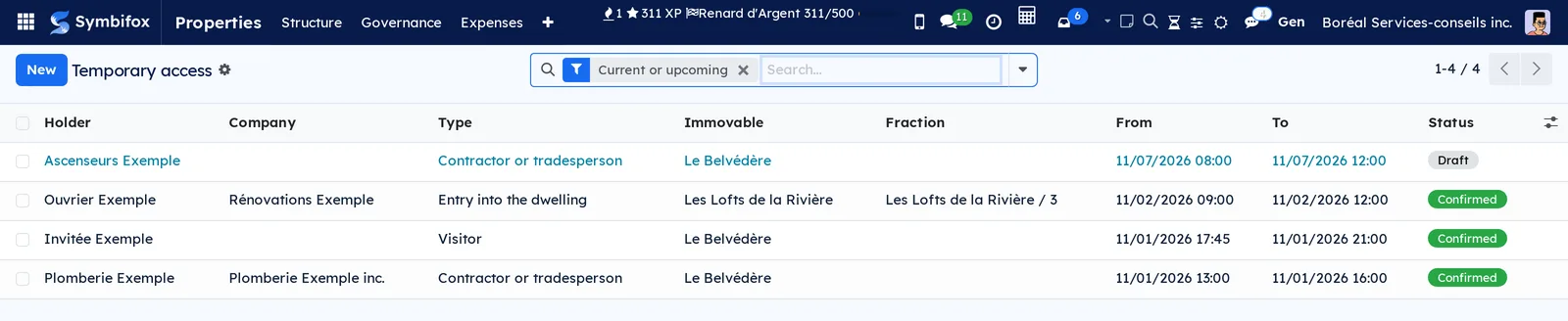
Properties › Access › Temporary access lists the accesses, with the Current or upcoming filter on: holder, company, type, immovable, fraction, From, To and status. A draft shows in blue. The Entries into the dwelling and Visitors filters isolate those cases.
Properties › Access › Residents lists the residents, with the Present filter on, and the Sync button. The Upcoming, Moved out or cancelled and Declared occupants filters isolate the other cases. New declares an occupant.
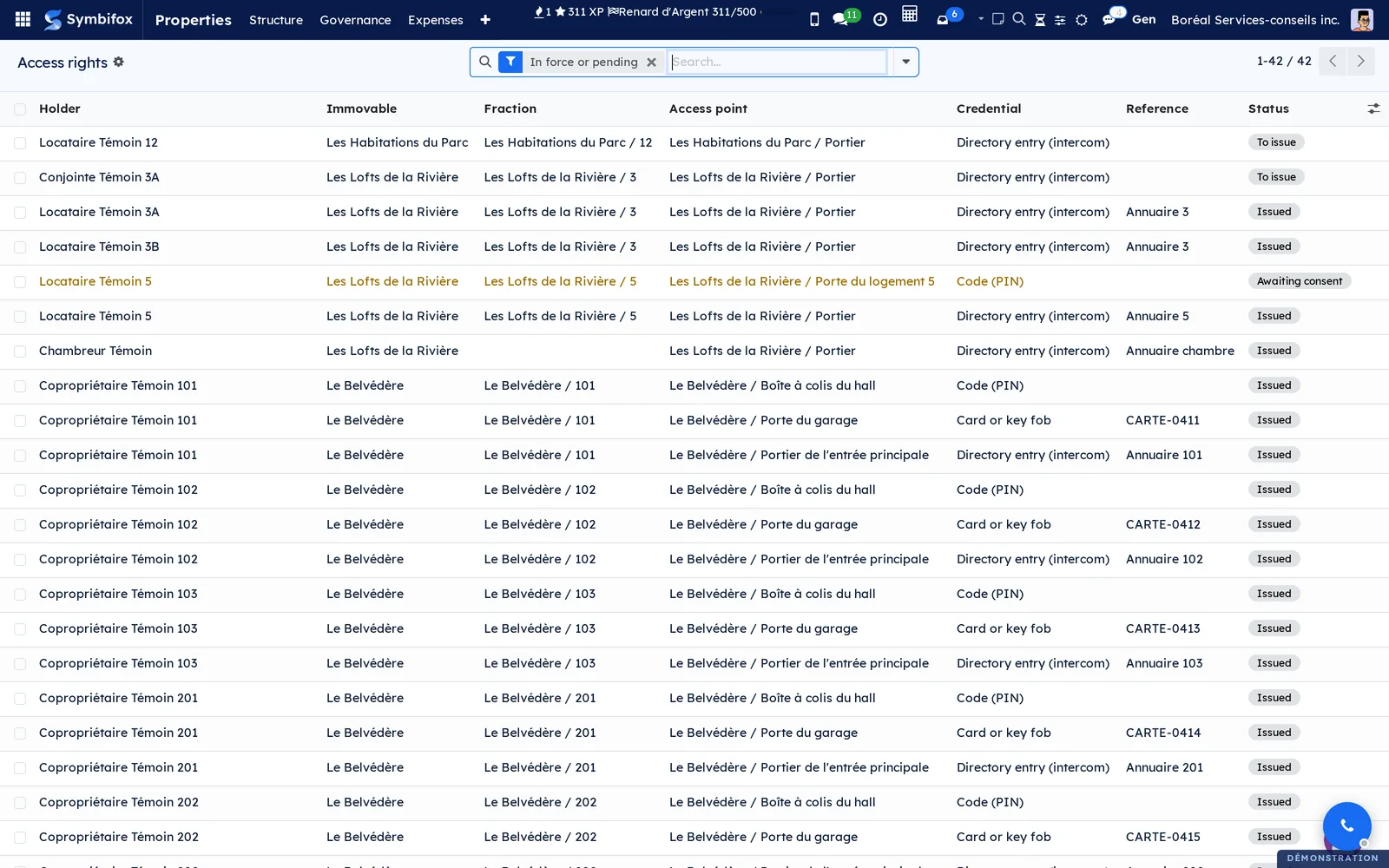
Properties › Access › Access rights lists the access rights, with the In force or pending filter on: holder, immovable, fraction, access point, credential, reference and status. The Temporary access column can be added from the column picker. The Awaiting consent filter finds the unit doors to release.
Properties › Access › Access points lists the points: immovable, name, type, fraction, credential, connector and person responsible. The No connector (manual) filter shows those whose orders are done by hand.
Properties › Access › Lobby tablets lists the tablets: immovable, name, call mode, Paired and person responsible.

Properties › Access › Connectors (managers) lists the connectors, their type and their Attempts before handing over. It is empty on the demo: no point is connected to a device.
Reference#
Fields of the Access point form#
| Field | Description | Required or default |
|---|---|---|
| Name | The point's name, as the caretaker knows it. | Required |
| Immovable | The building where it stands. | Required |
| Type | Common entrance (intercom), Garage, Parcel locker, Lift, Common room, Unit door or Other. | Common entrance (intercom) |
| Fraction | Empty: the point serves the whole building. Filled: only the residents of that fraction. | Required for a unit door |
| Credential | Directory entry (intercom), Code (PIN), Card or key fob, Mobile credential or Physical key. | Directory entry |
| Connector | Empty: each order becomes an activity for the person responsible. | Empty |
| Person responsible | Receives the orders to carry out by hand. Needs Properties / Consultation. | The user who creates the point |
| Requires both consents | Checked automatically for a unit door. | Computed |
Fields of the Resident form#
| Field | Description | Required or default |
|---|---|---|
| Person, Immovable, Fraction | Who, and where. Fraction empty for a room let without a registered fraction: the person then only has the common points. | Person and immovable required |
| Origin | Occupying co-owner, Occupant of the fraction, Lease signatory, Declared occupant, Sublessee or Other. Cannot change after creation. | Declared occupant |
| Lease | The lease the right rests on, the most recent one if there are several. | Filled from the file |
| Arrival | The day the access rights are issued. | Today |
| Keys handed back on | The departure date, entered by a person. This date, not the end of the lease, removes the access. | Empty |
| Signalled on | The day the file stopped naming the person. | Filled by the module |
| Listed in the lobby directory, Directory label, Reachable from the tablet, Consent to the directory | Lobby directory tab: the resident's choice, made on the portal. Read-only in the back office. | Empty |
The Access rights shortcut button at the top of the form opens the resident's access rights in force.
Fields of the Access right form#
| Field | Description | Required or default |
|---|---|---|
| Resident or Temporary access, and Access point | An access right carries one or the other, never both. They never change: remove the access right and create another. | Set by the module |
| Credential | Taken from the point. Can be changed until the access right is issued. | The point's |
| Reference | Card number, directory ID. Never a code. | Optional |
| End reason | Departure, Lost or stolen, Lapsed or Other. | Set on removal |
| Lessor's consent, Lessee's consent | Dates of the two consents for a unit door, with Recorded by. | Set by the buttons |
An order carries its Action (Add or Remove), its access right and point, the Reference, the only field written by hand until the order is closed, its Attempts to send to a device, then Done by and Done on. Its states: To send, To do, Done, Failed and Cancelled. A closed order can no longer be changed: it is part of the journal.
Fields of the Temporary access form#
| Field | Description | Required or default |
|---|---|---|
| Holder | A name is enough: a visitor consented to nothing, and the record is purged. | Required |
| Type | Visitor, Contractor or tradesperson, Staff or Entry into the dwelling. | Contractor or tradesperson |
| Company, Contact | The holder's company, or their contact if already in your address book. | Optional |
| Immovable, Fraction | Where. The fraction appears, and is required, only for an entry into a dwelling. | Immovable required |
| From, To | The window, in the building's time. The end follows the start. | Required |
| Credential | The credential handed over for the window. | Code (PIN) |
| Reason for entry, Notice given on, Notice method | Entry into a dwelling: the reason and, except in an emergency, the notice given. | Required depending on the reason |
| Lessee's notice received on, Major work, Evacuation longer than one week, Reason for the emergency | Appear depending on the reason chosen. | Depending on the reason |
| Lessee's agreement outside the hours, Recorded agreement (who, when, how) | The lessee's agreement to an entry outside the permitted hours. | Empty |
| Accompanied by | The person present for the lessor. | Optional |
The Access points, Access rights (after confirmation) and Note tabs complete the record. Every field locks on confirmation.
Reports and exports#
The Law 25 bridge prints the PIA template: access control, from the organisation's Access tab (see Print the PIA template). Lists can be exported from the Actions menu, as elsewhere in Symbifox (see Common actions in every application).
Automations#
- Every night, the file is reread, building by building: new residents, arrivals that have come due, departures to confirm with their activity, missing access rights on a point added later, orders to send. Inconsistent data in one building never stops the others.
- When a lease or an abandonment is saved, the building's residents are reread at once. A problem at that step never prevents the lease from being saved: the night catches up.
- When an order is created, its activity goes to the point's person responsible right away. An activity deleted without the order being done is handed over again the next night.
- Every fifteen minutes, temporary accesses whose window has passed become Ended, and their removal orders go out.
- When an announced visit is cancelled or changed, its temporary access is cancelled; when the visitor leaves, it is ended. When the host's departure is confirmed, their visitors' accesses in the building are cancelled.
- Every night, the expired journal is purged after the organisation's retention period: residents who moved out, removed access rights, closed orders, lapsed or cancelled temporary accesses, the tablet's calls and their activities. An access right still to remove, an order still open, or a person the file still names is never purged.
- Every five minutes, the tablet page reloads to keep up with the directory, except while someone is typing and only when the server answers.
Public pages and portal#
- My access (
/my/property/access), on the portal: the signed-in resident's access, the plain-language summary of the "Building access control" purpose, and a Lobby directory card for each building with a tablet. A My access card on the portal home counts the access rights in force or pending. - Parcels and visitors, on the portal: the Give them temporary access to the common doors box, the Access until field, and the Access column in the list of visitors.
- The tablet page (
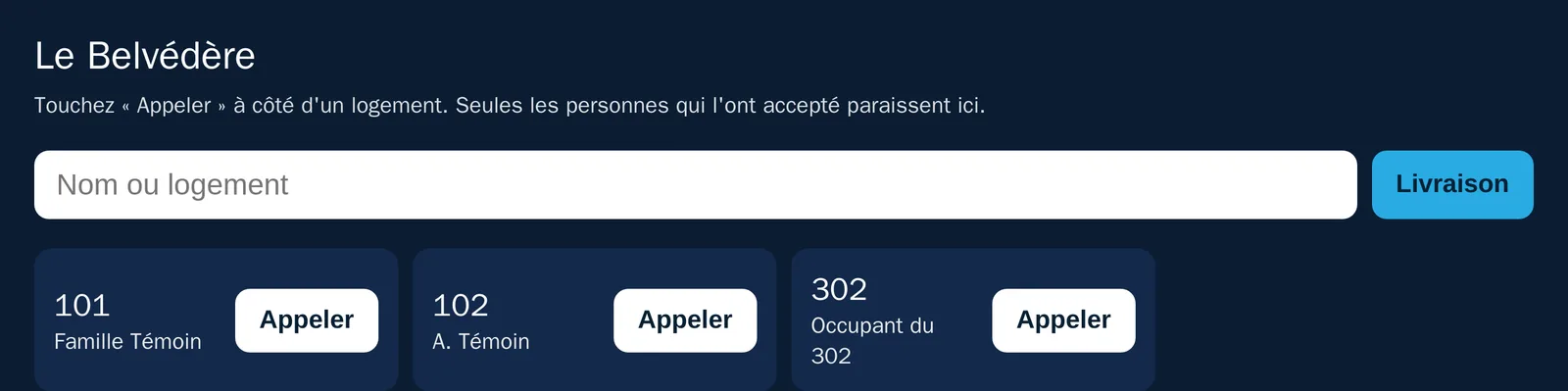
/lobby/…), public and without an account: the building's name, a search by name or unit, one card per listed resident with a Call button, and a Delivery button. It shows only labels and unit numbers, never a phone number. It is served in the language of the building's company, French or English, whatever the tablet's browser language, and is kept out of search engines.
Here is Le Belvédère's tablet page, with the three residents who agreed to appear. It reads in French because Boréal's company works in French; for a company set to English, the same page shows in English.
Modules that extend this application#
It builds on the structure described in Divided co-ownership: a co-owner becomes a resident of a residential fraction they occupy without letting it, and the recorded occupant of a rented fraction becomes a resident. A parking space does not make a resident.
When they are installed, it reads the rent due until date and the resiliations from Residential leasing. A parking or storage lease makes no resident, and a lease's end date is never read.
An internal user who lives in the building, a caretaker for instance, sees only their own access rights on My access. The visitor access box appears only if the resident's organisation allows it.
The purpose, notice and policy belong to no company: they apply to every organisation in the database. The register is kept in Privacy (Law 25 and other frameworks).
Ring the resident's phone mode goes through Symbifox telephony, described in SMS, calls and SIP phone. Without it, each call notifies the person responsible.
Understanding#
Why no date ever removes a resident's access. A dwelling lease renews by operation of law (art. 1941 CCQ, Québec's Civil Code), selling the building does not end it (art. 1937), and only the court can evict a person who stays (art. 1889). Cutting someone's access to push them out may be harassment, with punitive damages (art. 1902). So the module flags, and a person confirms.
Why a temporary access, on the other hand, ends at a set time. Its holder is neither a lessee nor an occupant: no lease protects them. The end of the window is enough, and the removal goes out on its own.
What makes a departure to confirm. The module does not keep a list of signals per record. Every night it asks who the file still names as an occupant. A resident drawn from the file whom no source names any more moves to Departure to confirm. A person who is both a co-owner and a lease signatory is therefore not flagged when only one of the two sources ends.
The lease prevails on its fraction. On a fraction with a current lease, the occupant recorded in the register and the co-owner are no longer sources: the register often keeps a former tenant. An ended lease removes only its own signatories from the register, and leaves in place a co-owner who took the dwelling back.
A confirmed departure stays confirmed. A co-lessee who moved out but is still on the lease is not added again the next night. The person responsible for access receives a single "update the file" activity, and the record says so. Only a source that starts after the keys were handed back, a new lease for instance, creates a new resident. A return is declared by hand.
People who signed nothing. A spouse, a relative or a person connected by marriage who has lived in the dwelling for six months may remain in it (art. 1938). Declared as an occupant, they keep their access when the signatory leaves.
Two consents for a unit door. No lock or other device restricting access to a dwelling may be installed or changed without the consent of both lessor and lessee (art. 1934). No order goes out before both are recorded. An entry into a dwelling is not a change of device: it receives the unit door without those two consents, but under the rules of articles 1930 to 1933.
The building's time. The permitted hours of an entry and the display of windows use the building's time zone, never that of the person signed in. A manager travelling abroad cannot schedule work at 8 p.m. without noticing. On the portal, an account with no time zone uses its company's, or Montreal's.
What a visitor gets. A visitor's access is limited to the common doors: the garage, the parcel locker and unit doors are the manager's decisions. Only a resident currently living in the building can give one. A resident whose departure has been confirmed, even if the file still names them, can no longer give one.
Only the activity the module handed over counts. The person an activity is assigned to can edit it. The module therefore trusts only the activity it handed over for the order itself, marked done by a manager, or by its assignee if they are still responsible for the point. An activity closed by anyone else goes back to the current person responsible. Closing the "confirm departure" activity confirms nothing: only the button does.
The lobby directory, by consent. By default, nobody appears in it (Law 25, s. 9.1). The resident chooses their label and whether they can be reached; the manager can only take them off, at their request. The number never leaves the server, and the tablet never dials a premium number or one outside Canada and the United States. Calls are capped: six a minute per tablet, one per resident every two minutes. Beyond that, the tablet answers "One moment".
The tablet does not open the door. It places the call; the resident opens with the intercom already in place. It has no camera and no biometrics. Its key travels in its address and may appear in the web server's logs: keep those logs short-lived, and pair again if in doubt.
No code, no biometrics. The module keeps a reference only, never a PIN or a secret: the code lives in the device. It does no facial recognition. A person who refuses a mobile credential is entitled to a card or a key.
The lock never depends on the software. The device validates its credentials itself. Symbifox only sends it add and remove orders, late if it must. A Symbifox outage delays an addition or a removal; it never keeps a door shut. How locks behave on a fire alarm or a power failure belongs to the hardware.
Without a connector, the caretaker. No connector to a device exists yet: every order goes to the point's person responsible. The module is useful from day one, whatever hardware is installed, and every action stays documented.
What is declared, what is done. Access control does not rest on consent: it serves the lease and the occupants' safety (Law 25, ss. 4, 5 and 9), and the person is informed (s. 8): the register holds the notice, and the My access page shows its summary. The period declared in the register must be the one the organisation applies; the screen checks it, the organisation decides. The PIA template gathers the facts the software knows and leaves blank what it cannot know: the hardware, the providers, the risks.
A journal that cannot be rewritten. The state of a resident, an access right, an order or a temporary access changes through the buttons and the module, never by hand. The journal serves as evidence, and its purge after the organisation's retention period meets Law 25, Québec's Act respecting the protection of personal information in the private sector, without ever taking away a removal still to do.
What this version does not do. No connector to an intercom, a lock or a parcel locker ships with it: orders are carried out by hand. The tablet unlocks nothing and shows no video. The texts the module writes (departure signal, activities, chatter messages) stay in the language of the building's company, whatever the reader's language.
Troubleshooting#
| Symptom | Likely cause | Fix |
|---|---|---|
| No "confirm departure" activity | The building has no person responsible for access, and no point's person responsible is a manager. | Choose the Person responsible for access in the building's Access tab. The departure stays visible under Departures to confirm. |
| "… does not have Properties / Consultation access" | The person chosen for a point or a tablet could not open their activities. | Have them given Properties / Consultation, or choose someone else. |
| A unit door access right stays pending | One of the two consents is missing. | Record the missing consent on the access right. |
| "24 hours' notice (art. 1931 CCQ): given on …, the entry is scheduled for …" | The notice was given less than 24 hours before the start. | Move the window, or create an access for later. |
| "The lessee may refuse this entry outside 7:00 to 19:00, building time (art. 1933 CCQ)" | The window goes beyond the permitted hours, or covers more than one day. | Change the window, create one access per day, or record the lessee's agreement. |
| "A confirmed access can no longer be changed" | You are trying to change the window or the points of a confirmed access. | Cancel it and create another. |
| On the portal: "The visitor is announced, but temporary access could not be given" | The organisation does not allow it, the window has passed or is more than 30 days away, the host is not a current resident, or the building has no common door. | Check the organisation's Access tab and the building's points, or create the access in the back office. |
| The tablet shows that it has been unpaired, or a page not found | The tablet was unpaired, archived or paired again. | Pair the tablet and open the new address on the device. |
See also#
- Divided co-ownership: organisations, buildings, fractions and the ownership register.
- Residential leasing: the lease, rent due, resiliations and abandonments.
- Occupant portal and operations: parcels, announced visitors and building maintenance.
- SMS, calls and SIP phone: the telephony that rings the resident's phone.
- Keys and access to the premises: the physical keys and cards of an organisation's employees.
- Privacy (Law 25 and other frameworks): the register of processing activities.