
Part 6 · Security, compliance and privacy
Document requests
Request supporting documents from a client through a link they open on their phone, and receive them encrypted, with a log and a lifetime for each document.
Watch it
A document request replaces the email that says "could you send me a copy of…" and the attachments that arrive in no particular order. You choose the client, tick the documents you need and send a link by email or by text message. The client opens a page made for the phone, photographs each document, then sends it. You receive the files through the secure transfer, and every step stays in a log that nothing rewrites.
Overview#
A request asks for documents from a person who has no Symbifox account. It carries a number such as "REQ/2026/0006", a client, a Requester (the person who will receive the documents), a brand, a sending channel and, if needed, a deadline. The Client link is its only key: it opens an upload of documents, nothing else. The client creates neither an account nor a password.
Each requested document comes from a catalogue you maintain: identity document, proof of address, proof of insurance, proof of income, or your own. A document type carries its instructions to the client and, if needed, a lifetime. A request moves through the states Draft, Sent, Partially received and Received; it can also end Expired or Cancelled.
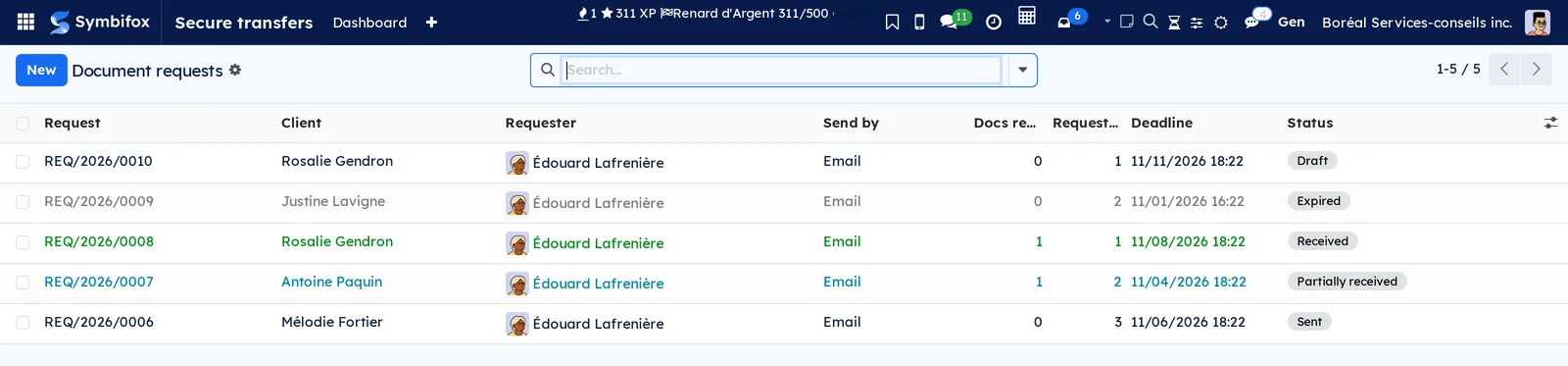
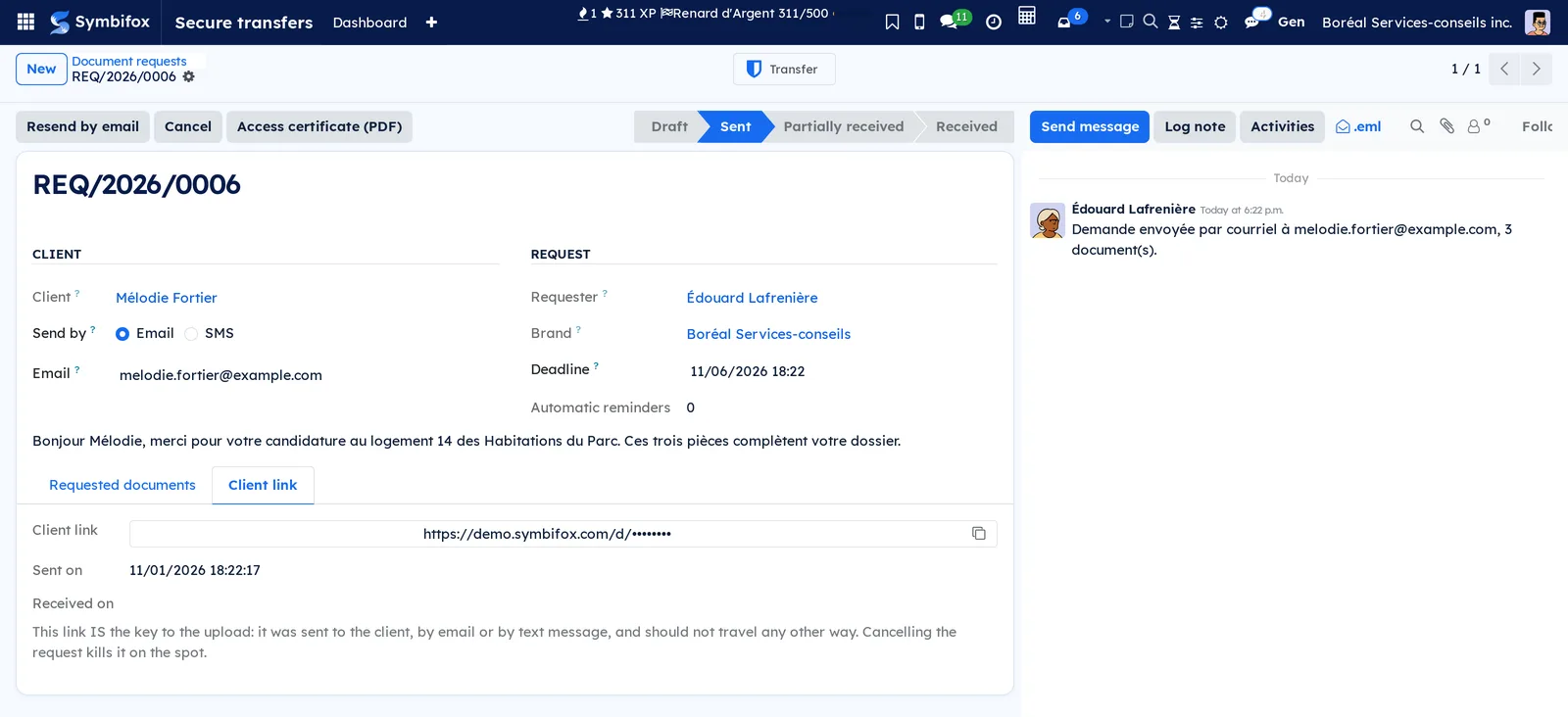
The list below shows the five requests of the Boréal demo, with the filter removed: one per state, from Mélodie Fortier's application for unit 14 at Habitations du Parc to the draft for Rosalie Gendron. The client names and notes of the demo are in French.
Requests live in the Secure transfers application, whose storage, brands, access log and certificate they borrow. Behind the scenes, a request creates a draft transfer. That transfer collects the client's photos and becomes active when the client is done. This switch is what sends you the usual download link.
Two bridge modules connect requests to the Privacy (Law 25 and other frameworks) application: each destruction of documents enters the destruction register, and each lifetime is attached to a documented retention rule. Law 25 is Québec's Act respecting the protection of personal information in the private sector.
Configuration#
Access and rights#
Requests follow the secure transfer groups.
| Group | What it opens |
|---|---|
| Secure transfer user | Create, send, remind and cancel a request; see its status and its documents |
| Secure transfer manager | All of the above, plus the Client link tab, the Settings menu (document types, lifetimes, brands) and the right to change the destination of a request that is not theirs |
Once a request is sent, only its requester, a secure transfer manager or the administrator can change its channel, address or mobile number. The status of a request and of its documents is only written by its buttons.
Settings#
Requests have no settings screen of their own. Three places matter.
- The brand decides the look of the client's page, its domain, its limits and the automatic reminders. See Turn on automatic reminders.
- Text messages require the VoIP.ms settings of secure transfers, under Secure transfers › Settings › Settings. Without them, requests go out by email.
- Two system parameters, which the administrator can change: a request without a deadline closes 30 days after sending (0 keeps it open), and text message reminders are capped at 10 per day.
Master data#
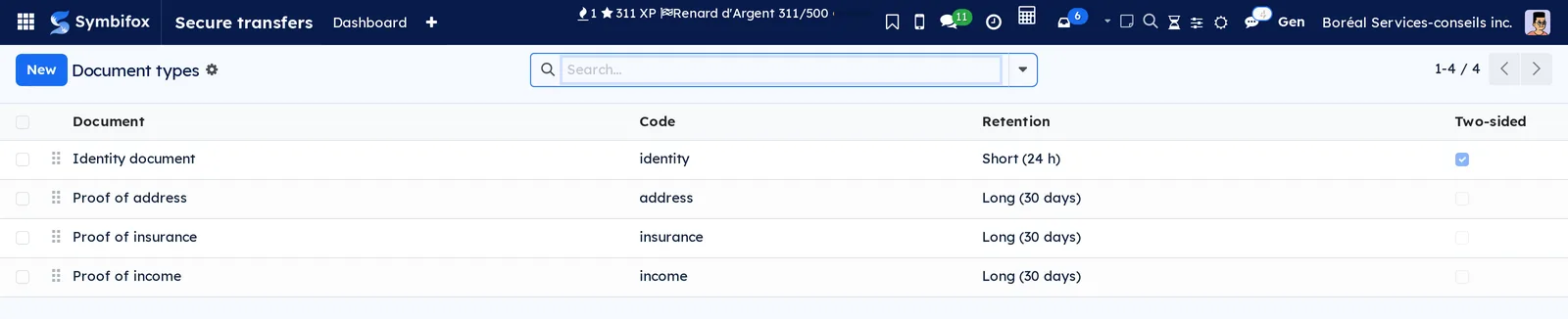
Before the first request, review the delivered catalogue under Secure transfers › Settings › Document types, and adjust the instructions to the way you work. Then decide how long each document should live once received, under Secure transfers › Settings › Document expiry. The module delivers two lifetimes: "Short (24 h)" and "Long (30 days)". The delivered catalogue imposes none: on the demo, Boréal gave the short one to the identity document and the long one to the other documents. An update of the module never rewrites this data: it is yours.
Getting started#
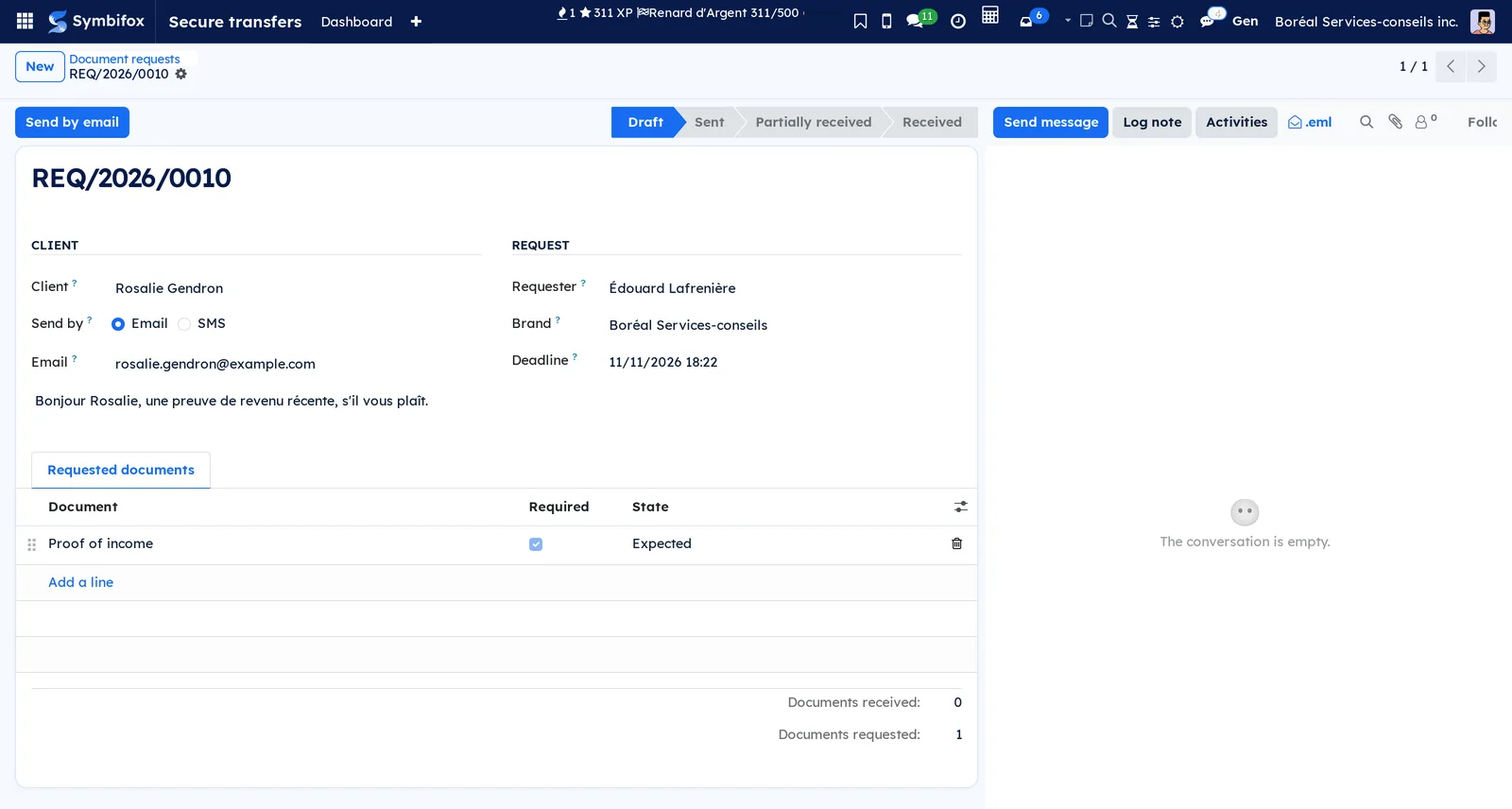
This walkthrough asks Rosalie Gendron for a proof of income, starting from the demo's draft REQ/2026/0010.
- Open Secure transfers › Document requests.
- Remove the "Open" filter from the search bar, then open REQ/2026/0010.
- Check the Client, Send by "Email" and the address in Email.
- Read the note to the client below the two groups: it will appear at the top of Rosalie's page.
- In the Requested documents tab, confirm the "Proof of income" line, with Required checked.
- Set the Deadline if needed.
- Select Send by email.
Result: the request moves to Sent, the chatter records the address and the number of documents, and Rosalie receives an email with the Upload my documents button. The transfer's log records the sending, with the address masked.
Common tasks#
Request documents from a client#
A request takes a minute to prepare, starting from the client.
- Open Secure transfers › Document requests, then select New.
- Choose the Client. Their email and mobile number are copied onto the request, without touching the address book.
- Choose Send by "Email" or "SMS", then correct the address or the number if needed.
- Type a note to the client, for example "These three documents complete your file".
- In Requested documents, select Add a line for each document, and clear Required for an optional one.
- Set the Deadline, then select Send by email or Send by text message.
Result: the request moves to Sent and the client receives their link. The Requester is you by default: you are the one who will receive the documents.
Send a request by text message#
A text message reaches the client who rarely reads email. Prerequisite: the VoIP.ms settings of secure transfers are filled in.
- Open the draft request.
- Choose Send by "SMS".
- Check the Mobile: a ten-digit North American number.
- Select Send by text message.
Result: the client receives a short text with the number of documents and the link. If the carrier refuses the message, the request stays a draft and a notice asks you to check the number.
Follow your requests#
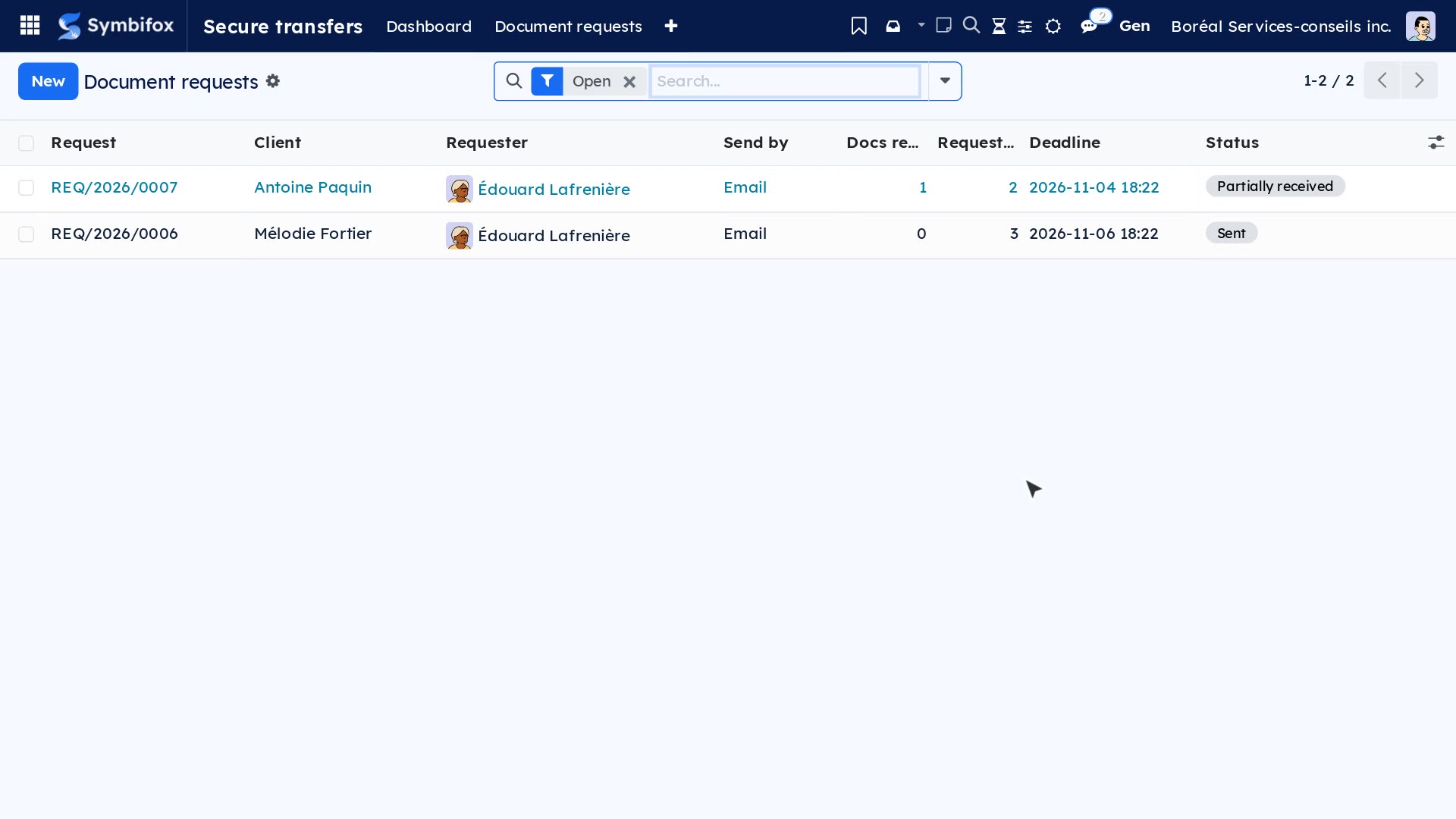
The list opens on the "Open" filter: requests that are sent or partially received.
- Open Secure transfers › Document requests.
- Open the search bar menu.
- Choose a filter: "Open", "Received requests", "Past deadline" or "My requests".
- Group by Status, Requester or Client if needed.

Result: the Docs received and Requested columns tell where each file stands. A received request shows in green, a partial one in blue, an expired or cancelled one in grey.
Remind a client#
A reminder resends the same link through the request's channel, and only names the documents still missing.
- Open the request, sent or partially received.
- Select Resend by email or Resend by text message.
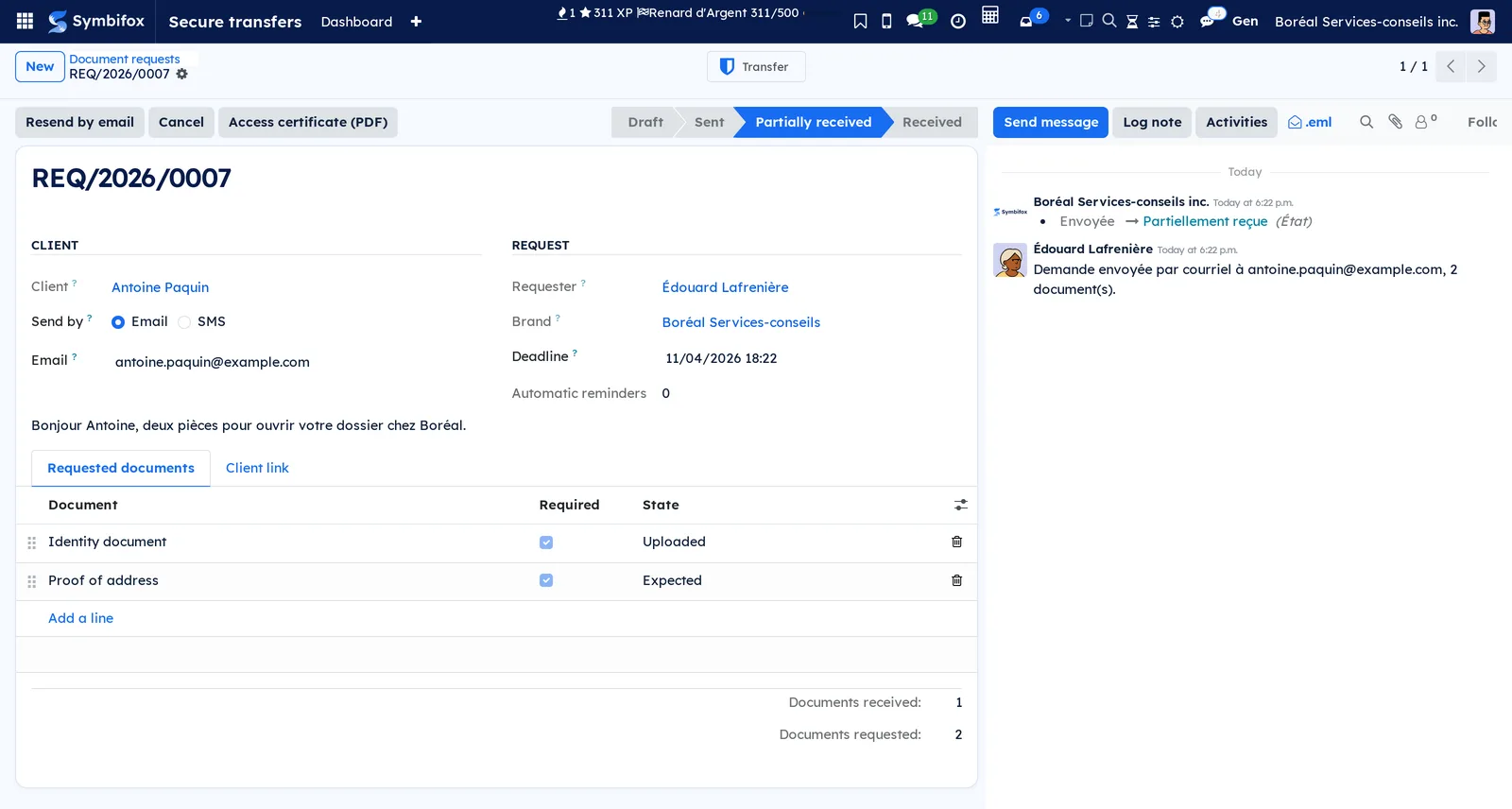
Result: the chatter records the reminder and its address, the log records it with the address masked, and Last reminder is updated. A manual reminder does not count against the automatic reminder budget. It does, however, push back the next automatic reminder, so that the client does not receive two messages in a row.
Turn on automatic reminders#
The first sending is rarely the problem: the file still incomplete three days later is. Automatic reminders are set per brand.
- Open Secure transfers › Settings › Brands, then the brand concerned.
- In the limits group, check Automatically remind document requests.
- Type the Delay between reminders (h).
- Type the Maximum number of reminders per request.
- Save.
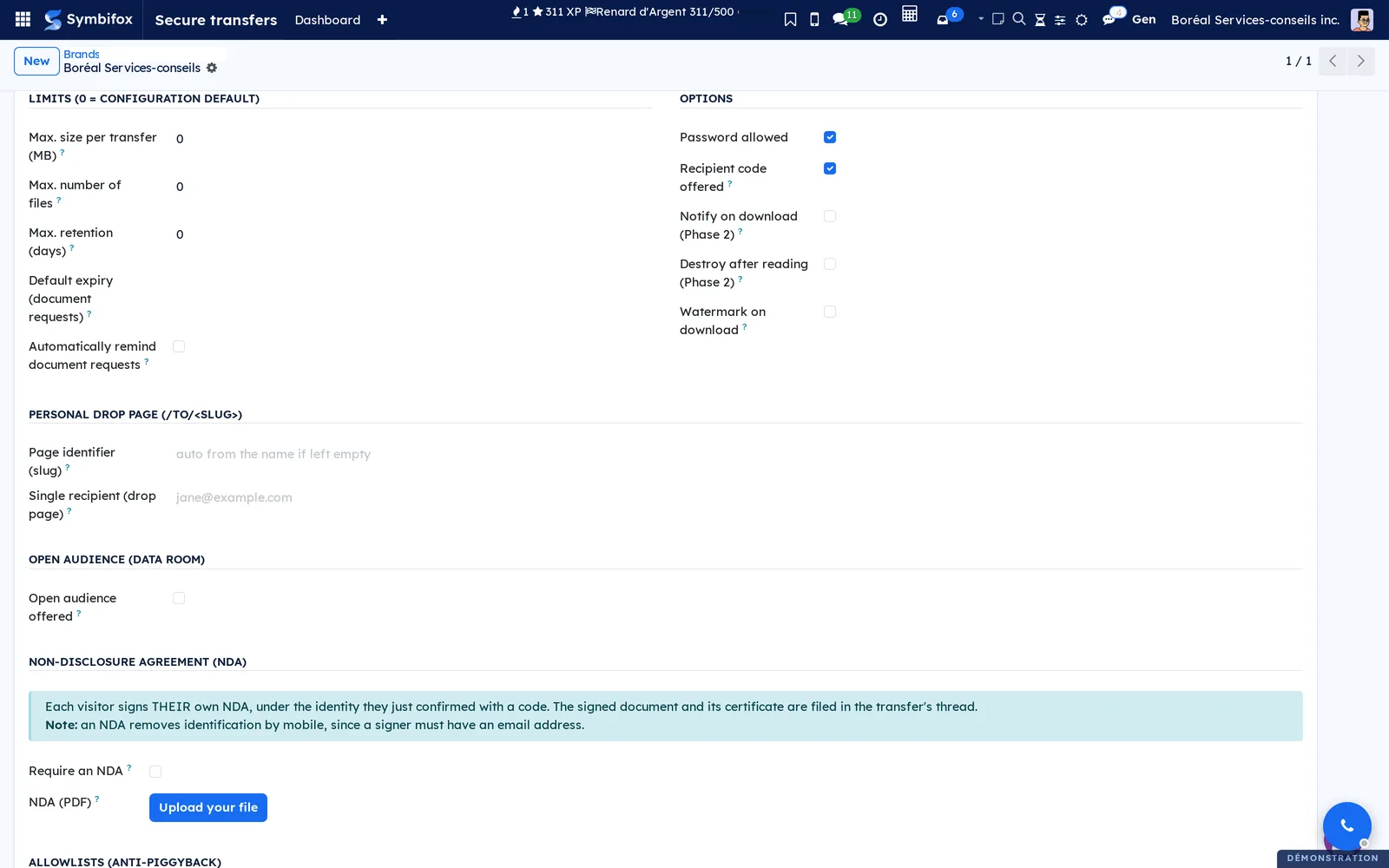
Result: every hour, the open requests of this brand that have waited for the delay receive a reminder, through their own channel. The Automatic reminders field of the form counts the ones that went out.
Add a document to an open request#
One more document needed after sending? No need to start over.
- Open the request, sent or partially received.
- In Requested documents, select Add a line, then choose the document.
- Save, then select Resend by email or Resend by text message.
Result: the new card appears on the client's page at their next visit, and the reminder names it among the missing documents.
Change the client's address or number#
A wrong address is corrected on the request, without touching the address book.
- Open the request, sent or partially received.
- Correct Email or Mobile, or change Send by.
- Save.
- Select Resend by email or Resend by text message to send the new link.
Result: the old link stops working on the spot, and the chatter says so. A link email still queued for the old address no longer goes out. Fixing the case of an address or the formatting of a number does not change the link.
Extend the deadline#
- Open the request, sent or partially received.
- Change the Deadline, then save.
- Remind the client if needed.
Result: the link stays open until the new date. A request that is already Expired does not reopen: create a new one.
Cancel a request#
Cancelling cuts the client's link on the spot. The log stays.
- Open the request, sent or partially received.
- Select Cancel.
- Confirm the message "The client's link will stop working immediately. Continue?".
Result: the request moves to Cancelled. The photos already uploaded are erased from storage, and the draft transfer moves to the cancelled state. A received request cannot be cancelled: its documents have already been handed to you.
Receive the documents#
When the client selects Finish and send, the request moves to Received.
- Open the secure transfer email that announces the client's files to you.
- Follow its link to download the documents, or open the request and select Transfer.
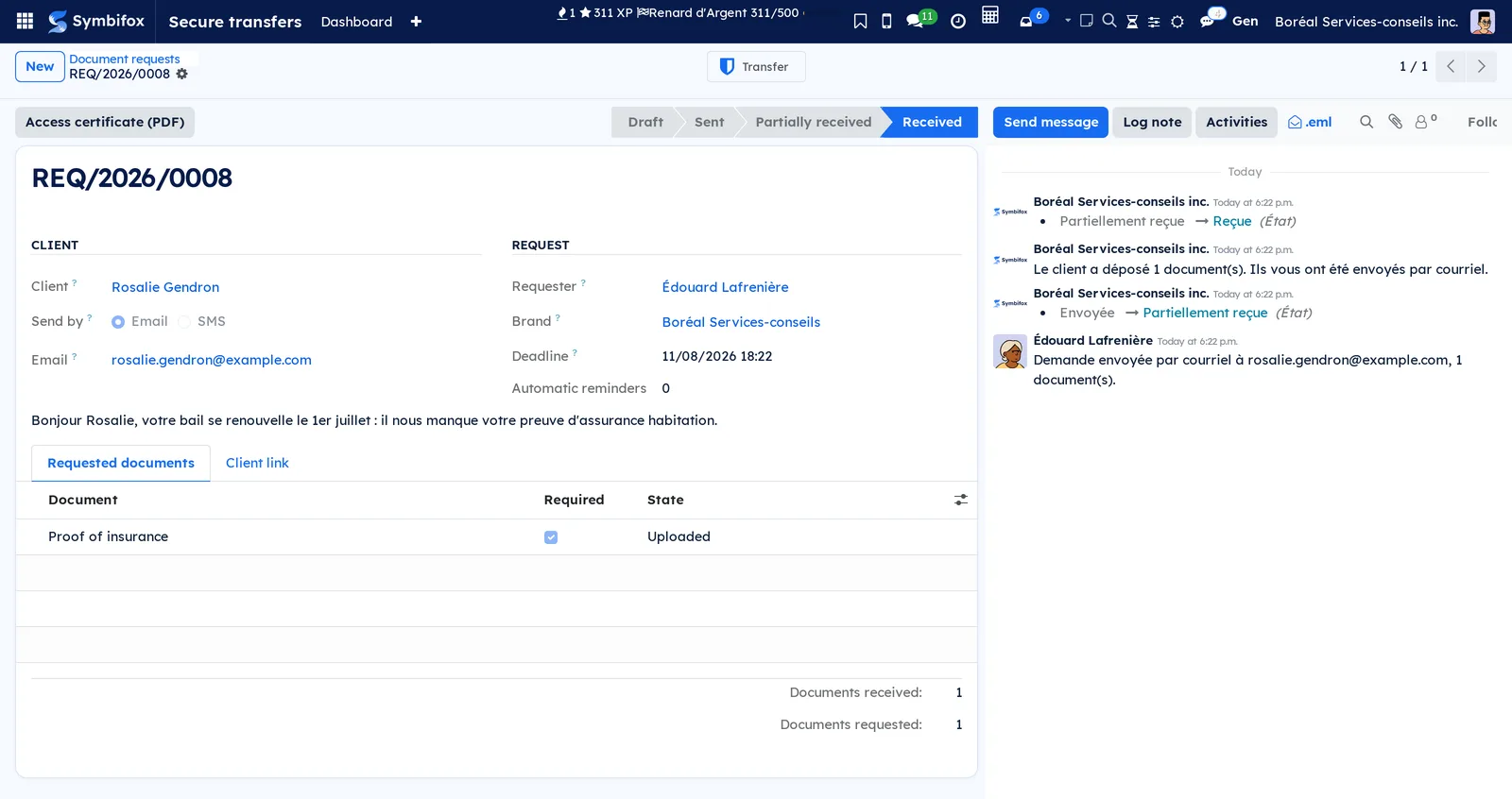
Result: the request's chatter records "The client uploaded 1 document(s). They have been sent to you by email.", in the requester's language. The client receives no email: the page confirms the upload to them. The documents then live for the duration of their policy, after which storage erases them.
Produce the access certificate#
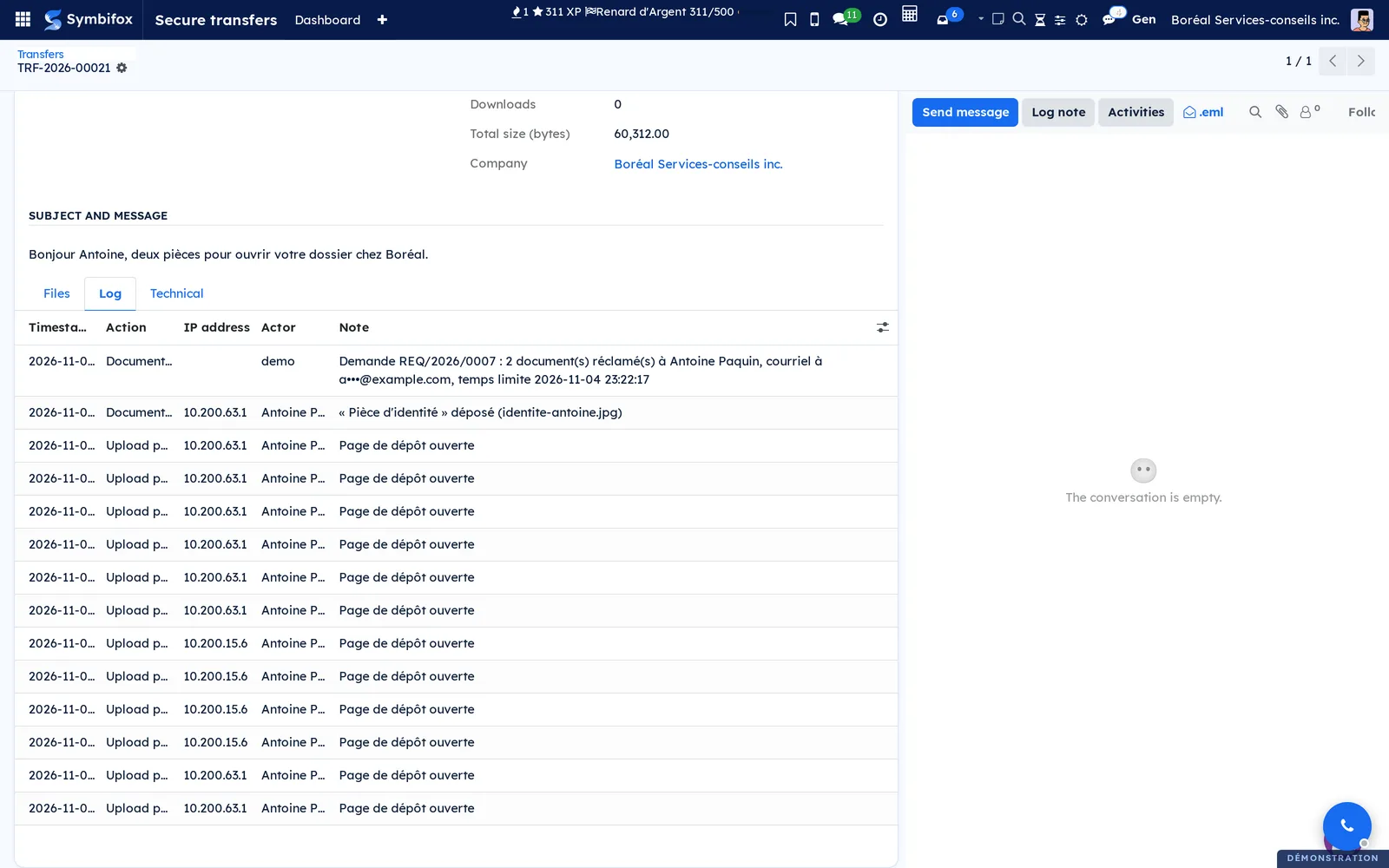
The certificate tells the whole story of the request: the sending, the page being opened, each document uploaded, the completed upload and the downloads.
- Open a request that is no longer a draft.
- Select Access certificate (PDF).
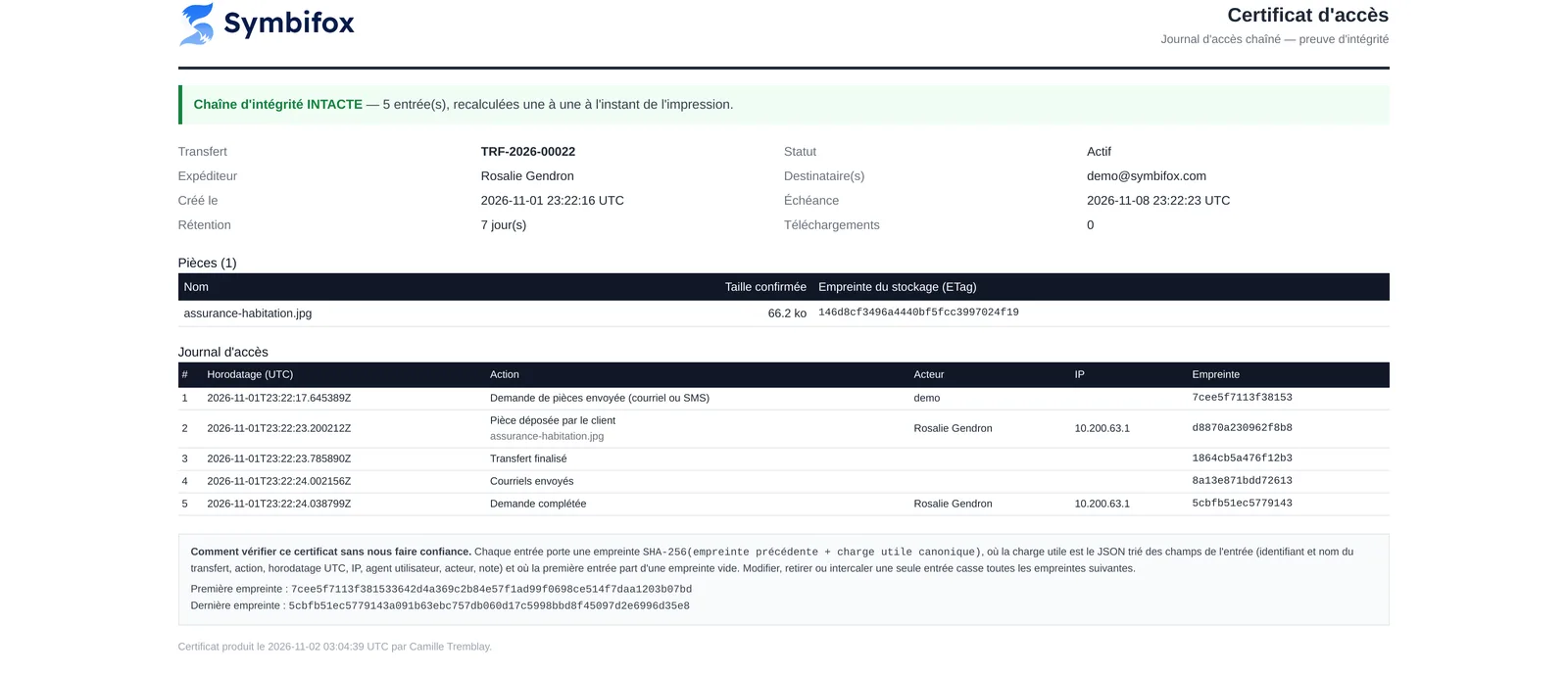
Result: the secure transfer's PDF opens, in the brand's colours, with the verification of the hash chain. Addresses and numbers are masked. It is printed in the transfer's language, the requester's: on the demo, French. See Produce the access certificate for how to read it.
Maintain the document catalogue#
The delivered catalogue is a starting point. The names and the instructions are what the client reads on their phone.
- Open Secure transfers › Settings › Document types.
- Select New, or open a type to change it.
- Type the name of the document, for example "Void cheque".
- Type the Instructions to the client, for example "Lying flat, without glare".
- Choose a lifetime under Retention if needed.
- Save.
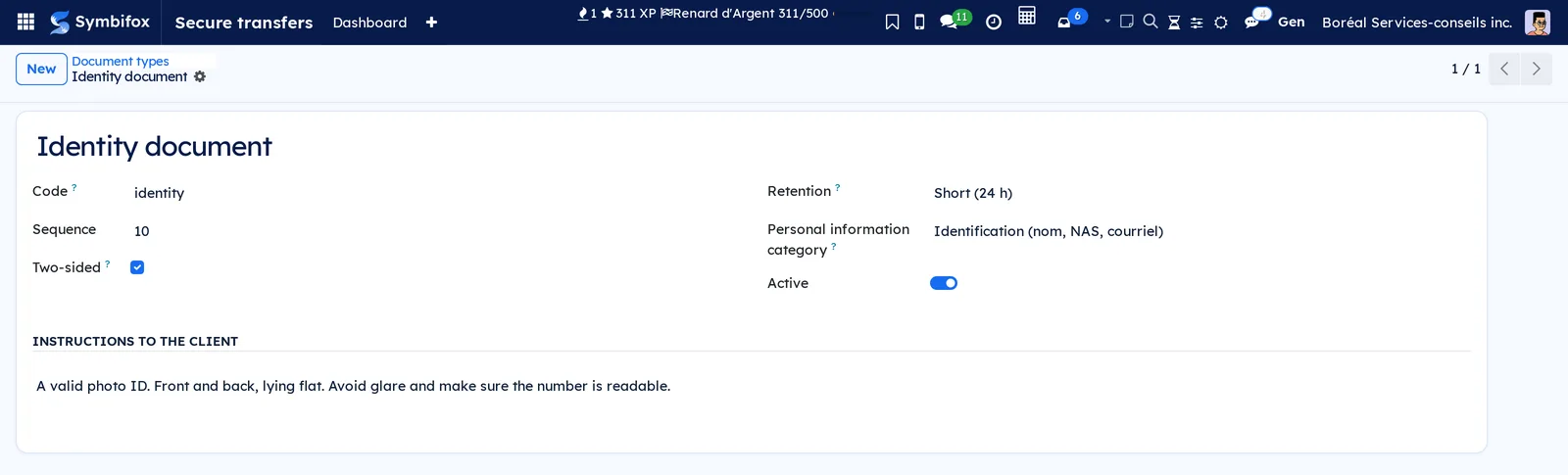
Result: the type is offered in Requested documents. To withdraw a type without losing history, turn off Active.
Set the lifetime of documents#
An expiry policy says how long a document lives once the client has finished. The deadline, for its part, says how long the client has to respond.
- Open Secure transfers › Settings › Document expiry.
- Select New.
- Type the Name and the Retention (days): 1, 7 or 30, depending on what the brand offers.
- Save, then attach the policy to a document type, in its Retention field.

Result: when a request mixes several documents, the shortest policy wins. A document meant to live a day never lives a month because another one is entitled to.
Attach a lifetime to a retention rule#
With Privacy installed, an expiry policy is attached to a rule of the retention schedule. Its duration becomes the application of a documented rule.
- Open Secure transfers › Settings › Document expiry, then the policy.
- Choose the Retention rule.
- Read Alignment: it tells whether the two durations agree.
- Save.
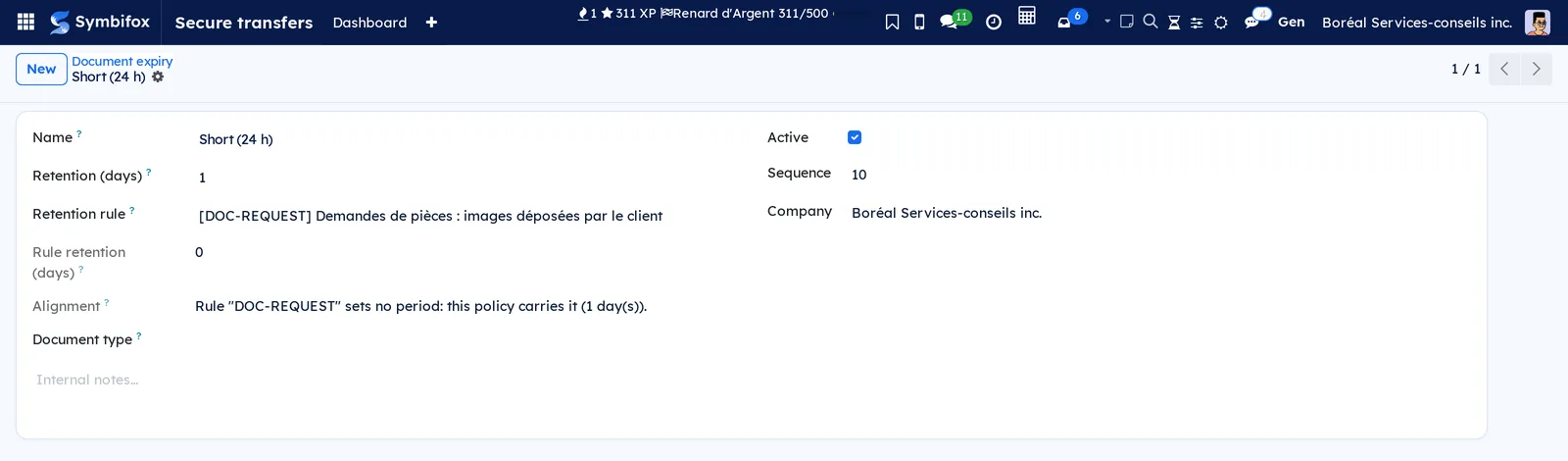
Result: the destruction register entry will quote this rule. Alignment points out a policy longer than its rule, without correcting anything: deciding belongs to the person responsible for the processing.
Declare the category of personal information of a document#
- Open Secure transfers › Settings › Document types, then the type.
- Choose the Personal information category, for example Identification (nom, NAS, courriel) (identification: name, social insurance number, email).
- Save.
Result: when the documents are destroyed, the register names the category instead of writing "category not declared". The types you create start without a category, on purpose: the register would rather admit it does not know than guess. The category names come from the Privacy application, which shows them in French.
The menus, one by one#
Requests have no application of their own: their menus live under Secure transfers, whose chapter lists the others.
Secure transfers › Document requests: the list of requests, filtered on "Open" on opening. Columns Request, Client, Requester, Send by, Docs received, Requested, Deadline and Status. A new request starts here.
Secure transfers › Settings › Document expiry: the expiry policies, which can be reordered by dragging. Columns Name, Retention (days), Document type (an indicative label) and, with Privacy, Retention rule. Managers only.
Secure transfers › Settings › Document types: the catalogue of documents, editable in the list. Columns Document, Code, Retention and Two-sided. Managers only.
Reference#
Fields of the Document request form#
| Field | Description | Required or default |
|---|---|---|
| Client | The person the documents are requested from. Locked after sending | Required |
| Send by | "Email" or "SMS": how the client receives their link | SMS when text messaging is set up, email otherwise |
| The address that receives the link. Taken from the contact, changed here only | Copied from the client | |
| Mobile | The number that receives the link by text message | Copied from the client |
| Requester | The person making the request and receiving the documents. Locked after sending | You |
| Brand | The look and domain of the client's page. Locked after sending | The default brand |
| Deadline | After this date, the link no longer works | Optional; without it, 30 days after sending |
| Automatic reminders | The number of reminders that went out on their own | 0 |
| Last reminder | The date of the last reminder, manual or automatic | Empty |
| Note to the client | A line of context at the top of the client's page. Locked after sending | Optional |
| Requested documents | One line per document: Document, Required, State (Expected, Uploaded or Not provided) | At least one line to send |
| Client link | Managers' tab: the link, Sent on and Received on | After sending |
Fields of the Document type form#
| Field | Description | Required or default |
|---|---|---|
| Name | The label the client reads on their phone | Required |
| Code | A short, stable identifier for integrations, never shown to the client | Optional, unique per company |
| Sequence | The order in lists | 10 |
| Two-sided | Marks a document with two sides; the page still asks for a single file | Cleared |
| Retention | The expiry policy of this document | Empty: the brand's period applies |
| Personal information category | The category of personal information, with Privacy | Empty for your types |
| Active | Withdraws the type from the choices without erasing history | On |
| Instructions to the client | The text under the document name, on the page | Optional |
Fields of the Expiry policy form#
| Field | Description | Required or default |
|---|---|---|
| Name | A readable label | Required |
| Retention (days) | The lifetime of the documents once the upload is complete: 1, 7 or 30, depending on the brand | Required, at least 1 |
| Retention rule | The retention schedule rule applied, with Privacy | Empty |
| Rule retention (days) | The period the rule sets, read only | Read from the rule |
| Alignment | What the policy and the rule say about each other | Computed |
| Document type | An indicative label for the kind of documents covered | Optional |
| Active, Sequence, Company | Archiving, order, company | On, 10, yours |
Fields added to the Brand#
| Field | Description | Required or default |
|---|---|---|
| Default expiry (document requests) | The policy applied to every transfer of the brand | Empty |
| Automatically remind document requests | Turns on automatic reminders | Cleared |
| Delay between reminders (h) | The wait after the last sending before reminding | Required when reminders are on |
| Maximum number of reminders | The budget of automatic reminders per request | Required when reminders are on |
Reports and exports#
The secure transfer's Access certificate (PDF) covers the whole request: one log, one chain. The Log tab of the transfer, which the Transfer button opens, lists the same events and exports to CSV.
Automations#
| What happens on its own | Frequency |
|---|---|
| Close requests whose deadline has passed, or open for 30 days without a deadline: the link dies, the uploaded photos are erased, the trace stays | Every hour |
| Remind the incomplete requests of brands that turned it on, through each request's channel, without exceeding the budget per request or reminding an overdue request | Every hour, half an hour after the previous one |
| Keep text message quota for first sendings: past the day's cap, text message reminders wait until the next day; emails are not capped | Daily cap |
| Erase from storage the documents of an expired transfer | The secure transfer's daily purge |
| Record each destruction of documents in the destruction register, with Privacy | At each purge |
Public pages and portal#
The /d/… page is the one the client opens from their email or text message. It follows the language of their browser and takes the brand's logo and colours. It shows the note to the client, the deadline in the requester's time, then one card per document, with its instructions.
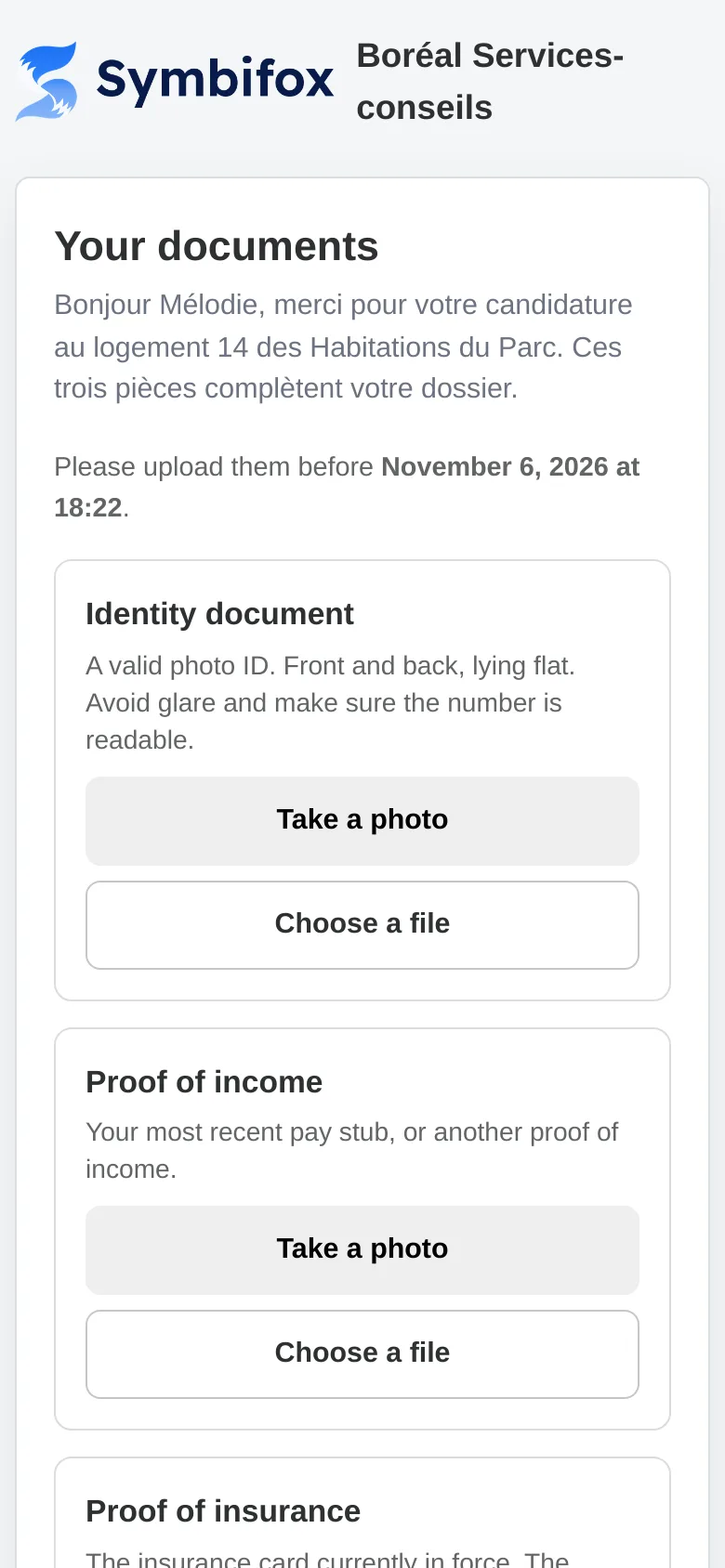
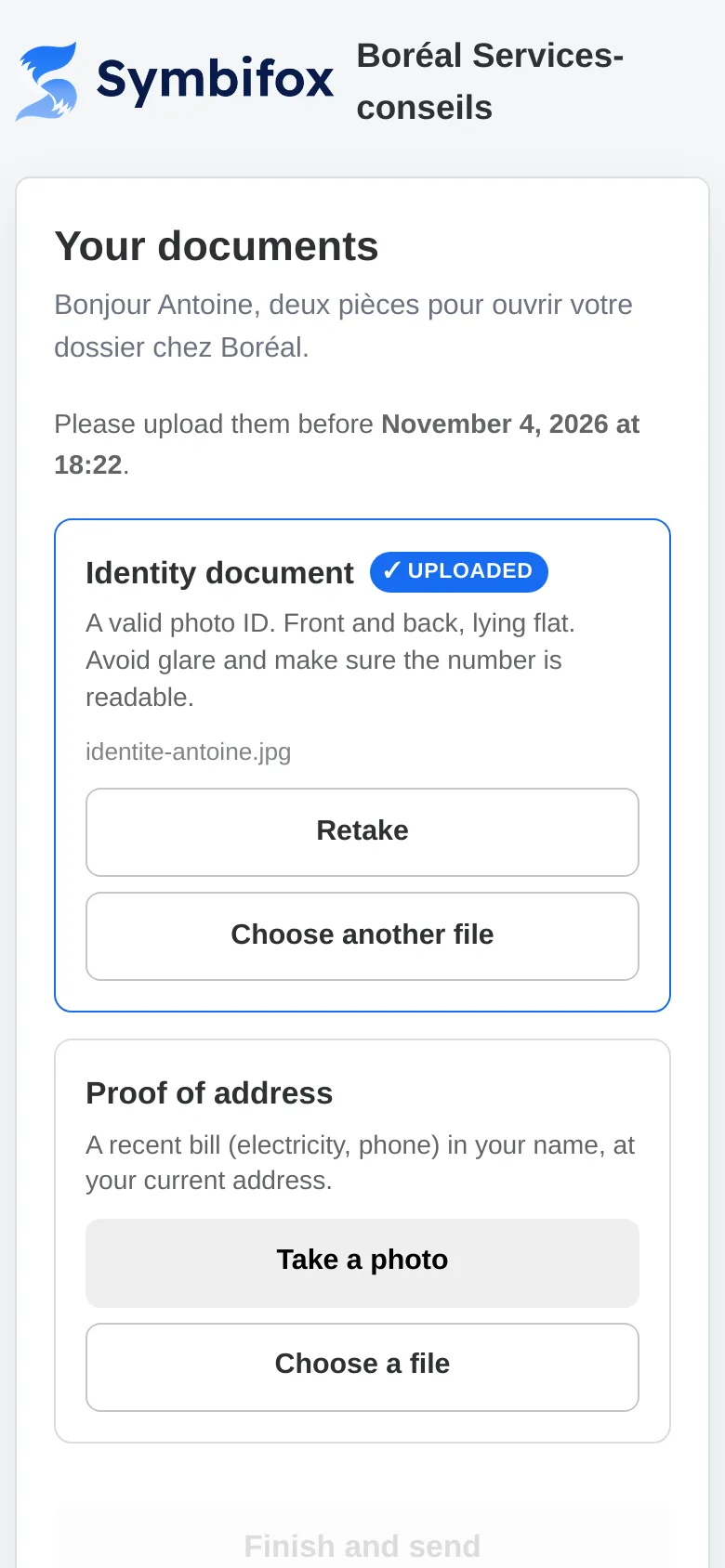
On a phone, Take a photo opens the rear camera directly; Choose a file attaches an image or a PDF. Files go straight from the browser to storage, encrypted: Symbifox does not relay them. A file over 64 MB is refused. A photo can be retaken with Retake until the client selects Finish and send, which only becomes available once the required documents are received.
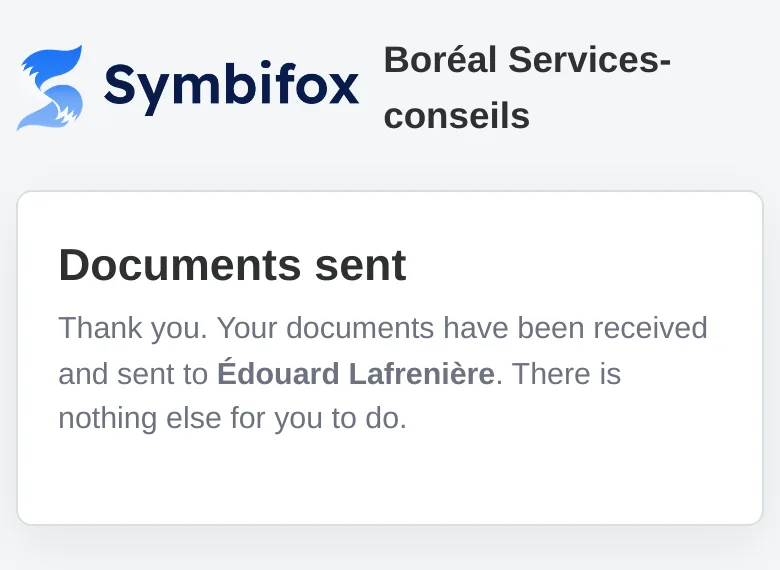
Once the upload is complete, the same address only shows a thank-you: nothing more can be added. A cancelled, expired or replaced link shows "This link is no longer valid.".
Modules that extend this application#
Two bridges connect requests to the Law 25 register. They install on their own when their modules are present.
The register itself, its verification and the retention schedule are described in the Privacy (Law 25 and other frameworks) chapter.
Understanding#
Why the client cannot redirect their own documents. The request creates its transfer on the server side, and the destination is fixed when sending. The client's link opens an upload, never a send: it does not let anyone choose where the files go. This is also why an ordinary employee does not see the link: they trigger the sending, and that is all.
The deadline and the lifetime are two clocks. The deadline bounds the client's response. The lifetime counts from the completed upload and bounds how long the documents are kept. Mixing them up means keeping for thirty days a document you meant to keep for one.
The shortest period wins. A request produces a single transfer. If it mixes a one-day document and a thirty-day document, the whole transfer lives one day. On the demo, REQ/2026/0006 asks for an identity document (short) and two proofs (long): its transfer will live one day. A document without a policy takes the brand's period.
One log. The sending, the opening of the page (once per visit), each uploaded document, the reminders, the completion, the cancellation and the expiry go into the same hash chain as the file accesses. The certificate therefore tells the whole story, and changing a single entry breaks all the following ones. For the same reason, the module refuses to uninstall from a database that keeps requests.
Everyone reads their own language. The page follows the visitor's browser. Emails and text messages follow the language of the client's contact. Log notes and messages from automatic tasks follow the requester. The dates in the email and on the page are given in the requester's time zone.
A changed destination replaces the link. The link may have reached an address that is no longer the right one. Replacing it at once closes that door. The log keeps the new destination masked, and the chatter keeps it in clear.
What the register keeps. The request record, the transfer and the log stay after the purge: only the files leave storage. The register says so through its partial scope. A request cancelled or expired before any photo was uploaded leaves nothing to destroy, hence no entry.
Troubleshooting#
| Symptom | Probable cause | Fix |
|---|---|---|
| Send by text message refuses with a message about VoIP.ms | Text messaging is not set up | Fill in the VoIP.ms settings, or choose "Email" |
| Sending fails for a request that includes a 30-day document | The brand, on the free tier, caps retention below 30 days | Choose a shorter policy, or a brand whose ceiling reaches 30 |
| A red banner says the last link email could not go out | The outgoing mail server refused the address | Correct Email, then Resend by email |
| The client says their link no longer works | Request cancelled, expired, or address changed since | Open the request: remind, extend the deadline, or create a new one |
| Finish and send stays greyed out | A required document is not received yet | Clear Required on the line if the document is optional |
| No automatic reminder goes out | The brand has not turned reminders on, the budget is used up, or the deadline has passed | Check the brand and Automatic reminders; remind by hand |
| A colleague cannot correct the address of a sent request | Only the requester, a manager or the administrator can | Ask the requester or a manager |
| Deleting a line of Requested documents is refused | The client has already uploaded this document | Keep the line: its upload is recorded in the log |
See also#
- Secure transfers: storage, brands, the access log and the certificate.
- Privacy (Law 25 and other frameworks): the retention schedule and the destruction register.
- Contacts: the address book the client's email and mobile number come from.
- SMS, calls and SIP phone: Symbifox's telephony.