
Part 2 · Clients, sales and relationships
Live sessions and the wheel
Run a workshop from an Odoo survey: a deck of slides between the questions, a join code that stays on screen, the word cloud and the written answers on the wall, teams, a podium, and a wheel that draws at random in front of the room.
Odoo can already hold a live survey session: the room joins with a short code, answers on their phones, and the projected screen shows the results. This chapter covers what Symbifox adds so the session runs like a workshop: the slide deck, the join code that no longer leaves the screen, the screens the survey left blank, teams, a podium, and the prize wheel that draws at random in front of the room.
Everything starts from the survey you already have, described in Surveys. Nothing here replaces an Odoo screen: the additions graft onto its own.
Overview#
A live session is a survey whose type, at the top of the form, is Live session. It opens with one button, shows a four-digit code and a QR code, and moves one screen at a time with the keyboard arrow or the mouse.
Three objects join the survey's own. A slide is a section you gave a layout to: it projects between the questions. A team comes from a choice question marked as such: answering joins you to it. A wheel is a list of segments, typed or drawn from elsewhere, that you project and spin.
The session has no menu of its own: it lives in the survey form. The wheel does.
Configuration#
Access and rights#
The session uses the Surveys rights described in Surveys: whoever builds and runs a survey runs a session. No extra group.
The wheel has two, set in Settings › Users, under the Prize Wheel category.
| Group | What it opens |
|---|---|
| User | The Prize Wheel menu, the projection and the draw. The person spins an existing wheel. |
| Manager | Everything above, plus creating and editing wheels and their segments. |
The room needs no account at all: a nickname picked on the spot is enough.
The session settings#
They live in the survey's Options tab, under Live session. The Reference section below lists them.
A slide's layout#
On a survey section, the Slide tab offers a layout: Title, Text, Image, Image and text, or Quotation. A section carrying one projects between the questions. Three fields always show, whatever the layout: the title, the subtitle, then the text from the Description tab. The layout only changes their size and their place.
Two refusals worth knowing, which warn you instead of leaving a hole on the wall:
- a question takes no layout, because it already projects on its own;
- an Image or Image and text slide requires its image.
The question that forms the teams#
On a single choice question, the Form teams from this question box creates one team per suggested answer. The order of the answers decides the colours.
Getting started#
Open the session#
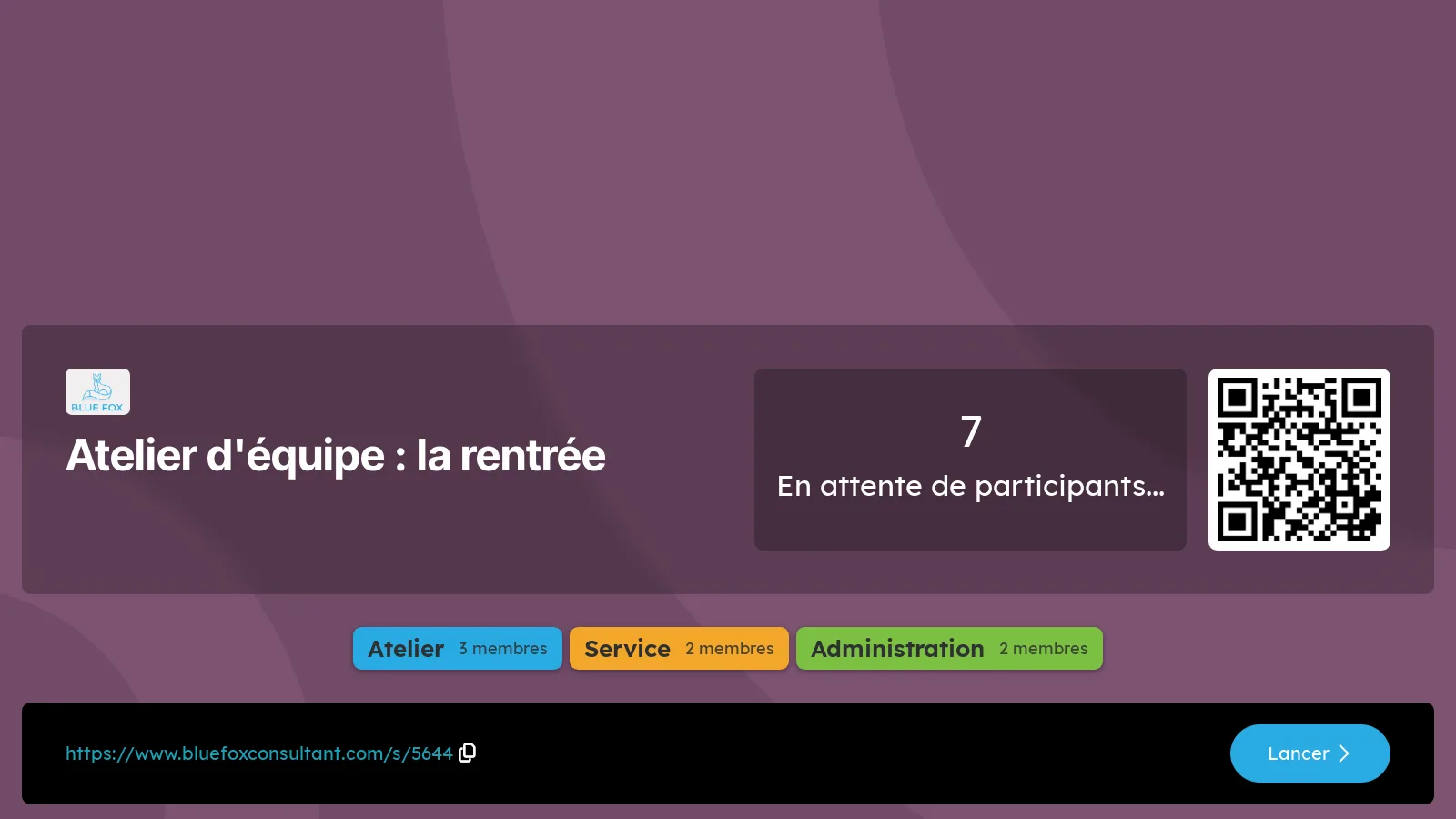
The Start live session button opens the welcome screen. It carries the company logo, the workshop title, how many people are already in, a large QR code, and the team strip with each headcount.
Everyone scans the code from their seat, or types the short address shown at the bottom, picks a nickname, and the counter climbs. No account, no app to install.
Move through the deck#
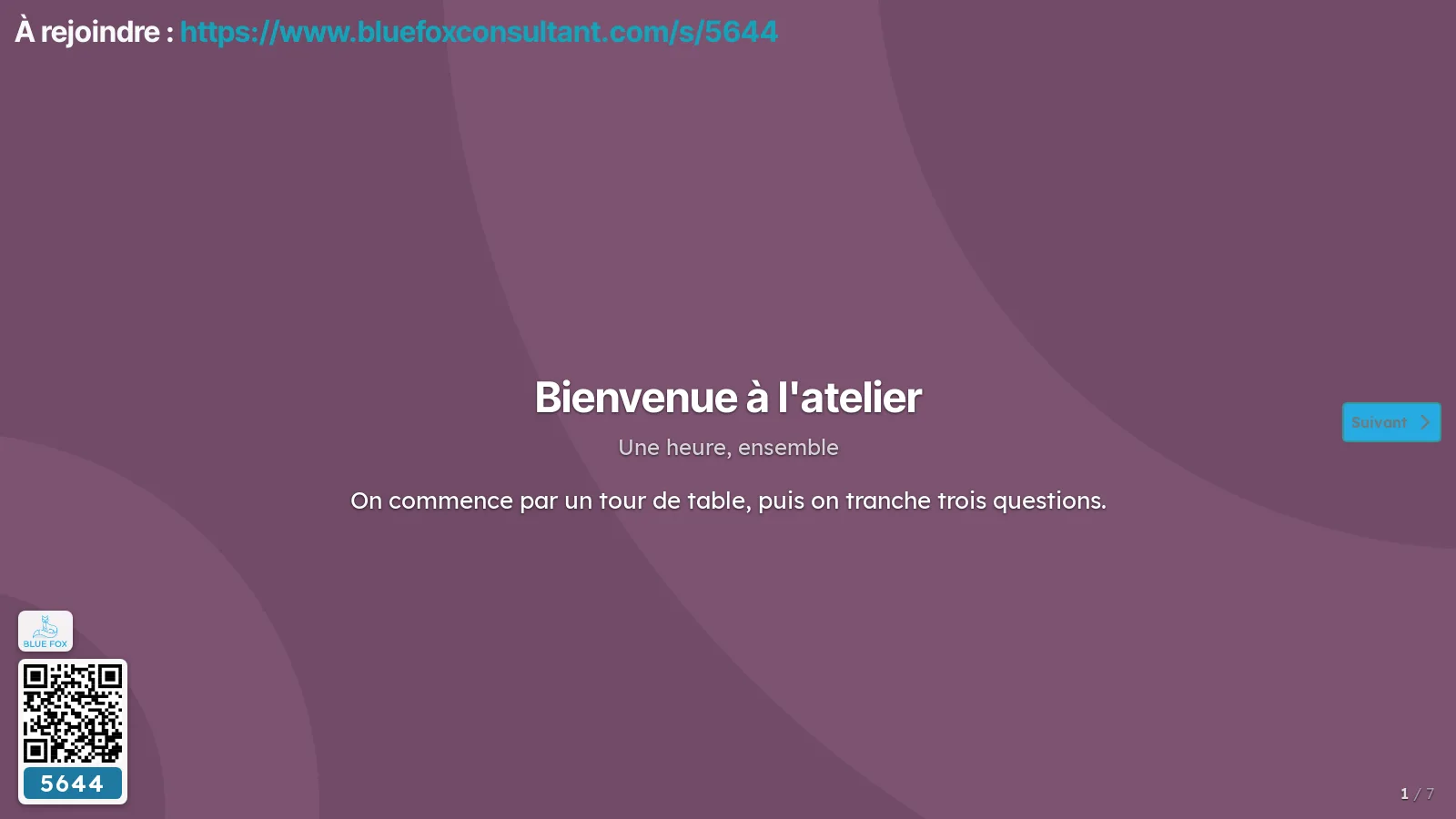
The arrow moves one screen: a slide, a question, a question's results, the leaderboard. The counter at the bottom right always says where you are.
Reveal the answers#
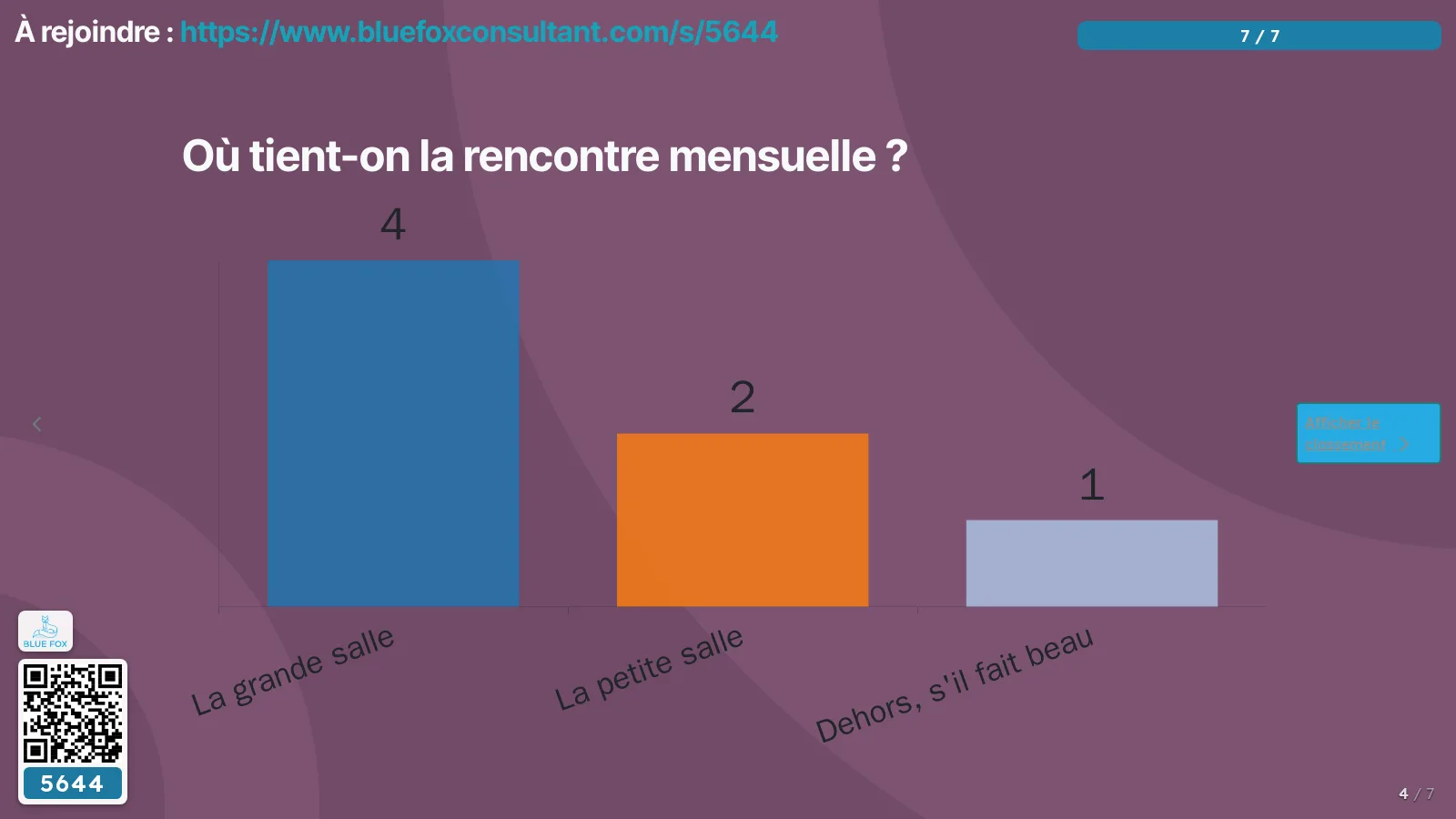
While the room answers, a scored question's screen stays silent: the bars sit at zero, so nobody copies a neighbour. The Show results button on the right opens the populated wall.
Common tasks#
Keep the join code on screen#
Odoo projects the QR code on the welcome screen and never again: from the first question on, whoever arrives late has nothing left to scan. The card at the bottom left therefore carries the logo, the QR code and the code for the whole session. The Join code on screen setting turns it off when it is no longer useful.
Show the written answers#
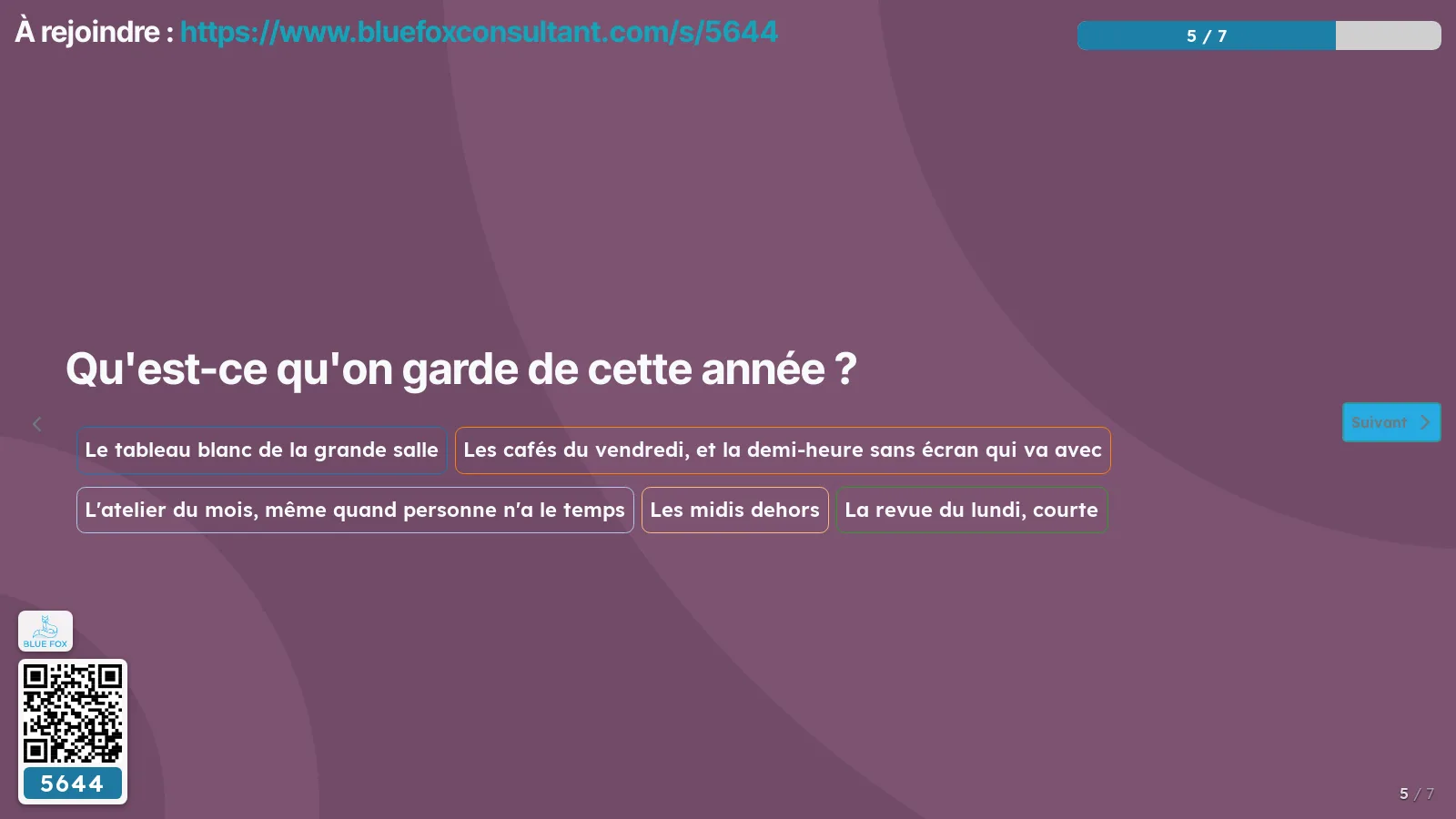
On a long text or numerical question, Odoo's projected screen stayed empty while the room answered. The answers now write themselves there, one per label, with nothing to set.
Show a word cloud#
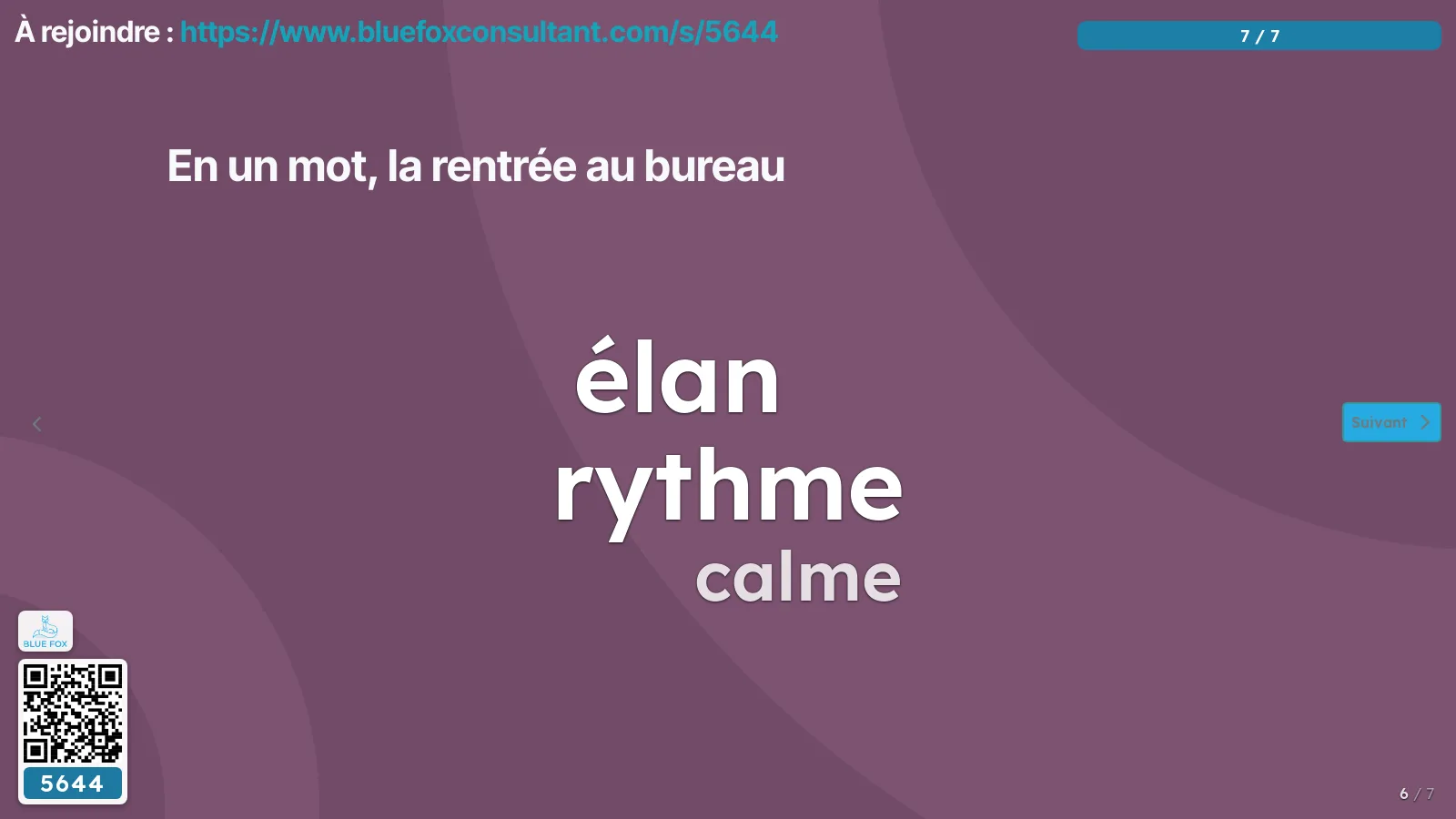
On an open question, the Projected screen field offers Word cloud in place of the labels. The words are counted on your own server, and their size follows their frequency. The Words to ignore field, on the same question, drops the ones that say nothing: articles, first names, the organization's own name. One word per line.
Rank the teams and show the podium#
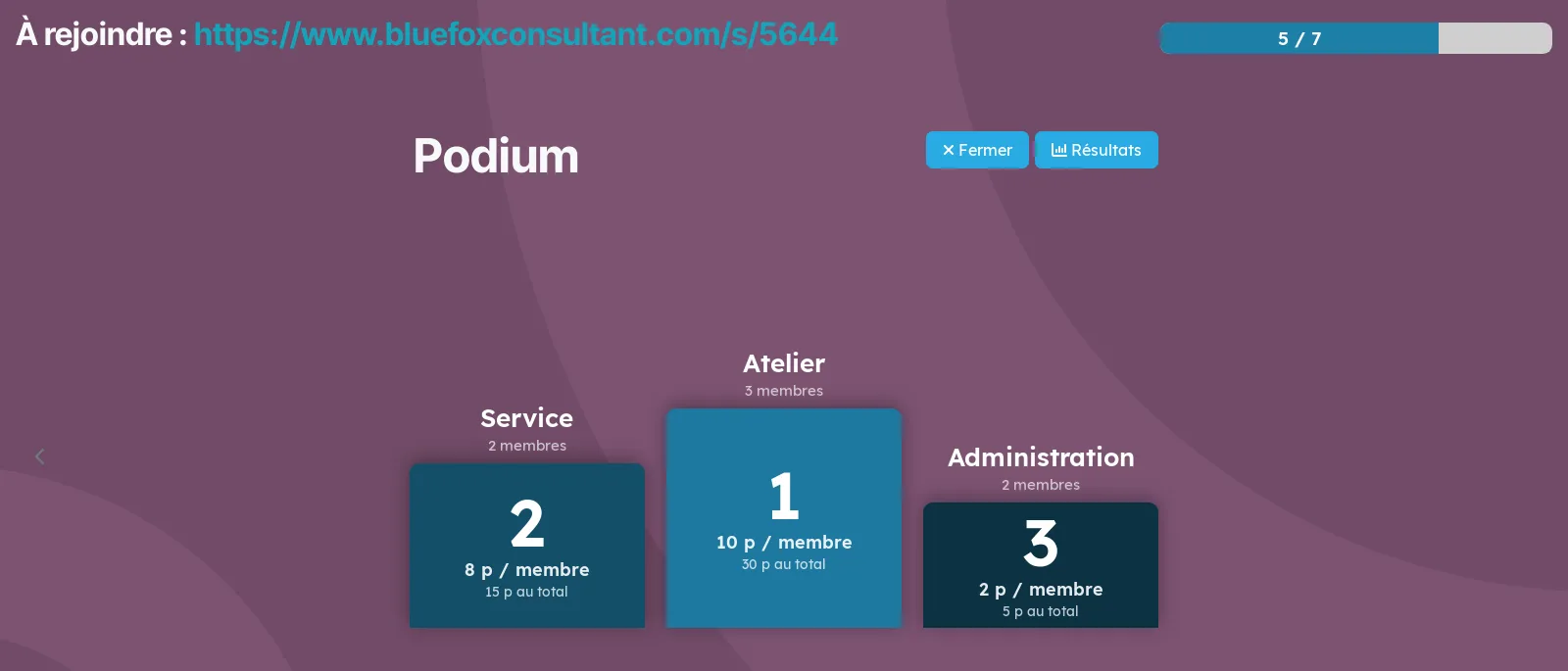
On a scored question, Odoo inserts its own screens before moving on: the answers, then the leaderboard. When the leaderboard is set by team, it shows teams instead of people. When it appears does not change.
Spin the wheel#
The Project button opens the wheel full screen. It spins, slows and stops on a segment. Two settings change the draw: Set aside what came out stops the second spin from giving back the first name, and a segment's weight makes it more likely, which the wheel shows through the segment's size.
Announce the session on the noticeboard#
While a session is open, the survey form offers Announce the session on the noticeboard. The card carries the day's code and the short join link. The gesture and its refusals are described in Noticeboard.
The menus, one by one#
The live session adds no menu: everything happens from the survey form, in the Surveys application.
The wheel adds one, Prize Wheel, with two entries.
| Entry | What you do there |
|---|---|
| Wheels | The list of wheels. You create one, choose its source, type its segments, and project it. |
| Draws | The register of every draw, most recent first. |
Reference#
The session settings#
| Setting | What it decides |
|---|---|
| Session leaderboard | By person, as Odoo does it, or by team. |
| Podium at the end | The last screen puts the top three on blocks instead of the leaderboard's bars. |
| Join code on screen | The card bottom left, with the logo, the QR code and the code. |
| Screen counter | The discreet "4 / 7" at the bottom of the projected screen. |
| Target number of teams | Used when you draw teams at random rather than forming them from a question. |
A wheel's sources#
| Source | What the wheel draws |
|---|---|
| Typed segments | The list you enter, with a weight per segment. |
| Live session attendees | The nicknames of the people who joined the chosen survey's current session. |
| The answers to a question | The answers given to a survey question, weighted if you wish by how many people gave each. |
What a draw's register keeps#
The time, who launched it, the name that came out, the winning segment's rank, how many candidates were in play, the total weight, and which wheel was used.
Modules that extend this application#
| Module | What it adds |
|---|---|
| Live session base | No screen, no menu: the palette of projected colours, the calculation that picks the ink written on them, and the brand ramp the podium takes its three blocks from. |
| Prize Wheel: live session attendees | The two sources that come from a survey: the people in the current session, and the answers to a question. |
| Noticeboard: Odoo surveys | The button that announces the open session on the company feed, with its code. See Noticeboard. |
Understanding#
Why the ranking uses the average#
Teams are ranked by average per member, with the total shown underneath. By total the biggest team would always win: on a "which department?" question, the largest department would take it without having answered better.
Why teams freeze when the session opens#
They freeze when the session opens, not at the first answer. Two people answering at the same time would create the same team twice, and one of the two answers would be dropped. An answer added during the session therefore leaves its author without a team, counted separately on the board rather than lost.
Why the colours are not chosen#
A label read from the back of a room either reads or is useless. The projected hues come from a palette where each sits at a lightness where one of the two house inks meets the accessibility minimum. The podium's three blocks take the company's colour and darken step by step, each step pushed until its ink reads.
Why the join card disappears at the end#
The leaderboard and the podium are the picture people photograph at the end of a workshop. A join code is no longer any use there, and it would take up a corner of the photo.
Troubleshooting#
No leaderboard appears, podium included. The survey has no question marked "save as nickname". Odoo decides that from this question.
The wall stays blank while the room answers. That is intended on a scored question: the bars sit at zero until Show results has been clicked.
Someone has no team. They answered the team question after the session opened, or the answer they picked was added along the way. The board counts them separately.
The session refuses to open. A survey with no question carries no session: add one.
The noticeboard button refuses. Three possible reasons: the survey is a certification, it is restricted to invited people, or its card already sits on another company's noticeboard. The message says which.
The wheel says it has no candidates. Its source is a session that has not started, or nobody has joined yet, or every nickname is empty.
A team's counters do not match the board. The ones on the form cover every session of the survey; the projected board only shows the current one. One is the history, the other the live session.
See also#
- Surveys: build the questionnaire, share it, read the results.
- Noticeboard: announce the open session to the whole organization.