
Part 11 · Retail
Planograms
Draw the shelf from the records (fixtures to scale, facings, capacity in units), then freeze the version the compliance round will be counted against.
Watch it

The Planograms application draws the shelf from the records: which items sit on which fixture, how many facings each one takes, and how many units the shelf holds. It is for the person who decides a store's layout, and for the clerk who fills the aisle from the plan. The result: the capacity of a shelf is computed instead of guessed, and a compliance round is counted against a drawing that has not moved since it was frozen.
A planogram is an elevation, not a floor plan: x runs along the fixture, y rises from the floor. A floor plan says where the gondola stands; this says what sits on it, shelf by shelf, facing by facing. Neither Odoo nor a spreadsheet can say how many units a shelf holds, because nothing in either of them knows how wide a can of beans is.
The module does not depend on the retail suite, and that is deliberate: a pharmacy, a hardware store or a library shelves goods without following a cost or a margin.
Overview#
Three objects, nested, and a fourth thing that never moves again.
The fixture is a gondola, an end cap, a cooler, a freezer, a counter, a checkout display or a wall run. It carries a width, a height and a depth, in centimetres, and an aisle. Picking its kind fills the dimensions that are still blank: a measurement typed by hand is never corrected.
The shelf carries its height from the floor, its usable width, its usable depth, its tilt and the load it is rated for. The list reads from the top down, the way the fixture is read standing in front of it.
The position is a product on a shelf, with its facings (what the aisle sees, side by side), how many stand deep behind each facing, and how many are stacked on top. Capacity is the three multiplied.
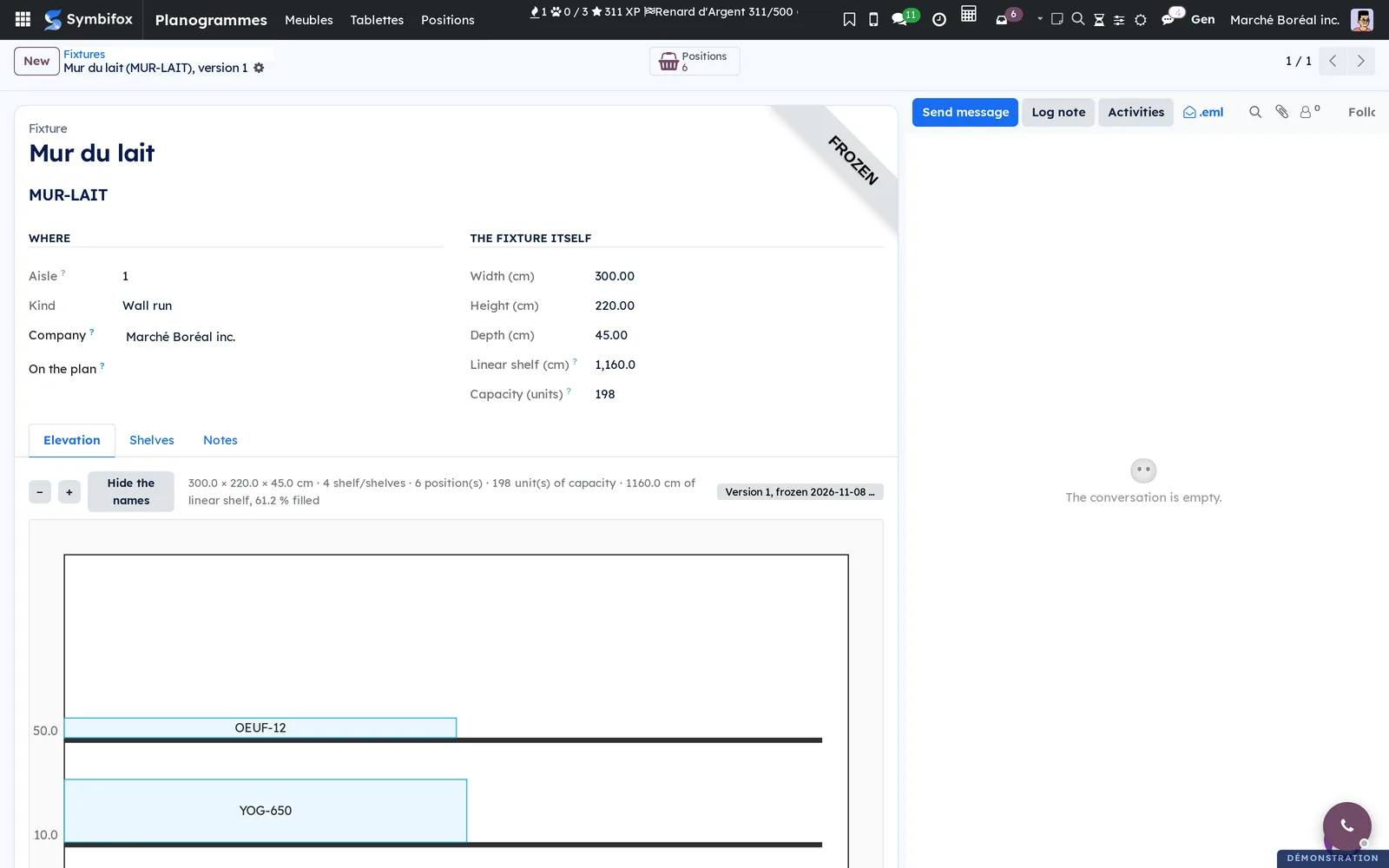
The frozen version is a copy of the fixture, its shelves and its positions, that never changes again. The fixture itself stays editable. The version is what you publish, what you print, and what a round is counted against.
And the bridge to the floor plan (module "Planograms on the floor plan") attaches the fixture to a shape on the store's plan: the plan then says, on the shape itself, what the elevation knows.
Configuration#
Access and rights#
The module creates two roles, under Settings › Users, section Planograms.
| Role | What it can do |
|---|---|
| Shelf reader | Reads the plan and prints it. Changes nothing in the drawing. |
| Planogram manager | Places fixtures, shelves and facings, and freezes a version. |
A facing moved by the person restocking, without the plan being redrawn, is exactly how a planogram stops describing the store. Hence the split.
Base data#
The module adds six dimensions to the product, in centimetres, which Odoo does not carry: the width, height and depth of the selling unit, and the same three for the case. Odoo 18 knows a product's volume and its weight; neither says how wide the box is.
The width a facing takes is read from the product, never typed on the position. Measuring a product once measures it for all of its positions.
A product with no width is not assumed to fit: it would take zero centimetre, and a full shelf would read as half empty. The position is then counted as without dimensions, on the shelf, on the fixture, in the drawing and on the printed plan. The catalogue carries a filter of its own, Not measured for the shelf.
First steps#
This walk-through places a fixture, fills it, and freezes the version the round will be counted against.
- Place the fixture. Planograms › Fixtures › New. Give it a name, a reference, an aisle, and pick the kind: that kind's dimensions are filled in for you, already to scale.
- Add the shelves, Shelves tab. For each one: its height from the floor and its usable width. A shelf wider than its fixture is flagged, not refused: it is a common typo, and it multiplies the linear shelf.
- Place the facings, Positions tab of the shelf: the product, its facings, how deep, how stacked. Capacity and width taken are computed as you go.
- Look at the elevation, Elevation tab: the fixture drawn from the records, with what does not fit flagged rather than hidden.
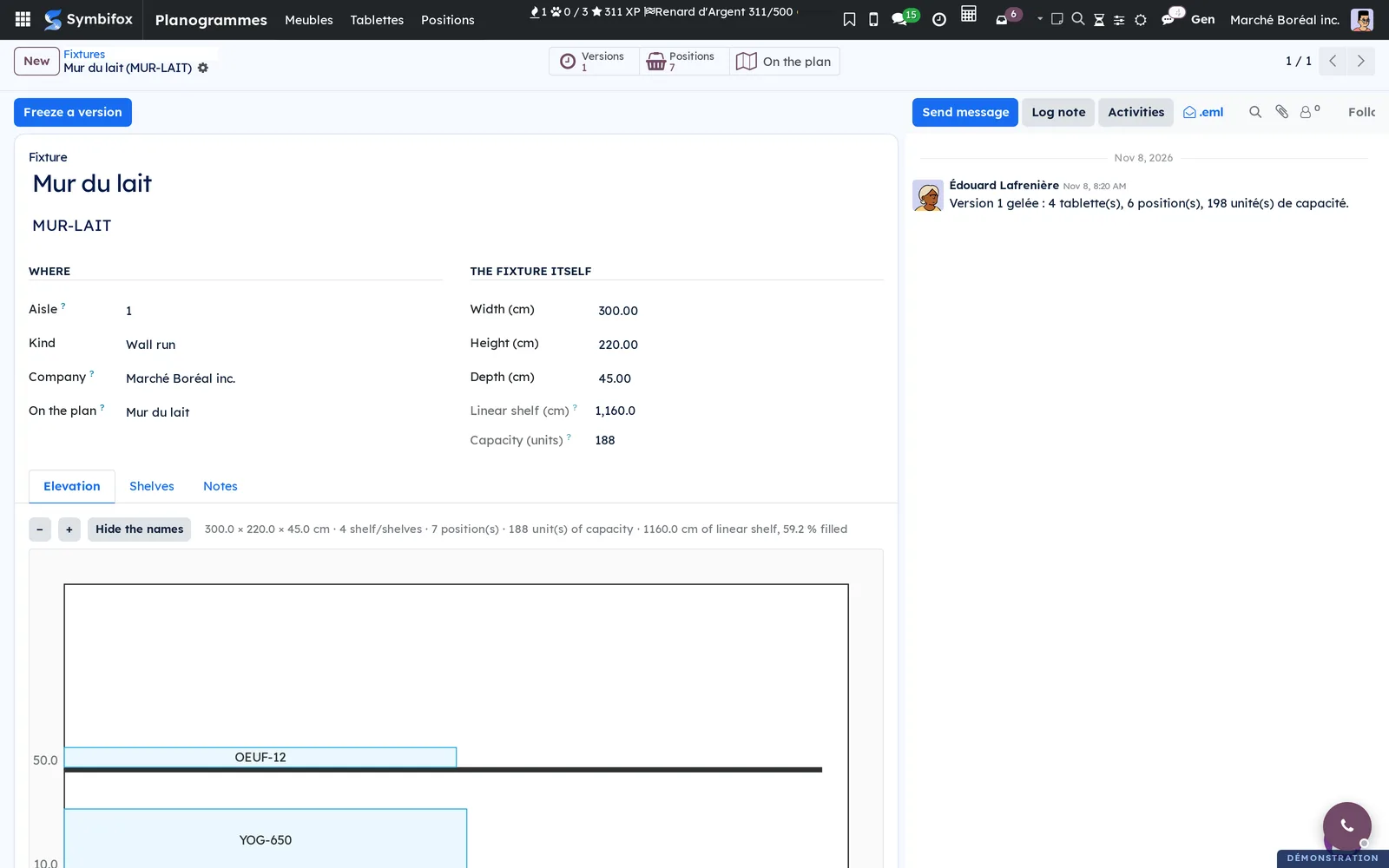
- Freeze the version. The Freeze a version button. The fixture stays editable; the version is closed for good.
- Print. The Planogram report prints the elevation as a landscape PDF, with its legend and its counts.
Everyday tasks#
Measure a product#
Open its record, Planogram tab: the width, height and depth of the selling unit. The width is the only one checked against the shelf: it is what capacity and the linear shelf are made of. Depth and stacking are trusted as typed.
Understand an overflow#
When the facings on a shelf ask for more width than the shelf has, the shelf is overflowing. Nothing is refused: a planogram is built by moving things around, and an editor that refused the intermediate state would force the aisle to be emptied before it could be filled. The overflow is counted, drawn, and said on the fixture.
Move a product along its shelf#
Change the position's order. A position has no free coordinates: its place is its rank and the widths before it. That constraint is what makes the width left, and therefore the capacity, computable.
Attach a fixture to the store's plan#
On the fixture, the On the plan field: the shape of the floor plan it stands on. The On the plan button then opens the plan with that shape highlighted. On the plan, the shape takes the colour of what the elevation knows: red when a shelf is asked to hold more width than it has, amber when a fixture holds products with no width or holds nothing at all, green when a version has been frozen.
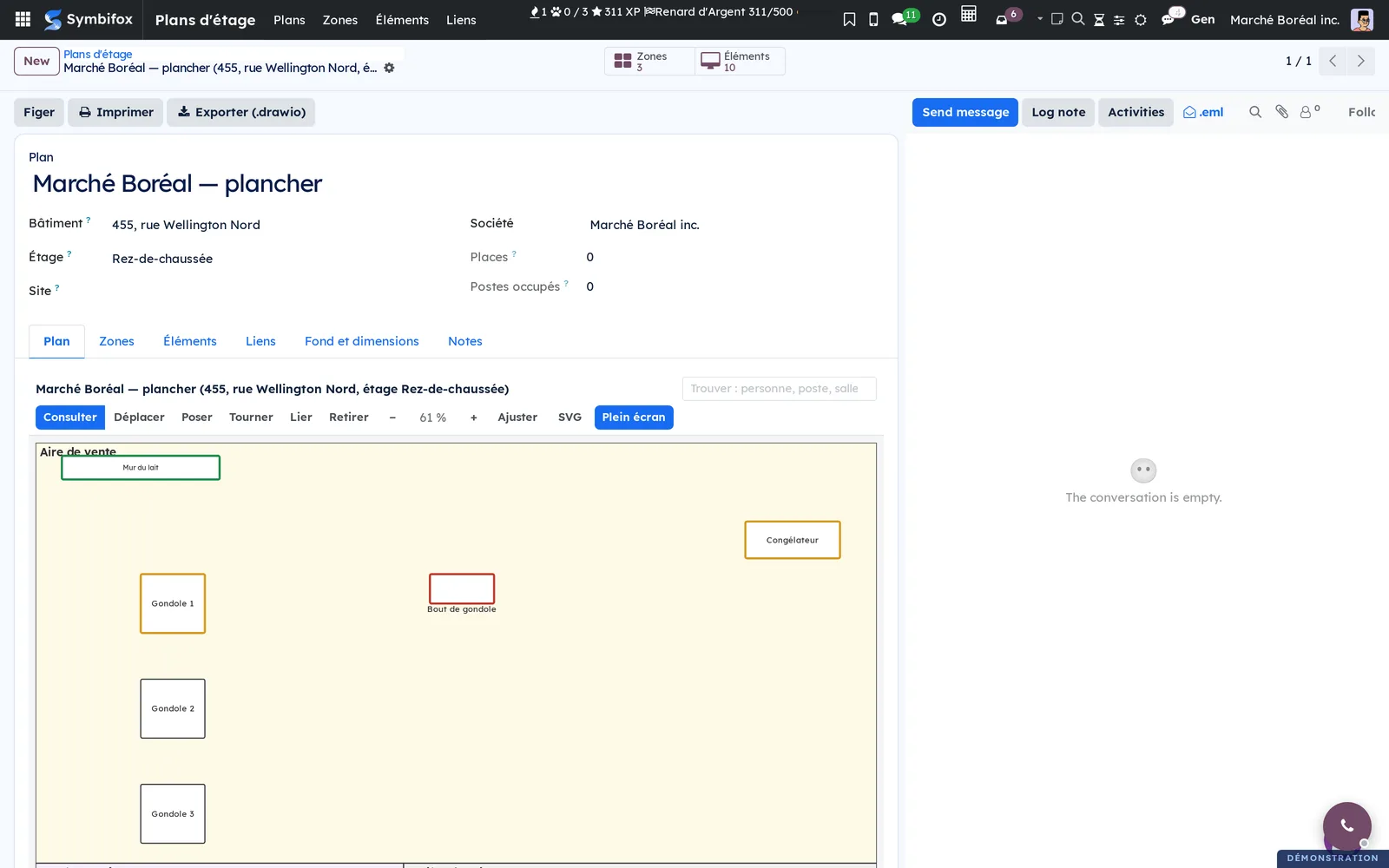
Clicking a shape that carries exactly one planogram opens the planogram rather than the shape.
Freeze a version, and why#
The freeze copies, onto every position, the width and the height the product measured that day, its name and its reference. Rename the product, recode it, correct its dimensions, archive it: the frozen plan still says what stood on that shelf. A round counted against a drawing that moved under it measures nothing.
What the freeze does not copy is the product record itself: the position still points at it, which is why a product on a shelf cannot be deleted.
A frozen version is never deleted either, only archived. And deleting the living fixture leaves its versions standing, each with its number, its date and whoever froze it.
Compare the version with the living fixture#
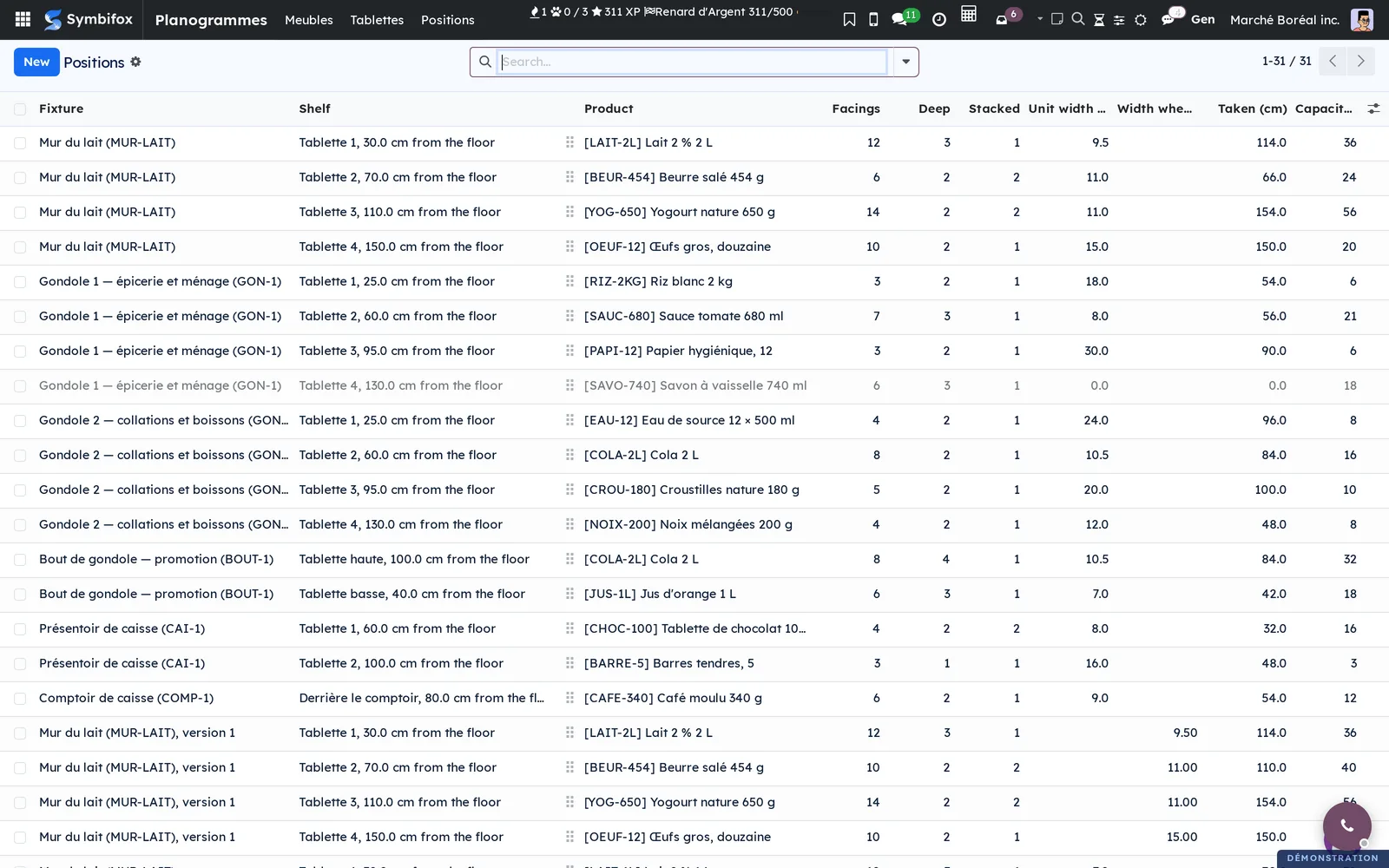
Open the version from the fixture's Versions button. The two records read side by side: the positions as of the freeze, and the positions today.
Find what is not measured#
In the fixtures list, the Without dimensions filter; in the catalogue, the Not measured for the shelf filter. The two answer the same question from both ends.
The menus, one by one#
| Menu | What you do there |
|---|---|
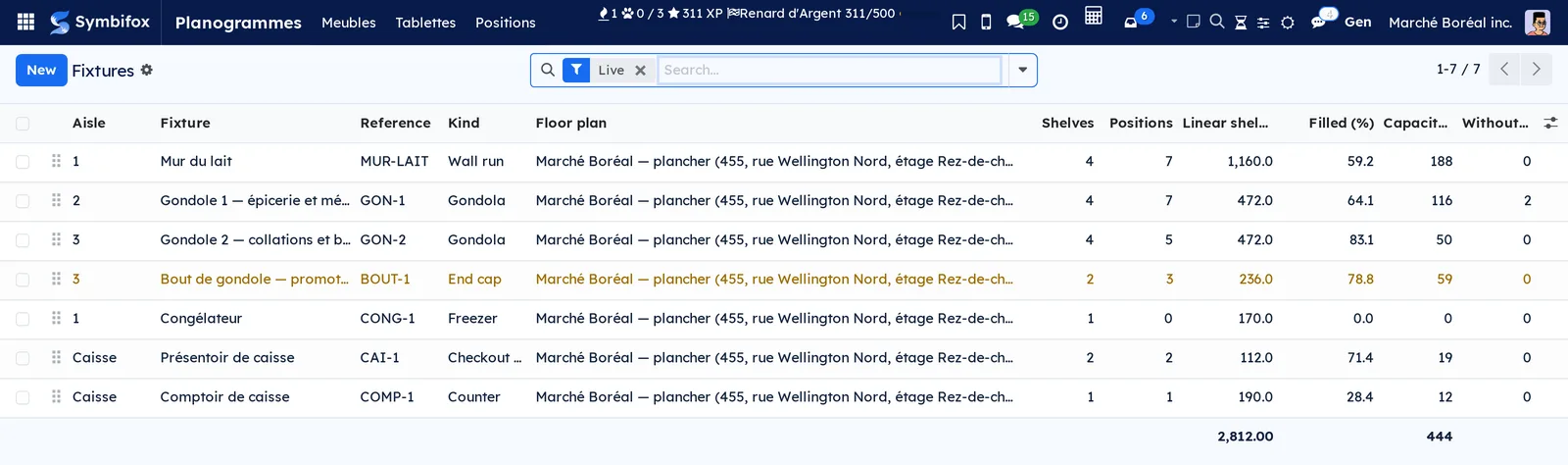
| Planograms › Fixtures | Place a fixture, its shelves and its facings; freeze a version; print. |
| Planograms › Shelves | Every shelf laid flat, to find a usable width or an overflow. |
| Planograms › Positions | Every facing laid flat: which product is on which shelf, and what it takes. |
Reference#
Fields of a fixture#
| Field | What it says |
|---|---|
| Kind | Gondola, end cap, cooler, freezer, counter, checkout display, wall run. It fills the dimensions still blank. |
| Width, Height, Depth (cm) | The fixture itself, to scale. |
| Aisle, Order | Where it stands in the store, and in which order it is read. |
| Linear shelf (cm) | The usable width of every shelf added up. That is the denominator of a space ratio. |
| Taken, Left, Filled (%) | What the facings occupy, what is left, and the proportion. |
| Capacity (units) | Facings × deep × stacked, across every position. |
| Overflowing, Without dimensions | What is wrong, counted rather than hidden. |
| On the plan | The floor plan shape it stands on (bridge module). |
Fields of a shelf#
| Field | What it says |
|---|---|
| Height from floor (cm) | Where the shelf is read from, and what a product's height is checked against. |
| Usable width, Usable depth (cm) | The space actually available, which may differ from the fixture. |
| Tilt (°) | A bread rack leans towards the aisle. |
| Load allowed (kg) | What the shelf is rated for. |
| Wider than the fixture | Flagged, never refused. |
Fields of a position#
| Field | What it says |
|---|---|
| Facings | What the aisle sees, side by side. |
| Deep, Stacked | Behind each facing, and on top of it. |
| Unit width (cm) | Read from the product, never typed here. |
| Taken (cm), Capacity (units) | What the position occupies, and what it holds. |
| Measured | False when the product carries no width. |
| Product when frozen, Reference when frozen, Width when frozen | Filled at the freeze only, and never afterwards. |
Automations#
With no setting at all:
- picking a kind fills the fixture's blank dimensions, and never touches one typed by hand;
- width taken, capacity, left and filled recompute on every change of facing;
- an overflow is flagged on the shelf, on the fixture, in the drawing and on the plan;
- the freeze copies the product's name, reference and dimensions onto every position;
- the floor plan takes the colour of what its planograms say.
What the module does not do#
No pixel editor, and no 3D. A shelf is a comb, not a canvas.
No sales, no ratios. Sales by position, space to sales, space to margin and days of supply need a sales history: they belong to the bridge to the retail suite, not here.
No floor plan either: that is the other geometry, and the bridge carries the link.
What the module writes in the chatter#
Freezing a version leaves a log entry on the fixture: it stays on the record, sends no email and rings no bell. A manager whose user carries no email address is an ordinary thing in a store, and a notification would have made the freeze itself fail for them.
The body comes out in the language of the store the fixture belongs to, not in the language of whoever froze it: what the record keeps is read later, by someone else.