
Part 11 · Retail
Retail prices
Keep every item's cost as a dated series, set a target margin per category, and move shelf prices in a single walk down the aisle.
Watch it

The Retail application keeps what a store pays for what it resells, and the shelf price that follows from it. It is for the person who runs a corner store, a New Zealand dairy or a small grocery, and for the clerk who walks the aisle with the labels in hand. The result: when a supplier puts its price up twice in a month, you see it before the margin has gone, and you pass the increase in one go instead of item by item.
Odoo keeps one cost per item. A single number cannot say that an item went up twice, and that is exactly what has to be known before a price moves. This module does not replace that cost: it keeps a second one, a historical one, beside it.
Overview#
Four pieces, and they follow in this order.
The cost series keeps one row per cost observed: its date, the supplier, the bill that carries it, and the change against the previous cost. It writes itself when a vendor bill is validated.
The target margin is set on the product category and flows down into the categories below it. It is always worked out before tax, so that a price shown with GST and a price shown net of sales tax give the same margin on the same cost.
A price change is a batch: you propose it from the costs, you read it over, you apply it. Between the proposal and the application, anything that moved is refused and named, never written silently.
The journal of shelf price moves records every move of a followed item's price, whether it came from a batch or was typed by hand on the item. It is what the Cost against price index reads.
An item enters all of this through one checkbox: Followed at retail, on the item or on its category.
Configuration#
Access and rights#
The module creates two roles, in Settings › Users, section Retail.
| Role | What it can do |
|---|---|
| Shelf clerk | Reads the label queue and ticks it printed. No cost, no margin. |
| Retail manager | The costs, the target margins and the prices. Writes items, product templates and categories. |
The manager writes items but does not create or delete them: making or removing an article stays with the buyer and the inventory clerk. Neither role implies any group of Odoo's own, so neither opens a menu nobody asked for.
Settings#
Retail › Configuration › Settings, section Retail.
| Setting | Effect |
|---|---|
| Target margin | The company's default margin, as a percentage before tax, when a category sets none. |
| Price rounding | The rounding applied to the proposed price: to the cent, to five cents, to the nine, and so on. |
| Cost goes stale after | The number of days beyond which the current cost is flagged as old, so a proposal does not lean on a stale number without saying so. |
| Minimum gap worth a change | Below this gap between the current price and the proposed one, the item does not enter the batch. A two-cent change is not worth a label. |
All four are per company. Two stores in the same database each have their own.
Base data#
Two things must exist before the first batch.
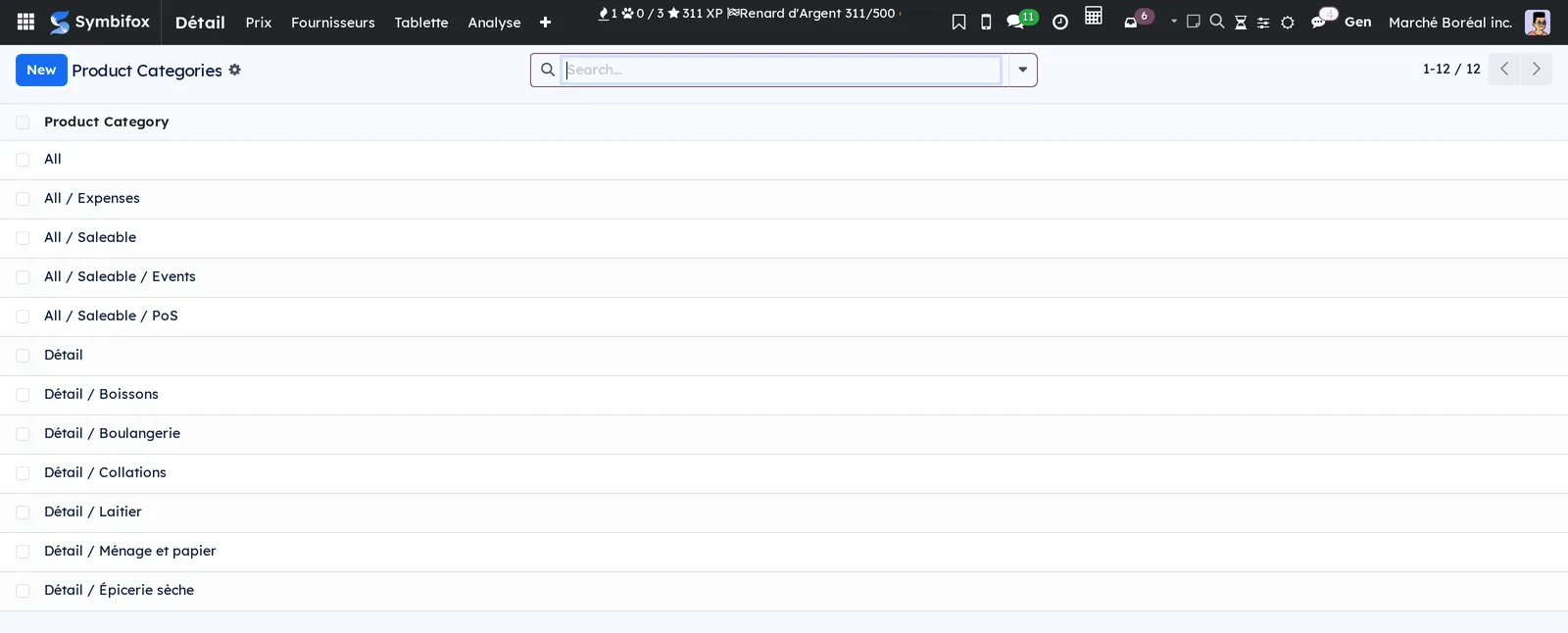
The retail categories (Retail › Configuration › Retail categories) are Odoo's own product categories with three extra fields. Followed at retail brings the whole category in, Target margin and Price rounding set the rule. A category that sets nothing inherits from the one above it, then from the company settings.
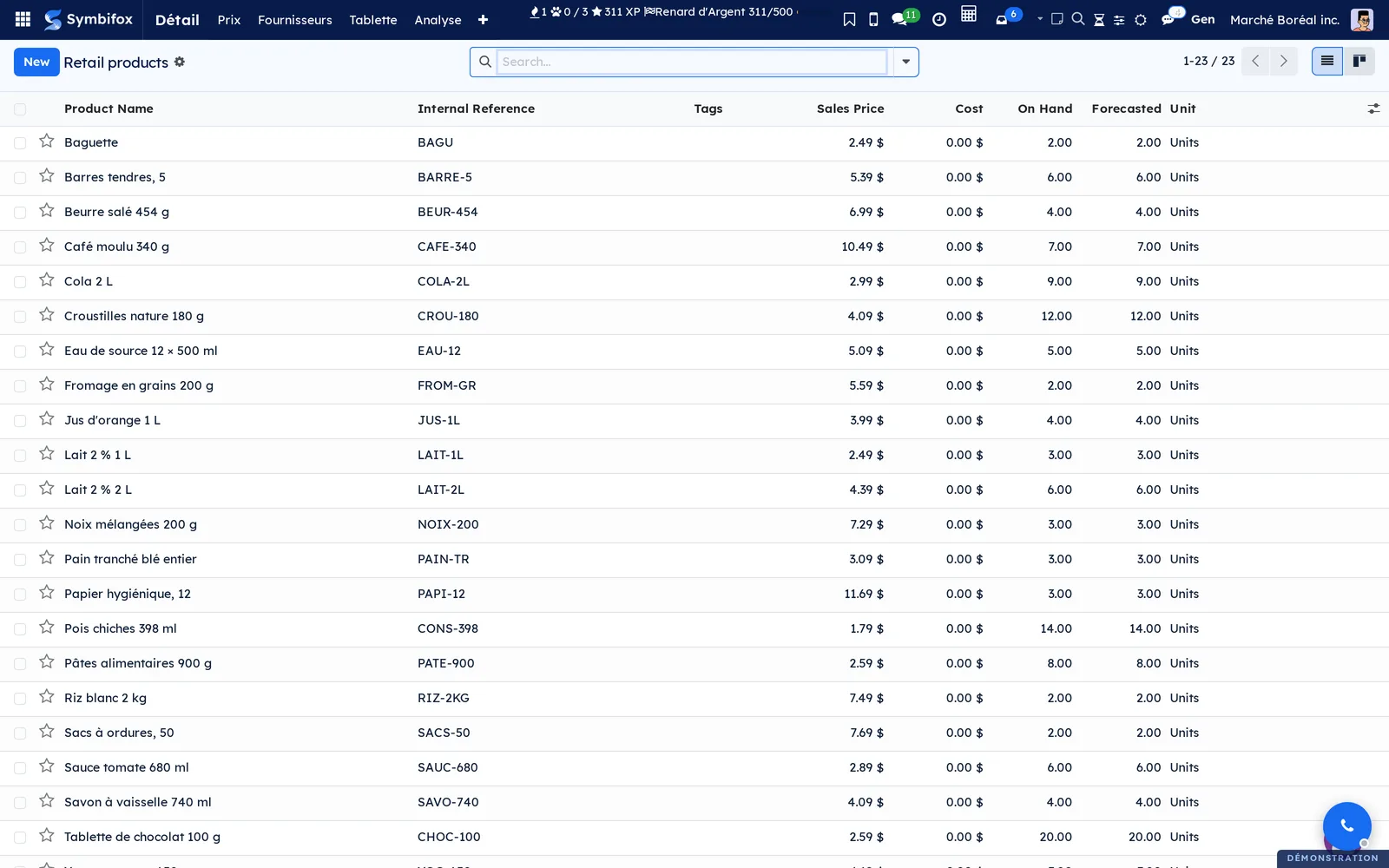
The followed items (Retail › Prices › Retail products): the list of items whose Followed at retail box is ticked, with their current cost, its date, the margin today, the target margin, the proposed price and the gap. This is the screen where drift shows at a glance.
First steps#
This walk passes a supplier increase on three items, from the bill to the label.
- Tick the category. Open Retail › Configuration › Retail categories, pick the one your items sit in, tick Followed at retail and set a Target margin, say 32%.
- Validate the supplier's bill in Invoicing, as usual. Nothing more to do: each item on the bill gets a row in its cost series, net of discount and taxes, in the item's own unit.
 3. Look at the series. Retail › Prices › Cost series, filtered on the supplier: each row carries the cost, its date, the change against the previous one, and a link to the bill.
4. Propose a batch. Retail › Prices › Price changes, New, then Propose from the costs. The batch fills with the items whose gap clears the minimum, with the price before, the proposed price, and the margin before and after.
 5. Read it over and correct it. Change a price by hand if you want: the line is marked decided by hand and will not be rewritten if you propose again.
6. Apply. The Apply button. The prices are written, the journal records every move, and each item goes into the label queue.
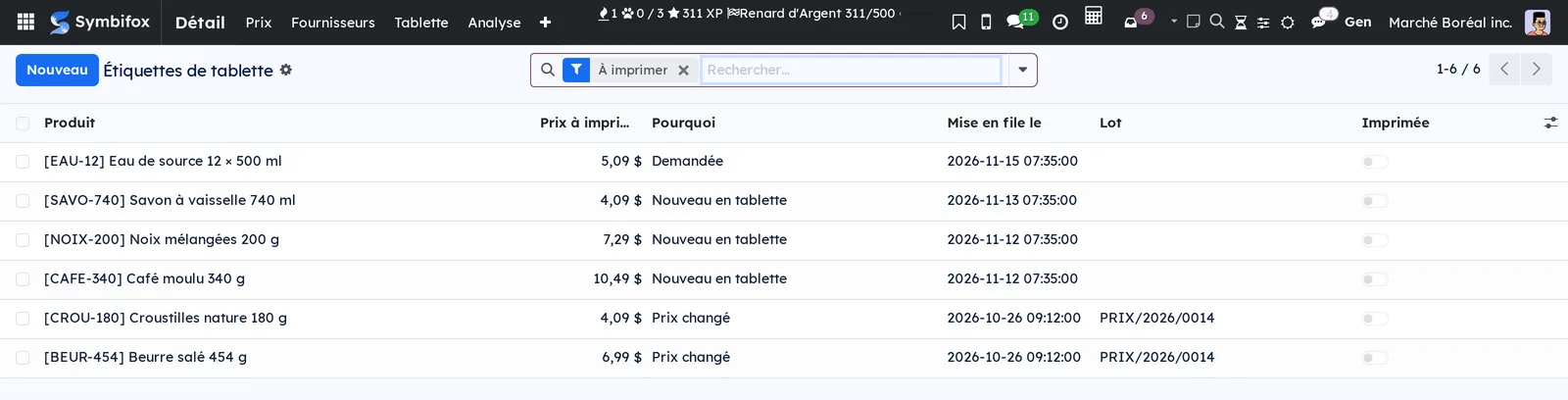
 7. Print the aisle. Retail › Shelf › Labels to print, select, print with Odoo's own label layout, then Mark printed. The queue keeps who ticked it and when.
Everyday tasks#
Follow one item without following its category#
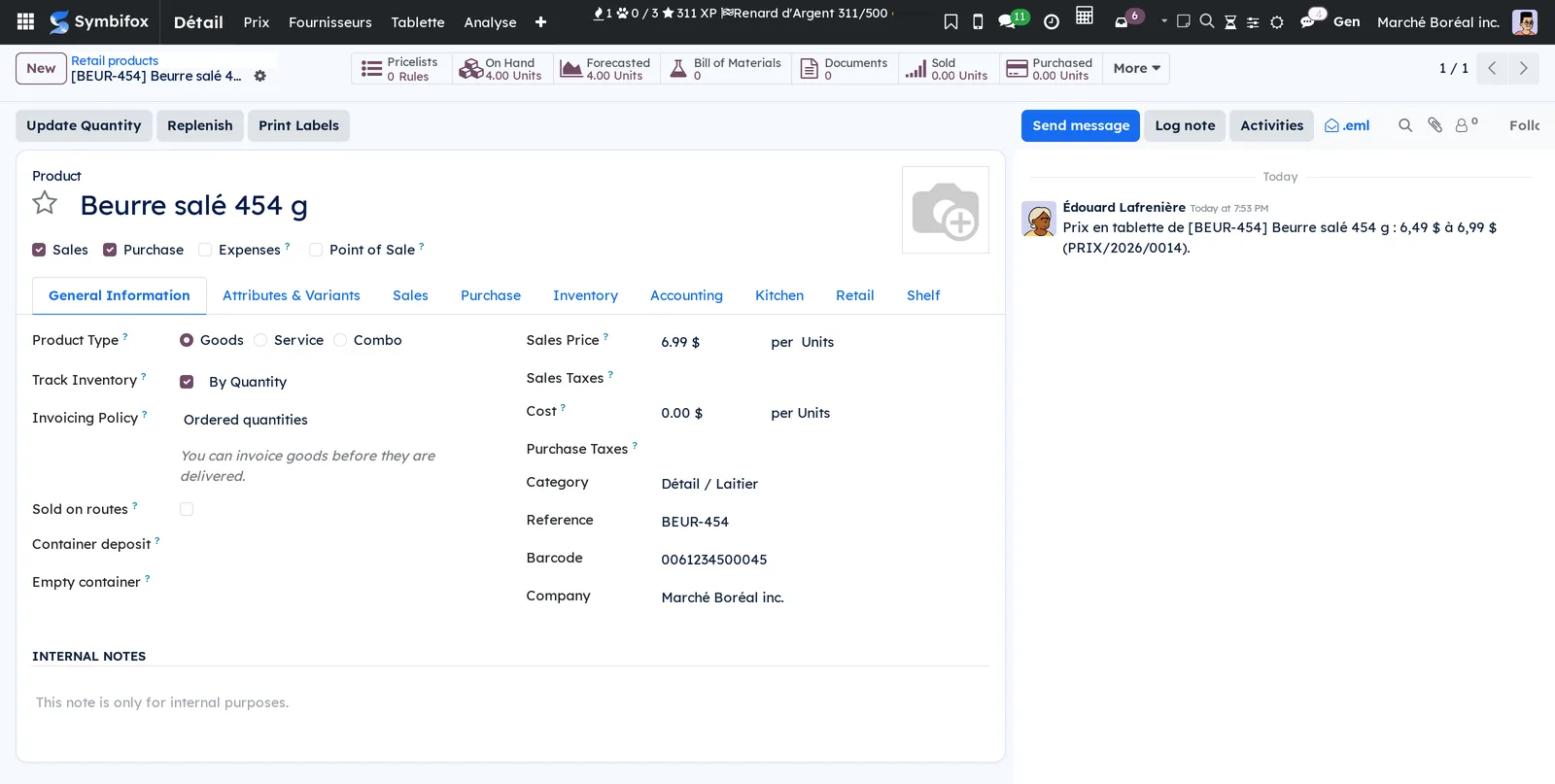
Open the item, Retail tab, tick Followed at retail. The target margin then comes from the category, or from the company settings when the category sets none.
Enter a cost by hand#
Retail › Prices › Cost series › New. Give the item, the date, the cost per unit and the supplier. The source is marked entered by hand, so that later nobody mistakes it for a number that came off a bill.
Date a cost in the future#
A supplier announces an increase for the first of the month? Enter it with that date. It sits in the series changing nothing, and becomes the current cost on the day itself, not before.
Cancel a bill without dirtying the history#
Set the bill back to draft or cancel it in Invoicing: its rows leave the series on their own. The history keeps no cost that no longer exists.
Understand why a line was refused#
At the proposal and again at the application, every line left out is named with its reason. Four cases:
- the price changed since the proposal, by someone else or by you;
- the cost moved since the proposal, so the proposed price is no longer the right one;
- the item is shared: no company owns it while a second store follows the retail. Odoo's sales price is not kept per company, so writing it here would write it there too;
- the variant would drag its sisters. A variant is priced by its own extra; when that is not possible, the module refuses rather than move items you did not look at.
Change one variant's price without touching the others#
Nothing special to do: the batch writes the variant's extra, not the template's price. Its sisters hold still. If the extra cannot reach the price you want, the line is refused and named.
Measure whether you kept up with an increase#
Retail › Reporting › Cost against price. Give a period, press Compute. You get, per category: how much the cost rose, how much the price followed, and the spread between the two. The spread is the number that says where the margin went.
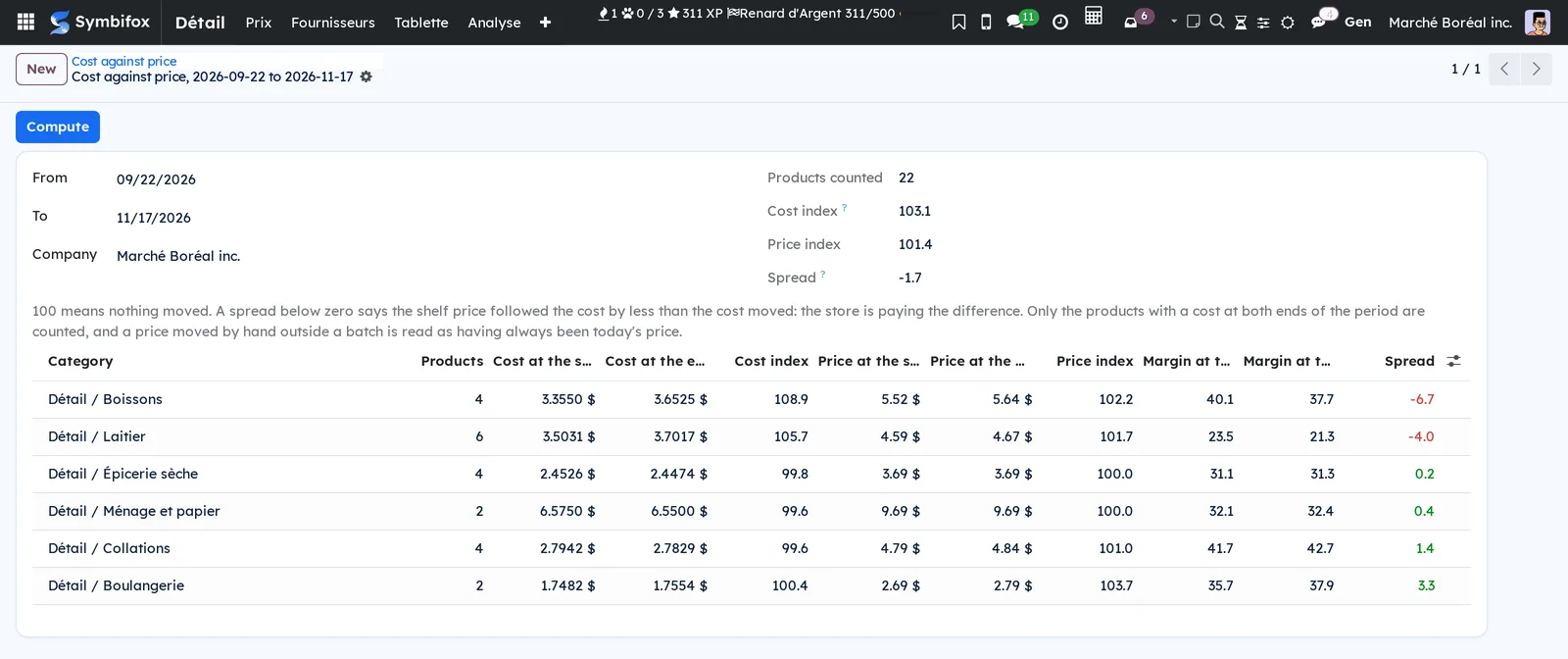
The index reads the journal of moves, not an average: a rise passed by hand counts like a rise passed by a batch.
Redo a batch that has been applied#
An applied batch is not replayed. It stays as the trace of what was decided that day, with the person who decided it and the time it was applied. To correct, make a new batch.
The menus, one by one#
| Menu | What you do there |
|---|---|
| Retail › Prices › Price changes | Propose, read over and apply a batch of prices. |
| Retail › Prices › Cost series | Read the cost history, enter a cost by hand. |
| Retail › Prices › Retail products | The followed items, their margin today and their gap to the proposed price. |
| Retail › Shelf › Labels to print | The label queue, printing, and ticking off. |
| Retail › Reporting › Cost against price | The index per category over a period. |
| Retail › Configuration › Retail categories | Following, target margin and rounding per category. |
| Retail › Configuration › Settings | The company's four settings. |
Reference#
Fields of an observed cost#
| Field | What it says |
|---|---|
| On | The day of the cost. Dated ahead, it waits for that day to become the current cost. |
| Cost per unit | Net of discount and taxes, in the item's own unit. |
| Per | The item's unit, repeated so there is no doubt. |
| From | Bill, purchase receipt, price file, or entered by hand. |
| Supplier, Bill | Where the number came from, with a link to the document. |
| Previous cost, Change, Change (%) | The comparison with the row before, worked out as it is written. |
Fields of a price change line#
| Field | What it says |
|---|---|
| Cost then | The current cost at the moment of the proposal. It is what gets compared at the application. |
| Price before, New price | The shelf price on either side. |
| Margin before (%), Margin after (%), Target (%) | The three margins, all before tax. |
| Decided by hand | Ticked as soon as you change the price yourself. The line is no longer rewritten. |
Fields added to the item#
| Field | What it says |
|---|---|
| Followed at retail | Brings the item into the module. |
| Current cost, Dated, Stale cost | The last cost in force, its date, and whether it is past the age limit. |
| Margin (%), Target margin (%) | The margin today and the one you want. |
| Suggested price, Gap | What the target margin would give, and the distance from the price today. |
Reports and exports#
The Cost against price index exports like any Odoo list, and so do the cost series and the journal of moves. There is no PDF report: these numbers are read on screen and checked against the documents that carry them.
Automations#
With no setup at all:
- a validated vendor bill writes one cost row per item, lines added up, rebates included;
- a purchase receipt counts like a bill, for the store that pays the wholesaler cash;
- a bill set back to draft or cancelled takes its rows out;
- a cost dated ahead becomes the current cost on its own day;
- a category's target margin is inherited by the categories below it;
- every price move is journalled, from a batch or typed by hand;
- an applied price sends the item into the label queue.
What the module does not write#
Odoo's stock valuation cost (the item's standard price) is never touched: your stock valuation does not change hands.
A credit note on its own writes nothing. A return of bread or of milk is not a cost for the next unit. A credit carried as a negative line of the bill itself, on an item that same bill buys, does lower what was paid for those units: that is what the store actually paid.
Shelf space, facings and what each shelf earns belong to the planogram, which is another module.
What the module writes on the record#
The notes the module leaves on a record are log entries, not notifications: they stay on the record, send no email and ring no bell. That is on purpose. A manager whose user carries no email address is an ordinary thing in a store, and a notification would have made the price change itself fail. The cost of that decision is named rather than hidden: in a store with two managers, the one who proposed a batch is not told by email that the other applied it.
And the body comes out in the language of the store, not the language of whoever set the action off. A batch applied at night by a scheduled action, or by a manager working in English inside a French store, reads like every other line on the same record.