
Part 7 · Platform, hosting and artificial intelligence
Symbifox Mobile
The Android app that carries your working day: email and text messages in one inbox, filing into your records, the business line, the assistant, notes and the calendar.
Watch it
Symbifox Mobile is Blue Fox's Android app. It does not put your whole instance in your pocket, and that is deliberate: it carries what a working day asks of a phone. Email and text messages in a single inbox, filing into your records, the calendar, tasks, notes, the assistant and, when your organisation runs a phone system, the calls of the business line. This chapter describes the app from the point of view of the person who receives a phone and has to use it the next morning.
The other Blue Fox Android apps, the browser extension and the scanning page are covered in Mobile apps and browser extension, which also explains how to install them.
What the app provides#
| Section | What you do there |
|---|---|
| Messages | The text messages of the business line, one thread per person |
| The instance's inbox, with reply, forward and attachments | |
| Phone | The keypad, contacts and call log of the business line |
| Gen | Your instance's assistant, with the desktop's conversations |
| Discussions | Your instance's channels and direct messages |
| Calendar | Your meetings, by day, week or month |
| Tasks | Your deadlines and your activities, sorted by day |
| Notes | The note pad, which writes even without a network |
| Timer | The day's and the week's hours, and your pinned tasks |
| Scan | A business card, an invoice, a document or a cheque |
| NFC tags | The organisation's contactless chips, and the log of your taps |
| Tokens | Your one-time codes, produced on the device |
| Account | The device account that grants access to the other apps |
| Recorder | Dictation and meeting recording, transcribed by your instance |
| Archived texts | The full history of the line's text messages |
A section your instance does not offer appears nowhere in the app. If your organisation has no text messaging, there is no Messages tab on your phone.
Pairing the phone with your instance#
The app never sees your password. It opens your instance's own sign-in page in the phone's browser, then receives an access you can revoke.
- Open Symbifox Mobile.
- Enter your instance address, in "https". That is the only thing the app asks for.
- Select Continue, then Sign in.
- Sign in through the browser, as usual, with your password, your identity provider or your second factor.
- A consent page appears. It names your account, the device and the access being asked for. Select Allow.
The page may open a second time. That is not a fault: the app asks for two accesses, one for text messages and one for email, and each leg has its own consent page. Refusing one does not block the other, and an organisation that only has email still signs in.
The bottom bar and the drawer#
The bottom bar carries five icons: four sections of your choosing and, in the middle, the drawer that opens all the others.
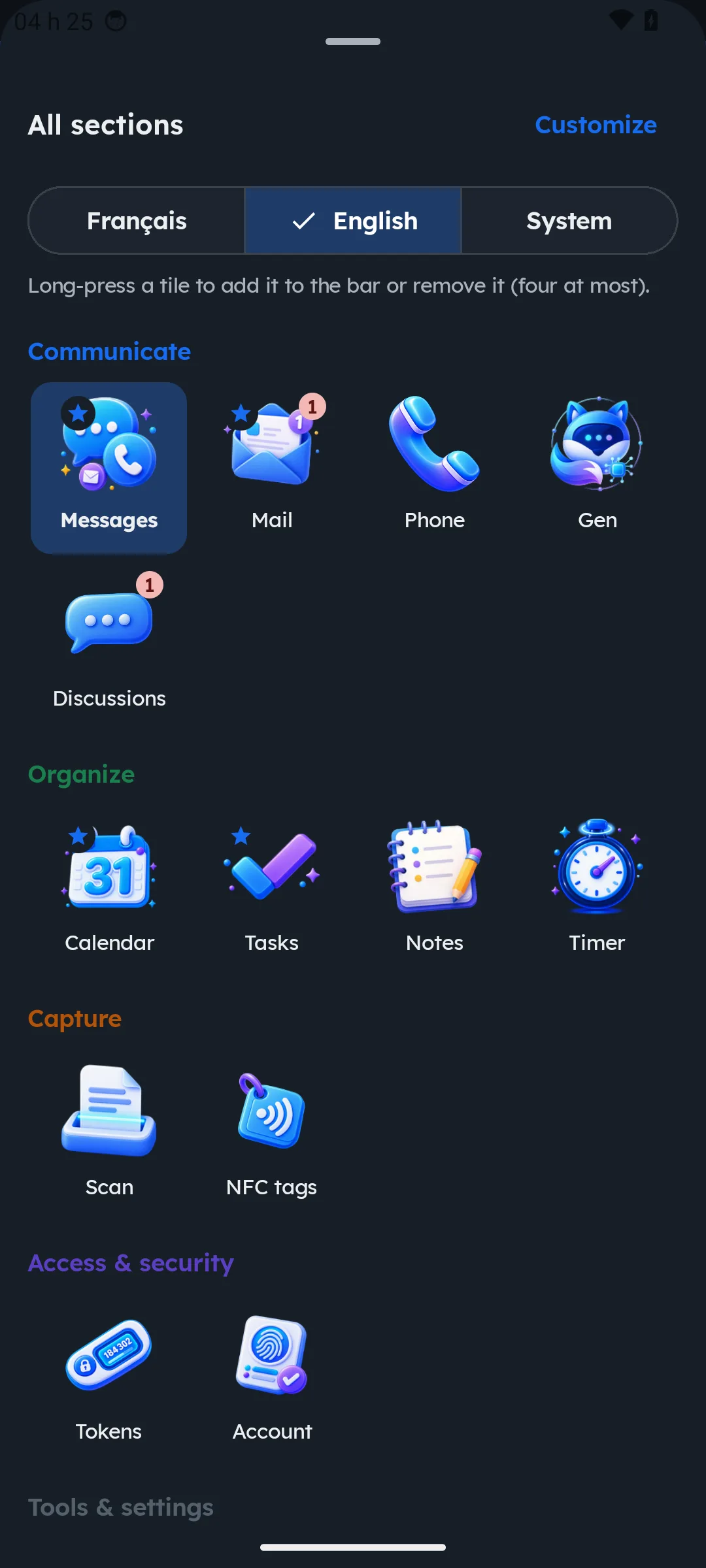
The drawer rises from the bottom of the screen and sorts sections by purpose: Communicate, Organise, Capture, Access and security, then Tools and settings. To change your favourites, press and hold a tile: it enters the bar, or leaves it. The bar holds four at most, and the app says so when it is full. The same list reorders under Settings › Bottom bar, and Back to default favourites resets it.
When a section outside the bar has something new, unread texts or overdue tasks, the counter shows on the drawer icon. Nothing is lost because a section was taken out of the bar. While you type, the bar steps aside and leaves the keyboard all the room.
One unified inbox#
The instance's email and the business line's text messages live in the same inbox, in two tabs, with the same gestures.
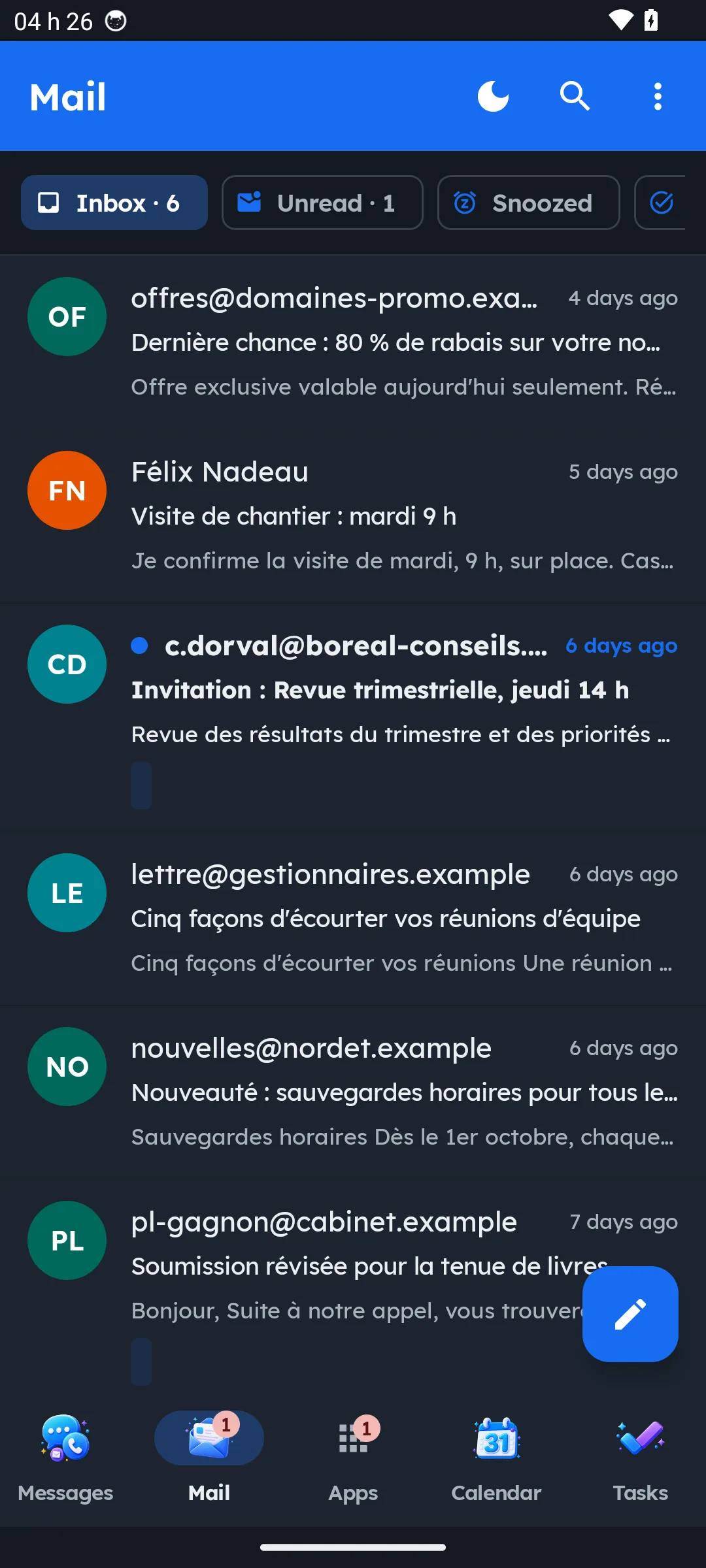
The list filters down to Inbox, Unread and Snoozed. An unread email carries a dot in your organisation's colours, with its correspondent and subject in bold; a thread holding several unread messages shows the count. A thread opens on the most recent message, already expanded; to read it in chronological order, untick Newest first in a thread in the inbox menu.
An open message offers Reply, Reply all and Forward under the text, and Archive to the right of the subject.
Filing a message without going back to the desk#
This is the gesture that changes the day: the message reaches the record while you are reading it, not three hours later, from memory. The Options menu of an open message offers:
- Snooze, which brings the message back in 1 hour, in 3 hours, tonight, tomorrow morning or next Monday.
- Route to a folder, which attaches the message to a record in your instance, found by name, by number or by pasting an address.
- Report…, for spam or phishing, described below.
- Send the email to Gen, which hands the message to the assistant.
- Create in Odoo, which turns it into a vendor bill, an expense, a customer invoice or a lead.
Snoozing applies everywhere: a snoozed message also leaves the desktop list, and comes back at the chosen hour on both sides.
Reporting spam or phishing#
Report… does what the desk does, in three steps. The message goes to your mailbox's own Junk folder. A personal rule can file the sender's next messages there. And a complaint to the authorities is staged as a draft.
Calling with the business line#
When your organisation runs a phone system, the app carries a keypad in its own tab, with contact search and the call log. A call button also appears inside a conversation.
Two paths exist, and the phone picks whichever is available. Either the handset registers with the phone system as an extension of its own and dials directly, or the phone system rings your handset, then dials. Either way, the person at the other end sees the organisation's number, not yours.
An incoming call rings the handset even when the app is closed. Since a registered extension dies with the app, the phone system first asks the server to wake the device: a push arrives, the extension registers again, and the call lands on a full-screen ringing screen, over the lock screen. That screen shows the caller and two buttons, never your conversations.
Dictating, and recording a meeting#
In a text message as in an email, you can dictate instead of typing. The recording goes to your instance's own transcription service and comes back as text. Nothing leaves your premises, and the recording is deleted once transcribed.
The recorder also serves a meeting, with the screen off, or a memo. The server names the file after the event in your calendar, so the recording reaches the right record without you renaming it.
The assistant#
Gen has its own tab, with the same conversations and the same tools as the desktop panel. The answer writes itself as it lands, tools show up as they are called, and each turn shows what it cost in tokens and in time. One button reads the answer out loud; another opens hands-free mode, which listens, answers and listens again, using the phone's own speech engine. Put the phone down while it works: a notification tells you the answer has arrived.
Notes#
The Notes section opens straight onto the text field, because a note that takes three gestures ends up in another app.
- Type your note. The title is optional: with no title, the first line serves as one.
- Select Save. The field empties and stays ready for the next one.
Each note carries its quick actions: Pin, Remind today, Remind tomorrow, Make it a task, Link to a record, Send to Gen and Archive, which can be undone for a few seconds. Android's Share menu offers Symbifox: a link, a text, a photo or a PDF shared from another app becomes a note that is already filled in. A home-screen tile and a launcher shortcut open New note without going through the list.
Scanning#
The Scan section takes four shapes: Business card, which becomes a contact, Invoice, which becomes a vendor bill with its photo, Document, which goes to your notes or onto a record, and Cheque. The photo is taken on the spot with Take a photo, or the file is picked from the phone.
NFC tags#
The NFC tags section serves the organisation's contactless chips, placed on a piece of equipment, a room or a round checkpoint. Bringing the phone close plays the gesture attached to the tag at once, from the section's own home screen as from anywhere else.
Three gestures frame the rest. Read a tag shows what it would do before you rely on it. Write a chip puts a tag, a business card or a Wi-Fi network onto it. My tags lists every tag your organisation has, and My log keeps your last taps.
The calendar and tasks#
The calendar reads in Day, Week or Month, in your calendar's own colours, with each meeting's agenda and minutes. You can postpone a reminder, mark a meeting as seen, confirm your attendance and create a meeting. The calendar re-reads itself as soon as you come back to the screen, then every minute, and as soon as a meeting changes elsewhere.
The Tasks section sorts your deadlines over 7, 14 or 30 days, and See those with no deadline shows the rest. Your Odoo activities appear in the same list, naming the record they point at. A task record offers the description, its activities, a comment on the task's thread and, when the timer is linked to the same instance, Start the timer.
The timer#
The Timer section shows the day's hours and the week's, and keeps your pinned tasks within reach. The timer starts with one tap on the chosen task, and the timesheet fills itself in the instance. A notification and a home-screen tile show the running timer.
Off the network#
A note written without a network, a comment, a snooze, a closed activity: everything is kept on the phone, marked Waiting to send, and leaves when the network returns, exactly once, even if the app was closed in between. Lists also keep their last contents, so a tunnel does not empty the screen.
Language, theme and notices#
The app's language is chosen in the drawer header or under Settings › Appearance: Français, English or System. The change applies at once. On Android 13 and later, the choice also appears in the phone's settings for this app.
The theme is dark by default, in the colours of the instance you are connected to, and changes in the same place.
Notifications do not require a Google account: they travel through a UnifiedPush distributor installed on the phone, ntfy for example. When several are installed, the app asks which one to use, and the choice changes under Notifications › Distributor. On the lock screen, a notification announces a message without showing its contents.
Your one-time codes#
The Tokens section carries the vault of your one-time codes, those of a supplier portal, a registry or a bank. The vault is created from the website: your browser derives its key from a passphrase that never leaves the page, and the instance only receives ciphertext, which it cannot read. The phone receives it sealed and opens it with the same passphrase, or with your fingerprint.
Codes are computed on the device, with no network. While a code is on screen, the app blocks screen capture, and an inactivity delay closes the vault behind you.
Your devices, and cutting an access#
Each pairing creates a device record, visible on the My devices page of the portal. Revoking a lost phone's access takes one gesture there, without touching your other devices. The app then stops receiving, and asks to be paired again the next time it opens.
Known limits#
- There is no version for iPhone or iPad. On those devices, Symbifox is used in the browser.
- The app requires Android 8 or later.
- The text you type on the phone is plain text.
- The app carries the working day, not the whole instance: accounting, reporting and configuration stay on the workstation.
Troubleshooting#
The app stops on "No mailbox is attached to this account". Your account has no mailbox configured in the instance. The text message tab still works.
The sign-in page keeps coming back. Your instance may be refusing the app's redirect scheme. Ask your administrator to check the allowed schemes.
Notices do not arrive. Check that a UnifiedPush distributor is installed and chosen under Notifications › Distributor.
Sign-in is refused although the password is right. After several failed attempts, the instance freezes sign-ins for a minute. Wait, then try once.
See also#
- Mobile apps and browser extension, to install the app and for its sister apps.
- Email, for what the inbox does on the workstation.
- To-do, Notes and Timer, for notes and the timer at the desk.